Feature Summary
The sync folder supports bidirectional real-time synchronization between a specified local folder and the Cloud, enabling real-time file updates across devices. It is suitable for work scenarios that require frequent file sharing among multiple devices.
Feature Description
| Feature Dimension | Description |
|---|---|
| Membership Limit | Non-members can add 1 sync folder; after subscribing to WPS Membership, up to 5 can be added |
| Version Limit | No version limit |
Operation Steps
Add a Sync Folder
Feature Entry
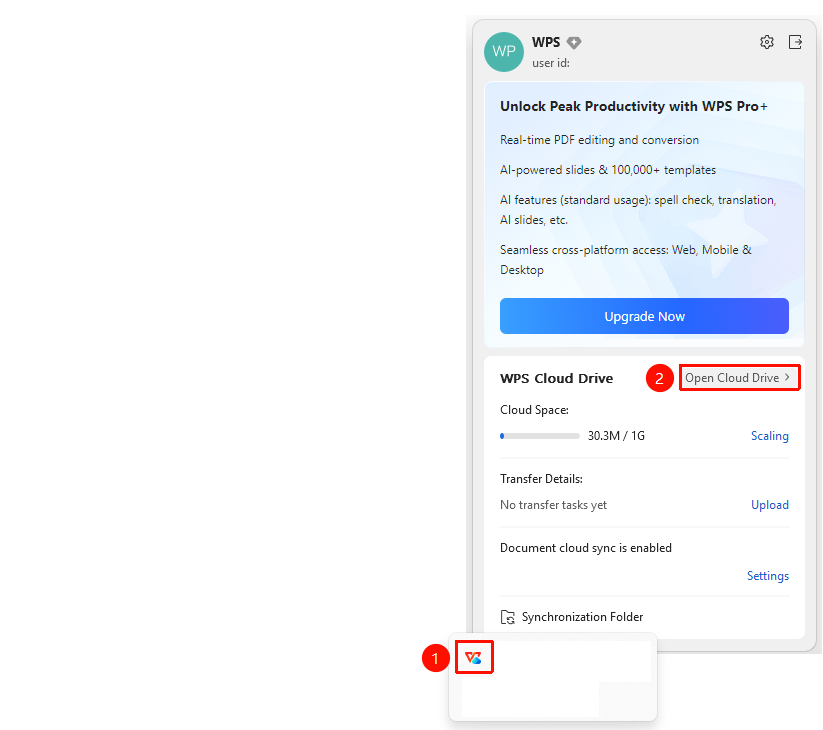
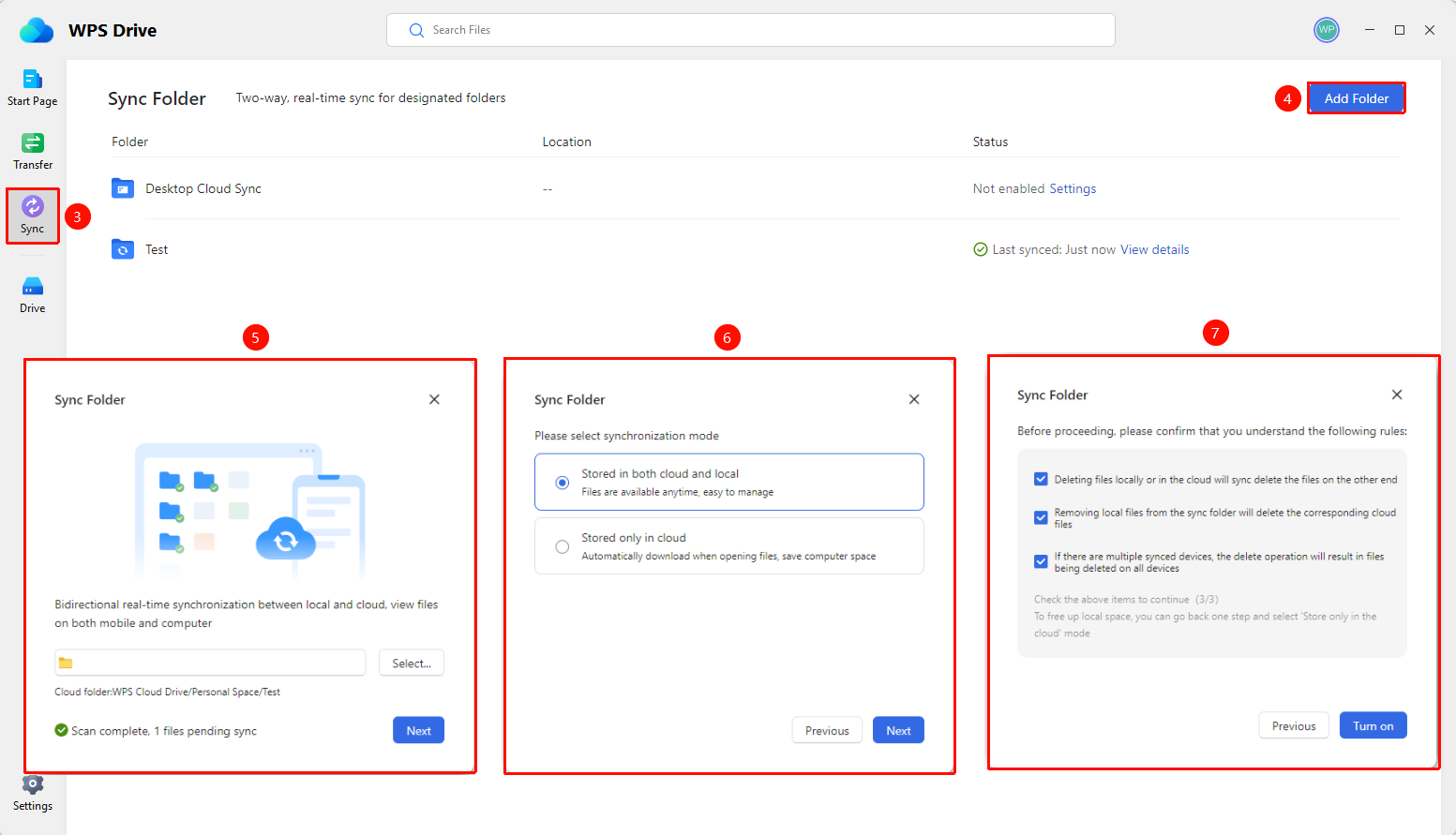
WPS Drive → "Sync" tab → "Add Sync Folder" button → Select "Sync Mode" → Read sync rules to complete synchronization
- Open WPS Drive and click the "Sync" tab in the left navigation pane.
- In the upper right corner of the page, click the "Add Sync Folder" button.
- The "Sync Folder" dialog box pops up. Click the "Select..." button.
- In the "Select Folder" dialog box that appears, browse and select a local folder, then click "Select Folder".
- After selection, the dialog box displays the scan results (number of files, number of files to be synced). Click "Next".
- On the sync mode page, select one of the following modes:
- "Store both on Cloud and locally" —— Files are always available and easy to manage.
- "Store only on Cloud" —— Files are automatically downloaded when opened, saving computer space.
7.After selecting, click "Next".
8.Carefully read the sync rules:
- Deleting a file locally or on the Cloud will synchronously delete the file on the other end.
- Moving a local file out of the sync folder will delete the corresponding Cloud file.
- If multiple synced devices exist, the deletion operation will cause the file to be deleted on all devices.
9.Check all three rules and click the "Enable" button.
10.After setup is complete, the dialog box prompts "Setup complete. Local and Cloud modifications will be synchronized bidirectionally."
View Sync Folder List
Feature Entry
WPS Drive → "Sync" tab → Sync folder list
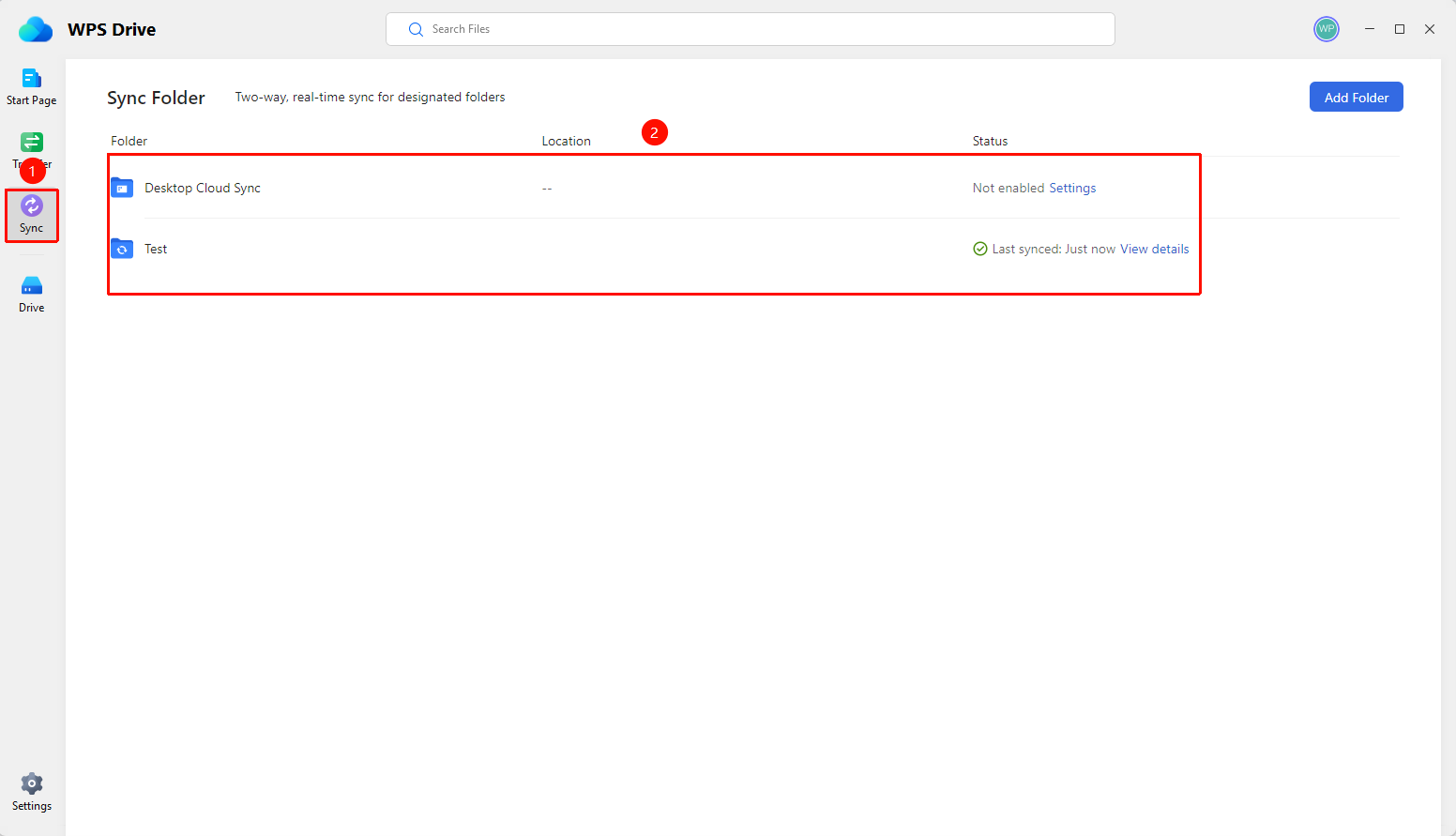
- Open WPS Drive and view the list of added sync folders in the "Sync" tab of the left navigation pane.
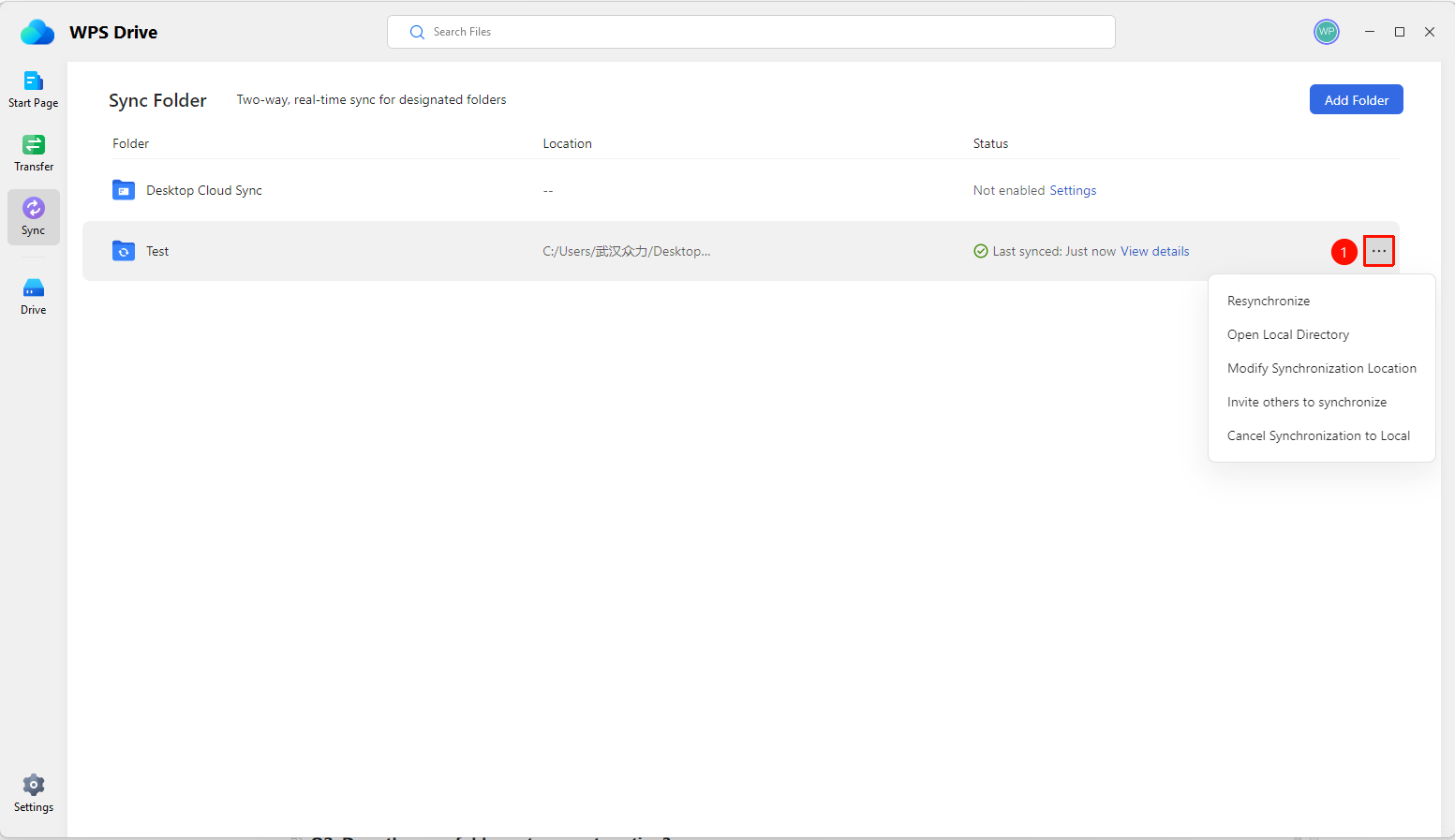
- The list displays each sync folder's Folder Name, Location, Status (Not Enabled/Sync Time), and "Settings"/"View Details" links.
- For folders that are not enabled, click "Settings" to complete the configuration.
View Sync Details
Feature Entry
Sync folder list → "View Details" link
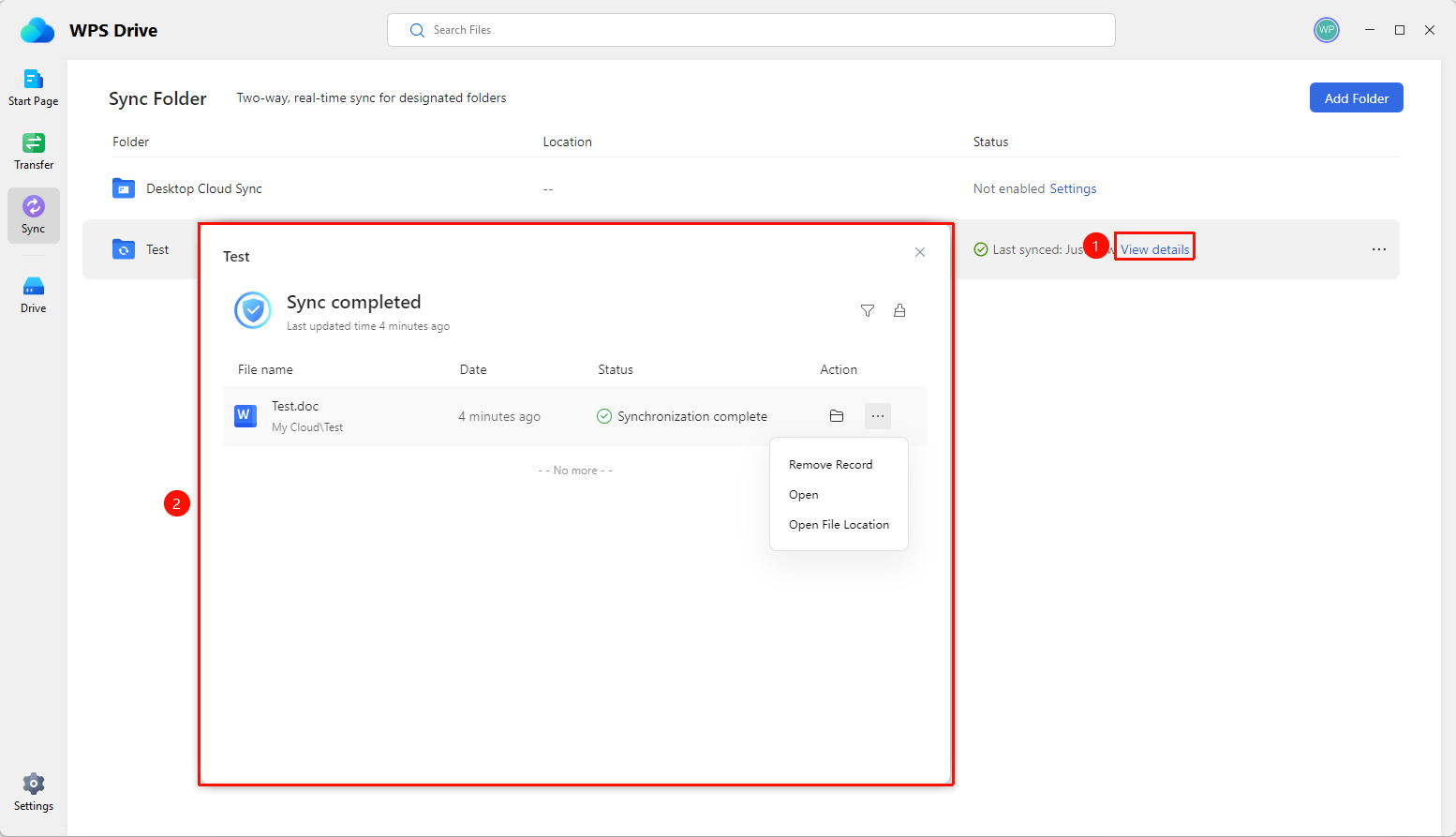
- In the sync folder list, click the "View Details" link in the status column of the target folder.
- A details window pops up, displaying the sync status (Sync Completed) and the last update time.
- The file list includes: File Name, Date, Status (Sync Completed/File Name Conflict), Actions (Folder Icon/More button).
Manage Sync Folder
Feature Entry
Sync folder list → Target folder → "More" button (three-dot icon)
- Click the "More" button (three-dot icon) on the right side of the target folder.
- In the pop-up menu, you can perform the following operations:
- Resync —— Execute synchronization again.
- Open Local Directory —— Open the local folder in File Explorer.
- Modify Sync Path —— Change the storage location of the local sync folder.
- Invite Others to Sync —— Generate a sharing link to invite other members to sync this folder.
- Cancel Sync to Local —— Cancel the sync settings for this folder.
FAQ
Q1: What should I do if the sync folder does not display the sync icon?
- Solution: First, check if any security software has blocked WPS Cloud-related processes. Check if any WPS Cloud processes are prohibited from starting in the startup items, and unblock them.
Q2: Does the sync folder not support nesting?
- Solution: Sync folders support nesting. Subfolders can be stored within a sync folder.
Notes
- Deleting local or Cloud files will synchronously delete the files on the other end. Please confirm before proceeding.
- In "Store only on Cloud" mode, files are automatically downloaded only when opened, which is suitable for users with insufficient disk space.