Feature Summary
Supports uploading local files or folders to WPS Drive for storage, making it easy to view and edit documents across different devices.
Feature Description
| Feature Dimension | Description |
|---|---|
| Membership Restriction | No membership restriction |
| Version Restriction | No version restriction |
Steps
Upload from WPS Drive Homepage
Feature Entry
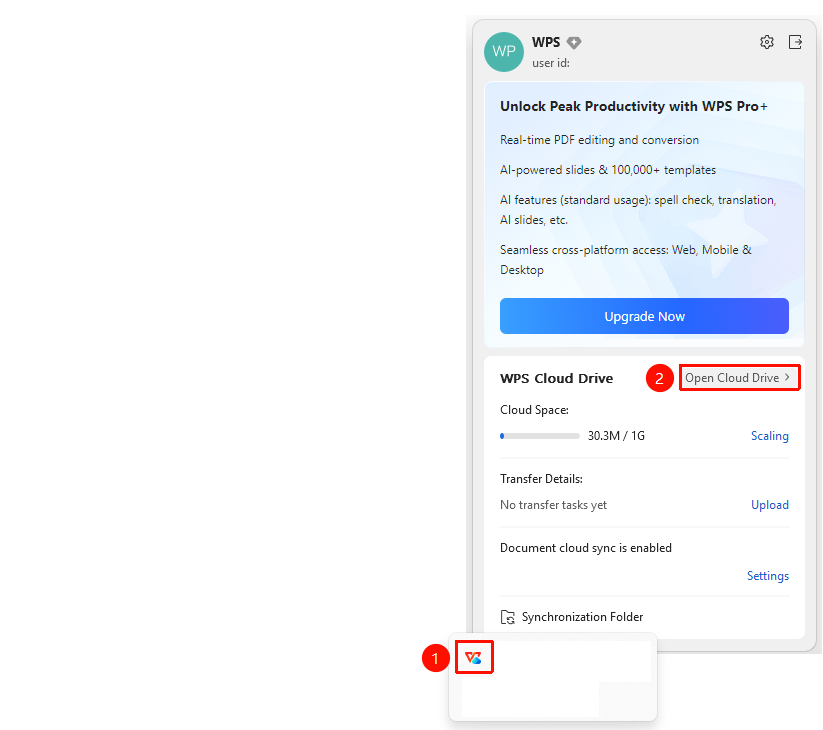
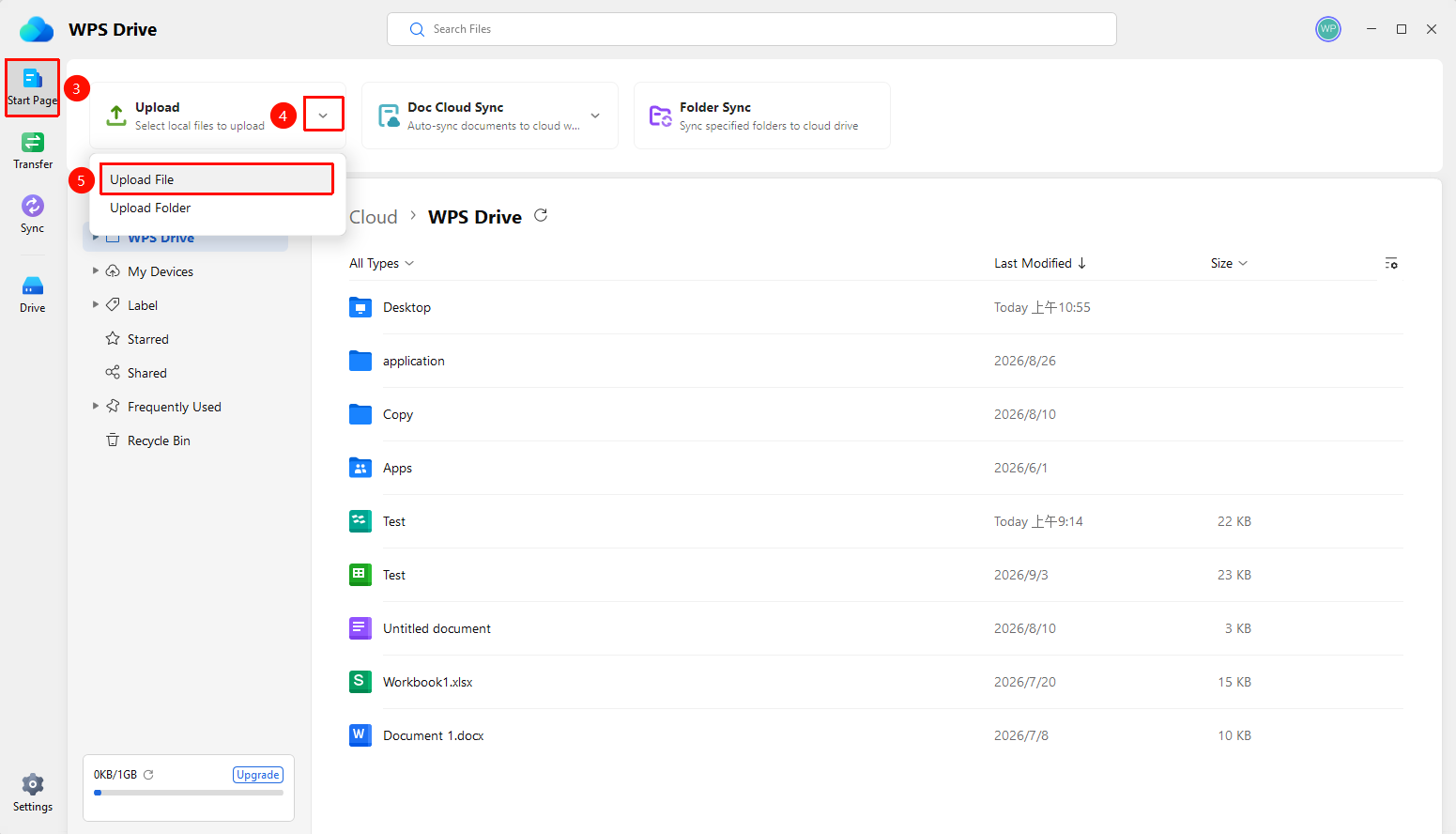
WPS Drive → "Home" tab → "Upload" dropdown arrow → "Upload File" option
- Find the "WPS Drive" icon (blue cloud) in the Windows taskbar notification area.
- Right-click the icon to open the WPS Drive tray panel.
- Click the "Open Drive" button in the panel.
- Open WPS Drive and go to the "Home" tab.
- Find "Upload" at the top (select local files to upload), and click the dropdown arrow.
- Select "Upload File".
- Select a local file in the pop-up dialog box and click "Open" to start uploading.
Import from WPS Office Homepage
Feature Entry
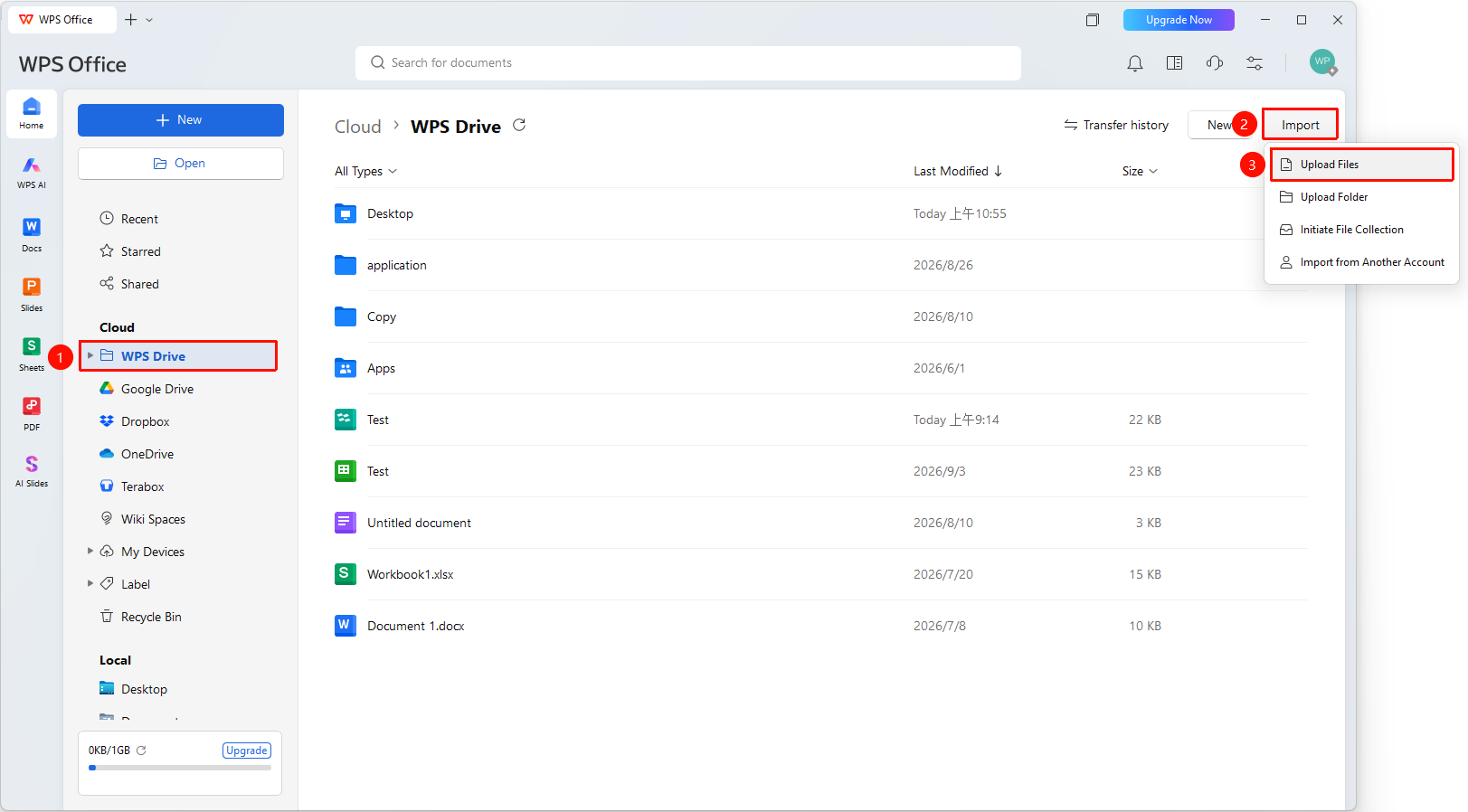
WPS Office Homepage → Top right corner → "Import" button → "Upload File" option
- Open WPS Office and go to the homepage.
- Click the "Import" button in the top right corner of the WPS Drive page.
- Select "Upload File" from the dropdown menu.
- Select a local file in the pop-up dialog box and click the "Open" button to start uploading.
Upload from WPS Transfer Assistant
Feature Entry
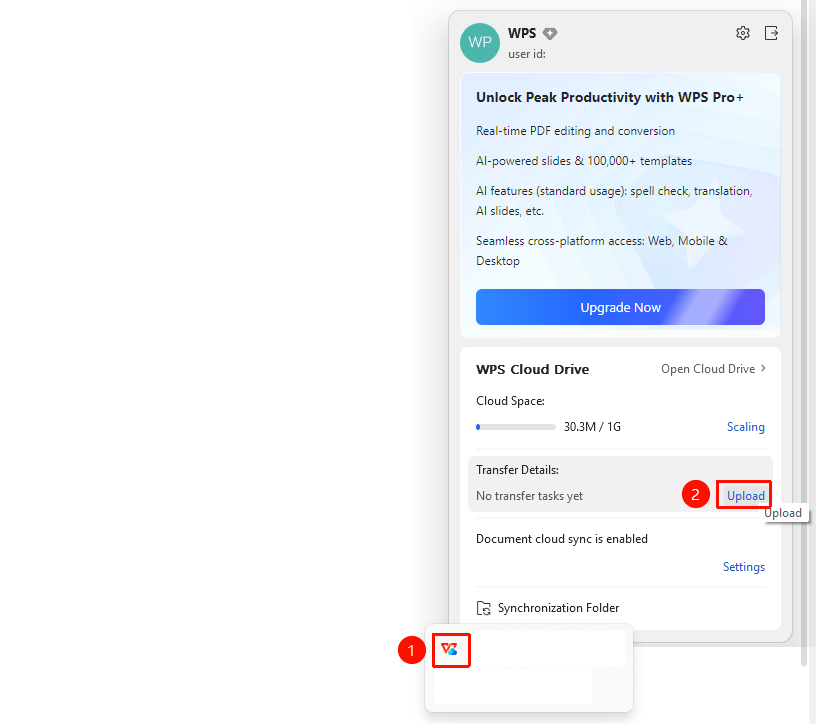
Windows taskbar → "WPS Drive" icon → Tray panel → "Upload" button
- Find the "WPS Drive" icon (blue cloud) in the Windows taskbar notification area.
- Right-click the icon to open the WPS Drive tray panel.
- Click the "Upload" button in the panel.
- Select a local file in the pop-up dialog box and click "Open" to start uploading.
FAQ
Q1: What is the difference between the three upload entry points?
- Solution: They only differ in feature entry points, providing convenience for uploading files from various locations. All ultimately open the same "Upload to Cloud" dialog box.
Q2: Where can I view the uploaded files?
- Solution: After uploading, files are saved in the default directory of WPS Drive and can be viewed in the "Home" section of WPS Drive.
Notes
- Before uploading, ensure sufficient cloud storage capacity. You can check the used space in the lower left corner of WPS Drive.
- During the upload process, you can view the upload progress in the Transfer Assistant.
- Supported common file formats: Docs/Word, Sheets/Excel, Slides/PPT, PDF, e-books, etc.