Feature Summary
Supports uploading an entire local folder to WPS Drive while preserving the folder structure, suitable for scenarios requiring whole-directory migration to the Cloud.
Feature Description
| Feature Dimension | Description |
|---|---|
| Membership Restriction | No membership restriction |
| Version Restriction | No version restriction |
Operation Steps
Upload from WPS Drive Homepage
Feature Entry
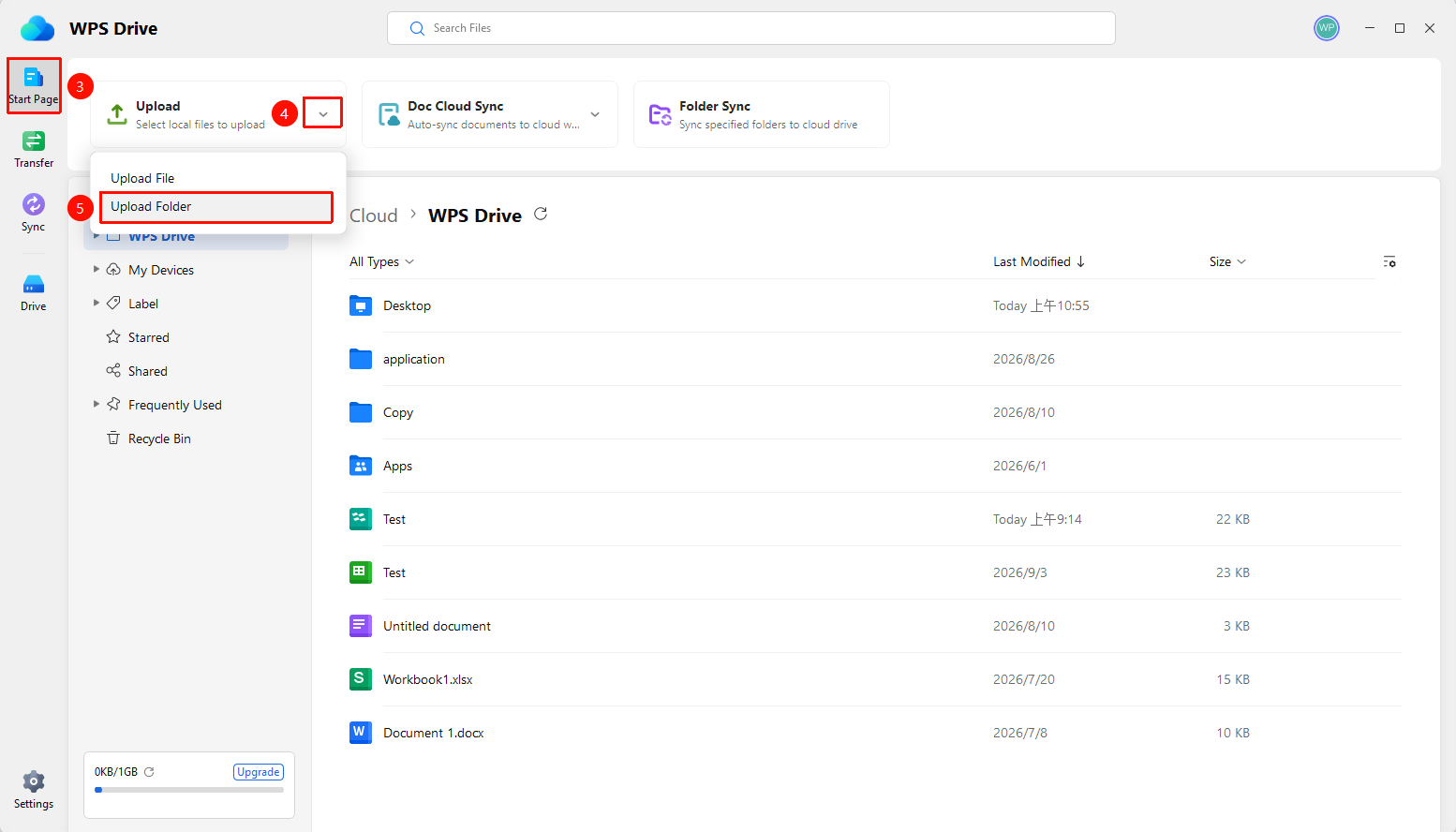
WPS Drive → "Home" tab → "Upload" dropdown arrow → "Upload Folder" option
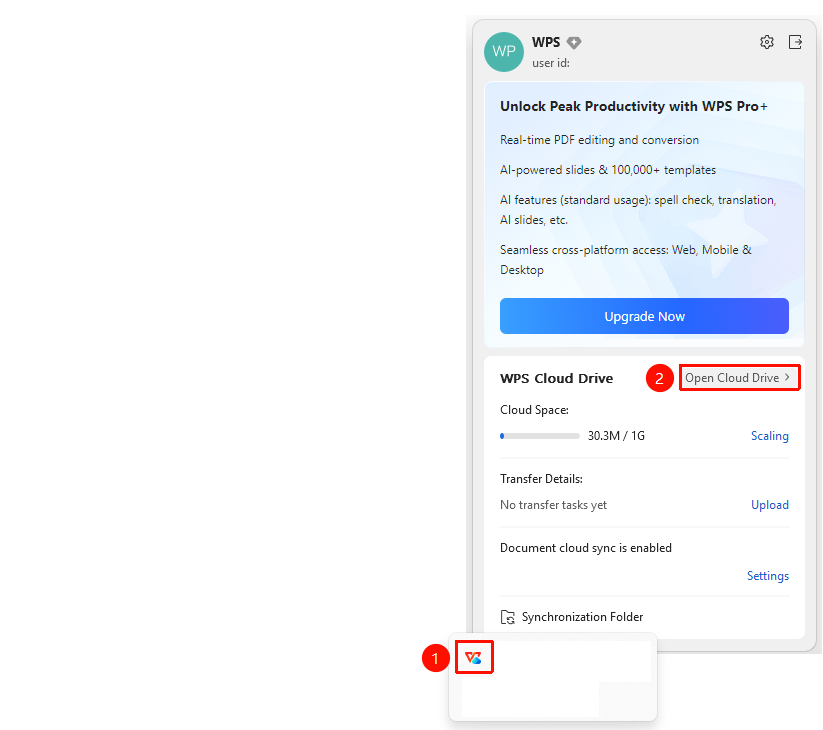
- Locate the "WPS Drive" icon (blue cloud) in the lower-right corner of the Windows taskbar.
- Right-click the icon to open the WPS Drive tray panel.
- Click the "Open Drive" button in the panel.
- Open WPS Drive and go to the "Home" tab.
- Find "Upload" (select local files to upload) at the top and click the dropdown arrow.
- Select "Upload Folder".
- Select the local folder in the pop-up dialog box and click "Open" to start uploading.
Import from WPS Office Homepage
Feature Entry
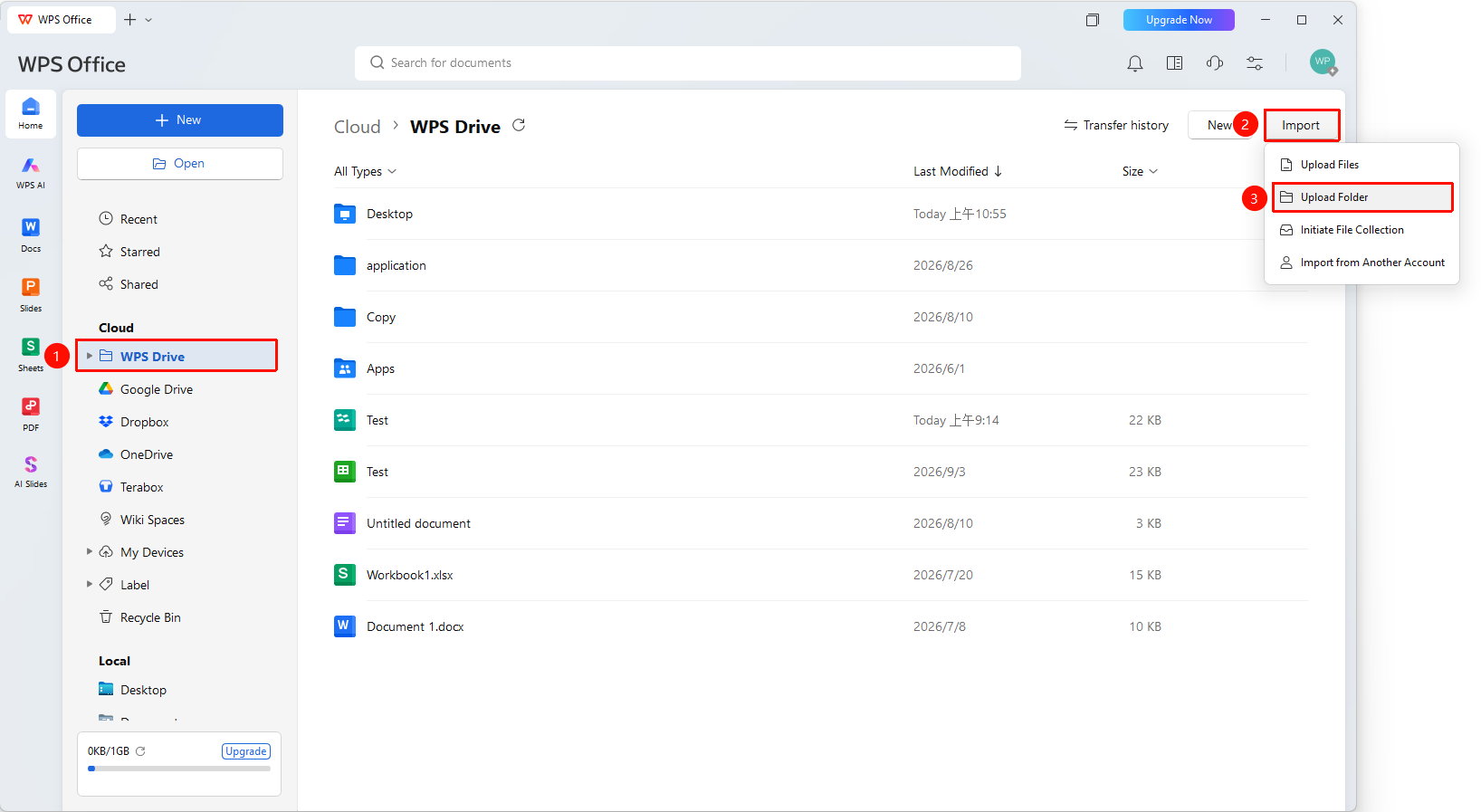
WPS Office Homepage → Top-right corner → "Import" button → "Upload Folder" option
- Open WPS Office and go to the Homepage.
- Click the "Import" button in the upper-right corner of the WPS Drive page.
- Select "Upload Folder" from the dropdown menu.
- Select the local folder in the pop-up dialog box and click "Open" to start uploading.
FAQ
Q1: What should I do if some files fail to upload when uploading a folder?
- Solution: Check the specific reason for the failed files in the transfer details panel. Common reasons include: a single file exceeding the 10MB upload limit for non-members, file names containing special characters, insufficient Cloud storage space, etc. You can resolve the corresponding issue and re-upload the failed files.
Q2: Will the folder structure change after uploading a folder?
- Solution: No. Uploading a folder preserves the original directory structure, and the hierarchical relationship of subfolders and files is fully retained in the Cloud.
Q3: Can I close WPS during the folder upload process?
- Solution: It is not recommended to close it. Closing the WPS client during folder upload will interrupt the upload. If you need to pause, you can pause the task in the transfer details, and continue the upload the next time you open WPS.
Notes
- When uploading a folder, each file within it is uploaded one by one, which may take a long time if there are many files.
- Each file is subject to the single-file size limit (10MB for non-members, 2GB for members).
- It is recommended to perform large-scale folder upload operations under a stable network environment.