Feature Summary
Batch import cloud document files from other WPS accounts into the current account to migrate document data.
Feature Description
| Feature Dimension | Description |
|---|---|
| Membership Restrictions | No membership restrictions |
| Version Restrictions | No version restrictions |
Steps
Import from Client
Feature Entry
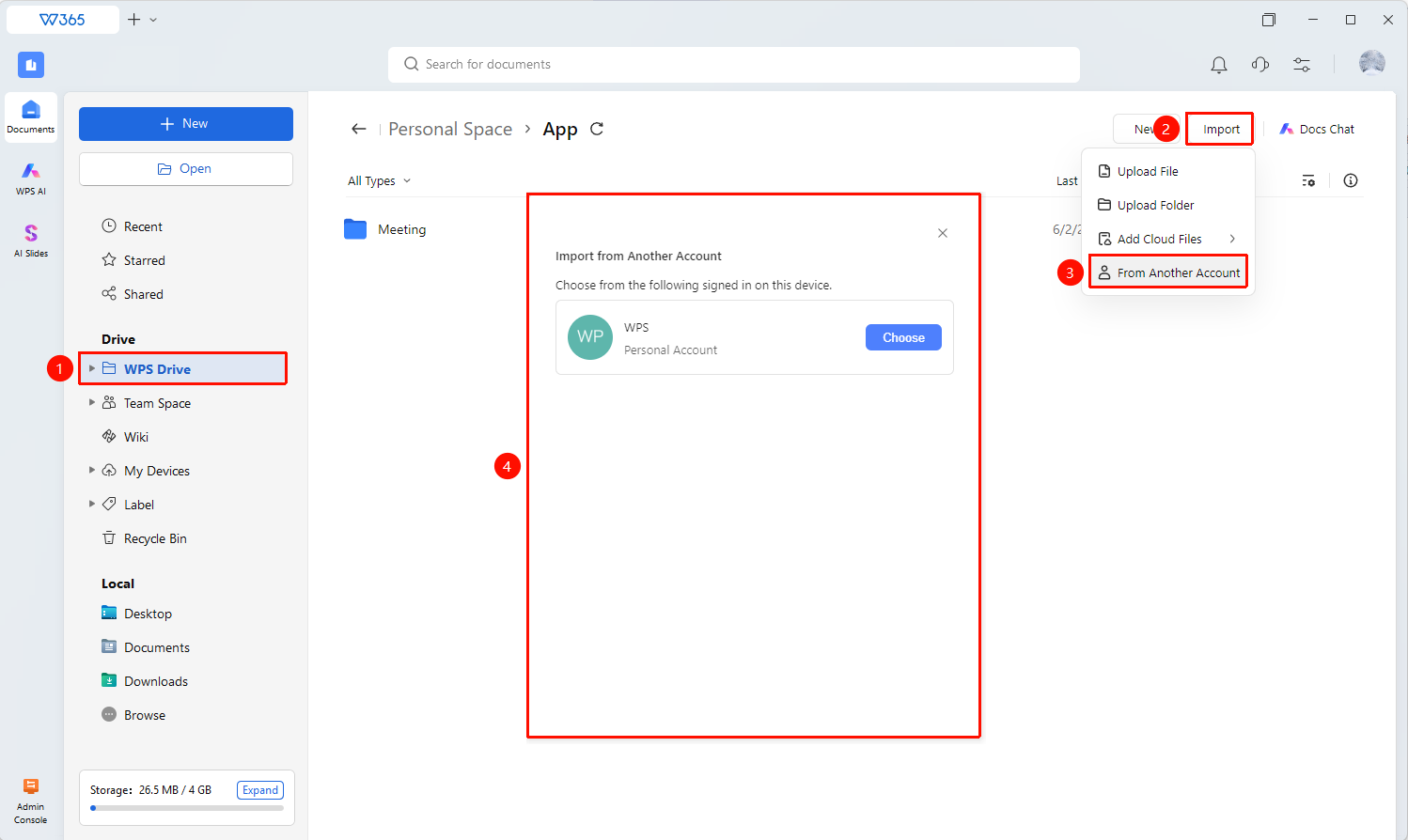
「Personal Space」→「Import」→「Import from Other Account」
- Open the WPS client and sign in to the target account that will receive the files.
- Click 「Personal Space」 in the left menu bar.
- Click the 「Import」 button in the upper right corner of the page.
- Select 「Import from Other Account」.
- Follow the prompts to sign in to the source account from which files will be moved out.
- Select the documents to be migrated and confirm the import to complete the migration.
Migrate via Shared Folder
Feature Entry
Source Account → Create Shared Folder → Add Target Account
- Create a shared folder in the source account.
- Move the files to be migrated into the shared folder.
- Add the target account as a shared member.
- After the target account accesses the shared folder, copy the files to its own cloud document space.
FAQ
Q1: Can organization accounts and personal accounts import from each other?
- Solution: Organization accounts support importing file content from personal accounts, but do not support exporting. It is recommended to migrate via shared folders.
Q2: Will importing large files fail?
- Solution: Ensure a stable network before importing. Migrating large documents may take some time to complete.
Notes
- You need to sign in to both the source account and the target account simultaneously.
- Before importing, ensure that the target account has sufficient cloud space capacity.
- Before importing, ensure that you have signed in to both the target account and the source account on the same device.