Feature Summary
Create a shared folder, invite team members to join, and enable multi-person collaboration and real-time synchronization for all files within the folder.
Feature Description
| Feature Dimension | Description |
|---|---|
| Membership Restriction | No membership restriction |
| Version Restriction | No version restriction |
Steps
Create a Shared Folder
Feature Entry
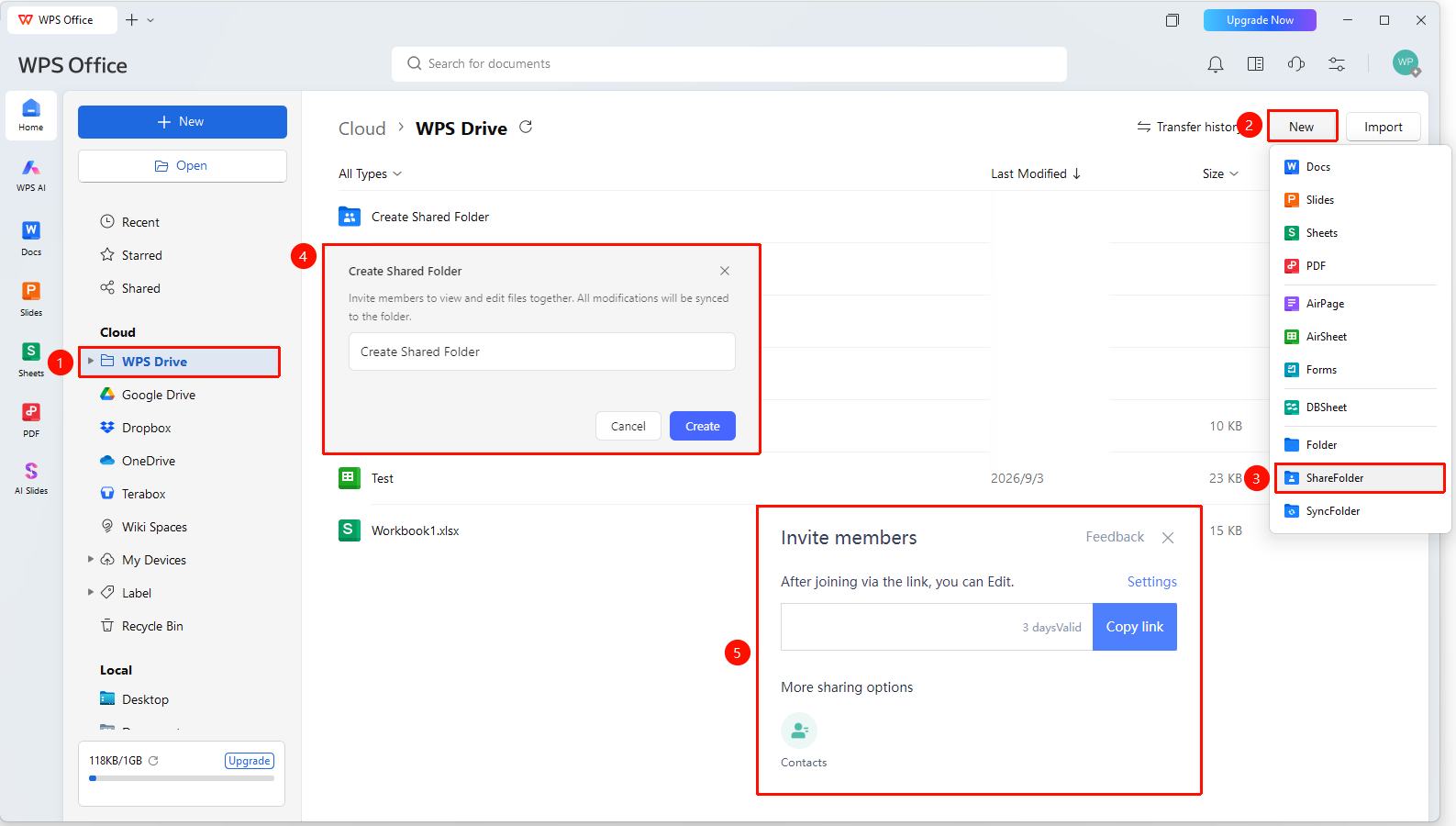
「WPS Drive」→「New」→「Shared Folder」
- Open WPS and go to the 「WPS Drivee」 page
- Click 「New」 and select 「Shared Folder」
- Set the folder name and click 「Create Now」 to complete the creation
- Click "Copy Link" to copy the invitation link with a single click and invite members to join.
Shared Folder Settings
Feature Entry
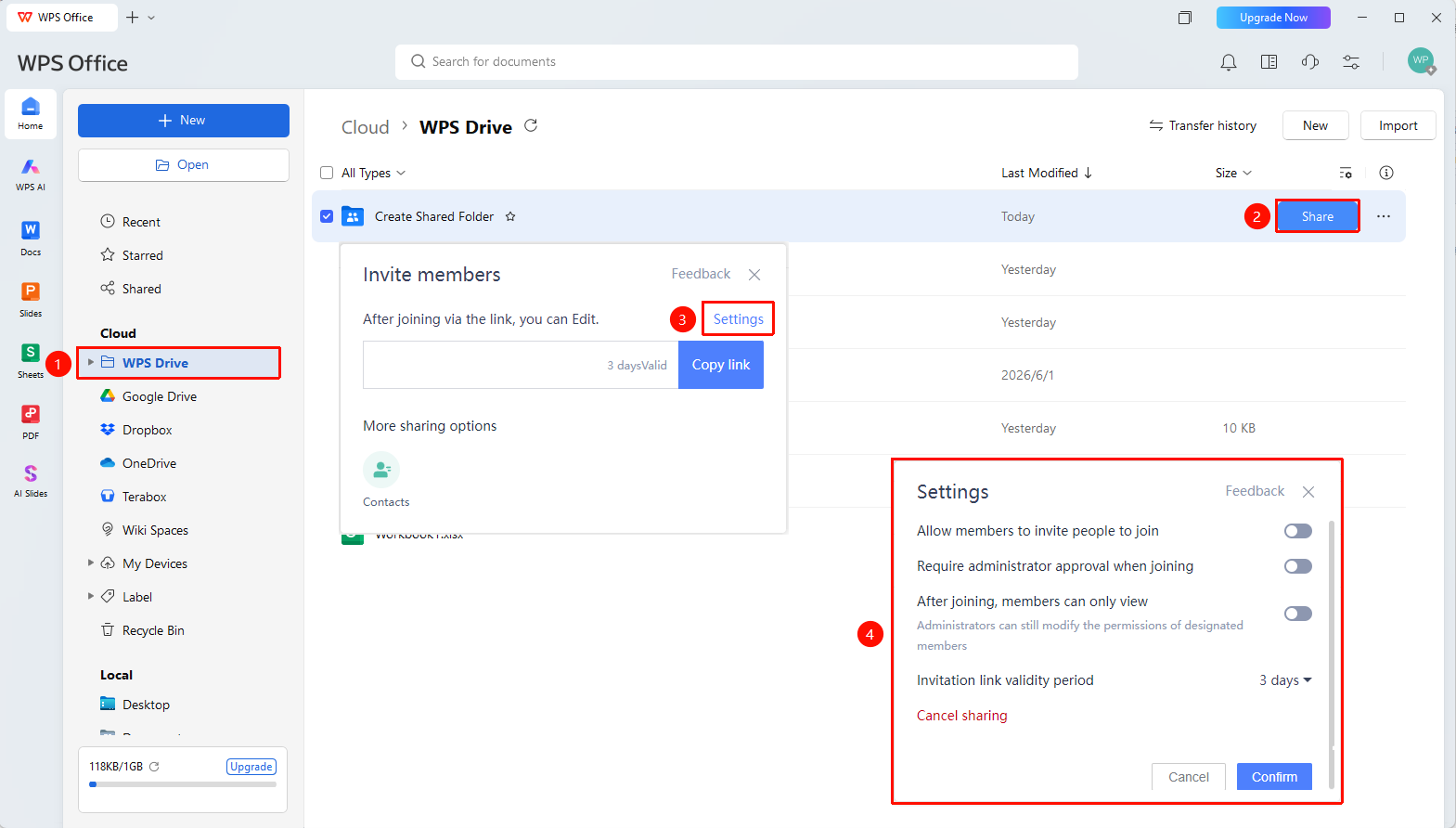
「Share」 button on the right side of the shared folder
- Open WPS and go to the 「WPS Drive」 page
- Find the existing 「Shared Folder」 and click the blue 「Share」 button on the right to open the settings panel
- Click 「Settings」 in the settings panel to complete the following configuration options
- 「Allow members to invite others」 : Whether to allow members to invite external people to join
- 「Require Admin approval to join」 : Whether external people need Admin approval to join
- 「View only after joining」 : Whether new members are allowed to view only by default
- 「Invitation link validity period」 : Set the validity period of the invitation link
- 「Cancel sharing」 : Cancel the shared folder
- Click 「OK」 to apply
Invite Members to Join
Feature Entry
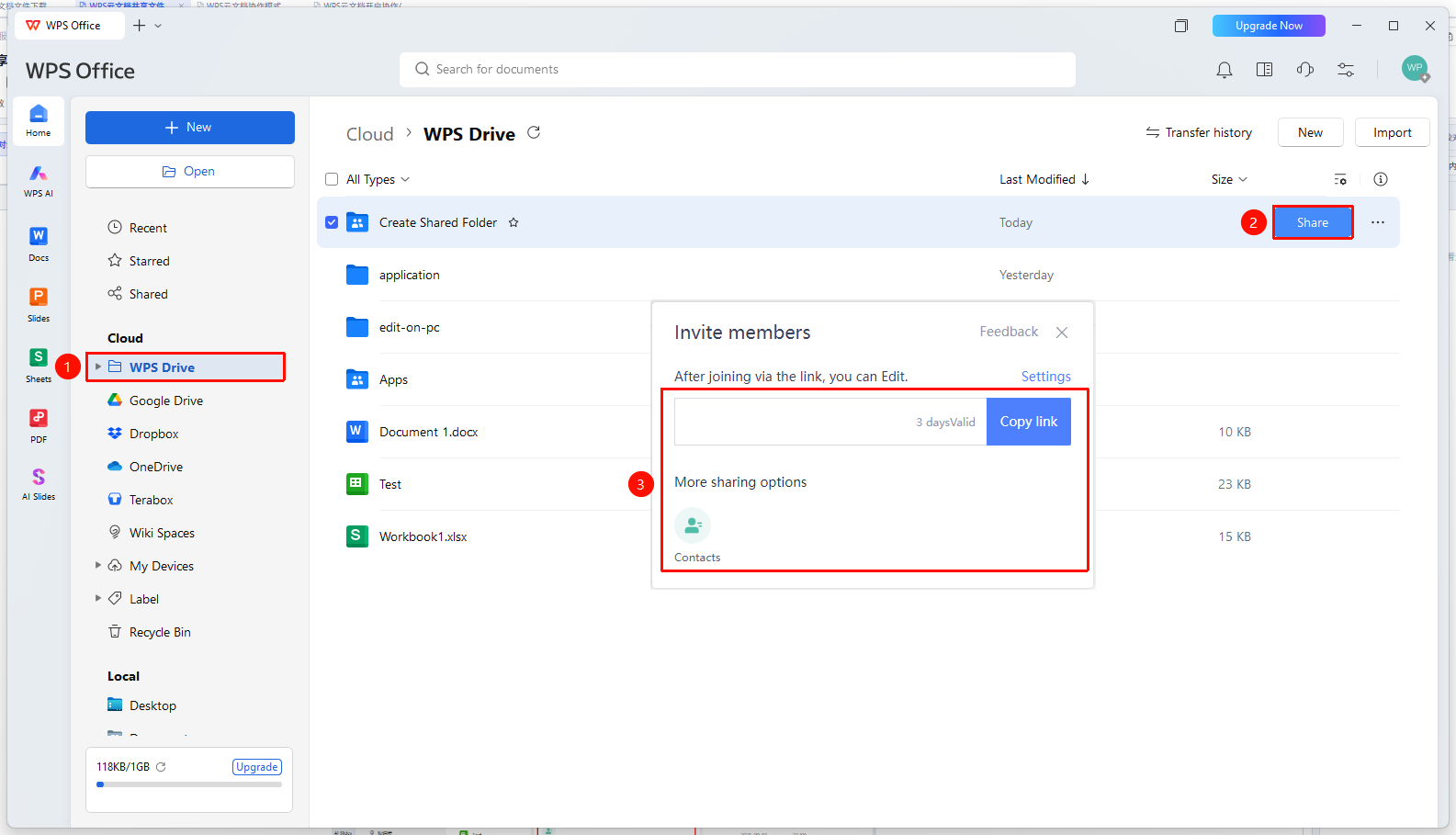
「Share」 button on the right side of the shared folder
- Open WPS and go to the 「WPS Drive」 page
- Find the existing 「Shared Folder」 and click the blue 「Share」 button on the right to open the sharing panel
- Select the invitation method: select from Contacts or copy the invitation link
Manage Member Permissions
Feature Entry
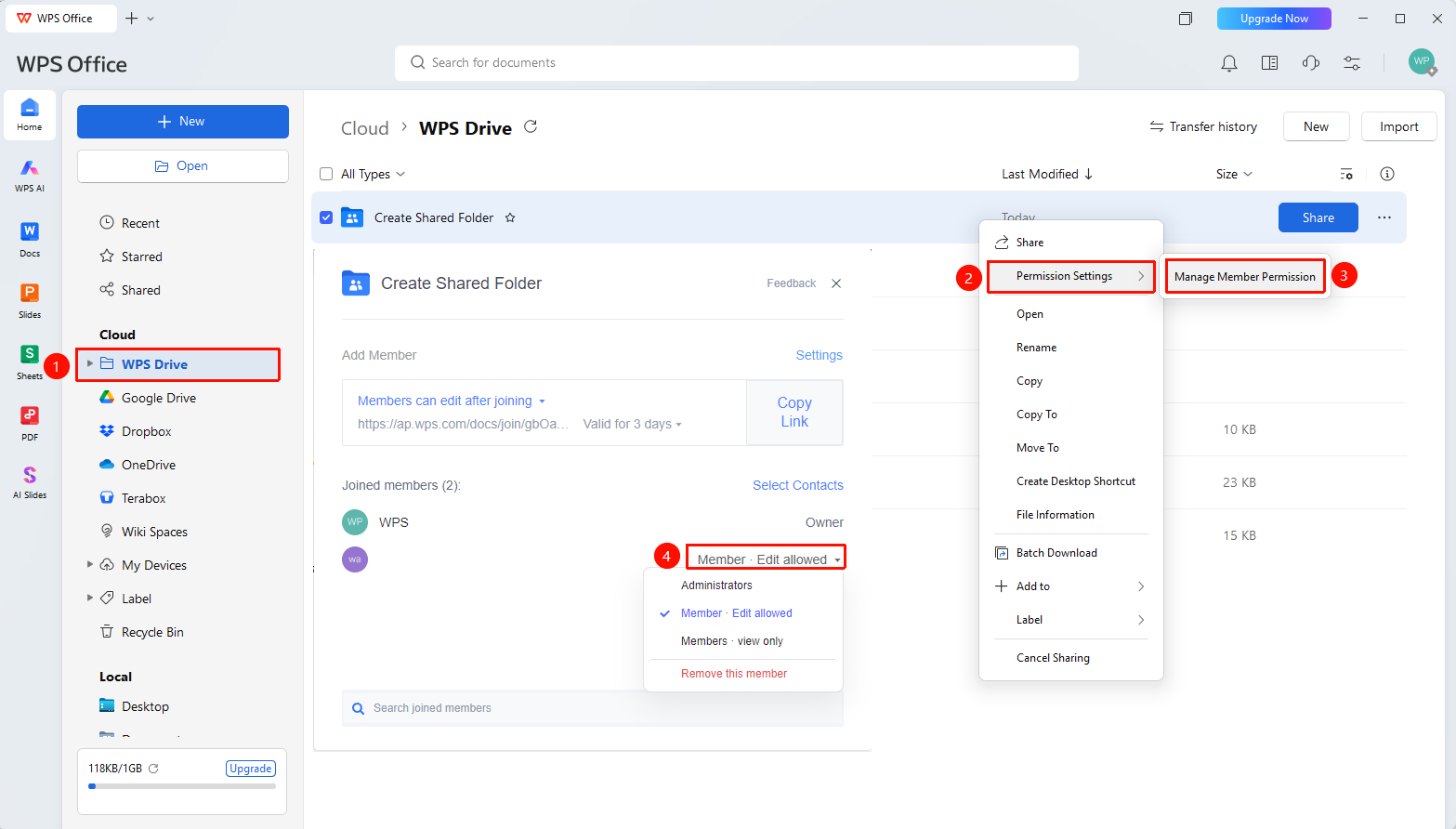
Right-click menu of the shared folder →「Member Permission Management」
- Open WPS and go to the 「WPS Drive」 page
- Find the existing 「Shared Folder」 and right-click the folder to open the right-click menu
- Select 「Member Permission Management」 in the right-click menu
- Click the joined member you want to manage, and you can set the following options:
- 「Admin」 : Set the member as Admin
- 「Member - Allow editing」 : Grant the member editing permission
- 「Member - can view」 : Grant the member view-only permission for files
- 「Remove this member」 : Remove the member from the shared folder
FAQ
Q1: What is the difference between a shared folder and a regular folder?
- Solution: A shared folder supports multiple people managing files within it together. All member operations are synchronized in real time, and the creator can set access permissions for each member.
Q2: What should I do if a file in the shared folder is deleted?
- Solution: Deleted files will be moved to the owner's Trash, and the owner can restore them from the Trash.
Q3: How to leave a shared folder?
- Solution: Go to the 「Shared」 interface on the WPS homepage, right-click the joined 「Shared」 file/folder, and select 「Leave Sharing」.
Q4: Where is the shared folder stored?
- Solution: The shared folder occupies the owner's Drive space. All files uploaded by members will be uploaded to the owner's Drive and occupy the owner's Drive space. Member cloud space is not affected.
Notes
- The creator of the shared folder has the highest management permission
- File changes within the shared folder will be synchronized to all members in real time