Feature Summary
The Manage Collaborators feature is used to view and manage all document collaborators, supporting operations such as modifying permissions, removing collaborators, and transferring ownership, enabling refined management of document collaboration.
Feature Description
| Feature Dimension | Description |
|---|---|
| Membership Restriction | No membership restriction; available to all users |
| Permission Requirement | Requires document owner or Admin permissions |
Operation Steps
View Collaborator List
Feature Entry
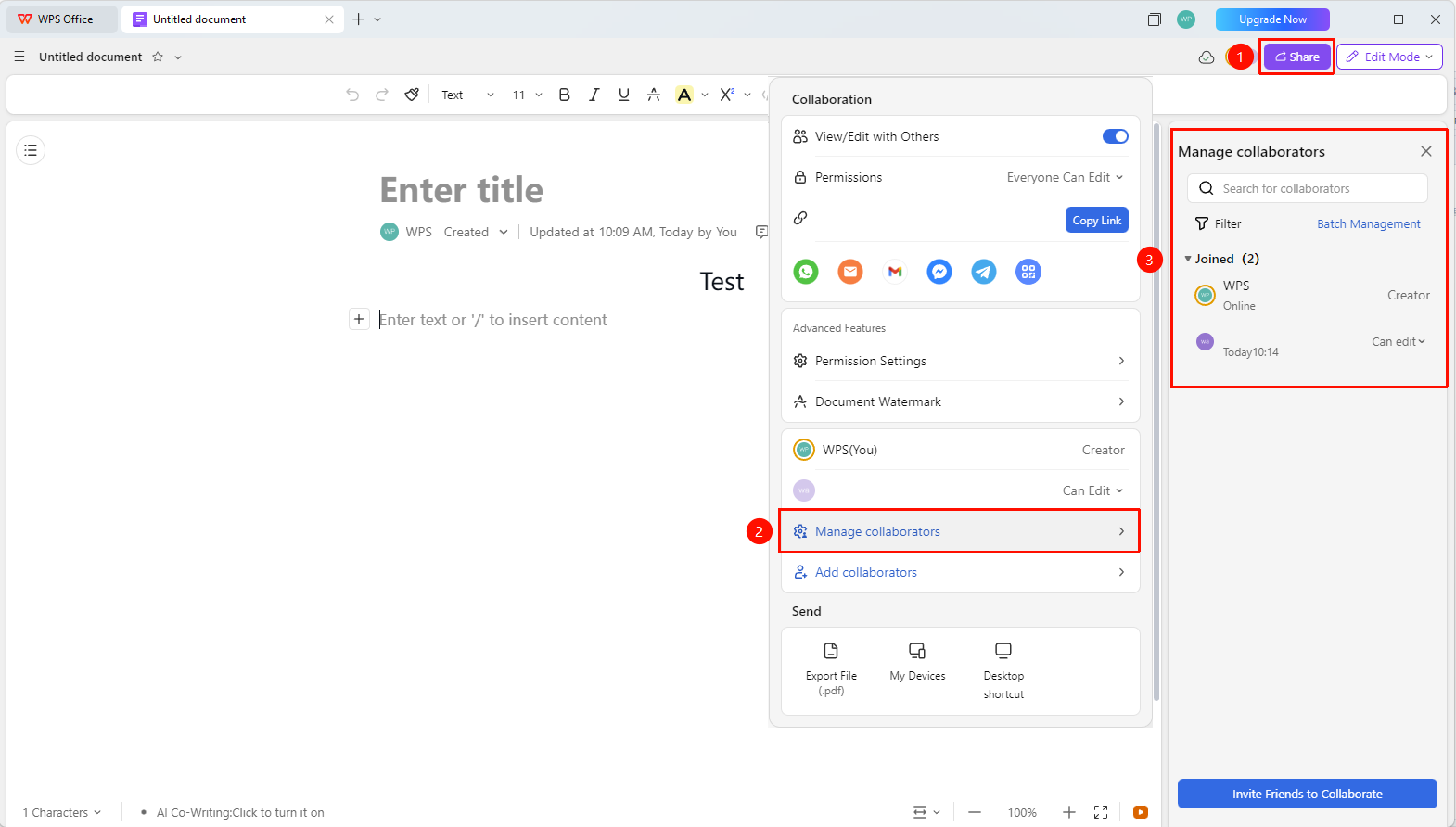
"Share" button → "Manage Collaborators" option
- Open the document and click the Share button in the upper right corner
- Click the "Manage Collaborators" option
- View all collaborators in the list
Modify Collaborator Permissions
Feature Entry
"Share" button → "Manage Collaborators" option
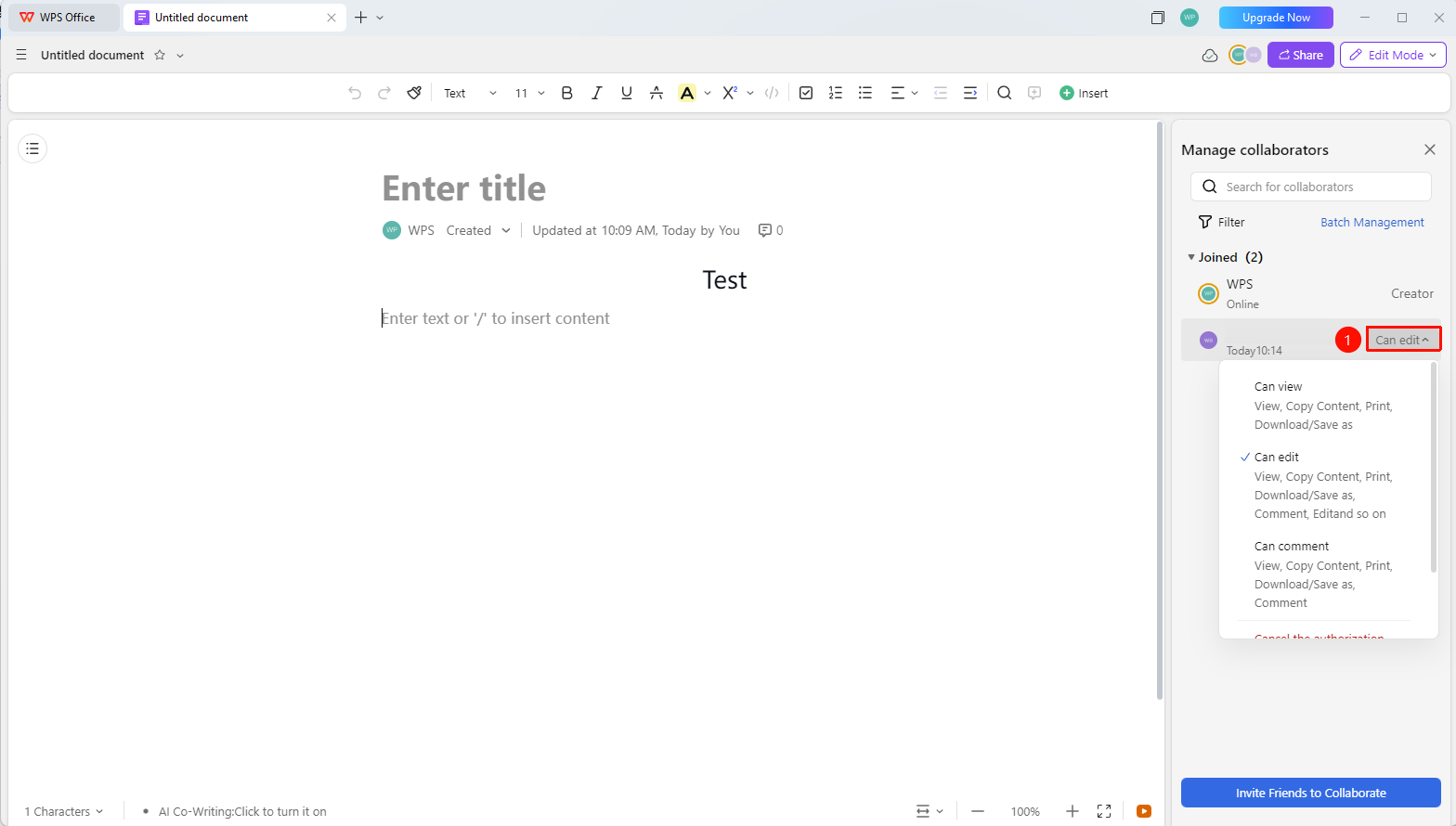
- Find the target user in the collaborator list
- Click the "Dropdown Menu" to the right of the user's name
- Select a new permission level:
- can edit: can view and edit
- can view: can view and comment
- Can Comment: Can view the document and comment
- Revoke Authorization: Revoke the target account's collaboration authorization
- Transfer Document Ownership: Transfer the ownership of the current document to the target user.
4.Permissions take effect immediately
FAQ
Q1: Can the removed collaborator still see the document?
- Solution: If the link permission is set to "Anyone can view/edit", the removed person can still access it via the link. You need to change the link permission to "Specified people" at the same time.
Notes
- Removing a collaborator takes effect immediately
- The owner has the highest permissions and can manage all collaborators