Feature Summary
The Add Shortcut feature allows you to generate a shortcut for a cloud document and add it under the "Personal Space" path, making it easy to quickly access and manage frequently used files without moving the original document location.
Feature Description
| Feature Dimension | Description |
|---|---|
| Membership Restriction | No membership restriction |
| Version Restriction | No version restriction |
Operation Steps
Method 1: Add via the in-document file operation button
Feature Entry
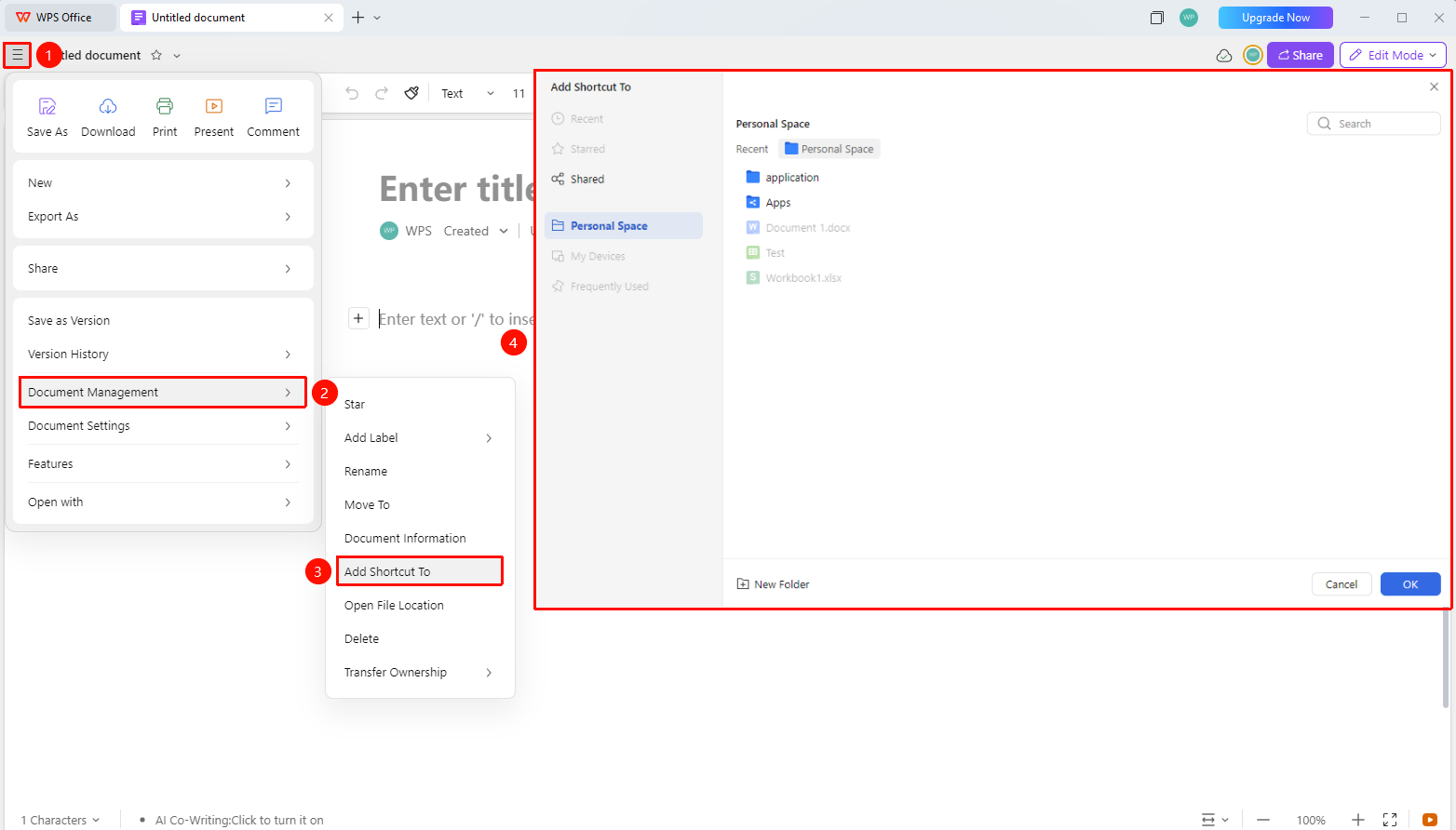
"File Operation Button" → "Document Management" → "Add Shortcut"
- Open the target collaboration document
- Click the File Operation button (☰ icon) in the upper left corner
- Select "Document Management" from the drop-down menu
- Click "Add Shortcut"
- Select "Personal Space / share" as the target path, and click OK to complete
- Return to the WPS homepage → Personal Space / Share to view the shortcut icon for this document
Method 2: Add via right-click on the WPS homepage document list
Feature Entry
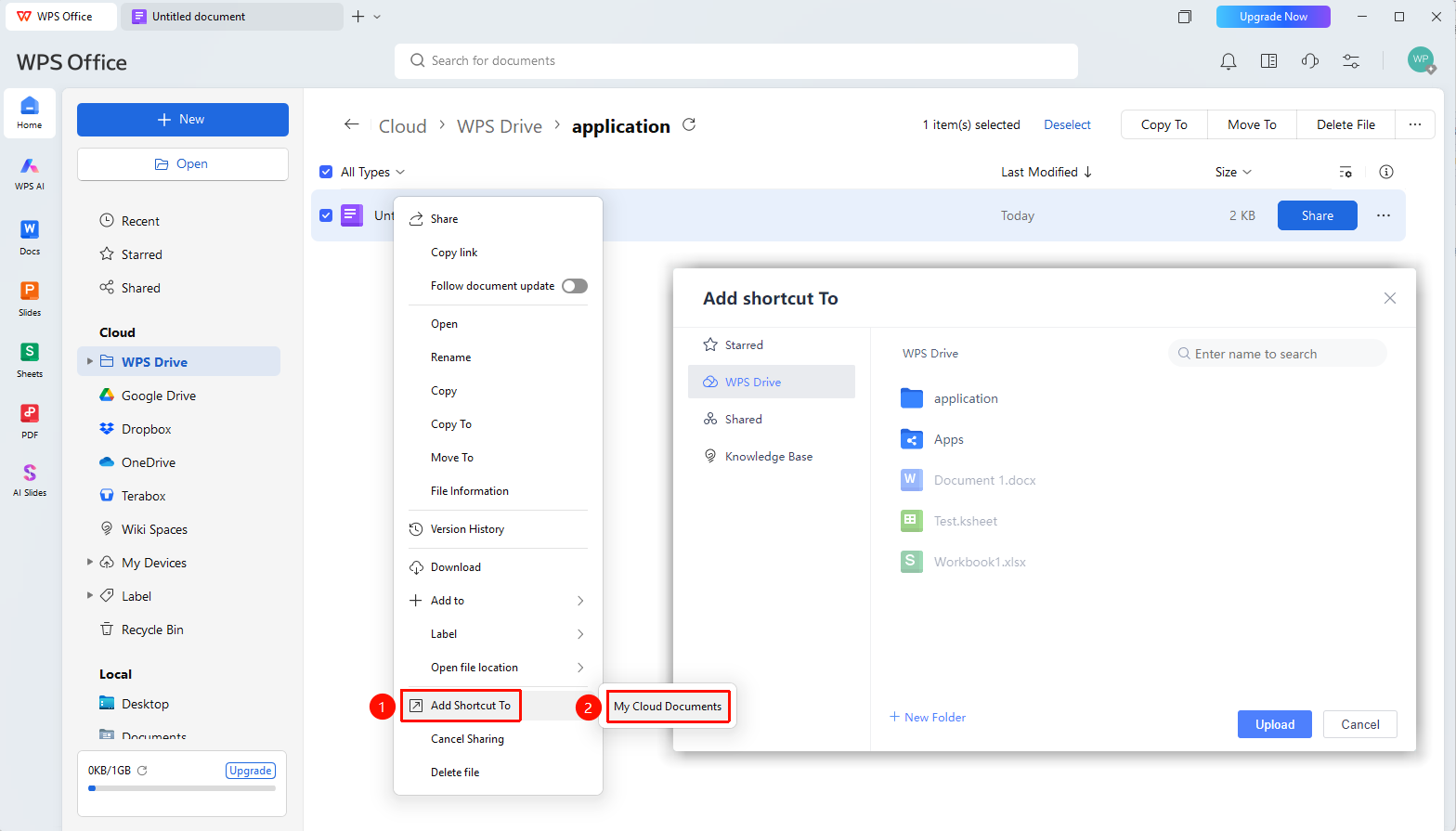
File right-click menu → "Add Shortcut to" → "Personal Space"
- Find the target file in the document list on the WPS homepage
- Right-click the file
- Select "Add Shortcut to" from the pop-up menu
- Select "Personal Space" as the target path
- A shortcut will be generated in the selected cloud drive path for easy access later
FAQ
Q1: Will adding a shortcut copy the original document?
- Solution: No. Adding a shortcut only generates a quick link pointing to the original document, which does not occupy additional storage space. The original document remains in its original location.
Q2: What is the difference between a shortcut and the original document?
- Solution: A shortcut is a link pointing to the original document. Double-clicking it opens the content of the original document. Deleting the shortcut will not affect the original document, but the shortcut will become invalid after the original document is deleted.
Q3: Can I add a shortcut for a folder in "Personal Space"?
- Solution: Adding shortcuts is supported for individual cloud document files, but creating shortcuts for folders is currently not supported.
Q4: Does a local file support directly generating a shortcut to the Personal Space path?
- Solution: Currently not supported. You can upload the file directly to Personal Space, or search for and locate the file on the WPS homepage, upload the file, or open the file's right-click menu → "Add Shortcut to" → "Personal Space".
Notes
- Adding a shortcut will not move or copy the original file; it only generates a link pointing to that file
- Deleting a shortcut will not affect the original document
- After the original document is deleted or moved away, the shortcut will not open normally