Feature Summary
The message panel centrally displays notifications related to cloud documents. You can receive notifications here when someone @mentions you, comments on your document, or requests access.
Feature Description
| Feature Dimension | Description |
|---|---|
| Membership Restriction | No membership restriction |
| Version Restriction | No version restriction |
Steps
Open the Message Panel
Feature Entry
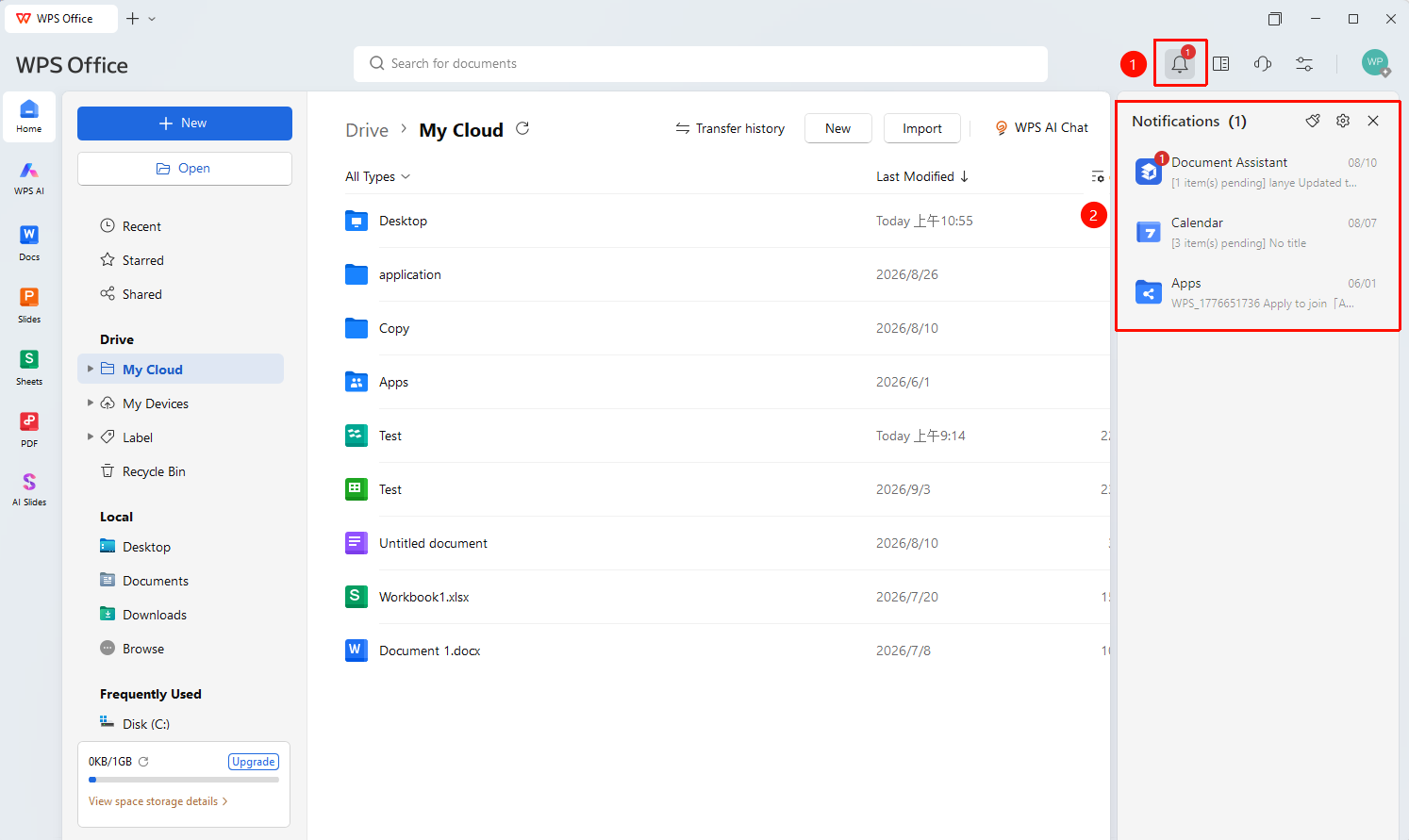
WPS Office Home → Top-right "Messages" icon
- Open WPS Office and go to the Home page.
- In the top-right corner of the page, click the "Messages" icon (bell shape).
- The "Messages" side panel will pop out on the right, displaying all message notifications.
View Message Content
Feature Entry
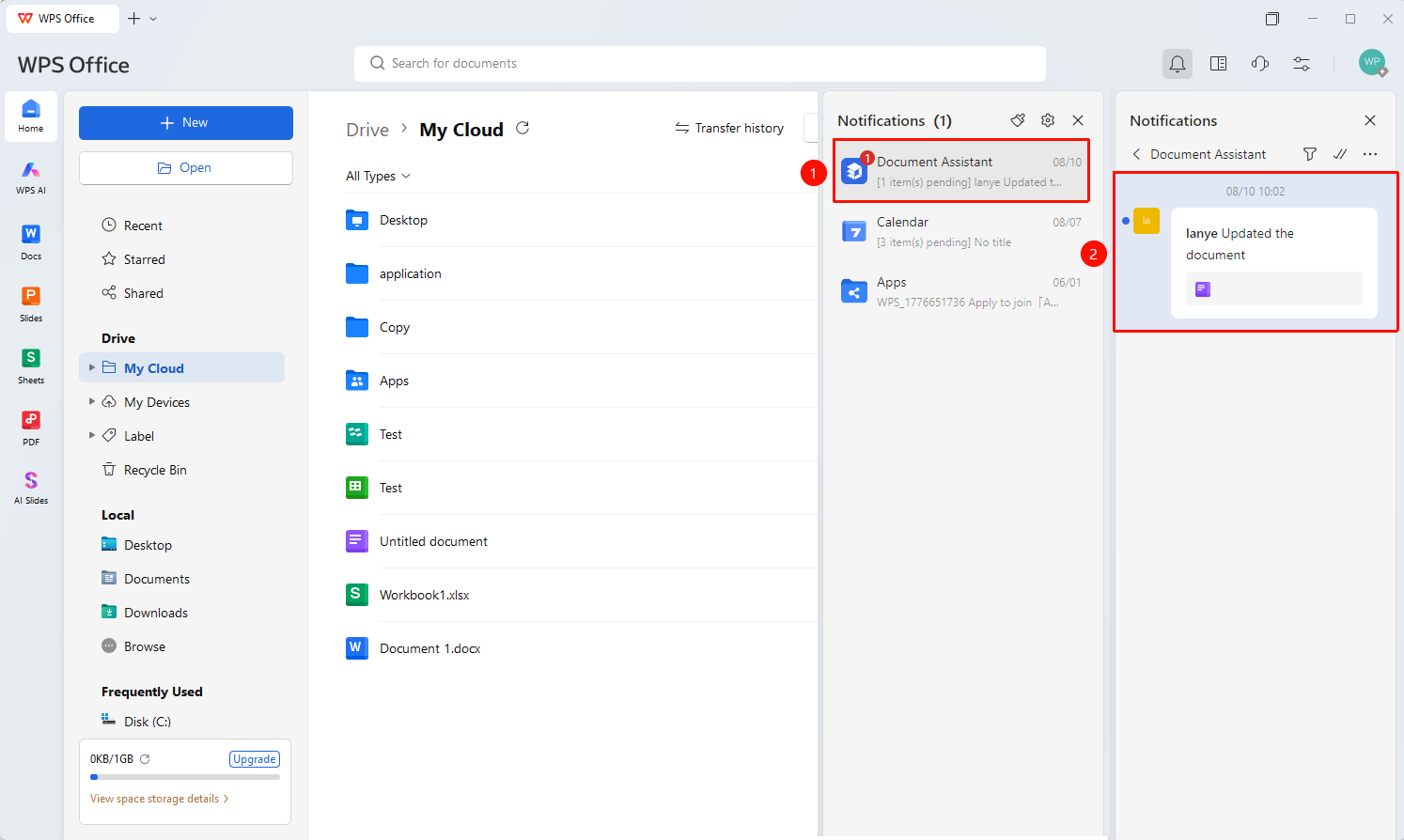
Message Panel → Message List → Click a specific message
- In the message panel, view the message notification list.
- Click a message to view its details.
- The following types of messages are supported:
- Someone @mentioned you —— Notification when another user @mentions you in a document.
- Commented on your document —— Notification when another user comments on your document.
- Requested access —— Notification when another user requests access to your document.
Mark All Messages as Read
Feature Entry
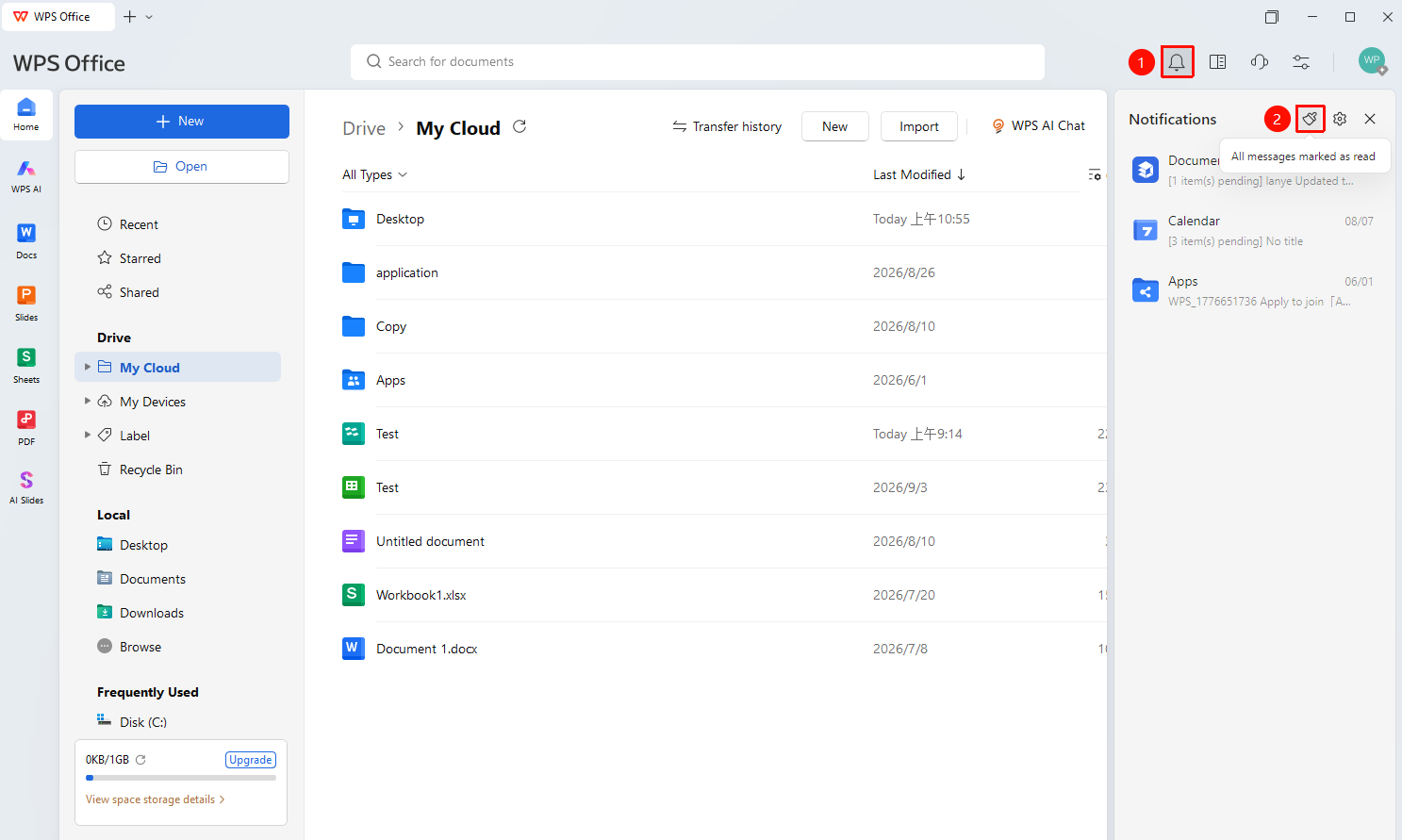
Message Panel → Top-right "Broom" icon
- Click the messages button to open the message panel.
- Click the "Broom" icon in the top-right corner of the panel to mark all messages as read.
Configure Message Notifications
Feature Entry
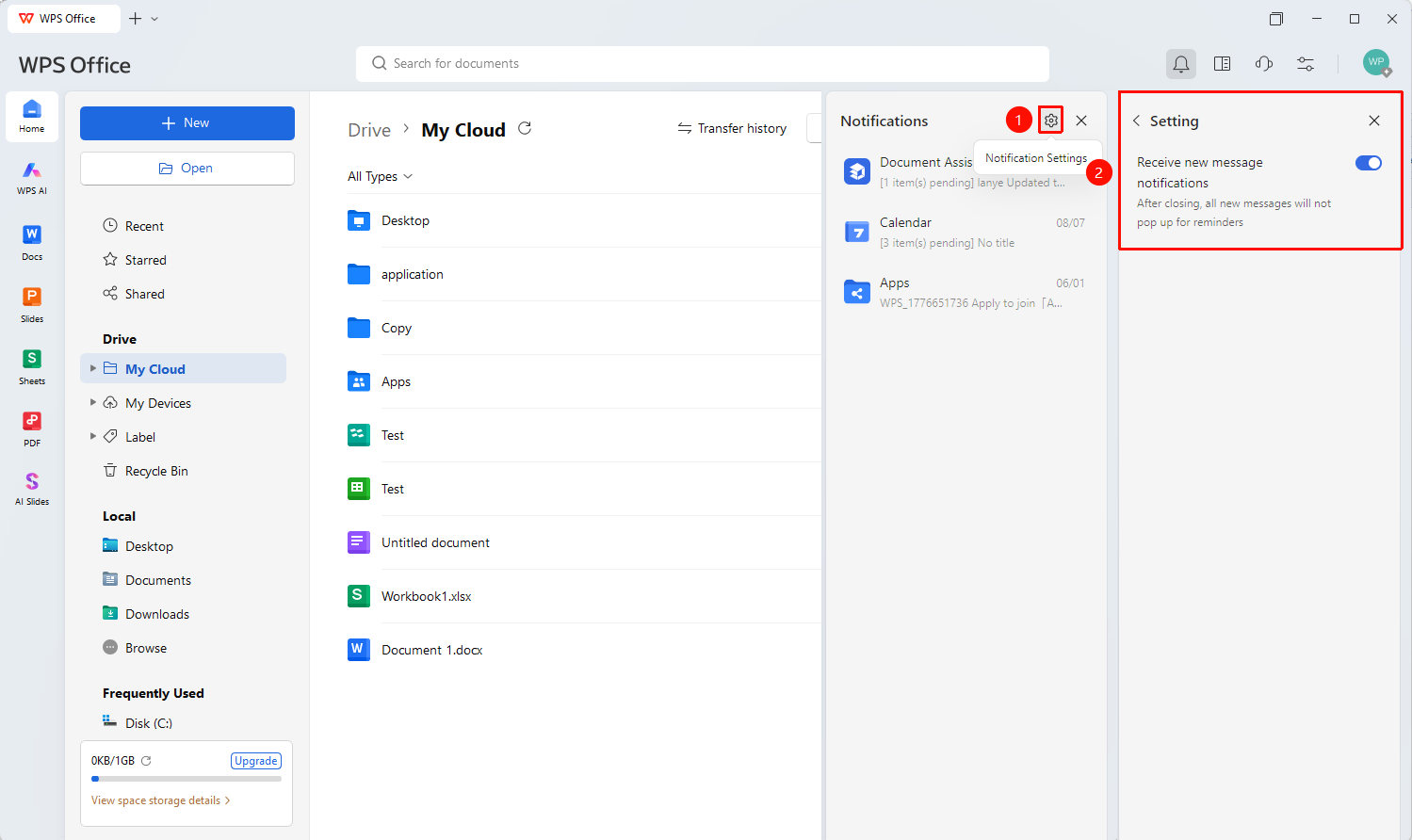
Message Panel → "Settings" icon → "Receive new message notifications" toggle
- In the top-right corner of the message panel, click the "Settings" icon (gear shape).
- Enter the "Settings" page, where the "Receive new message notifications" toggle is displayed.
- The toggle is enabled by default. When disabled, no pop-up reminders will appear for any new messages.
- Click the Back arrow (<) in the top-left corner to return to the message list, or click the Close icon (X) to close the settings page.
FAQ
Q1: Why is the message panel empty?
- Solution: An empty state indicates there are currently no messages. When someone @mentions you, comments on your document, or requests access, notifications will automatically appear in the message panel.
Q2: What should I do if the message panel won't open?
- Solution: Ensure your network connection is normal and confirm that you are signed in to your WPS account. If it still cannot be opened, try restarting the WPS Office client.