Feature Summary
The Drive Space panel centrally displays the storage usage of Drive, supporting viewing used/available capacity, checking storage details, and expanding Drive space. It serves as the basic entry point for Document storage management.
Feature Description
| Feature Dimension | Description |
|---|---|
| Membership Restriction | Expanding Drive space requires subscribing to WPS membership |
| Version Restriction | No version restriction |
Operation Steps
View Drive Space Capacity
Feature Entry
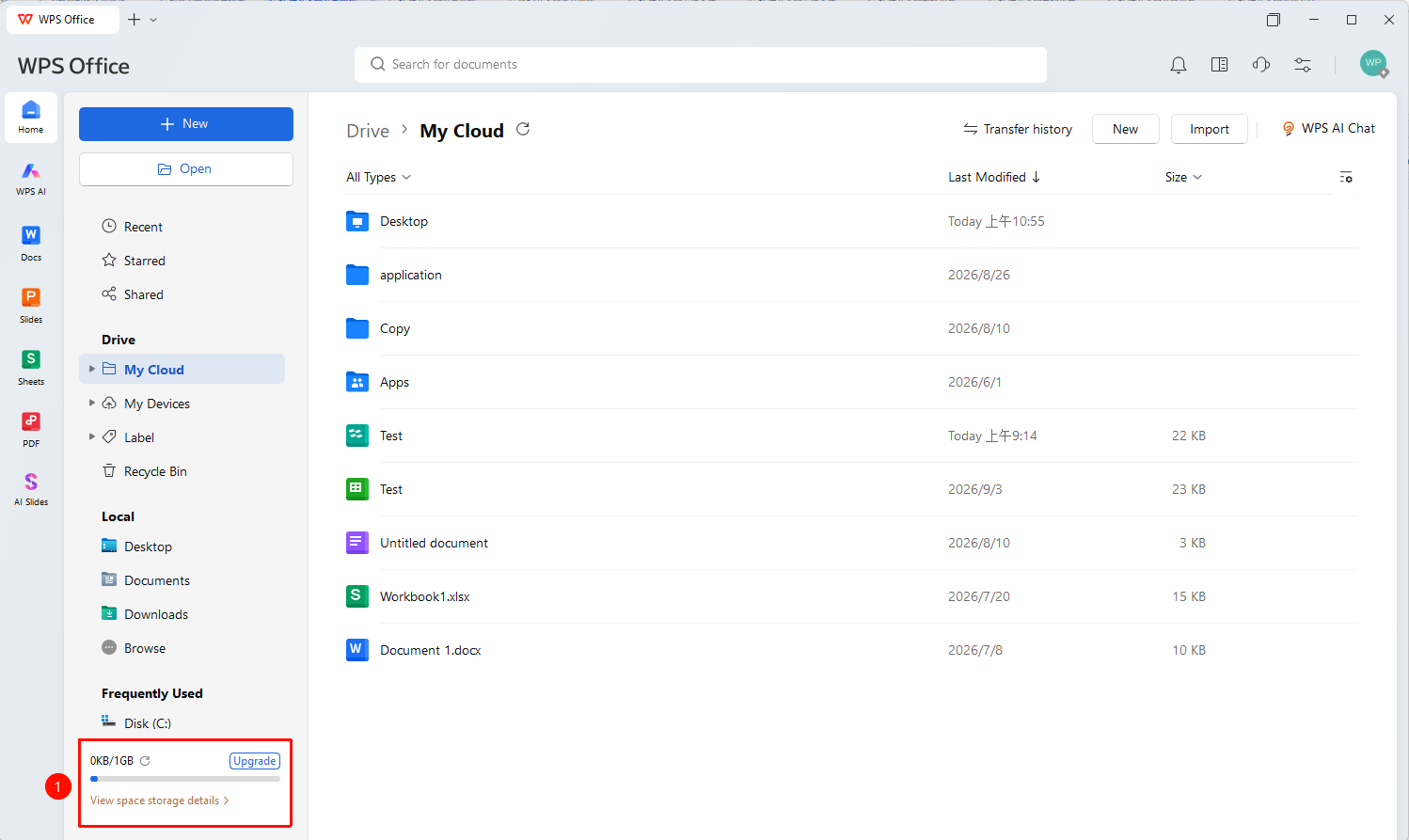
WPS Client Home → "Drive Space" Panel
- Open the WPS client and view the "Drive Space" panel at the bottom of the left navigation bar.
- The panel displays the current used capacity and total capacity (e.g., 1.0M/1G), along with a capacity progress bar.
Expand Drive Space
Feature Entry
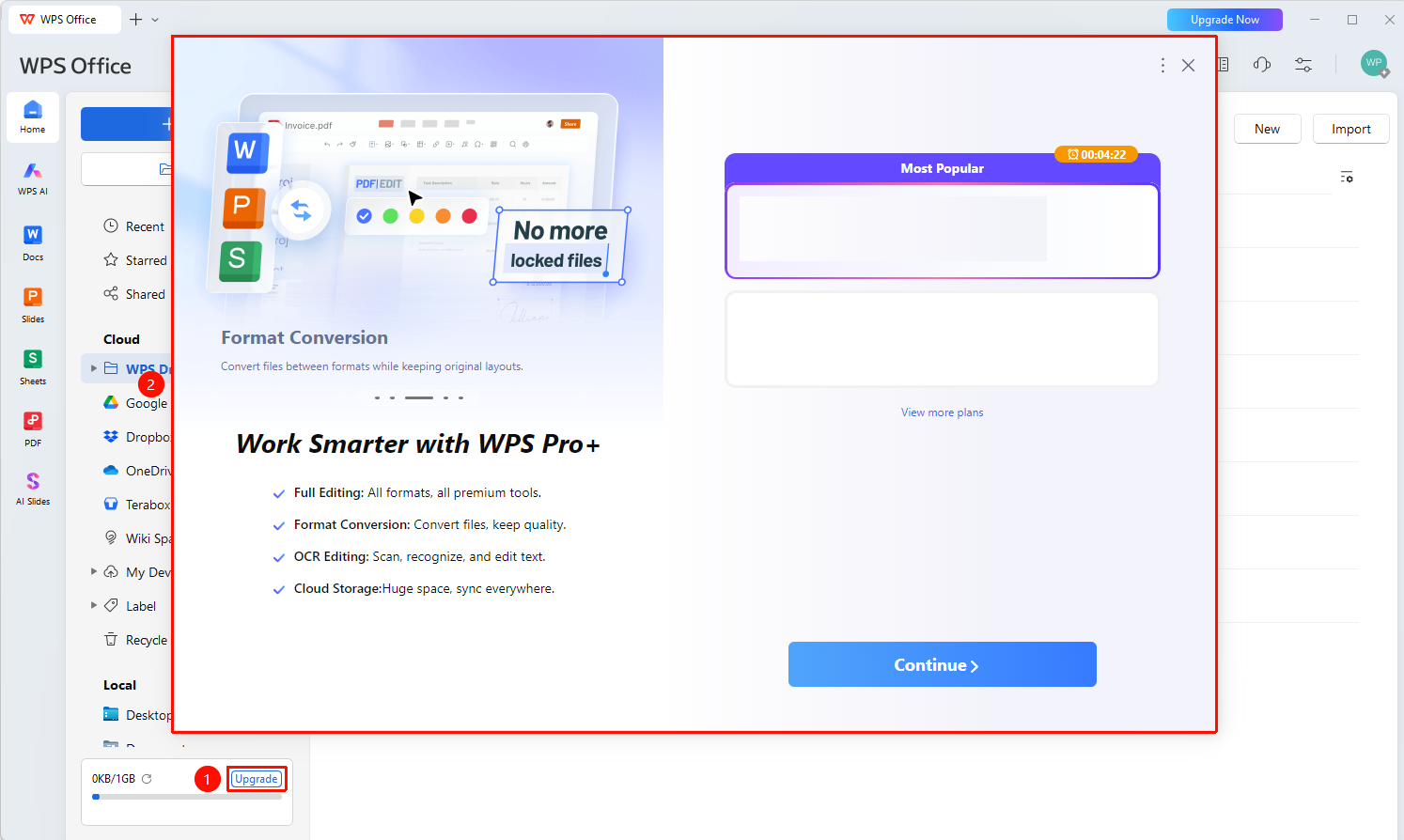
WPS Client Home → "Drive Space" Panel → "Expand" Button
- In the "Drive Space" panel at the bottom of the left navigation bar, click the "Expand" button.
- The system will redirect to the membership purchase page. Purchase a membership to obtain larger Drive space capacity.
- The capacity takes effect immediately after the purchase is completed.
FAQ
Q1: What is the Drive space capacity without a membership?
- Solution: The Drive space capacity for non-members is 1GB.
Q2: Will files in Drive be deleted after the membership expires?
- Solution: After the membership expires, files exceeding the Document storage capacity will not be deleted and can still be viewed and downloaded. However, since the available Drive space capacity will revert to 1GB after the membership expires, you will not be able to upload new files or update existing file content beyond this limit. You will need to upgrade your membership or delete some files to free up space.
Notes
- Drive space capacity is tied to the membership tier. Capacity increases immediately upon upgrading the membership, and you need to manually clean up the excess portion after downgrading.