Feature Summary
WPS Docs supports the copies and print order feature, allowing you to set the number of copies and choose whether to print them collated or uncollated.
Feature Details
| Feature Dimension | Description |
|---|---|
| Membership Restrictions | None |
| Version Restrictions | None |
Steps
Set Copies
Feature Entry
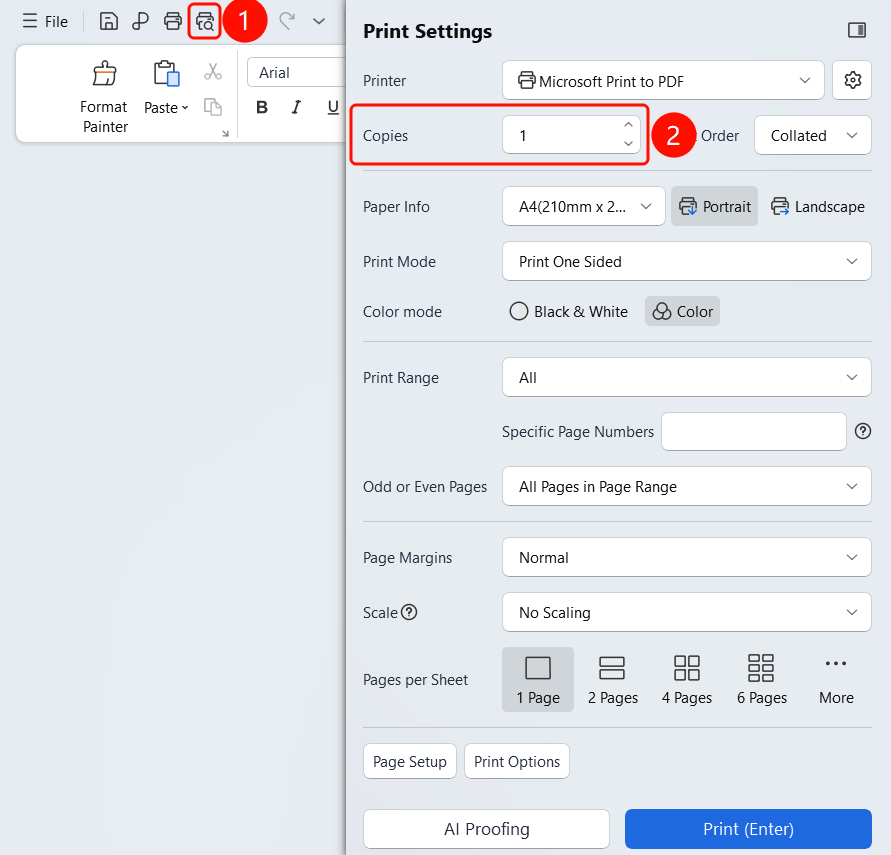
Top menu bar > Print button > Print Settings > Copies
- Click the Print button in the top menu bar.
- In the Print Settings panel, find the Copies option.
- Use the up and down arrows or enter a number directly to set the number of copies.
- The default number of copies is 1.
Set Print Order
Feature Entry
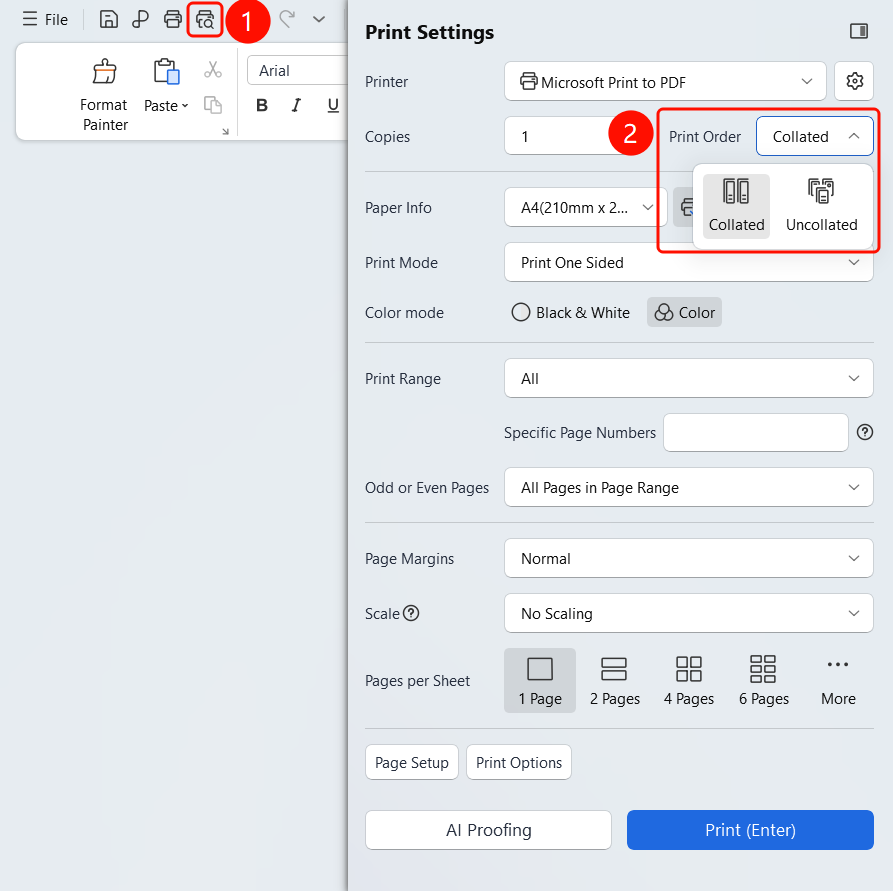
Top menu bar > Print button > Print Settings > Print Order
Click the Print button in the top menu bar.
In the Print Settings panel, click the Print Order drop-down list.
Select a print order:
- Collated: Prints an entire copy of the document in page order before printing the next copy.
- Uncollated: Prints page 1 of all copies first, and then page 2.
The setting takes effect immediately after selection.
FAQ
Question 1: What is the difference between collated and uncollated printing?
- Solution: Collated printing prints the entire document in page order, while uncollated printing prints all copies of the same page first.
Question 2: How can I save paper when printing multiple copies?
- Solution: You can choose double-sided printing in Print Mode to reduce paper usage.
Question 3: What is the maximum number of copies I can set?
- Solution: There is generally no fixed limit, but for large print jobs, it is recommended to print in batches to avoid printer paper jams.
Notes
- Collated printing is suitable for documents that need to be bound.
- Uncollated printing is suitable for scenarios where documents need to be distributed by page.