Feature Summary
WPS Docs supports printing additional information with documents. You can set it to include graphical objects, hidden text underlines, background colors and images, field content display, and reviewers for comments and revisions when printing.
Feature Details
| Feature Dimension | Description |
|---|---|
| Member Restrictions | No member restrictions |
| Version Restrictions | No version restrictions |
Steps
Open Print Options via File Menu
Feature Entry
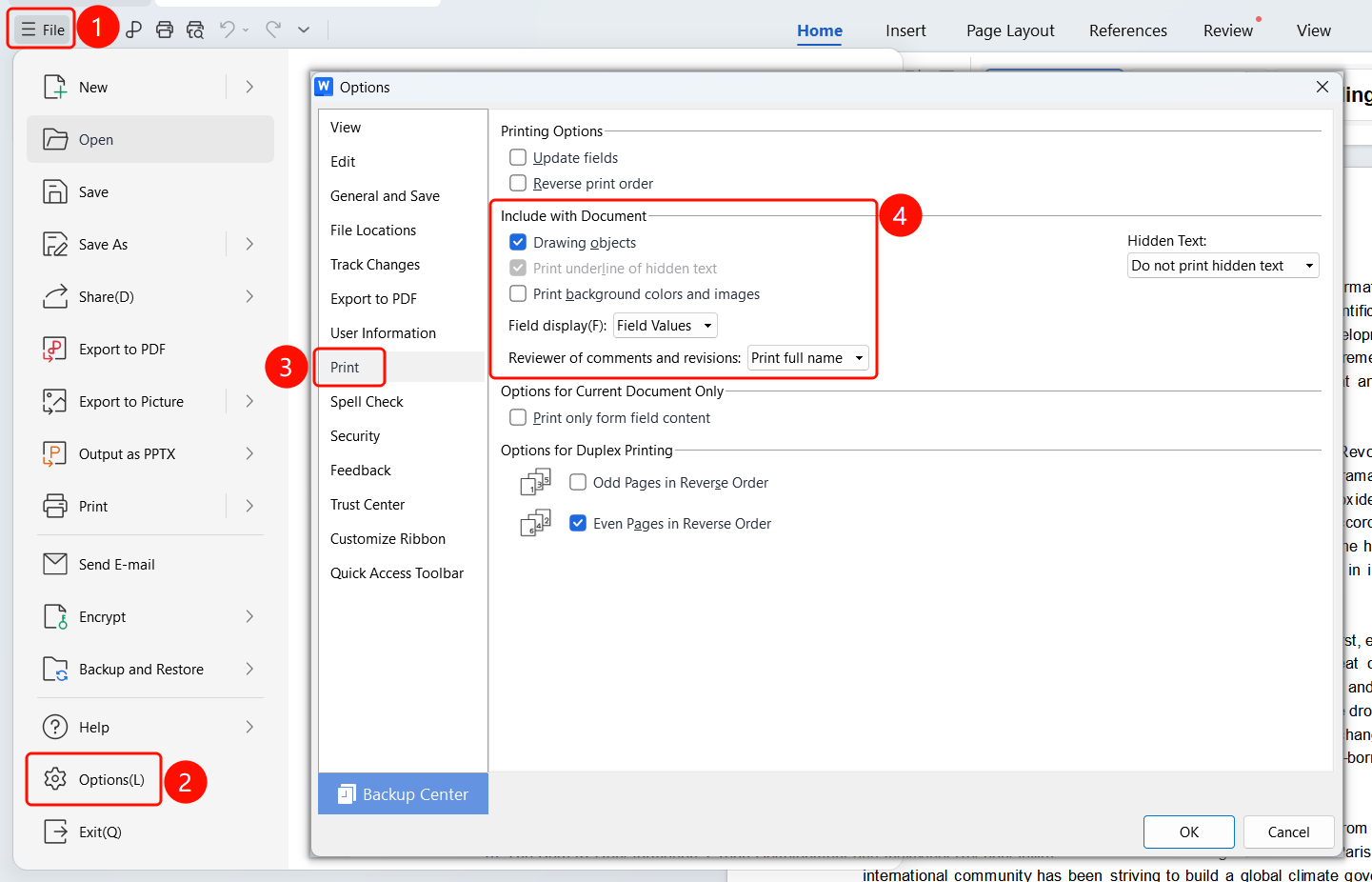
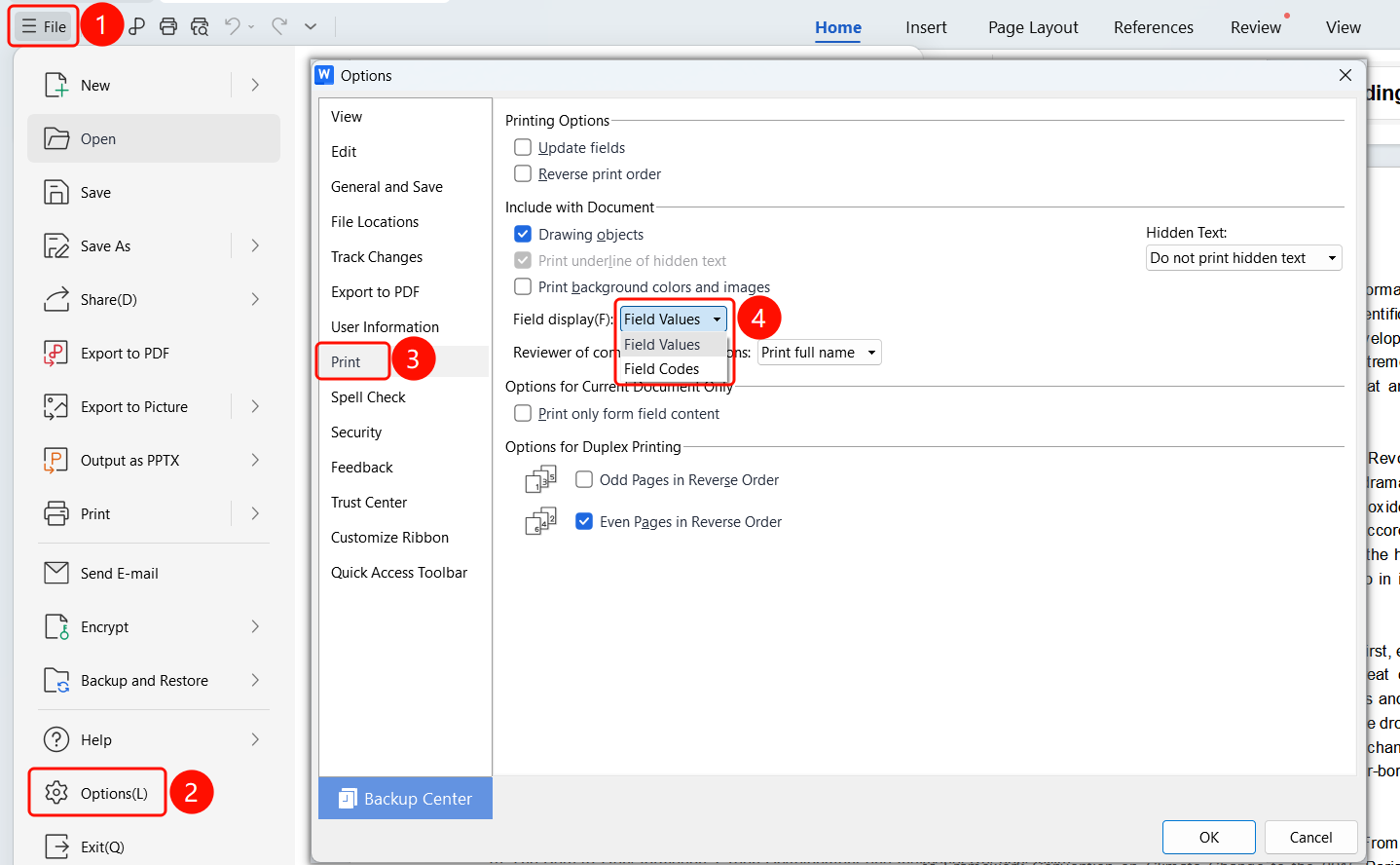
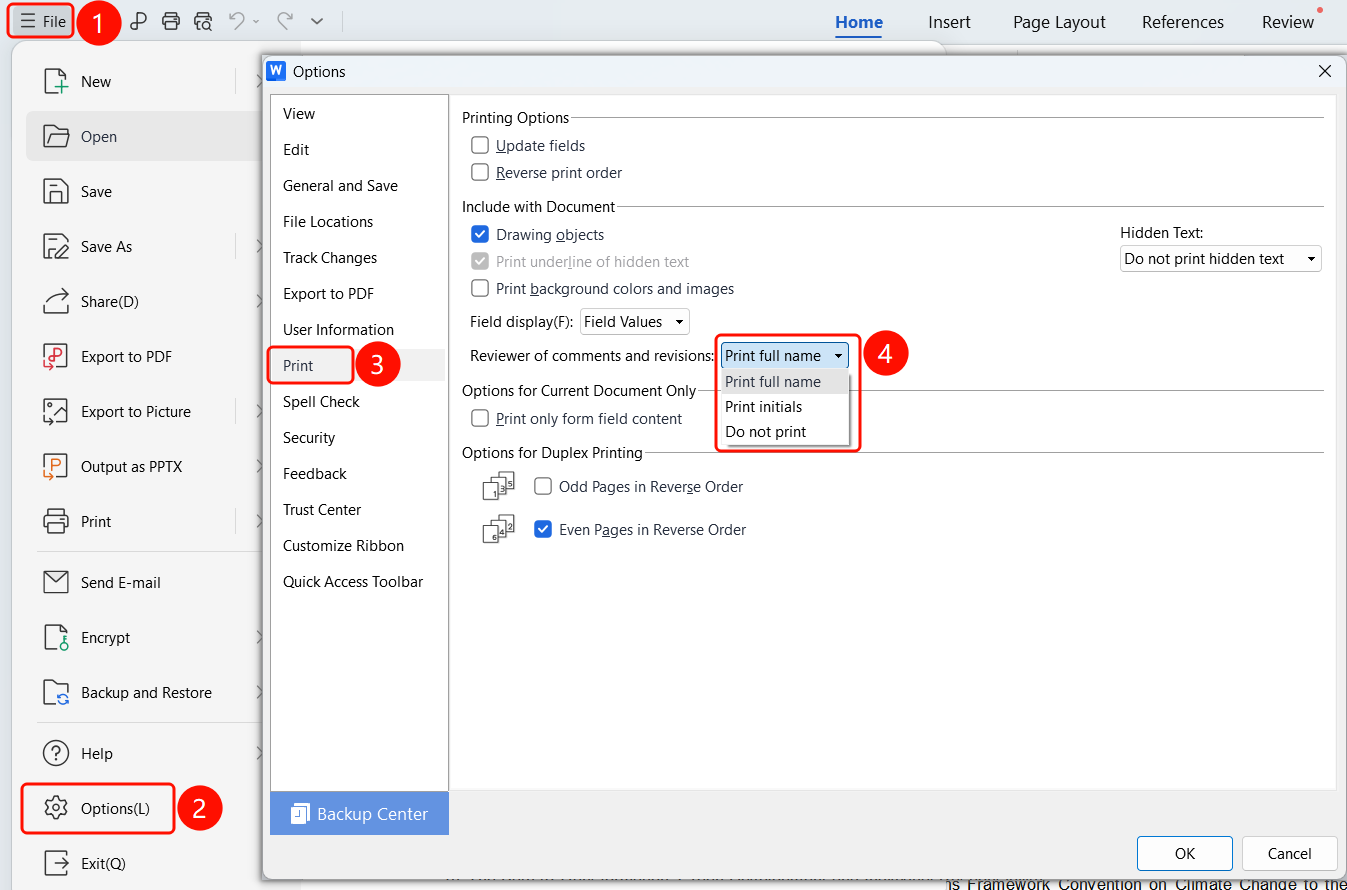
Top Menu Bar > File > Options > Print
- Click File in the top menu bar.
- Click Options in the drop-down menu.
- Select the Print tab in the Options dialog box.
- View the settings in the "Print additional information" area.
Print Graphical Objects
Feature Entry
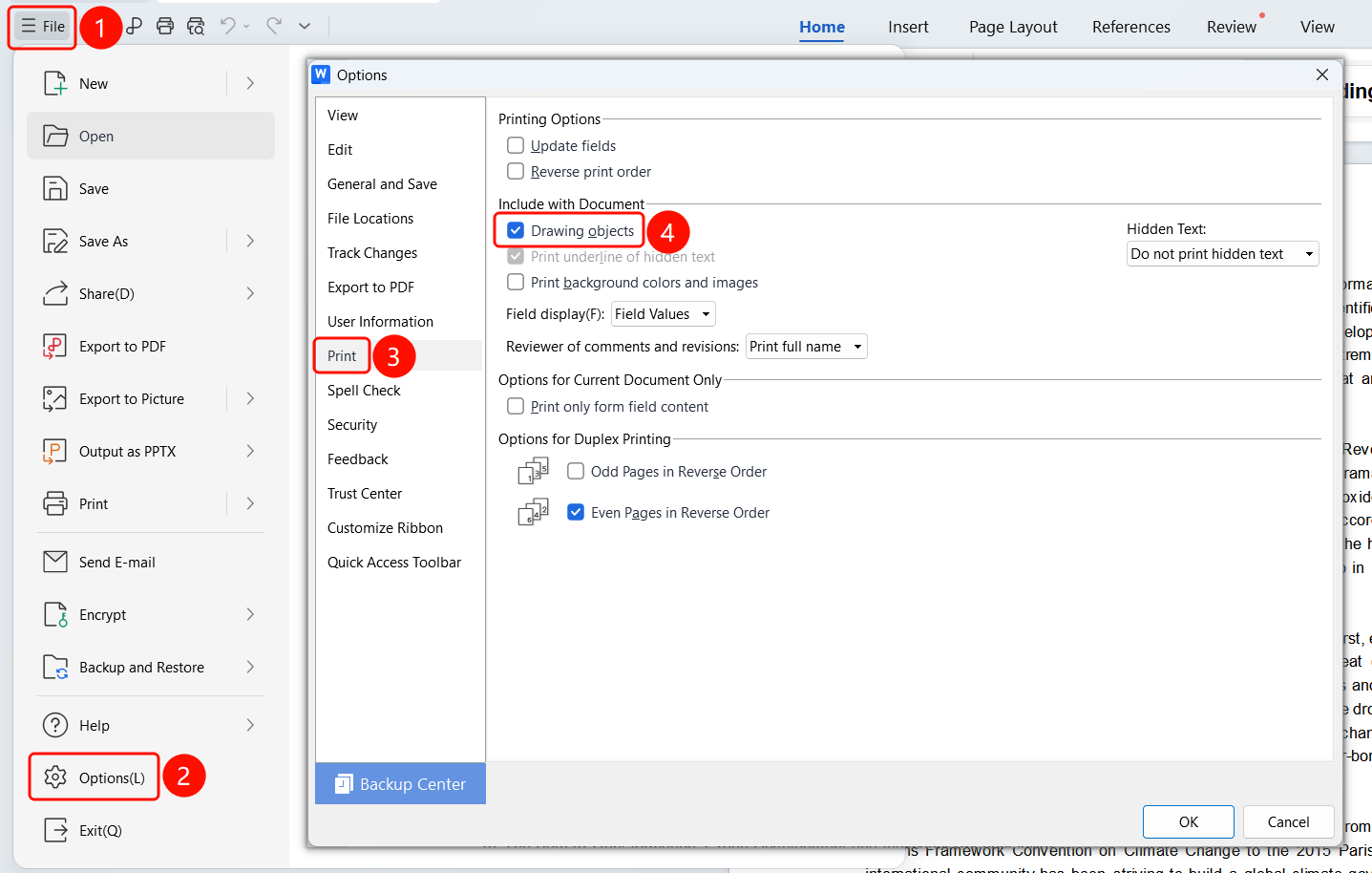
Options > Print > Print additional information > Drawing objects
- In the "Print additional information" area:
- Select the Drawing objects checkbox.
- Graphical objects in the document will be included when printing.
- Click OK to save the settings.
Print Hidden Text Underlines
Feature Entry
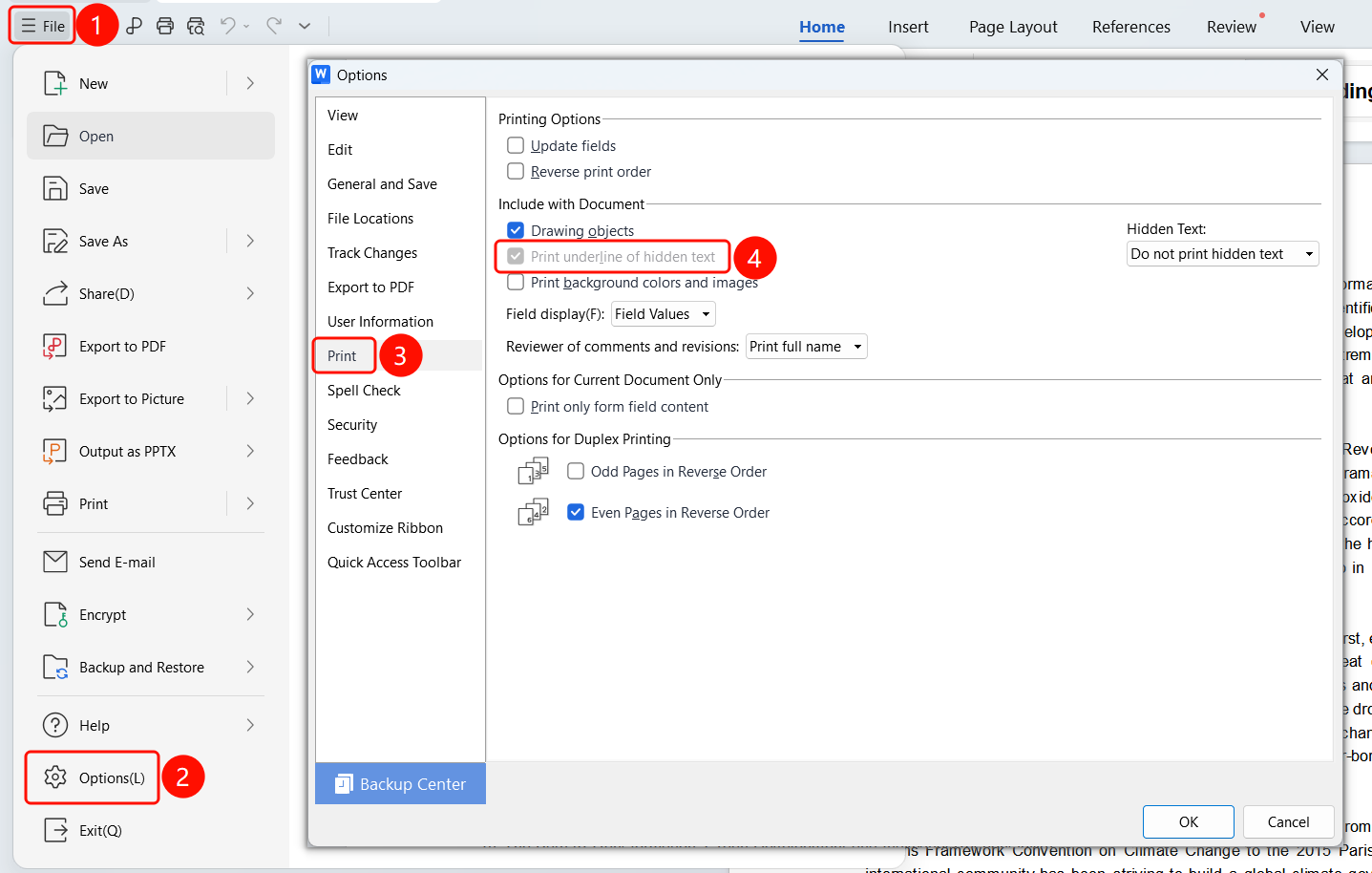
Options > Print > Print additional information > Print hidden text underlines
- In the "Print additional information" area:
- Select the Print hidden text underlines checkbox.
- Underlines will be displayed under hidden text when printing.
- Click OK to save the settings.
Print Background Colors and Images
Feature Entry
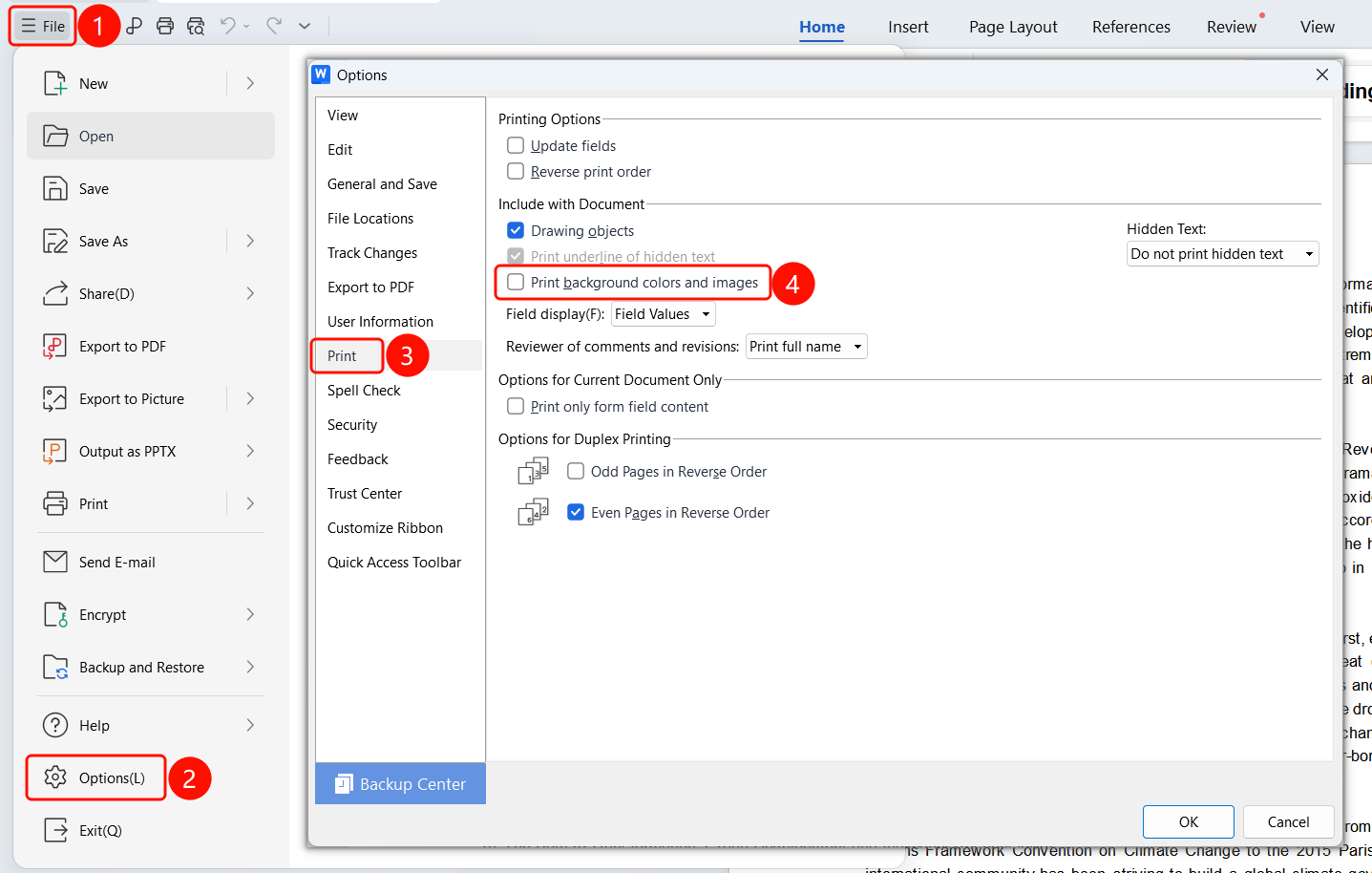
Options > Print > Print additional information > Print background colors and images
- In the "Print additional information" area:
- Select the Print background colors and images checkbox.
- Document background colors and images will be included when printing.
- Click OK to save the settings.
Set Field Content Display Mode
Feature Entry
Options > Print > Print additional information > Field content display
In the "Print additional information" area:
Click the Field content display drop-down list.
Select a display mode:
- Field values: Displays the calculated results of fields.
- Field codes: Displays the codes of fields.
Click OK to save the settings.
Set Reviewer Display for Comments and Revisions
Feature Entry
Options > Print > Print additional information > Reviewers of comments and revisions
In the "Print additional information" area:
Click the Reviewers of comments and revisions drop-down list.
Select a display mode:
- Print full names: Displays the full names of reviewers.
- Print initials: Displays the initials of reviewers.
- Do not print: Does not display reviewer information.
Click OK to save the settings.
FAQ
Q1: What is the purpose of printing graphical objects?
- Solution: When selected, pictures, shapes, and other graphical objects in the document will be included when printing, ensuring complete printed content.
Q2: Should I choose field values or field codes for field content display?
- Solution: Generally, choose "Field values" to display calculated results. Choose "Field codes" when you need to debug fields.
Q3: How do I print underlines for hidden text?
- Solution: Select the "Print hidden text underlines" option, and underlines will be displayed under hidden text when printing.
Notes
- Printing background colors and images will increase ink consumption.
- Field content display settings affect the printing of all fields.