Feature Summary
WPS Docs supports the printing methods feature, allowing you to set various printing methods such as one-sided printing, two-sided printing, manual two-sided printing, mirror printing, and print to file.
Feature Description
| Feature Dimension | Description |
|---|---|
| Member Restrictions | No restrictions |
| Version Restrictions | No restrictions |
Steps
Selecting a Printing Method via Print Settings
Feature Entry
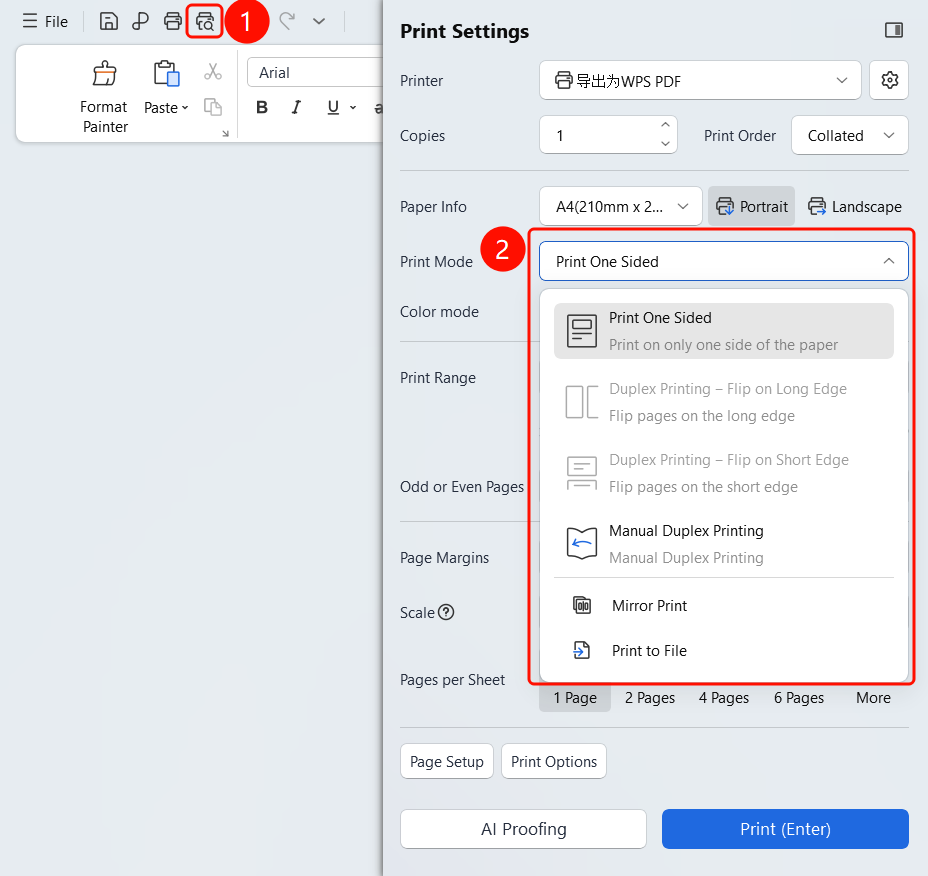
Top Menu Bar > Print button > Print Settings > Printing Method
Click the Print button in the top menu bar.
Click the Printing Method drop-down list in the Print Settings panel.
Select a printing method:
- Print on One Side: Print on only one side of the paper.
- Print on Both Sides—Flip on Long Edge: Flip pages on the long edge.
- Print on Both Sides—Flip on Short Edge: Flip pages on the short edge.
- Manual Two-Sided Printing: Manually print on the other side as prompted.
- Mirror Printing: Print the document content in reverse.
- Print to File: Output the print content to a file.
The setting takes effect immediately after selection.
FAQ
Q1: What is the difference between one-sided and two-sided printing?
- Solution: One-sided printing prints on only one side of each sheet, while two-sided printing prints content on both sides of the paper.
Q2: What is the difference between flipping on the long edge and flipping on the short edge?
- Solution: Flipping on the long edge is suitable for documents read in landscape orientation, while flipping on the short edge is suitable for documents read in portrait orientation.
Q3: How do I perform manual two-sided printing?
- Solution: Print the odd pages first, and then flip the paper over as prompted to print the even pages.