Feature Summary
WPS Docs supports the print range feature, allowing you to print all pages, the current page, or a specific page range.
Feature Details
| Dimension | Description |
|---|---|
| Member Restrictions | None |
| Version Restrictions | None |
Operating Steps
Selecting Print Range via Print Settings
Feature Entry
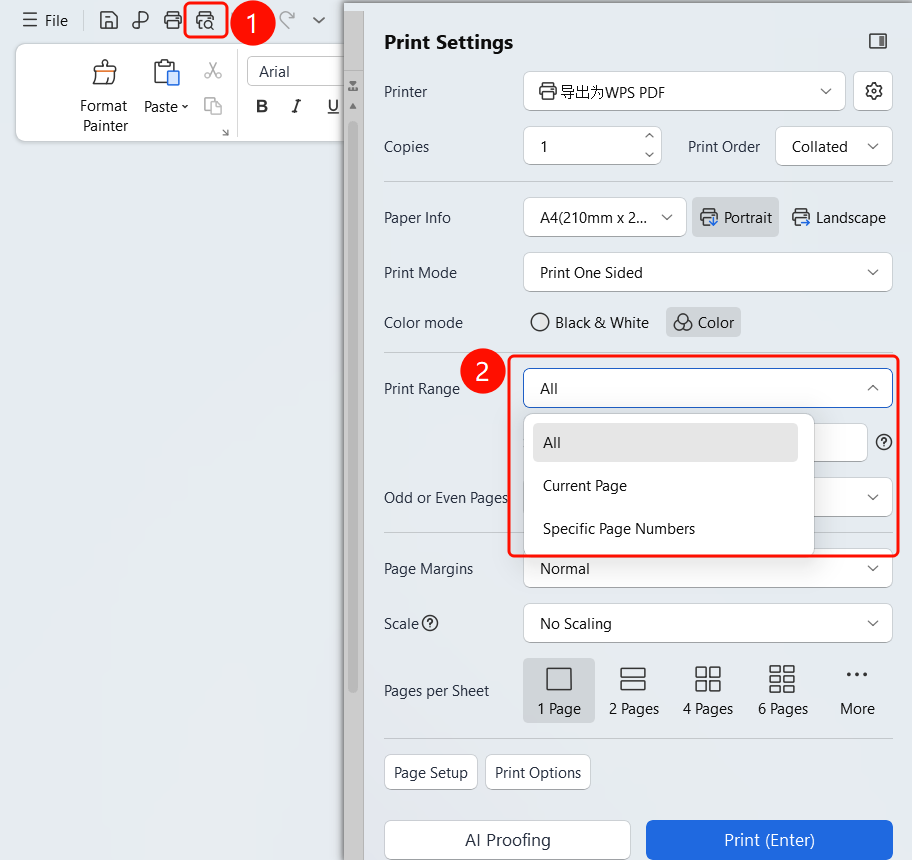
Top menu bar > Print button > Print Settings > Print Range
Click the Print button in the top menu bar.
In the Print Settings panel, click the Print Range drop-down list.
Select a print range:
- All: Print all pages of the document.
- Current Page: Print only the current page where the cursor is located.
- Custom Range: Manually enter the page range to print.
The selection takes effect immediately.
FAQ
Question 1: How do I print a specific page range?
- Solution: Select Custom Range, and then enter a page range such as "1-5" or "1,3,5".
Question 2: Can I print odd or even pages?
- Solution: Yes. Select to print odd or even pages in the Odd/Even Pages option.
Question 3: How do I print the page where the cursor is currently located?
- Solution: Place the cursor on the target page, and then select Current Page as the print range.
Notes
- Continuous ranges (1-5) and non-continuous pages (1,3,5) are supported when specifying page numbers.