Feature Summary
WPS Docs supports print options, allowing you to configure print-related settings such as updating fields before printing and printing in reverse order.
Feature Details
| Feature Dimension | Description |
|---|---|
| Premium Restrictions | None |
| Version Restrictions | None |
Steps
Open Print Options via File Menu
Entry
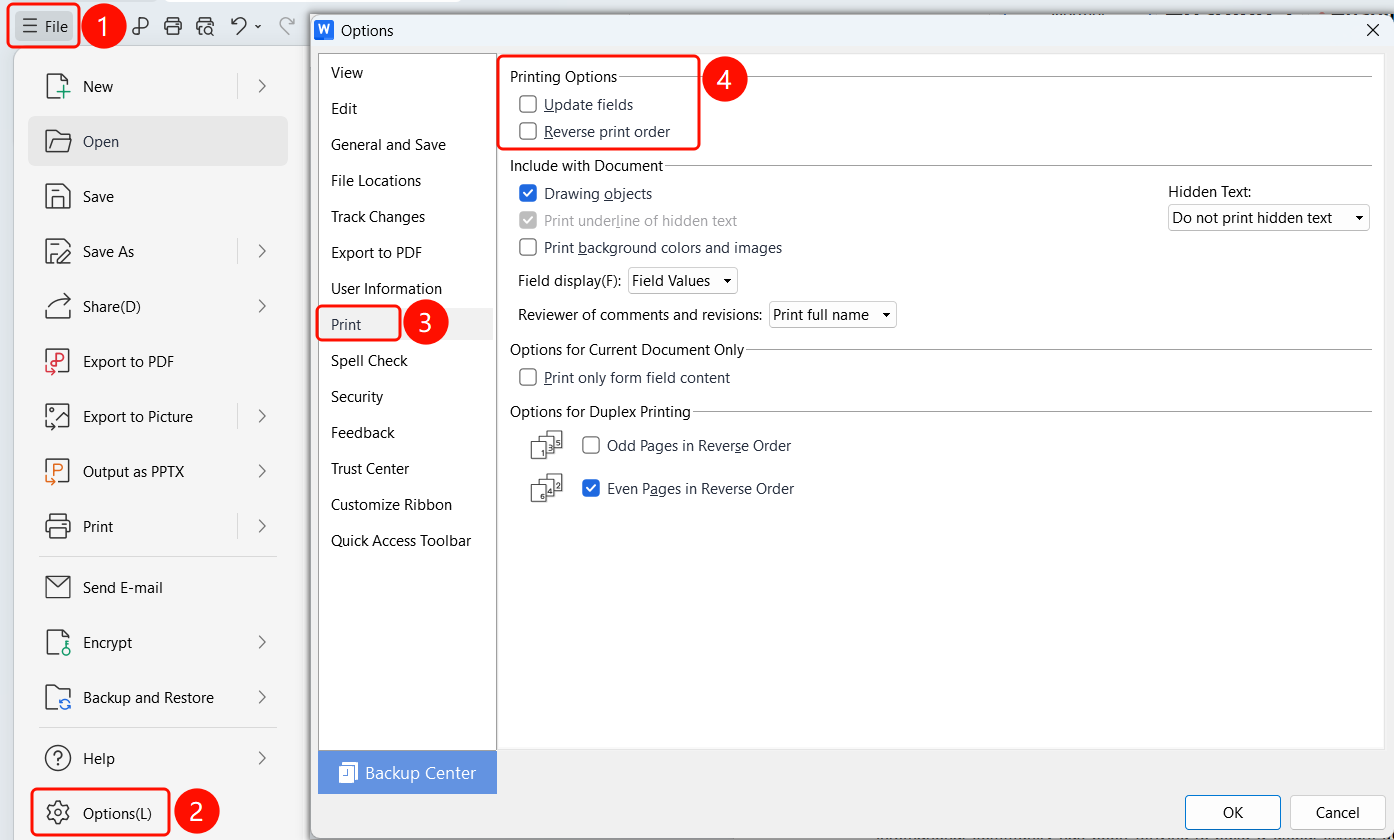
Top Menu Bar > File > Options > Print
- Click File on the top menu bar.
- Click Options in the menu.
- Select the Print tab in the Options dialog box.
- Configure settings in the Print Options area.
Update Fields Before Printing
Entry
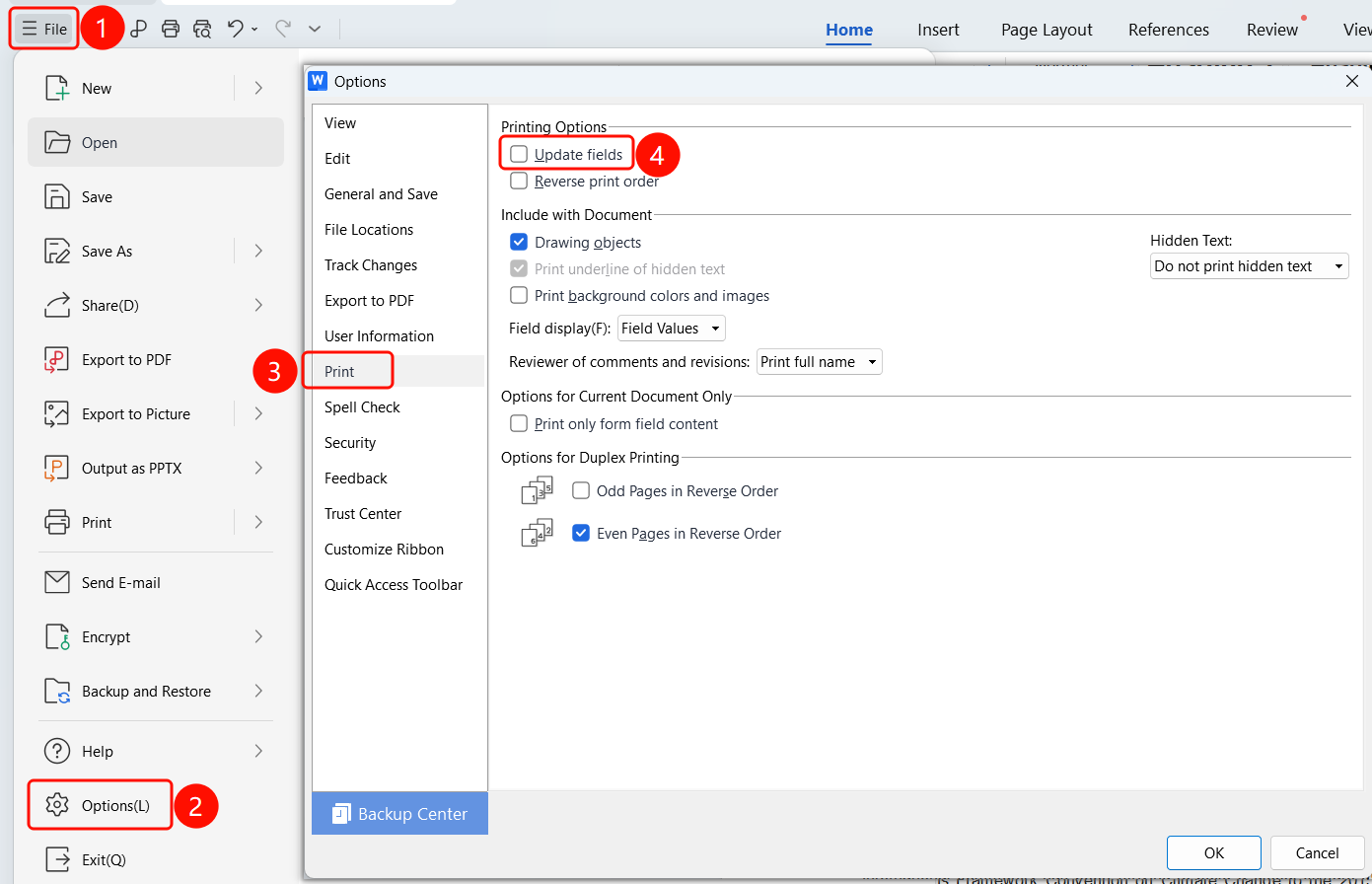
Options > Print > Print Options > Update fields
- Go to the Print Options area.
- Select the Update fields checkbox.
- All fields in the document will be updated automatically before printing.
- Click OK to save the settings.
Print in Reverse Order
Entry
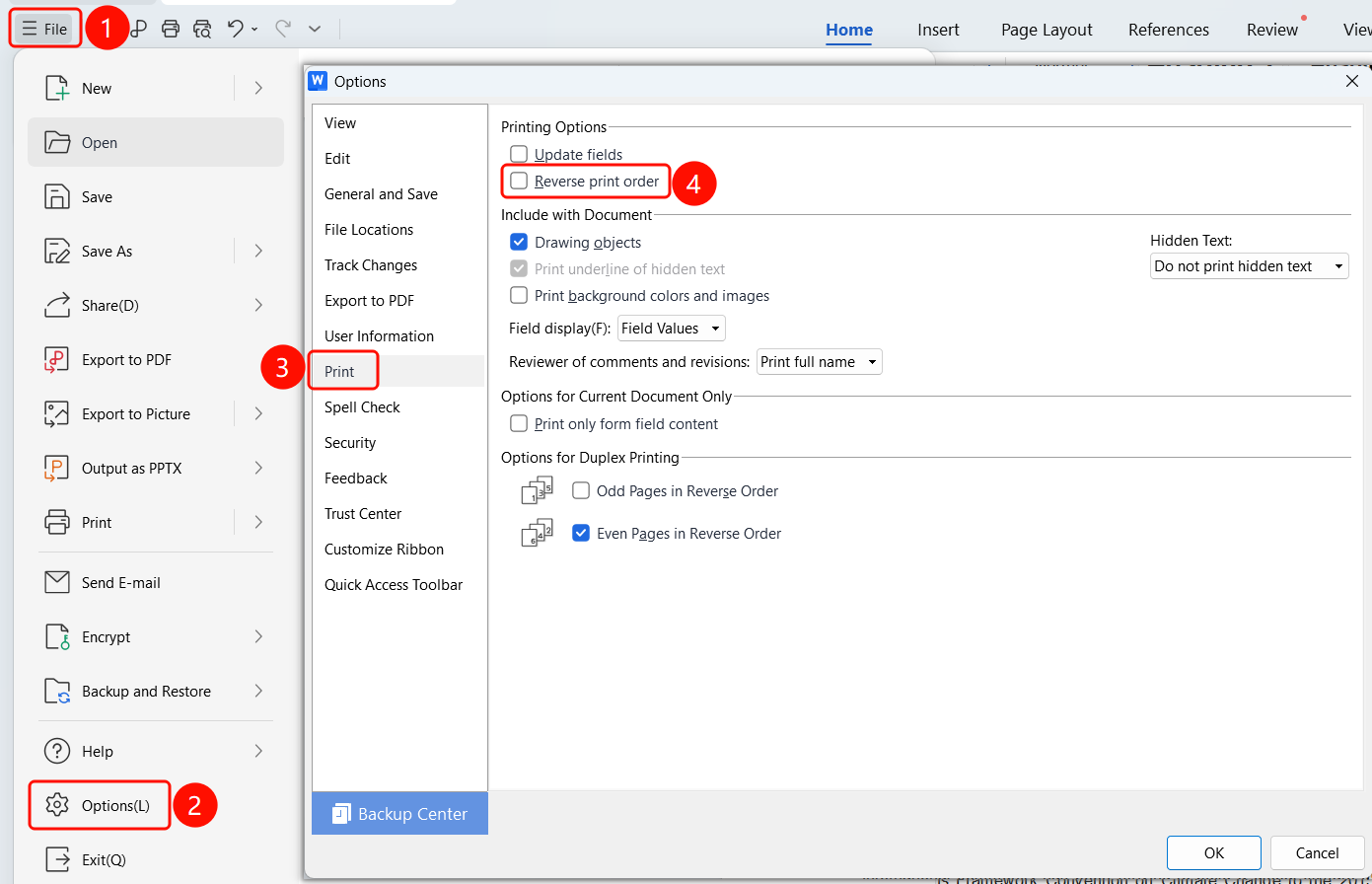
Options > Print > Print Options > Reverse print order
- Go to the Print Options area.
- Select the Reverse print order checkbox.
- Pages will print from back to front, starting with the last page.
- Click OK to save the settings.
FAQ
Q1: What does updating fields do?
- Solution: When selected, fields such as page numbers, dates, and the table of contents will be updated automatically before printing to ensure the printed content is up to date.
Q2: When should I use reverse print order?
- Solution: This is suitable for printers where the paper output tray faces up. It ensures the printed pages are stacked in the correct order, eliminating the need to rearrange them manually.
Q3: Do these options affect the document content?
- Solution: No. They only affect the printed output and will not modify the original content of the document.
Notes
- The option to update fields is recommended for documents containing dynamic content.