Feature Summary
When you need to make the text in your document more visually appealing, the WordArt feature provides a wealth of visual effects to help you create more attractive documents.
Feature Description
| Feature Dimension | Description |
|---|---|
| Membership Restrictions | Basic text effects (shadow, reflection, glow, etc.) have no membership restrictions and can be used for free |
| Version Restrictions | No version restrictions; all versions of WPS Docs support this feature |
Operation Steps
Insert WordArt via the Ribbon
Feature Entry
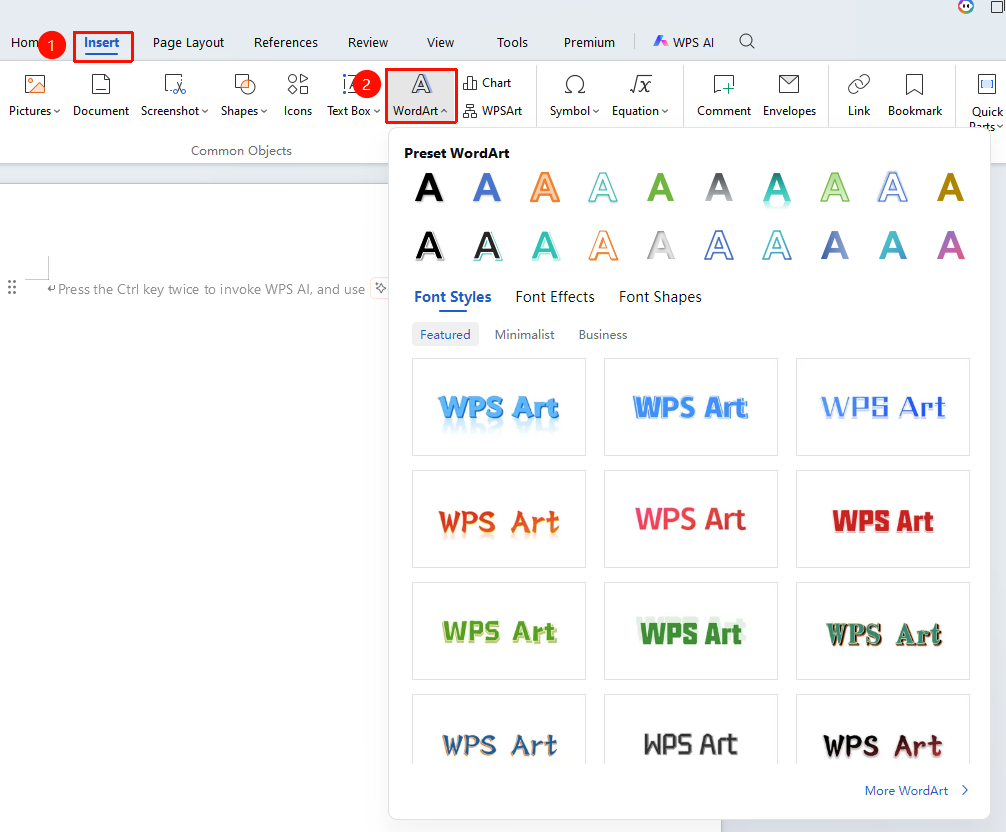
"Insert" tab → "WordArt" button
- Click the Insert tab on the ribbon
- Click the "WordArt" button
- Select a WordArt style in the WordArt Presets area
- Enter your text content in the pop-up text box
The following WordArt template content requires membership:
- Preset template content in the "WordArt" tab
- Preset template content in the "Font Effects" tab
- Preset template content in the "Font Shape" tab
Modify an Existing WordArt Style
Feature Entry
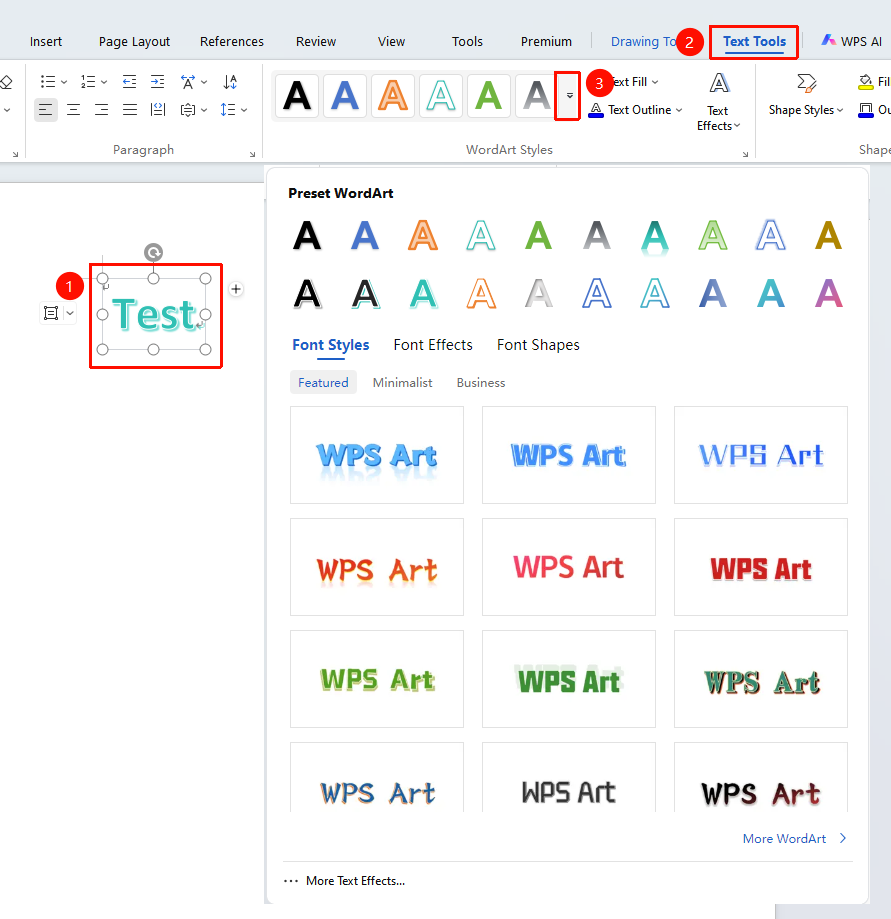
Select the inserted WordArt text box, then "Text Tools" tab → "Dropdown arrow on the right side of the WordArt Styles area"
- Select the inserted WordArt text box
- Click the Text Tools tab on the ribbon
- Click the "Dropdown arrow" option on the right side of the WordArt Styles area
- Select a WordArt style from the list