Feature Summary
The WPS Macro Editor is a built-in automation programming tool in WPS Office that supports the JS language. It helps users automate document processing by writing scripts, significantly improving office productivity.
Feature Description
| Feature Dimension | Description |
|---|---|
| Membership Restrictions | No membership restrictions; available to all users |
| Version Restrictions - JS Macro | No version restrictions; supported in all versions of WPS Writer |
Steps
Opening the JS Macro Editor (WPS Macro Editor)
Feature Entry
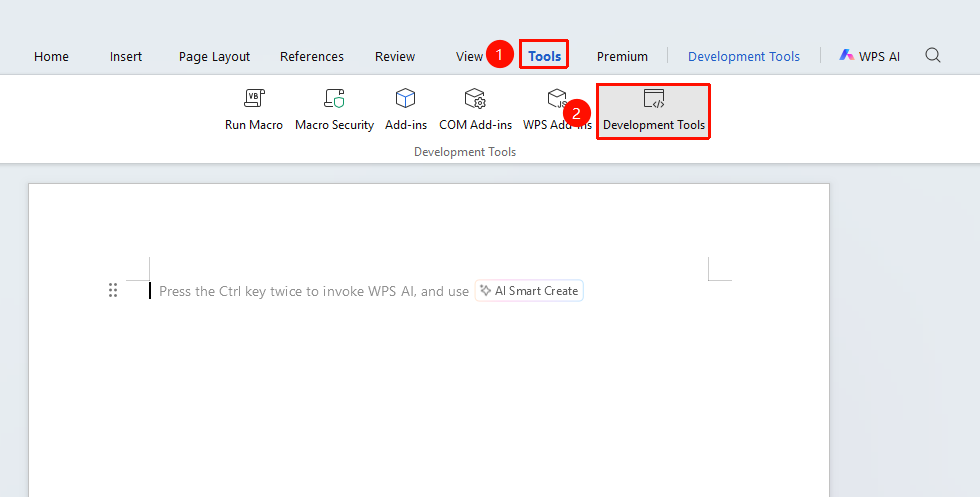
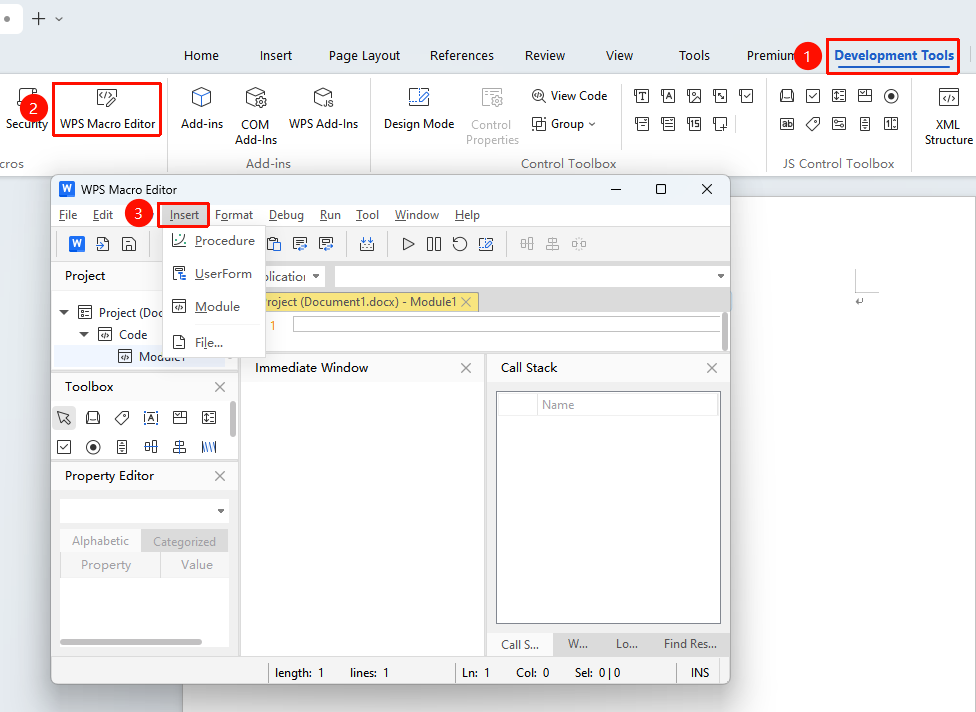
"Tools" tab → "Developer Tools" button → "Developer Tools" tab → "WPS Macro Editor" button
- Click the Developer Tools button in the Tools tab
- Enter the Developer Tools tab and click the VBA Macro Editor button
- In the Macro Editor, click "Insert" → "Module" at the top
- Write JavaScript code in the JS module
FAQ
Q1: WPS opens the VBA Editor instead of the JS Editor by default
- Solution: You can set JS as the default development environment. Click "File" → "Options"→ "View", check "Default JS Development Environment" in the View tab, and after saving, WPS will open the JS Macro Editor (WPS Macro Editor) by default.
Q2: Unable to save macro code
- Solution: Documents containing macros must be saved in a macro-enabled format. WPS Writer documents need to be saved in the
.docmformat; files in the.docxformat cannot save macro code. You can save the file as a.docxformat.
Q3: VBA macros written on Windows cannot run on Linux or Mac systems
- Solution: VBA macros and JS macros use different coding languages and are not directly compatible. You need to rewrite them using JS macros on the Linux or Mac system.
Notes
- File Format Requirements: Documents containing macros must be saved in a macro-enabled format (
.docm,.wpm,.xlsm,.et, etc.); standard formats cannot save macro code - Security Risks: Avoid executing macro script files from unknown sources to reduce security risks.