Feature Summary
The XML Mapping Pane (i.e., XML Structure Pane) is used to bind elements from an XML schema to document content, enabling structured data management. Through this pane, you can visually view the XML element tree, drag elements into the document to create structured content, or delete existing mappings.
Feature Description
| Feature Dimension | Description |
|---|---|
| Membership Restriction | No membership restriction; available to all users |
| Version Restriction | Only available in the WPS version on Windows operating system computers |
Operation Steps
Opening the XML Mapping Pane
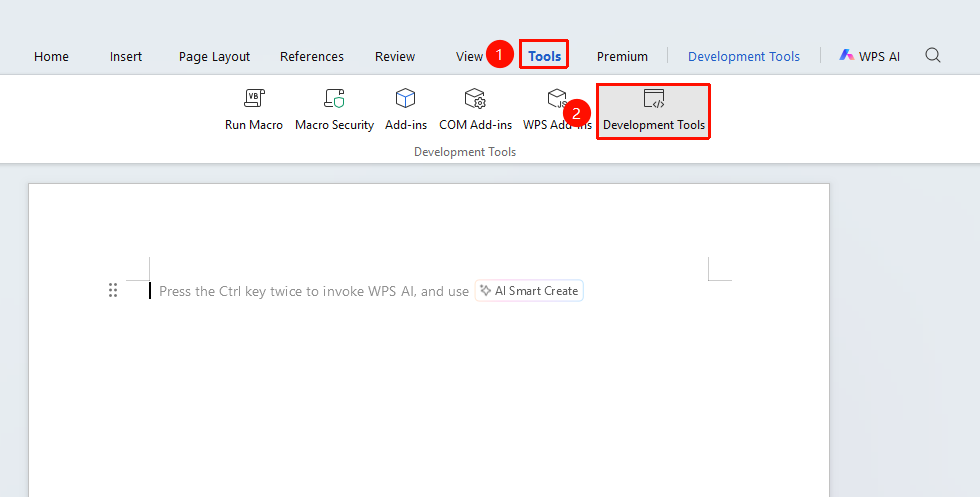
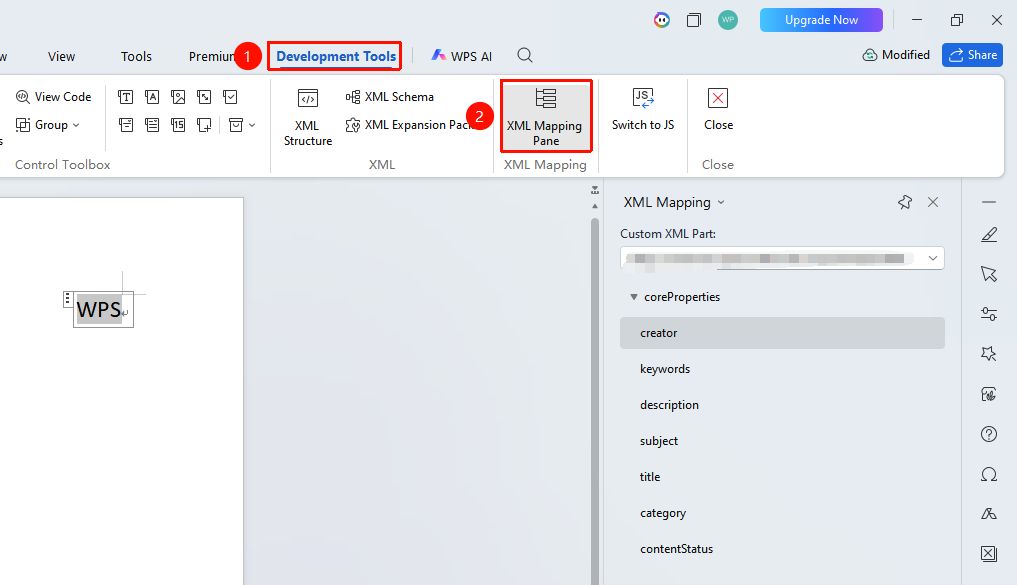
Feature Entry: "Tools" tab → "Developer Tools" button → "Developer Tools" tab → "XML Mapping Pane"
- Click the "Tools" tab at the top, locate and click the "Developer Tools" button to bring up the "Developer Tools" tab at the top
- Click the "Developer Tools" tab
- Find the "XML Mapping Pane" button in the "XML" function group
- The "XML Mapping Pane" will be displayed on the right side of the interface
Mapping XML Elements to the Document
Operation Steps
- Click the editing area in the document where you want to map
- Find the XML element to be mapped in the pane
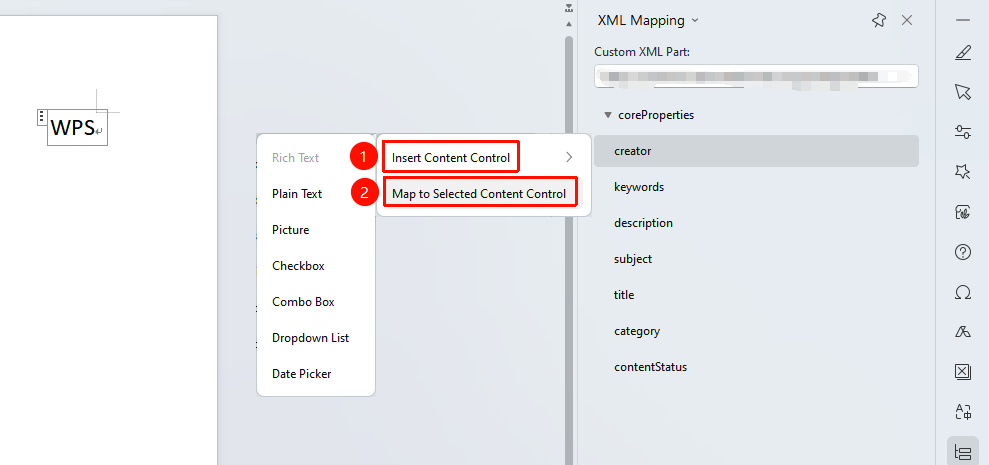
- Right-click the element → "Insert Content Control"
- Insert the desired control into the document
- Right-click the element to be mapped again → "Map to Selected Content Control"
- The element mapping is now complete
Frequently Asked Questions
Question 1: The XML Structure Pane is empty and shows no elements?
- Solution: You must first attach an XML schema file via "Developer Tools" → "Schema". The pane will not display any content without an attached schema.
Question 2: Mapping an element to the document has no effect?
- Solution:
- Ensure the document is in editing mode, not read-only
- Check if the document has editing restrictions set
- Make sure the schema is correctly attached and the element is available
Question 3: How to view the content of a mapped element?
- Solution: Click the element name in the "XML Structure" pane, and the document will automatically jump to the location of that element.
Question 4: Mapped elements appear gray?
- Solution: This is normal and indicates that the content has been marked with XML. The gray background will not appear when printing.
Notes
- Prerequisite: An XML schema (XSD file) must be attached before using the XML Mapping Pane
- Design Mode: It is recommended to operate XML elements in "Design Mode" for easier tag viewing
- Data Export: A document with mapped XML can be exported as an XML format data file
- Multiple Schema Support: Multiple XML schemas can be attached simultaneously; the pane will display elements from all schemas