Feature Summary
The XML Schema feature is used to attach and manage XSD schema files, defining the structure, data types, and constraint rules of XML elements in a document, thereby providing structured data validation capabilities for the document.
Feature Description
| Feature Dimension | Description |
|---|---|
| Membership Restriction | No membership restriction; available to all users |
| Version Restriction | Only available in WPS versions on Windows operating system computers |
Operation Steps
Attach an XML Schema
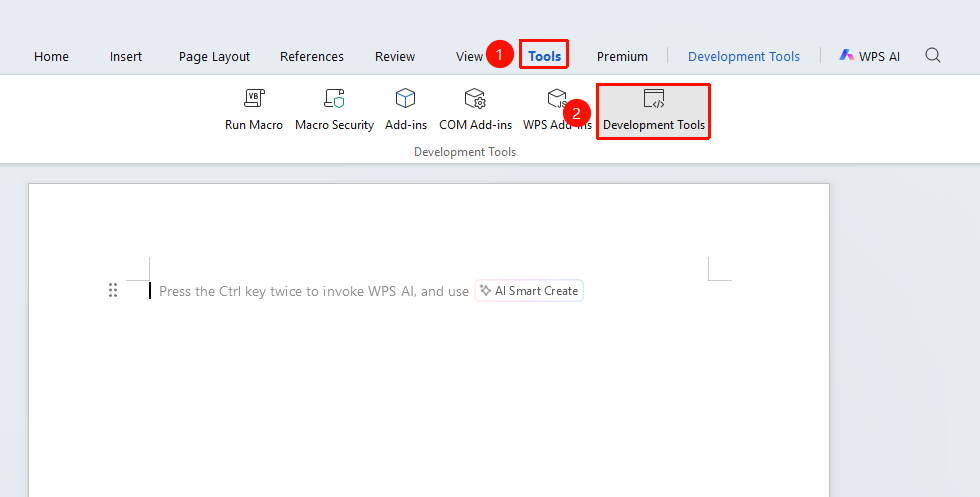
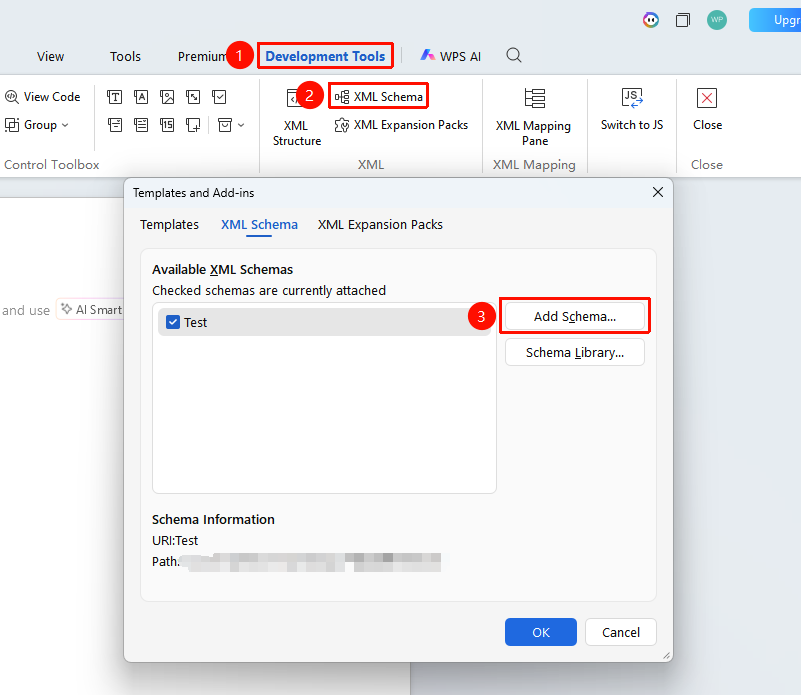
Feature Entry: "Tools" tab → "Developer Tools" button → "Developer Tools" tab → "Schema"
- Click the "Tools" tab at the top, locate and click the "Developer Tools" button to bring up the "Developer Tools" tab at the top
- Click the "Developer Tools" tab
- In the "XML" function group, click the "Schema" button
- In the pop-up "XML Schema" dialog box, click "Add Schema"
- Browse and select a local XSD schema file
- Click "Open" to complete the attachment
View Attached Schemas
Feature Entry: "Developer Tools" tab → "Schema"
- Click the "Schema" button to open the dialog box
- View the list of attached schemas in the "Schema" tab
- You can view the namespace and file path of the schema
- You can check or uncheck to enable/disable the schema
Delete an Attached Schema
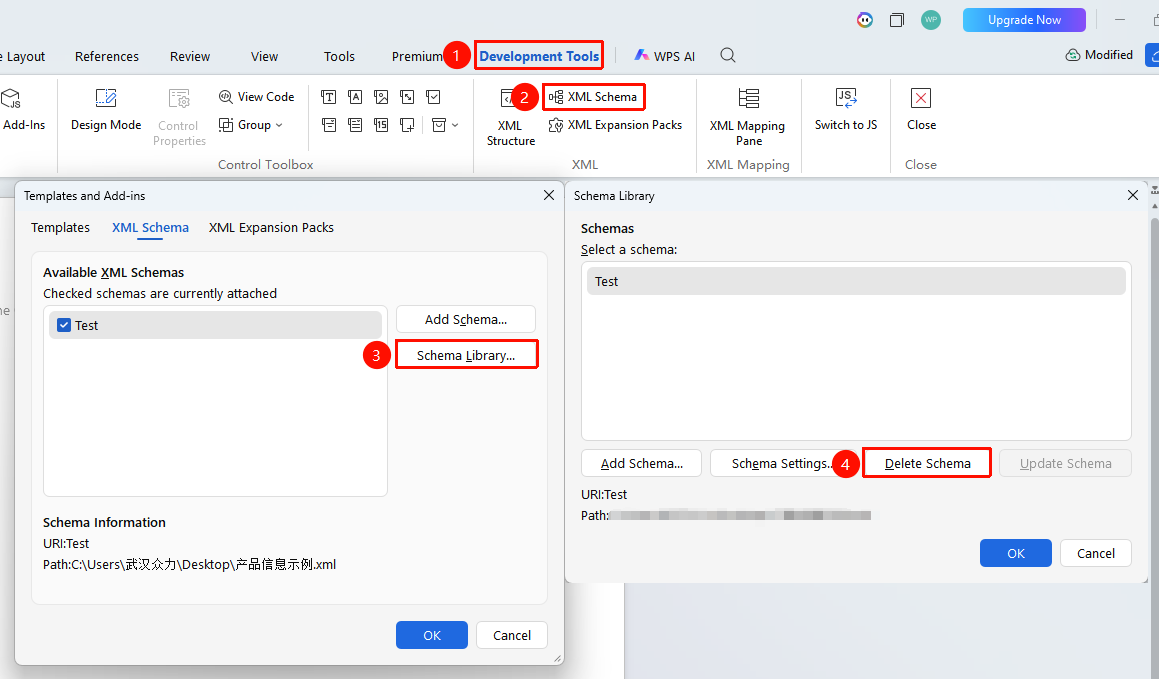
Feature Entry: "Developer Tools" → "Schema" → "Schema Library" → "Delete Schema"
- Open the "Schema" → "Schema Library" dialog box
- Select the schema to delete
- Click the "Delete Schema" button
- Confirm the deletion operation
How to Update a Schema
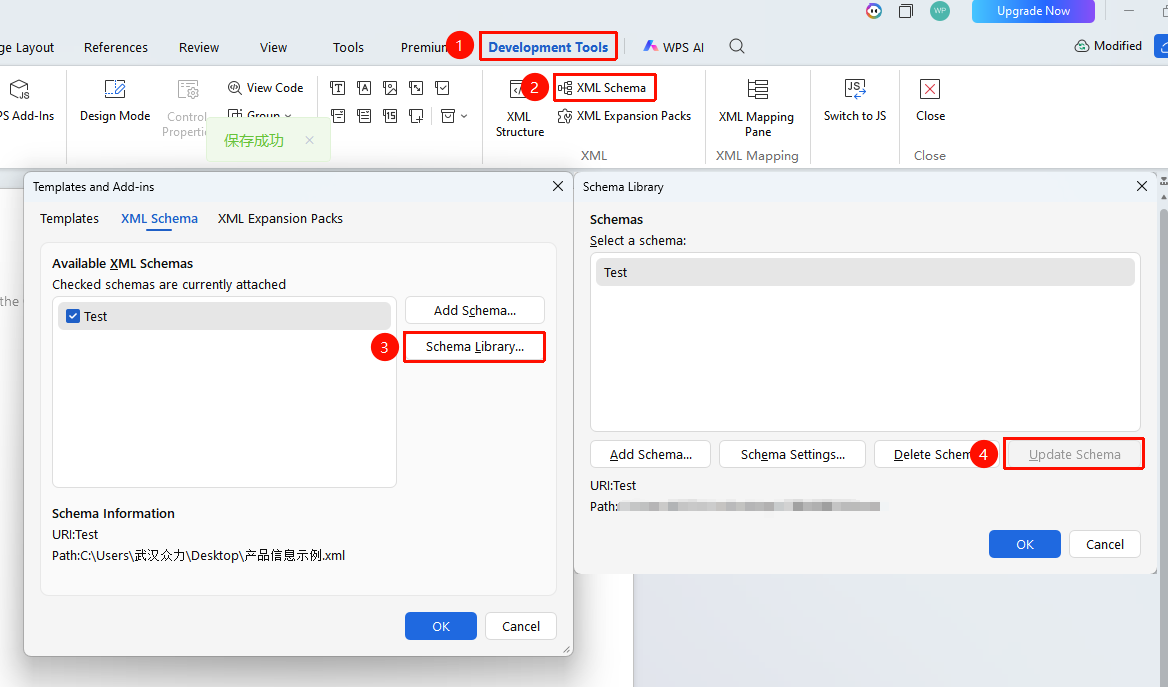
Feature Entry: "Developer Tools" → "Schema" → "Schema Library" → "Schema Library"
- After updating the XML schema source file
- Click the "Update Schema" button in the "Schema" → "Schema Library" dialog box
- The schema file will be updated
Frequently Asked Questions
Question 1: Unable to attach an XML schema?
- Solution: Check if the XSD file format is correct, ensure the file encoding is UTF-8, and the file is not corrupted.
Question 2: Schema validation failed?
- Solution: Check the error message, and verify whether the XML elements in the document are missing required attributes or have mismatched data types.
Question 3: No elements are displayed after attaching the schema?
- Solution: Open the "XML Structure" pane to view the elements, and ensure the schema is enabled (checked state).
Notes
- XML schema files usually have the .xsd extension
- The schema defines the allowed element names, attributes, data types, and hierarchical relationships
- Multiple schemas can be attached to the same document simultaneously
- Deleting a schema does not remove the XML elements already marked in the document