Feature Summary
The XML Structure feature is used to view and manage the hierarchical structure of XML elements in a document. Through the XML Structure pane, you can intuitively browse, add, and edit XML elements, enabling structured markup of document content.
Feature Description
| Feature Dimension | Description |
|---|---|
| Membership Restriction | No membership restriction; available to all users |
| Version Restriction | Available only on WPS for Windows operating system computers |
Operation Steps
Opening the XML Structure Pane
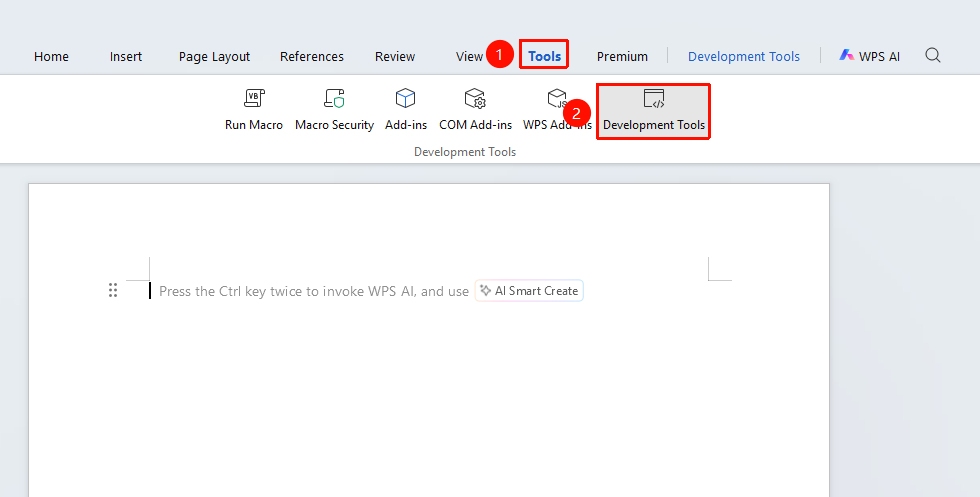
Feature Entry: "Tools" tab → "Developer Tools" button → "Developer Tools" tab → "XML Structure"
- Click the "Tools" tab at the top, locate and click the "Developer Tools" button to bring up the "Developer Tools" tab at the top
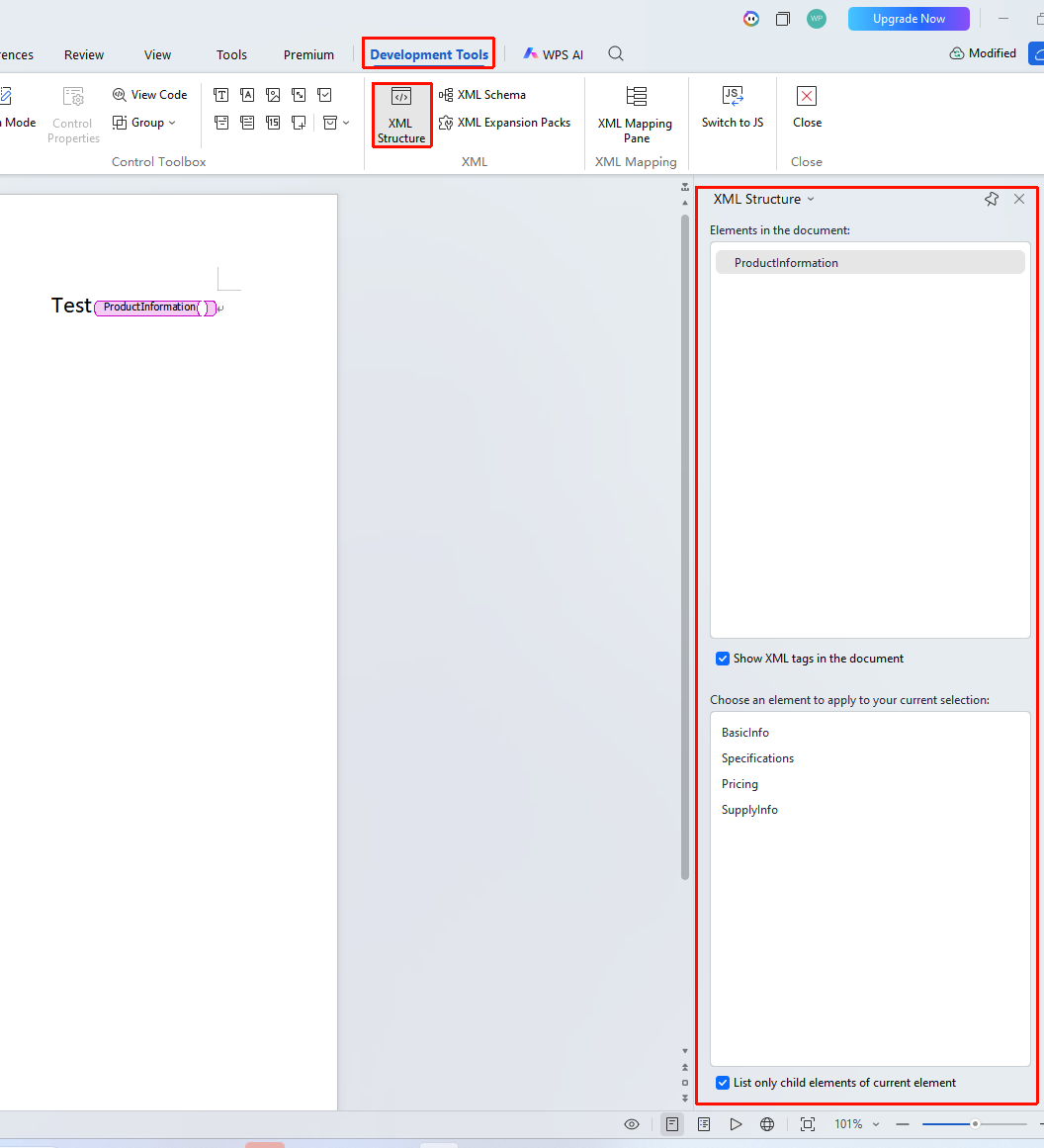
- Click the "Developer Tools" tab
- In the "XML" function group, click the "XML Structure" button
- The XML Structure task pane will appear on the right side
- The pane displays the tree structure of XML elements in the current document
Viewing XML Element Structure
Feature Entry: "Developer Tools" tab → "XML Structure"
- Open the XML Structure pane
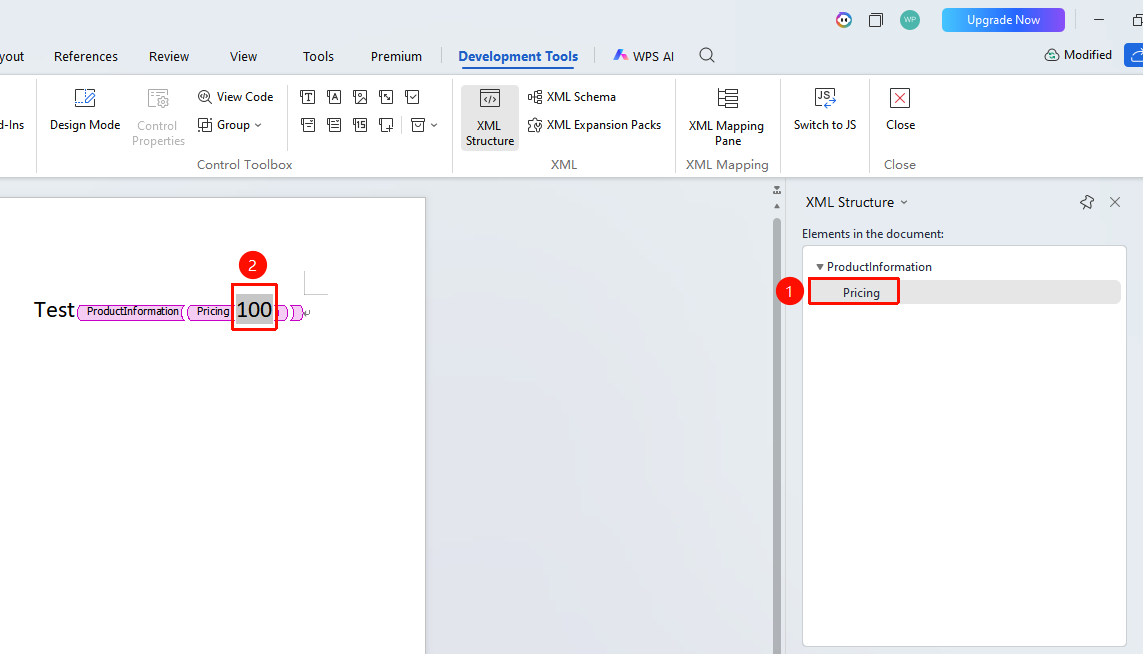
- Expand or collapse element nodes in the pane
- Click an element to navigate to the corresponding markup location in the document
- View element attributes and data types
Adding XML Elements
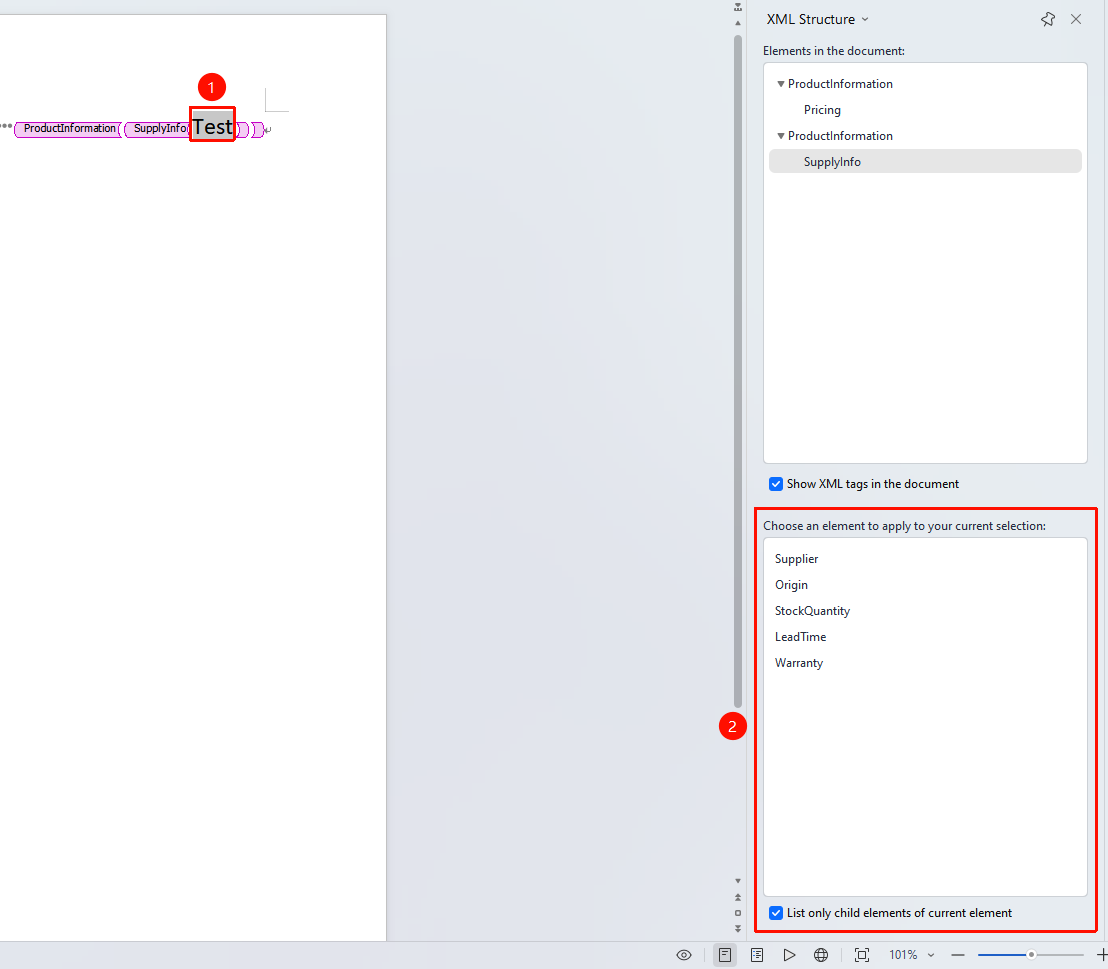
Feature Entry: "XML Structure Pane" → "Select an element and apply it to the current selection"
- Click the position where you want to add an element or select the content to which you want to add an XML element
- In the "XML Structure Pane", locate "Select an element and apply it to the current selection"
- Click the element you want to add to complete the addition
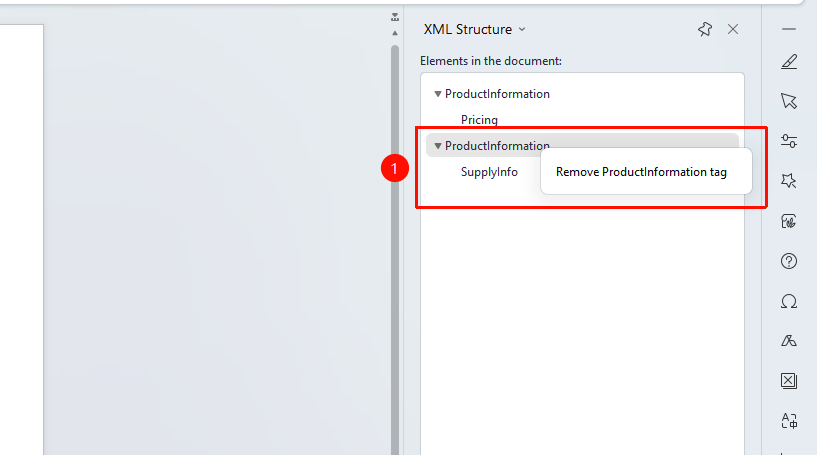
Deleting XML Elements
Feature Entry: XML Structure Pane → Right-click → "Delete"
- Select the element to be deleted in the XML Structure pane
- Right-click and select "Delete"
- Confirm the deletion operation
- The element and its content will be removed from the document
Frequently Asked Questions
Question 1: The XML Structure pane is empty?
- Solution: You need to first attach an XML schema file via "Developer Tools" → "Schema" to see XML elements in the pane.
Question 2: Unable to expand an XML element?
- Solution: Check whether the element contains child elements. Some elements may be leaf nodes and cannot be expanded.
Precautions
- The XML Structure pane needs to be used in conjunction with an XML schema
- Modifying elements in the pane will synchronously update the document content
- You can quickly locate XML markup in the document through the pane
- Deleting an element will also delete all its child elements and content