Feature Summary
When you need to input special formatting such as mathematical formulas, chemical equations, footnote numbers, or trademark symbols, the superscript and subscript feature helps you quickly shrink text and position it above or below the baseline, achieving a professional and standardized document layout. Core capabilities include:
- Set selected text as superscript with one click (e.g., X², m³)
- Set selected text as subscript with one click (e.g., H₂O, CO₂)
- Support for multiple operation methods including the toolbar, right-click menu, and keyboard shortcuts
- Support for adding superscript/subscript attributes to heading styles, enabling batch uniform formatting
- Superscript and subscript can be stacked to meet complex formula layout requirements
Feature Description
| Feature Dimension | Description |
|---|---|
| Membership Restriction | No membership restriction; available to all users |
| Version Restriction | No version restriction |
Operation Steps
Setting Superscript via the Ribbon Toolbar
Feature Entry
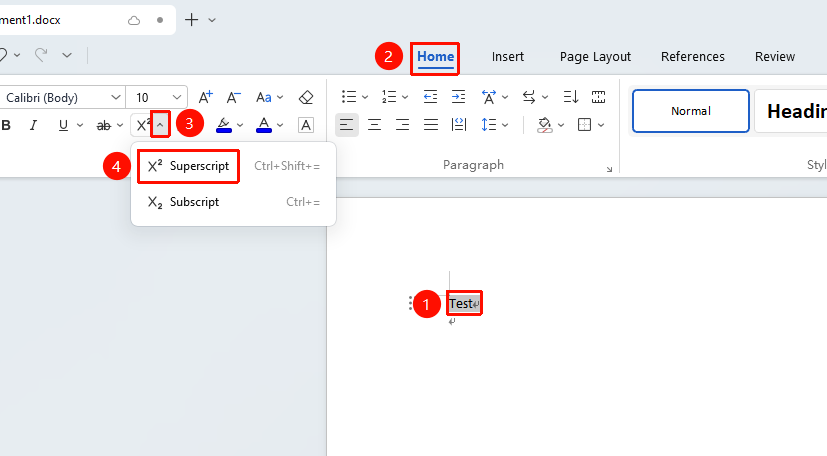
"Home" tab → "Click the dropdown arrow next to the subscript button" → "Superscript"
- Select the text you want to set as superscript
- Click the Home tab on the ribbon
- Click the "Superscript" button
Setting Subscript via the Ribbon Toolbar
Feature Entry
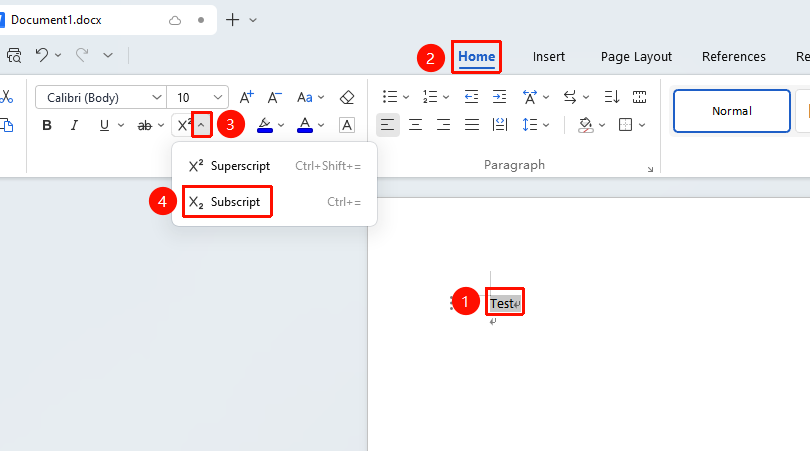
"Home" tab → Click the "dropdown arrow to the right of the superscript button" → "Subscript"
- Select the text you want to set as subscript
- Click the Home tab on the ribbon
- Click the dropdown arrow to the right of the Superscript button
- Click the "Subscript" button
Setting Superscript via the Right-Click Menu
Feature Entry
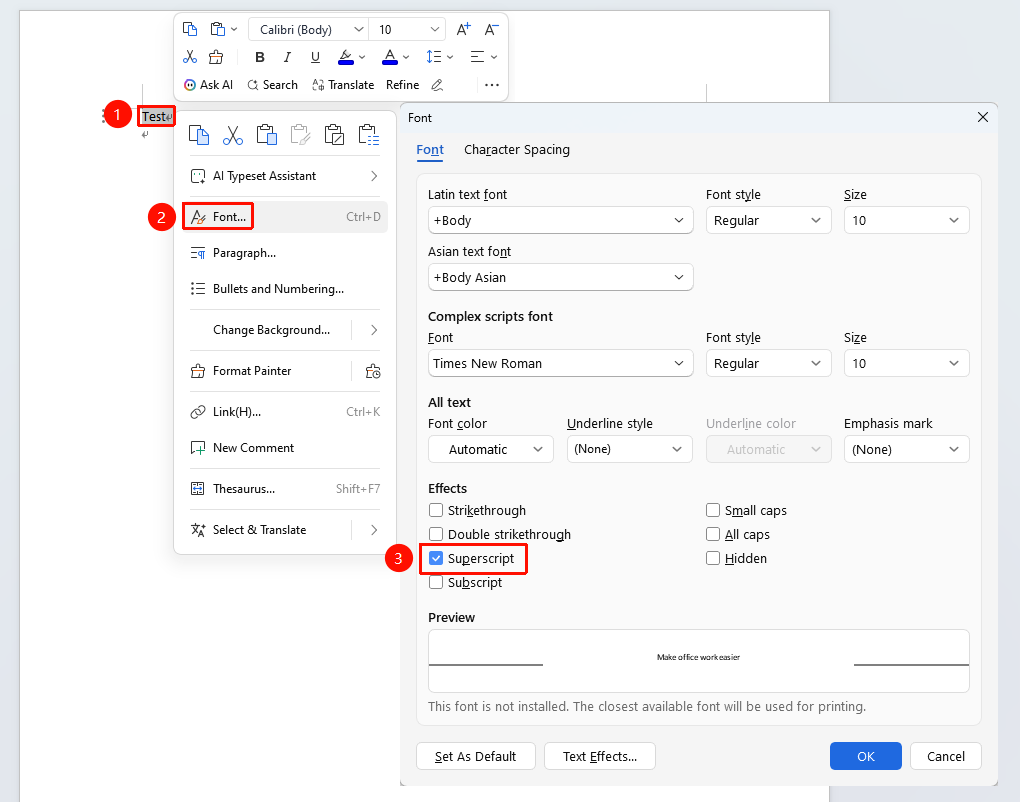
Select the text you want to set as superscript, "Right-click" menu → "Font" option → "Superscript" checkbox
- Select the text you want to set as superscript
- Right-click the selected text and choose the Font option
- In the Font dialog box that appears, check the "Superscript" checkbox
- Click the OK button to save
Setting Subscript via the Right-Click Menu
Feature Entry
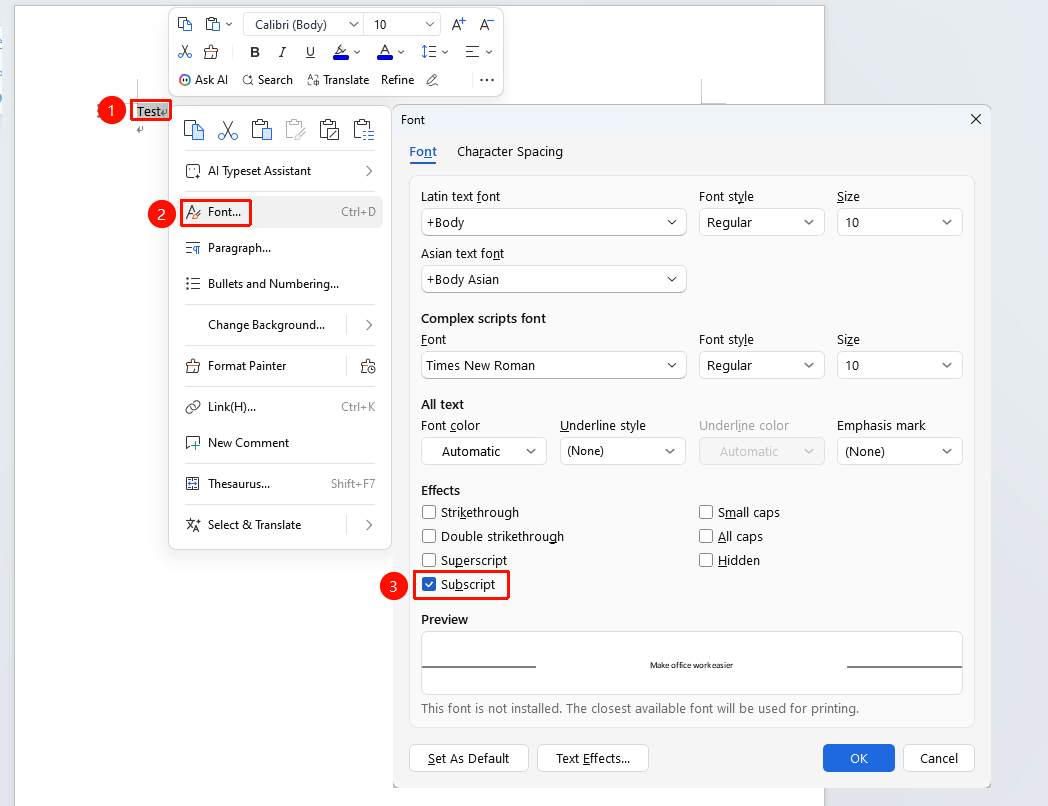
Select the text you want to set as subscript, "Right-click" menu → "Font" option → "Subscript" checkbox
- Select the text you want to set as subscript
- Right-click the selected text and choose the Font option
- In the Font dialog box that appears, check the "Subscript" checkbox
- Click the OK button to save
Setting via Keyboard Shortcuts
- Select the text you want to set as superscript or subscript
- Use the following keyboard shortcuts:
- Superscript:
Ctrl + Shift + = (Mac: Cmd + Shift + =) - Subscript:
Ctrl + = (Mac: Cmd + =)
Frequently Asked Questions
Q1: How to remove applied superscript/subscript
- Solution: Select the text with superscript/subscript applied, and click the superscript/subscript button on the toolbar again, or use the same keyboard shortcut to remove it. You can also uncheck it via the right-click "Font" dialog box.
Q2: Can the font size of superscript/subscript text be adjusted?
- Solution: Superscript/subscript text is automatically displayed in a reduced size. If adjustment is needed, you can set the font size individually, but this may affect the layout appearance; it is recommended to keep the default setting.
Q3: How to display both superscript and subscript at the same position simultaneously (e.g., upper and lower indices in chemical equations)?
- Solution: WPS Writer does not support displaying superscript and subscript simultaneously at the same character position. This can be achieved by inserting an equation ( "Insert" → "Equation" ) or by using text boxes for manual layout.