Feature Summary
When you need to highlight text, leave blanks for filling in, or emphasize explanations in a document, the underline feature adds a line beneath the selected text, helping you quickly draw attention to key content. Core capabilities include:
- Add an underline to selected text with one click
- Support for multiple operation methods, including toolbar buttons, floating toolbar, and shortcut keys
- Can be combined with styles such as bold and italic
- Support for adding underlines to heading styles
- Support for batch adding underlines
Feature Description
| Feature Dimension | Description |
|---|---|
| Membership Restriction | No membership restriction; all users can use it for free |
| Version Restriction | No version restriction |
| Underline Feature Shortcut Key | Ctrl + U |
Operation Steps
Setting via the Ribbon
Feature Entry
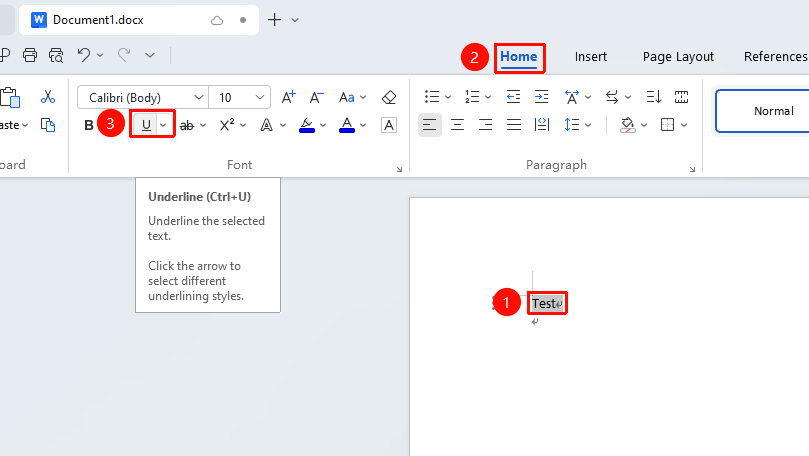
"Home" tab → "Underline" button
- Select the text you want to underline
- Click the Home tab in the top menu bar
- In the font formatting area, find and click the "Underline" button
Setting via the Floating Toolbar
Feature Entry
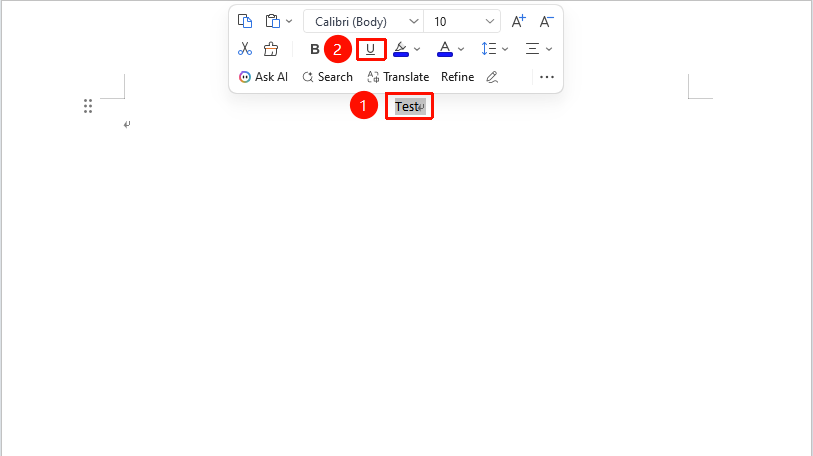
Select the text you want to underline, "Floating Toolbar" → "Underline" button
- Select the text you want to underline
- The floating toolbar will automatically appear after selection
- Click the "Underline" button in the floating toolbar
Setting via the Right-Click Menu
Feature Entry
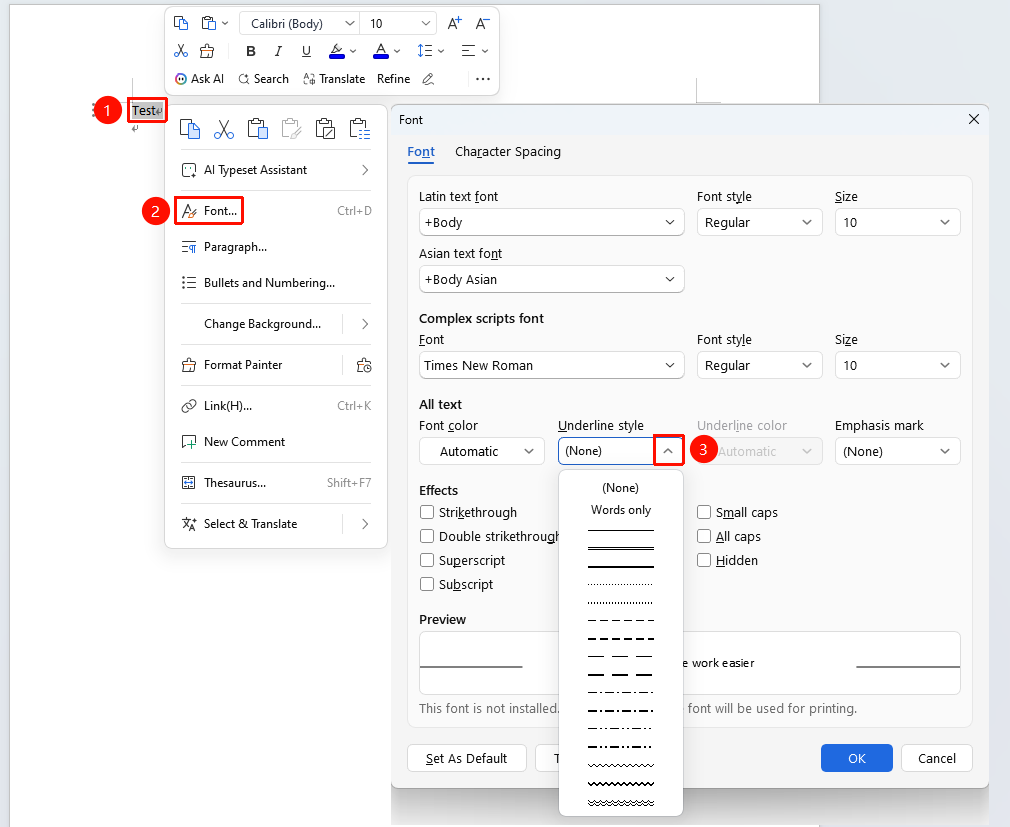
Select the text you want to underline, "Right-Click" menu → "Font" option → "Underline style" dropdown box
- Select the text you want to underline
- Right-click the selected text and choose the Font option
- In the Font dialog box that appears, click the "Underline style" dropdown box
- Choose an underline
[Screenshot placeholder here]
Removing Underline
The method for removing an underline is the same as adding one: select the underlined text, then click the "Underline" button again using any of the above methods or press the shortcut key to remove the underline formatting.
Frequently Asked Questions
Question 1: How to distinguish between hidden text and dotted underline?
- Solution: The dots below hidden text are smaller and more densely spaced; the spacing of a dotted underline is larger, giving a wider visual effect.
Question 2: Can underline be used together with bold and italic?
- Solution: Yes. Underline supports free combination and overlay with styles such as bold, italic, strikethrough, and highlighting.
Question 3: How to change the color or style of the underline?
- Solution: In WPS Writer, you can choose different line styles (such as double line, wavy line, etc.) and underline colors through the underline type options in the "Home" tab → "Font" dialog box.