Feature Summary
The drop-down list content control is used to create a drop-down list from which users can only select preset options. Manual entry is not allowed, ensuring data standardization.
Feature Description
| Feature Dimension | Description |
|---|---|
| Membership Restrictions | No membership restrictions |
| Version Restrictions | No version restrictions |
Operation Steps
Inserting a Drop-Down List Content Control
Feature Entry
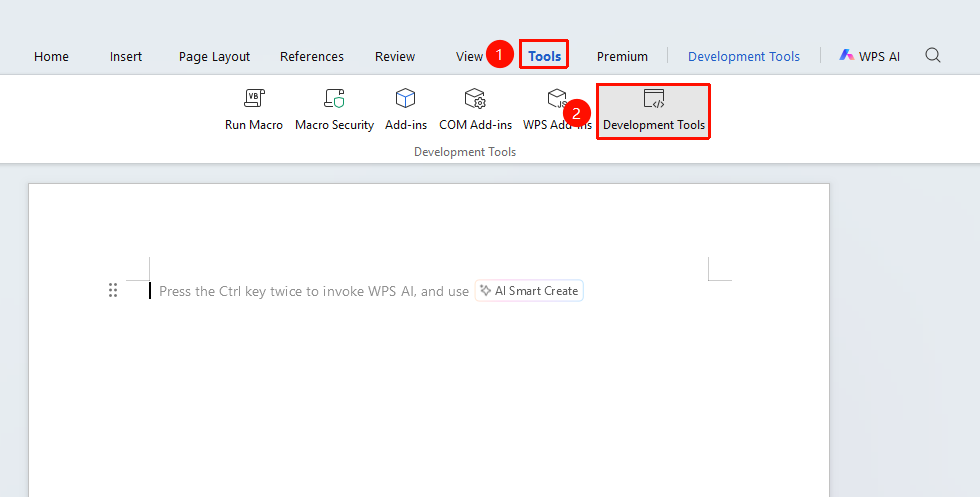
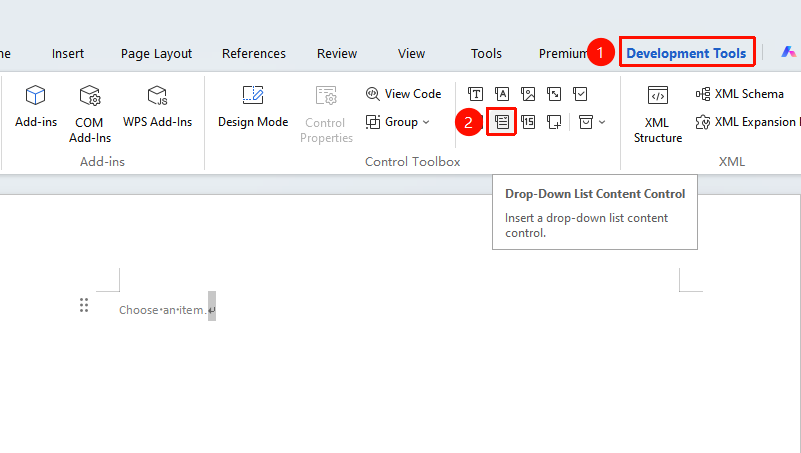
"Tools" tab → "Developer Tools" button → "Developer Tools" tab → "Drop-Down List Content Control"
- Position the cursor where you want to insert the control.
- Click the "Tools" tab at the top, locate and click the "Developer Tools" button to bring up the "Developer Tools" tab at the top.
- Click the "Drop-Down List Content Control" button.
- The control will be inserted into the document.
Adding Drop-Down Options
Feature Entry
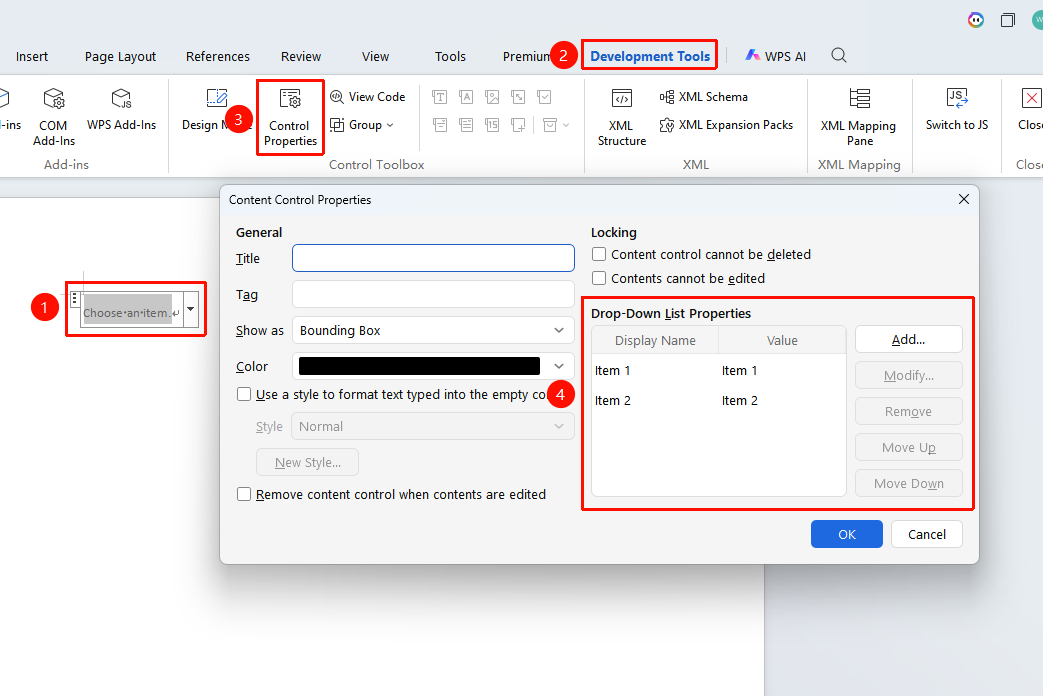
"Developer Tools" tab → "Control Properties"
- Select the drop-down list content control.
- Click the "Control Properties" button.
- Click the "Add" button to add an option.
- Set the display name and value for the option.
Using the Drop-Down List
Feature Entry
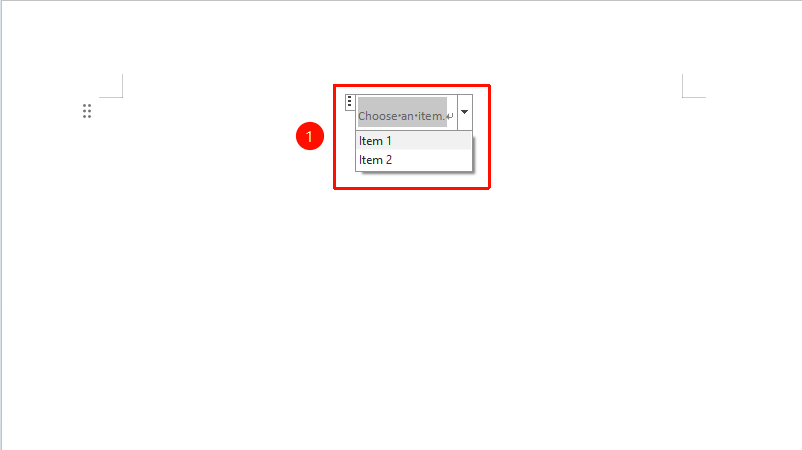
Click the drop-down list area.
- Click the drop-down list to expand the options.
- Select an option from the list.
Frequently Asked Questions
Question 1: The drop-down list options are empty?
- Solution: Add drop-down options in "Control Properties".
Notes
- The drop-down list only allows selection of preset options; manual entry is not allowed.
- Suitable for scenarios requiring standardized data entry.
- The option list can be modified at any time in Design Mode.