Feature Summary
The bookmark feature allows you to mark specific locations in a document, making it easy to quickly navigate and jump to important content, thereby improving document editing and reading efficiency.
Feature Description
| Feature Dimension | Description |
|---|---|
| Membership Restriction | No membership restriction; available to all users |
| Version Restriction | No version restriction; supported across all WPS client versions |
Steps
Insert a Bookmark
Feature Entry
"Insert" tab → "Bookmark" button
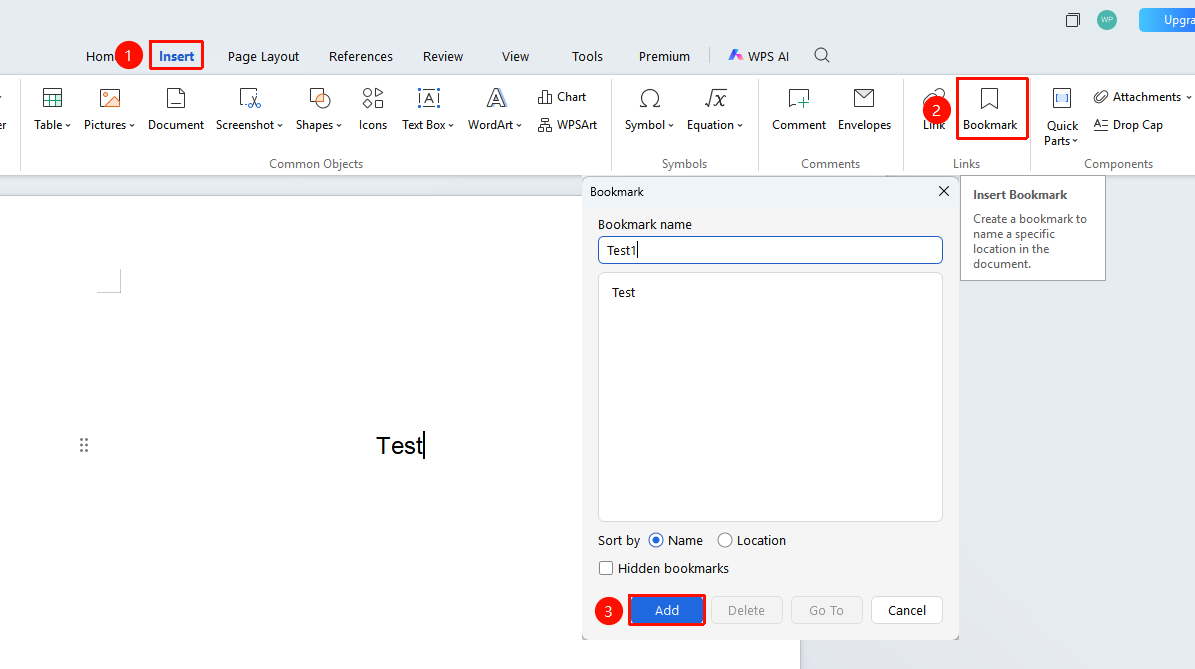
- Place the cursor where you want to add the bookmark, or select the content you want to mark
- Click the Insert tab in the top menu bar
- Find and click the "Bookmark" button in the ribbon
- In the "Bookmark" dialog box that appears:
- Enter a bookmark name (the name cannot start with a number and cannot contain spaces)
- Choose the sort order:
- Name: Sort by the name order of added bookmarks
- Location: Sort by the location order of added bookmarks
- Click the Add button to finish inserting the bookmark
Navigate to a Bookmark
Feature Entry
"Insert" tab → "Bookmark" button
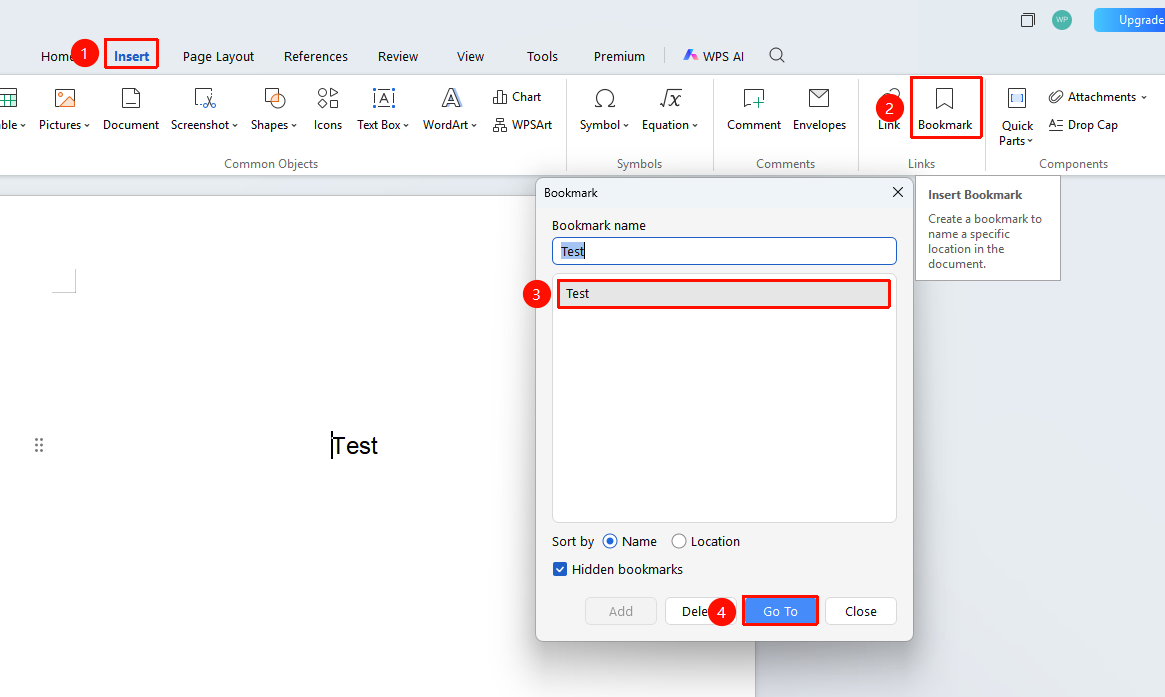
- Click the Insert tab in the top menu bar
- Find and click the "Bookmark" button in the ribbon
- Select the bookmark you want to navigate to from the bookmark list
- Click the Go To button; the cursor will jump to that bookmark's location
Delete a Bookmark
Feature Entry
"Insert" tab → "Bookmark" button
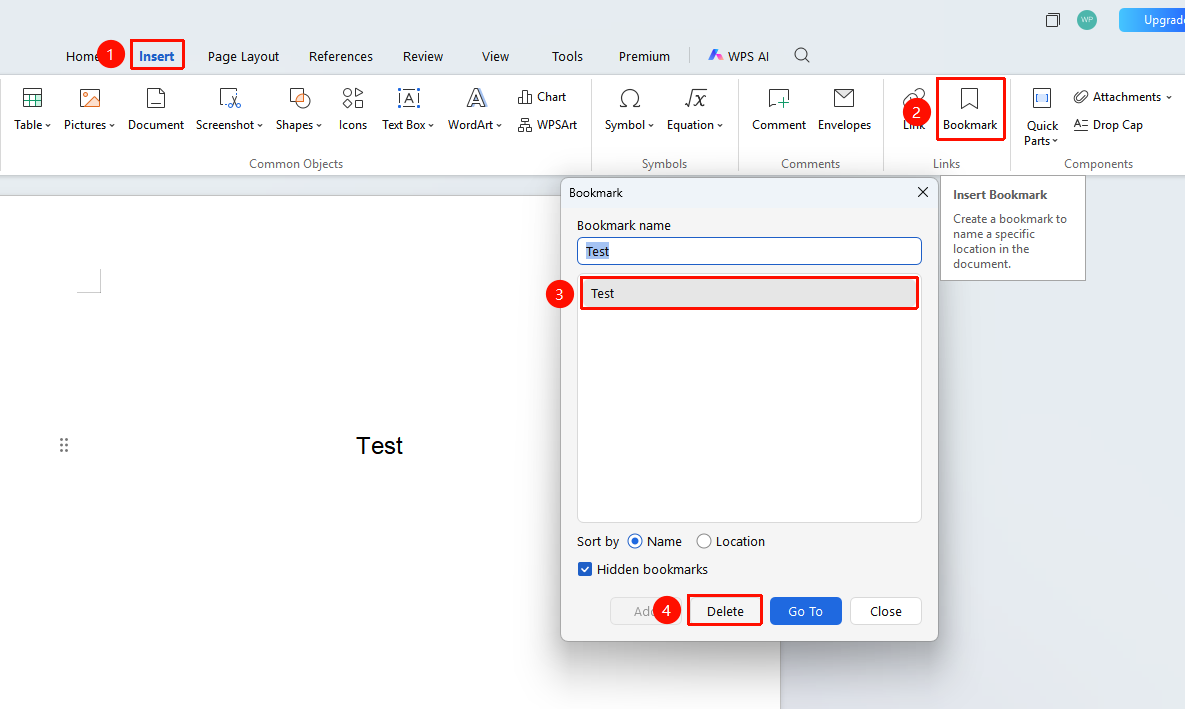
- Click the Insert tab in the top menu bar
- Find and click the "Bookmark" button in the ribbon
- Select the bookmark you want to delete from the bookmark list
- Click the Delete button
FAQ
Q1: Unable to add a bookmark name
- Solution: Bookmark names cannot start with a number and cannot contain spaces. It is recommended to use letters or Chinese characters for naming.
Q2: Cannot find a previously added bookmark
- Solution: In the Bookmark dialog box, check the "Hidden bookmarks" option to see if it has been hidden.
Q3: The bookmark location is inaccurate after navigating
- Solution: The document content may have been modified, causing the bookmark position to shift. It is recommended to re-add the bookmark.
Notes
- Bookmark names must be unique and cannot be duplicated.
- When deleting the content marked by a bookmark, the bookmark will also be deleted.
- Bookmarks can be used for advanced features such as cross-references and table of contents generation.
- Multiple bookmarks can be added at the same location.