Feature Summary
When you need to emphasize text, mark foreign terms, or indicate book titles in a document, the italic feature can quickly display selected text in italic style, helping you improve document readability and achieve professional formatting. Core capabilities include:
- One-click setting of selected text to italic style
- Support for multiple operation methods including toolbar button, floating toolbar, and shortcut keys
- Can be combined with styles such as bold and underline
- Supports removing italic formatting from text already set to italic
Feature Description
| Feature Dimension | Description |
|---|---|
| Membership Restriction | No membership restriction; all users can use it for free |
| Version Restriction | No version restriction |
| Italic Feature Shortcut Key | Ctrl + I |
Usage Instructions
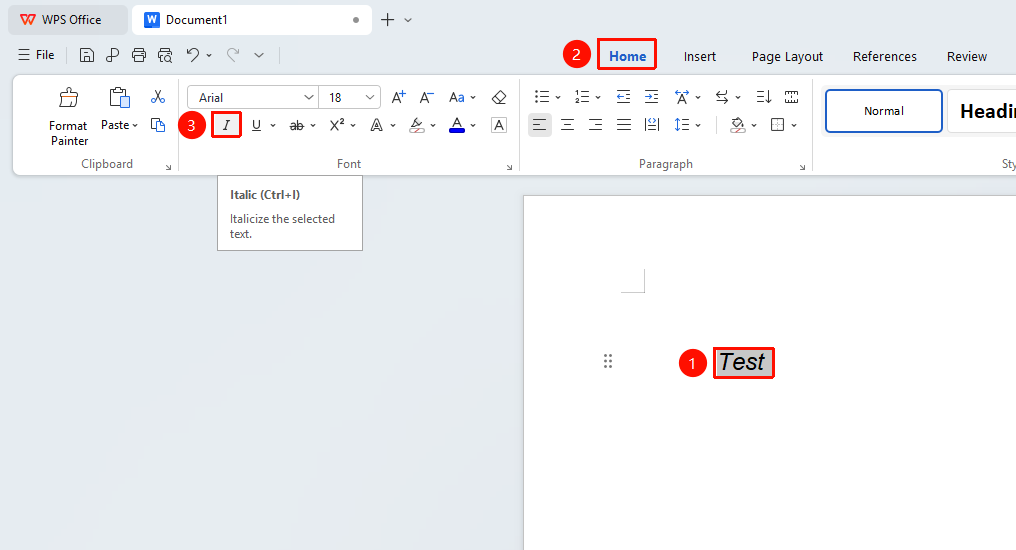
Setting via the Ribbon
Feature Entry
"Home" tab → "Italic" button
- Select the text you want to italicize
- Click the Home tab on the ribbon
- Click the "Italic" button
- Click again to remove italic
Setting via the Floating Toolbar
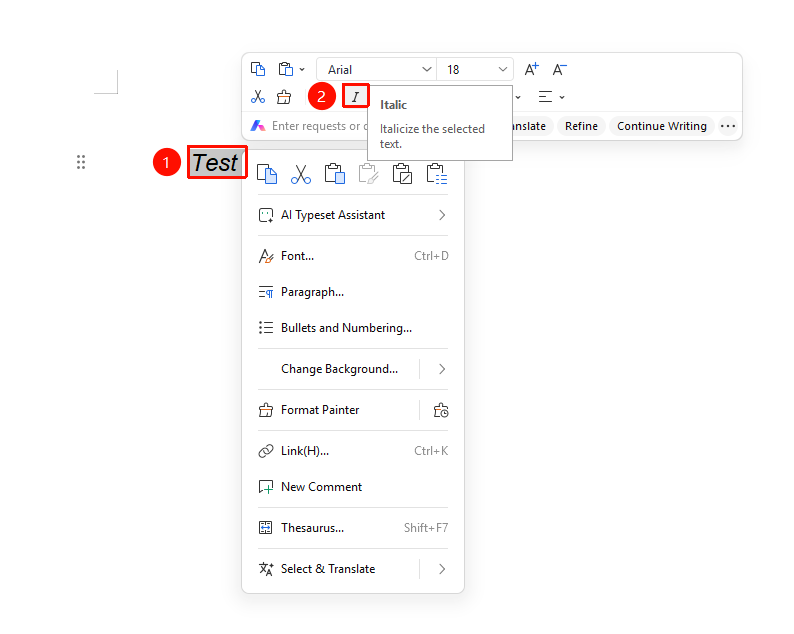
Feature Entry
Select the text you want to italicize, "Floating Toolbar" → "Italic" button
- Select the text you want to italicize
- After selection, the Floating Toolbar will automatically appear
- Click the "Italic" button in the floating toolbar
- Click again to remove italic
Setting via the Right-Click Menu
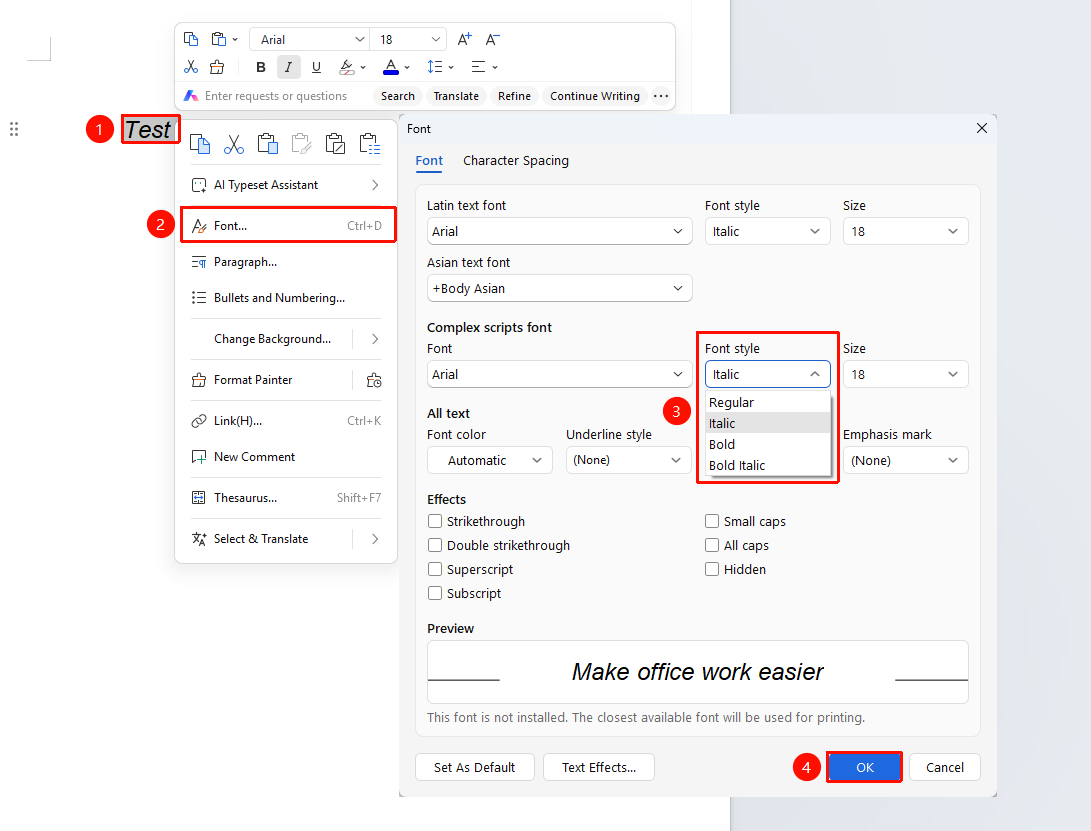
Feature Entry
"Right-click" menu → "Font" option → "Font style" dropdown → "Italic" option
- Select the text you want to italicize
- Right-click the selected text and choose the Font option
- In the pop-up font dialog box, click the Font style dropdown
- Select the "Italic" option
- Click the OK button to save
Removing Italic
The method for removing italic is the same as setting it: select the text already set to italic, and click the "Italic" button again or press the shortcut key using any of the above methods to remove the italic formatting.
Frequently Asked Questions
Q1: I set italic but the text didn't change?
- Solution: Please confirm that you have correctly selected the text you want to modify. If the cursor is not selecting any text and you directly click the italic button, only text entered subsequently will appear in italic; existing text will not change.
Q2: Can italic be used together with bold and underline?
- Solution: Yes. Italic supports free combination and overlay with styles such as bold, underline, strikethrough, and highlighting.