Feature Summary
When you need to mark deleted content, show revision comparisons, or indicate obsolete information in a document, the strikethrough/double strikethrough feature adds one or two horizontal lines through selected text, helping you visually indicate the change status of content. Core capabilities include:
- Add strikethrough or double strikethrough to selected text with one click
- Supports operation via toolbar buttons, floating toolbar, right-click menu, keyboard shortcuts, and more
- Can be combined with styles such as bold, italic, and underline
- Supports automatically marking deleted content in Track Changes mode
Feature Description
| Feature Dimension | Description |
|---|---|
| Membership Restriction | No membership restriction; all users can use it for free |
| Version Restriction | No version restriction |
Operation Steps
Setting Strikethrough via the Ribbon
Feature Entry
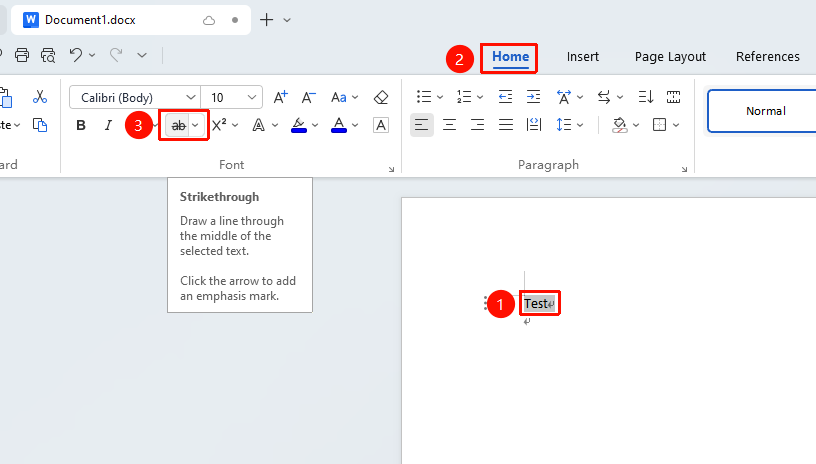
Select the text you want to apply strikethrough to, then go to the "Home" tab → "Strikethrough" button
- Select the text you want to apply strikethrough to
- Click the Home tab on the ribbon
- Click the "Strikethrough" button
Setting Strikethrough via the Right-Click Menu
Feature Entry
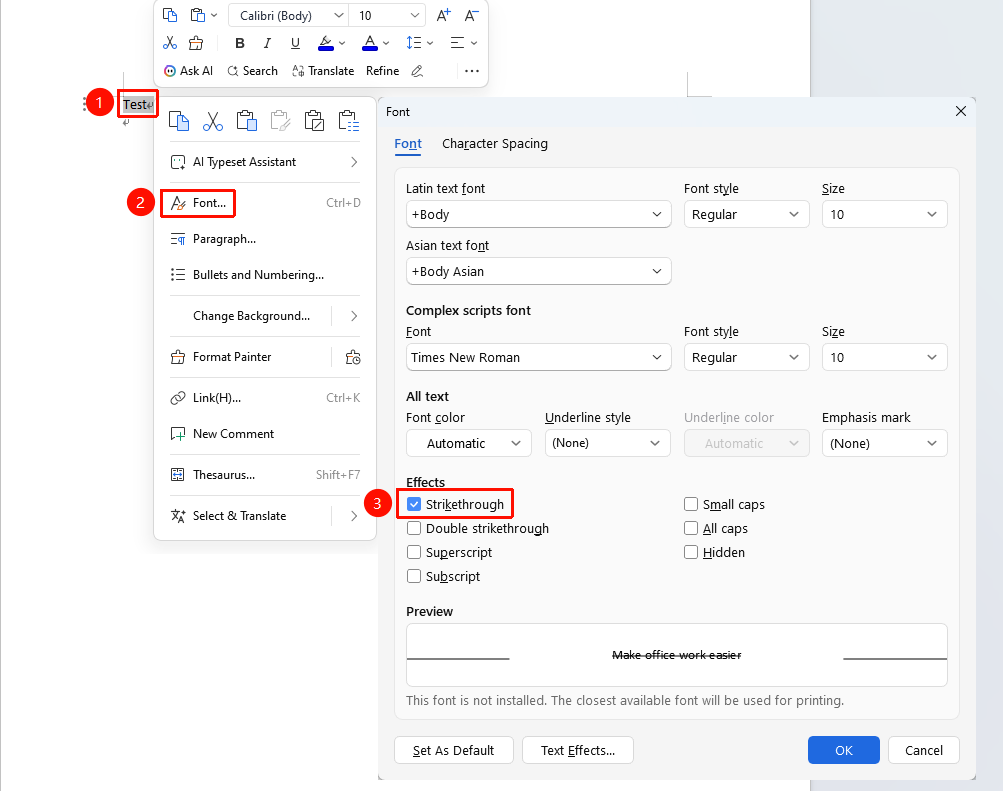
Select the text you want to apply strikethrough to, then "Right-click" → "Font" option → "Strikethrough" checkbox
- Select the text you want to apply strikethrough to
- Right-click the selected text and choose the Font option
- In the Font dialog box that appears, check the "Strikethrough" checkbox
- Click the "OK" button to save
Setting Double Strikethrough via the Right-Click Menu
Feature Entry
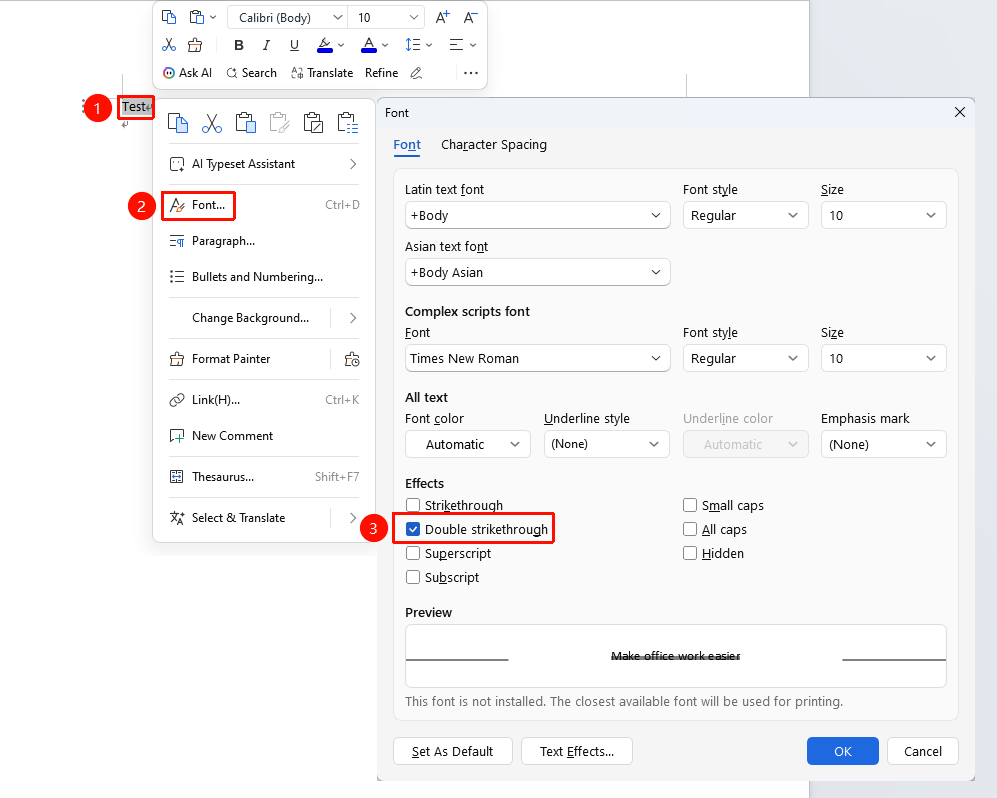
Select the text you want to apply strikethrough to, then "Right-click" → "Font" option → "Double strikethrough" checkbox
- Select the text you want to apply strikethrough to
- Right-click the selected text and choose the Font option
- In the Font dialog box that appears, check the "Double strikethrough" checkbox
- Click the OK button to save
Removing Strikethrough
The method for removing strikethrough is the same as adding it: select the text with strikethrough applied, and then click the "Strikethrough" button again through any of the above methods, press the shortcut key, or uncheck the strikethrough option in the Font dialog box to remove the strikethrough formatting.
Frequently Asked Questions
Q1: Will deleted text automatically get a strikethrough in Track Changes mode?
- Solution: After enabling "Review" → "Track Changes" mode, deleted text will automatically be displayed with a strikethrough mark, making it easy to track document revision history.
Q2: Why is deleted content not marked with strikethrough in Track Changes mode, but instead directly deleted?
- Solution: Check the dropdown list option to the right of "Review" → "Track Changes". If it is not set to "Show Markup in Original", click the dropdown list and change it to "Show Markup in Original".