Feature Summary
When you need to make key content in your document more prominent and enhance text hierarchy, the bold feature helps you quickly set selected text to bold, making critical information clear at a glance. Core capabilities include:
- One-click to set selected text to bold / remove bold
- Supports quick operation via shortcut key (Ctrl+B)
- Supports multiple entry points including the top toolbar, floating toolbar, and paragraph handle menu
- Can be combined with other font styles (italic, underline, etc.)
Feature Description
| Feature Dimension | Description |
|---|---|
| Membership Restriction | No membership restriction, available to all users |
| Version Restriction | No version restriction |
| Bold Shortcut Key | Ctrl+B |
Operation Steps
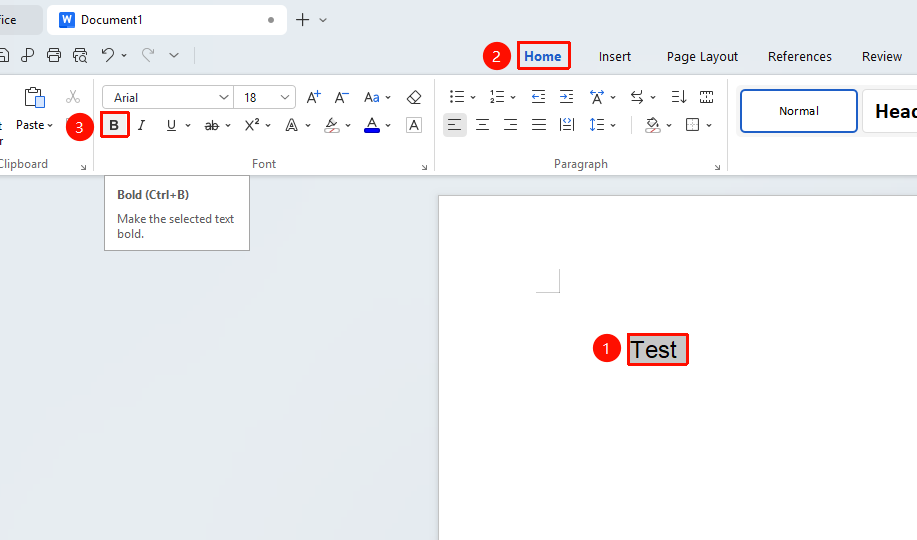
Via the Ribbon
Feature Entry
"Home" tab → "Bold" button
- Select the text you want to bold
- Click the Home tab on the ribbon
- Click the "Bold" button
- Click again to remove bold
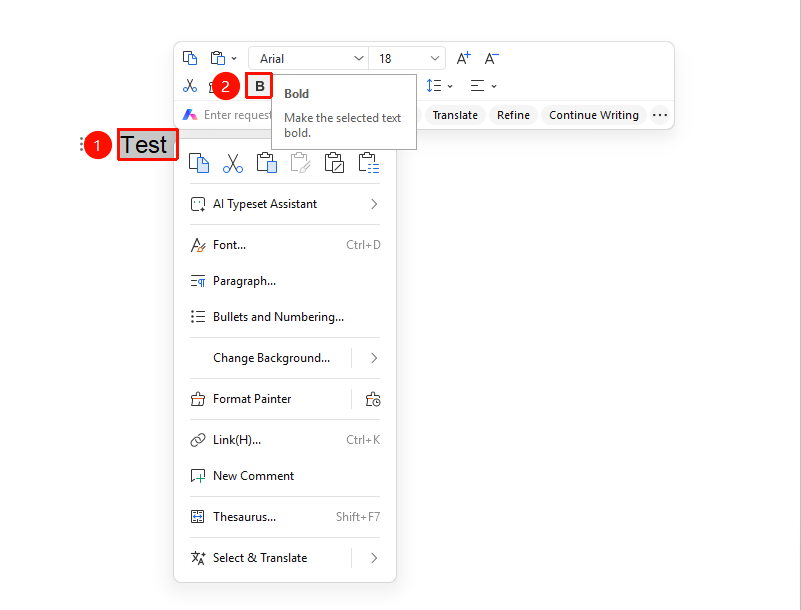
Via the Floating Toolbar
Feature Entry
Select the text you want to bold, "Floating Toolbar" → "Bold" button
- Select the text you want to bold
- After selection, the floating toolbar will automatically appear
- Click the "Bold" button on the floating toolbar
- Click again to remove bold
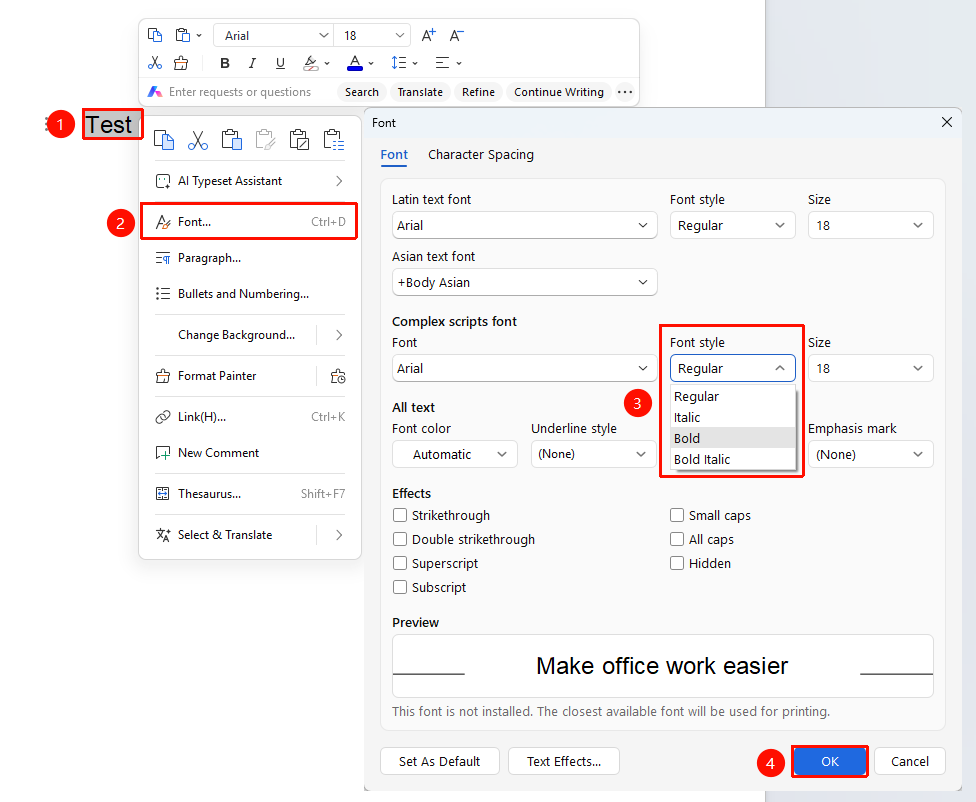
Via the Right-Click Menu
Feature Entry
"Right-click" menu → "Font" button → "Font Style" dropdown → "Bold" option
- Select the text you want to bold
- Right-click the selected text to bring up the right-click menu list
- Click the Font button
- Click the Font Style dropdown
- Select the "Bold" option
- Click the OK button to save
FAQ
Q1: The bold text is not obvious or looks the same as other text?
- Solution: Please check whether the current font supports bold display. Some fonts (such as certain decorative fonts) may have an inconspicuous bold effect. It is recommended to switch to a common font (such as SimSun, Microsoft YaHei, etc.) before applying bold.
Q2: How to apply bold and italic at the same time?
- Solution: After selecting the text, click the "Bold" and "Italic" buttons on the toolbar respectively, or use the shortcut keys Ctrl+B and Ctrl+I in sequence. The two styles can be applied cumulatively.