Feature Summary
The add-in feature extends the functionality of WPS Docs. By installing third-party plugins or custom macros, you can meet more specialized office needs.
Feature Description
| Feature Dimension | Description |
|---|---|
| Membership Restriction | No membership restriction; available to all users |
| Version Restriction | Available only on WPS versions for Windows operating system computers |
Operation Steps
Open Add-in Management
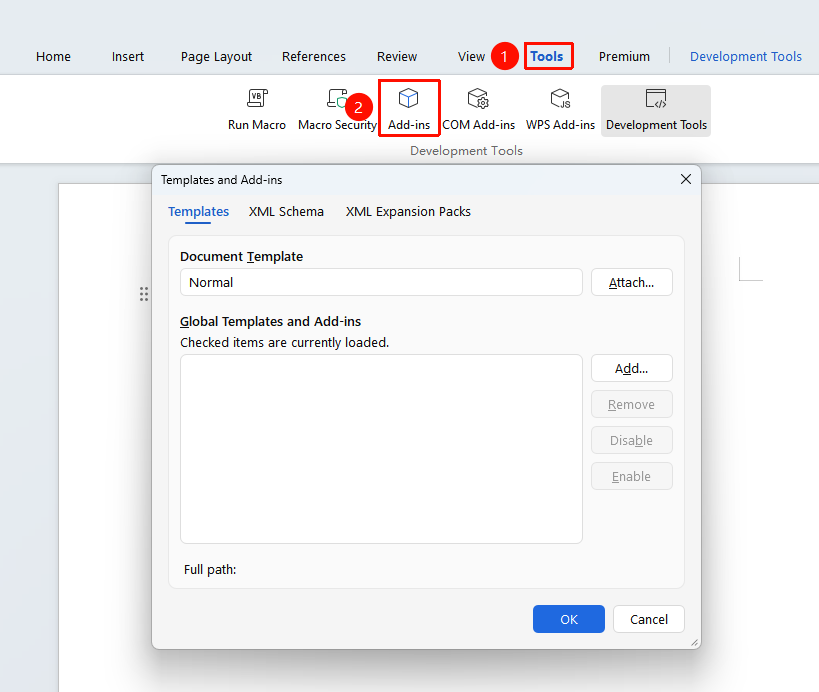
Feature Entry: "Tools" tab → "Add-ins"
- Click the "Tools" tab on the ribbon
- Click the "Add-ins" button
- Manage add-ins in the pop-up dialog box
Add an Add-in
Feature Entry: "Tools" tab → "Add-ins" → "Add"
- Open the Add-in Management dialog box
- Click the "Add" button
- Browse and select the add-in file
- Click "OK" to complete the addition
Frequently Asked Questions
Question 1: What should I do if an add-in fails to load?
- Solution: Check whether the add-in file is complete, ensure there are no special characters in the file path, and try reinstalling the add-in.
Question 2: Is sudden lag in WPS related to add-ins?
- Solution: Check whether there are newly added add-ins not installed by the user. External add-ins are one of the common causes of lag in WPS Writer.
- Try deleting or disabling add-ins on the Add-in Management page;
- Some add-ins automatically install, update, and integrate into WPS Writer. Such add-ins need to be managed through external management software.
Question 3: Why have features that were not there before suddenly appeared on the ribbon?
- Solution: Click the "Tools" tab → "Add-ins" to check whether there are any third-party add-in contents that have been automatically connected and installed, and determine whether they need to be kept for use.
Precautions
- Only download and install add-ins from trusted sources
- Some add-ins may require administrator privileges to install
- Add-in conflicts may cause WPS to run unstably
- It is recommended to disable unused add-ins to improve software running efficiency