Function Summary
The superscript/subscript function can format text as superscript or subscript, suitable for scenarios such as mathematical formulas, chemical equations, footnote markers, etc., helping users achieve professional document layout.
Function Description
| Function Dimension | Description |
|---|---|
| Membership Restriction | No membership restriction, available to all users |
| Version Restriction | No version restriction, ensure sufficient cloud space capacity |
Operation Steps
Setting Superscript
Function Entry
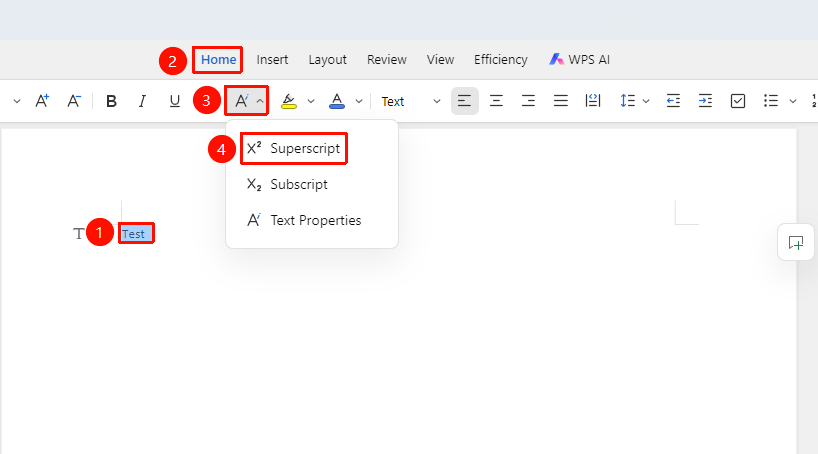
"Home" Tab → "Superscript" Button
- Select the text to be set as superscript
- Click the Home tab
- Click the "Superscript" button
- The selected text will be formatted as superscript
Setting Superscript via Text Properties
Function Entry
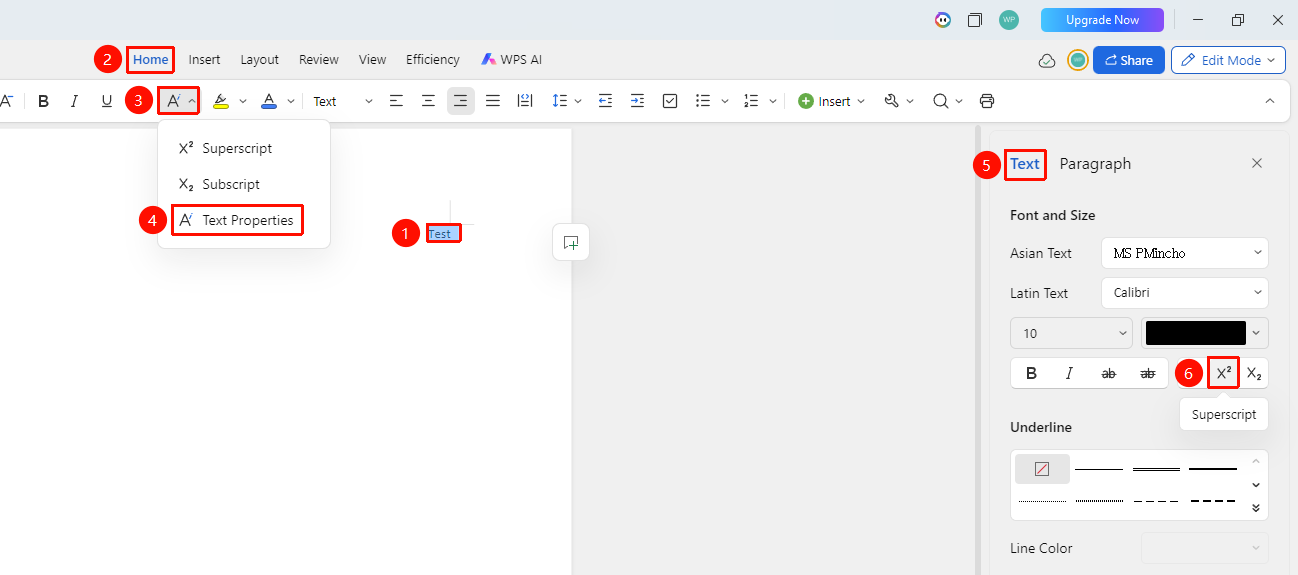
"Home" Tab → "Text Properties" Dropdown Menu → "Text Properties" Option → "Text" Tab → "Superscript" Button
- Select the text to be set as superscript
- Click the Home tab
- Click the Text Properties dropdown menu and select the Text Properties option
- In the task pane on the right, select the Text tab, then click the "Superscript" button
- The selected text will be formatted as superscript
Setting Subscript
Function Entry
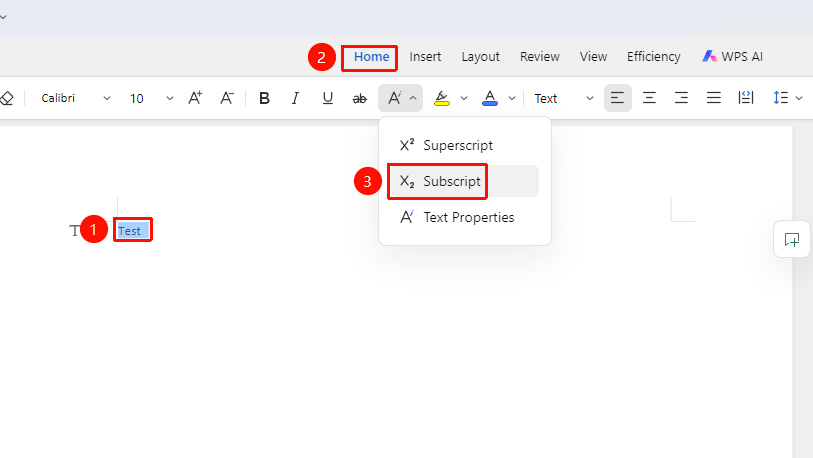
"Home" Tab → "Subscript" Button
- Select the text to be set as subscript
- Click the Home tab
- Click the "Subscript" button
- The selected text will be formatted as subscript
Setting Subscript via Text Properties
Function Entry
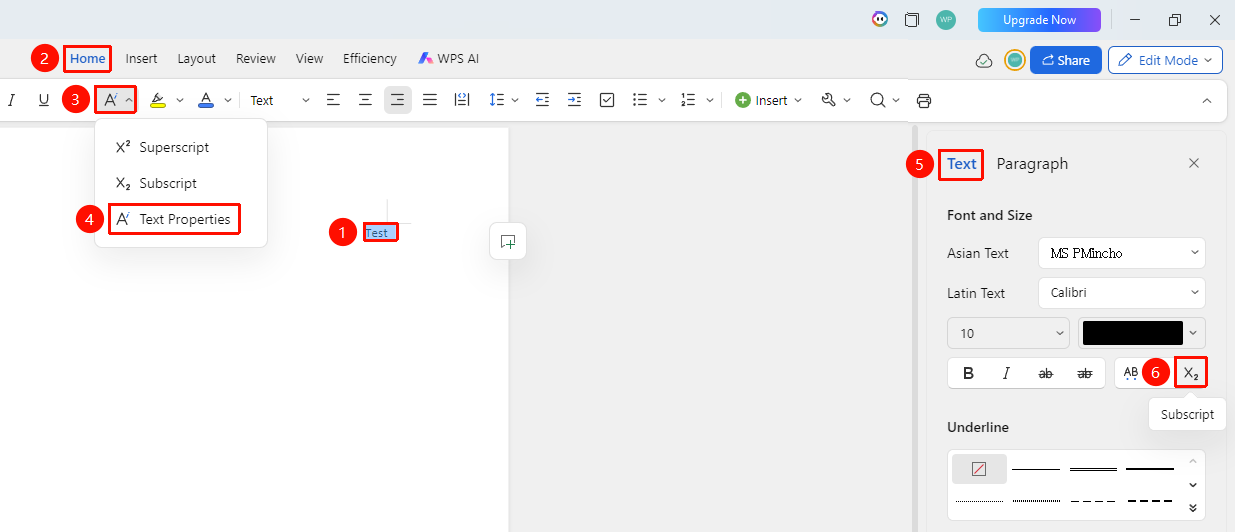
"Home" Tab → "Text Properties" Dropdown Menu → "Text Properties" Option → "Text" Tab → "Subscript" Button
- Select the text to be set as subscript
- Click the Home tab
- Click the Text Properties dropdown menu and select the Text Properties option
- In the task pane on the right, select the Text tab, then click the "Subscript" button
- The selected text will be formatted as subscript
Canceling Superscript/Subscript
Function Entry
"Home" Tab → "Superscript" or "Subscript" Button
- Select the text that has been set as superscript or subscript
- Click the corresponding "Superscript" or "Subscript" button again
- Or use the shortcut key to perform the same operation again
- The text will revert to normal format
Frequently Asked Questions
Question 1: Can the font size of superscript/subscript be adjusted?
- Solution: Yes. Select the superscript/subscript text and adjust the size via the font size setting.
Question 2: How to input square or cube symbols?
- Solution: Enter the number "2" or "3", select it, and click the "Superscript" button. Alternatively, use the insert symbol function to select the ² and ³ symbols.
Question 3: Will superscript/subscript be displayed when printing?
- Solution: Yes. Superscript/subscript is part of the text format and will be displayed normally when printing.
Notes
- The superscript/subscript function applies to text content, not to images and objects