Feature Summary
The underline feature can add underlines to text, suitable for scenarios such as links, key content, and fill-in areas, helping users highlight specific text content.
Feature Description
| Feature Dimension | Description |
|---|---|
| Membership Restriction | No membership restriction, available to all users |
| Version Restriction | No version restriction, ensure sufficient cloud space capacity |
Operation Steps
Adding Underline
Feature Entry
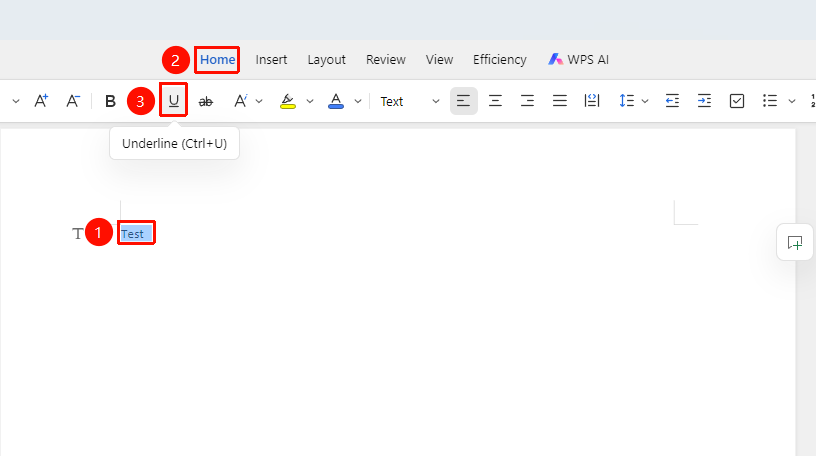
"Home" Tab → "Underline" Button
- Select the text to which you want to add an underline
- Click the Home tab
- Click the "Underline" button
- An underline will be added below the selected text
Shortcut Key:
Ctrl+U
Adding Underline via Text Properties
Feature Entry
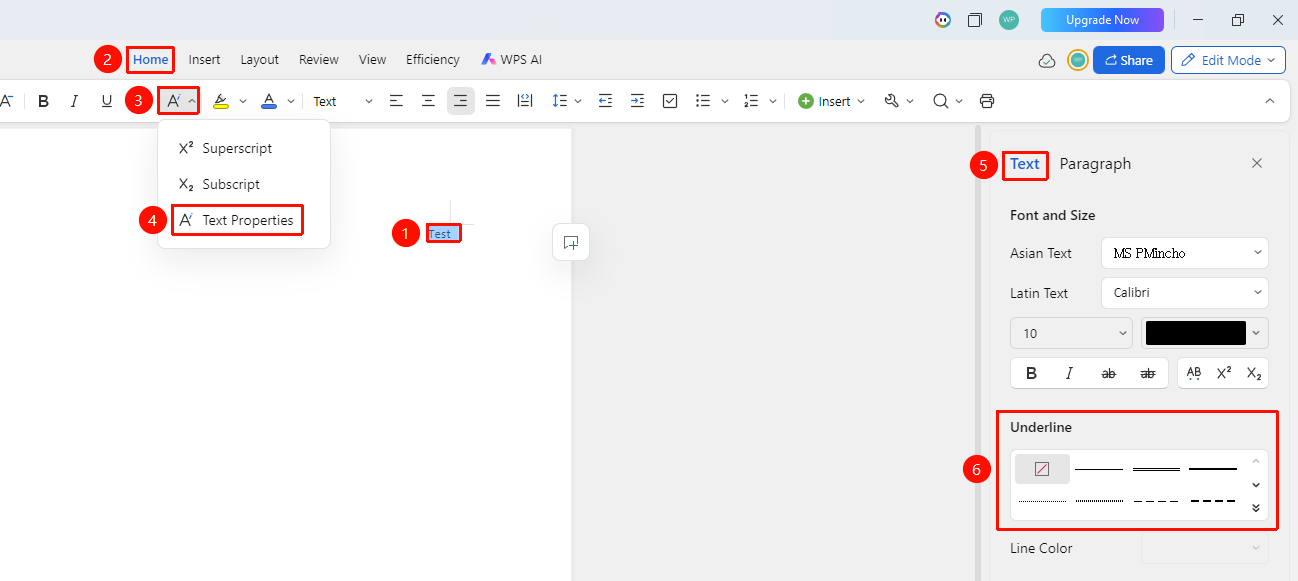
"Home" Tab → "Text Properties" Dropdown Menu → "Text Properties" Option → "Text" Tab → "Underline" Button
- Select the text to which you want to add an underline
- Click the Home tab
- Click the Text Properties dropdown menu and select the Text Properties option
- In the task pane on the right, select the Text tab, then click the "Underline" button
- An underline will be added below the selected text
Removing Underline
Feature Entry
"Home" Tab → "Underline" Button
- Select the text from which you want to remove the underline
- Click the "Underline" button again
- The underline will be removed
Setting Underline via Floating Toolbar
Feature Entry
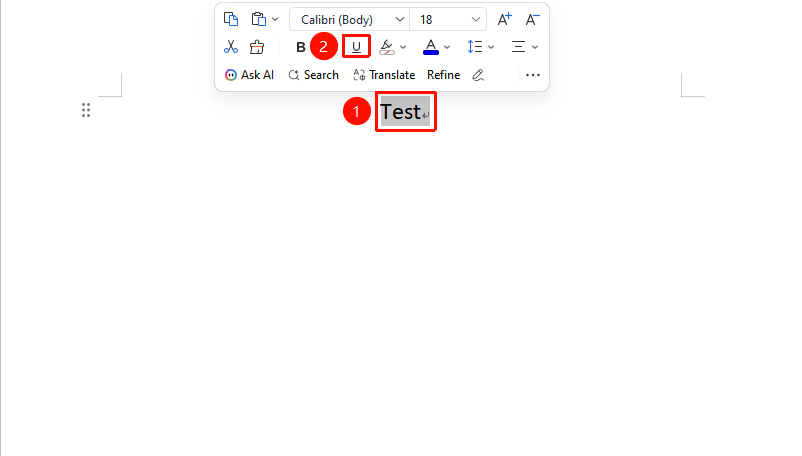
Select the text content to be underlined → "Floating Toolbar" Menu → "Underline" Option
- Select the text content to be set
- In the Floating Toolbar, click the "Underline" button to add an underline
Notes
- The underline feature is applicable to all fonts
- Use the shortcut key
Ctrl+Uto quickly toggle the underline state