Feature Summary
The task list feature allows you to create checkable task lists in documents, supporting the marking of task completion status. It is suitable for to-do items, meeting minutes, project tracking, and other scenarios.
Feature Description
| Feature Dimension | Description |
|---|---|
| Membership Restriction | No membership restriction; all users can use it |
| Version Restriction | No version restriction; ensure sufficient cloud space capacity |
Operation Steps
Create a Task List
Feature Entry
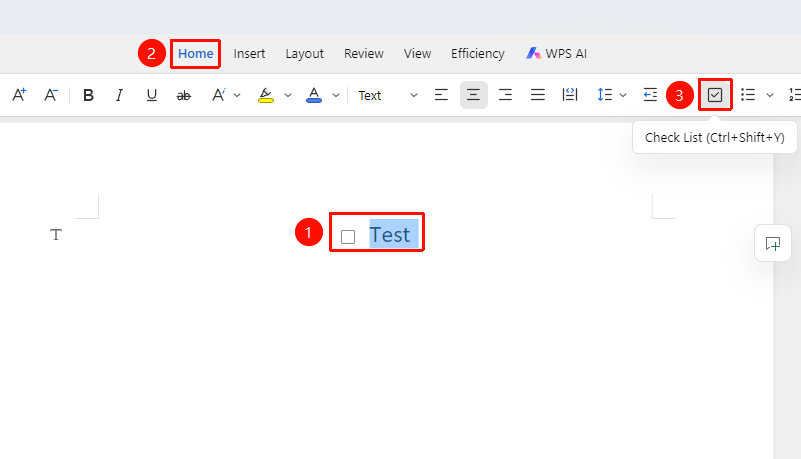
"Home" tab → "Task List" option
- Place the cursor at the position where you want to insert the task list
- Click the "Task List" button in the Home tab
- After clicking, a task list checkbox will be automatically added, indicating that the task list has been inserted
Mark Task as Complete
Feature Entry
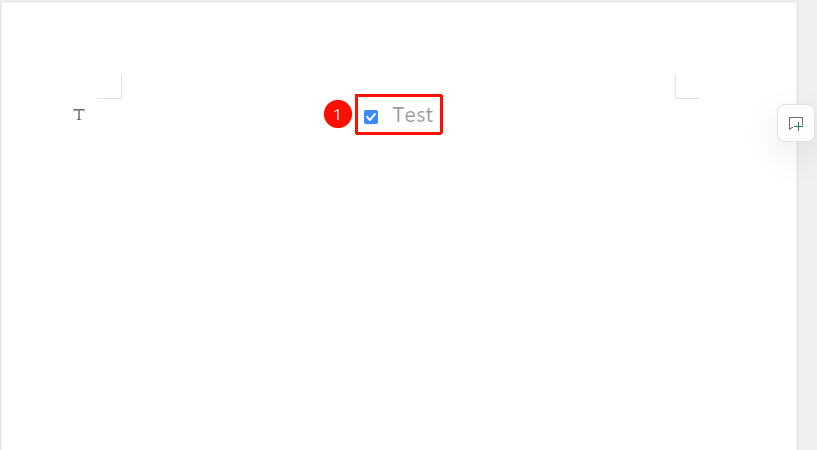
- Click the "Checkbox" before the task
- After checking, the text will display in light gray, indicating the task is completed
- Click again to cancel the completion status
Frequently Asked Questions
Question 1: Can the task list be exported?
- Solution: Yes. The task list will be exported along with the document, and the check status will be retained.
Question 2: How to adjust the indentation of the task list?
- Solution: Use the Tab key to increase indentation and Shift+Tab to decrease indentation, creating a multi-level task list.
#
Notes
- The check status of the task list will be synced in real-time to all collaborators