Feature Summary
The revision feature is used to record all editing changes made to a document, including additions, deletions, and modifications, making it convenient for reviewers to view and decide whether to accept the changes.
Feature Description
| Feature Dimension | Description |
|---|---|
| Membership Restriction | No membership restriction |
| Version Restriction | No version restriction |
Operation Steps
Enabling Revision Mode
Feature Entry
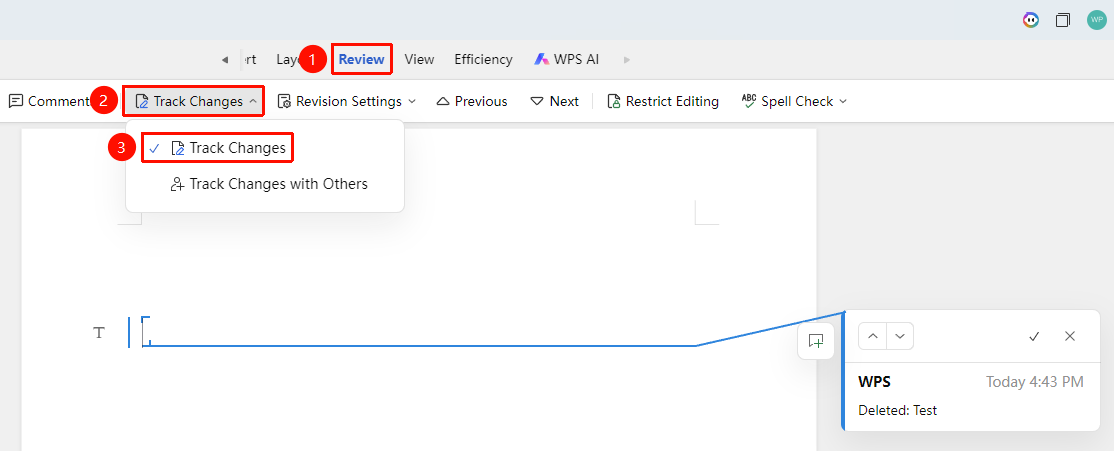
"Review" tab → "Track Changes"
- Click the "Review" tab
- Click the "Track Changes" button to enable revision mode
- Once enabled, all editing operations will be recorded
- Click again to disable revision mode
Accepting/Rejecting Revisions
Feature Entry
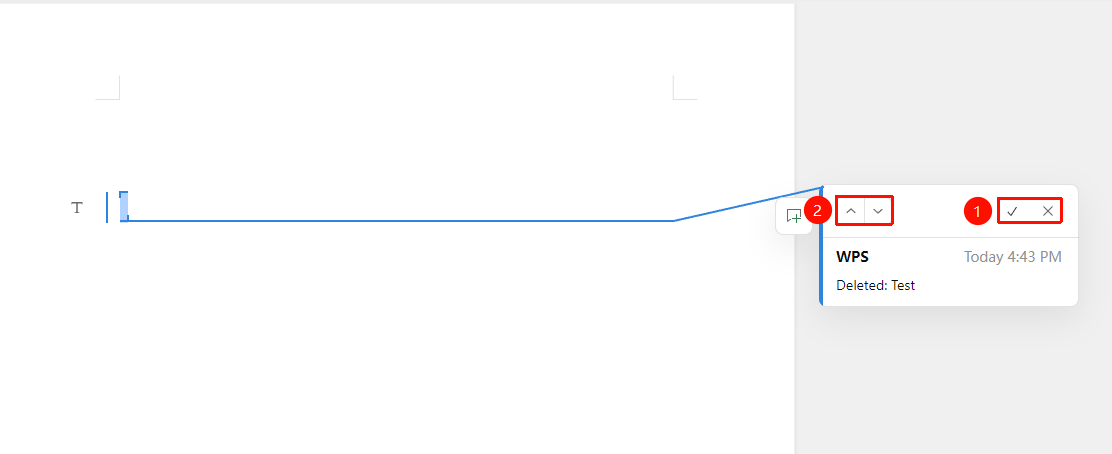
- Select the revision to be accepted
- Click the "Review" tab
- Click the "Accept" / "Reject" button
- In the revision dialog, you can select Previous Revision/Next Revision for quick switching
Revision Settings
Feature Entry
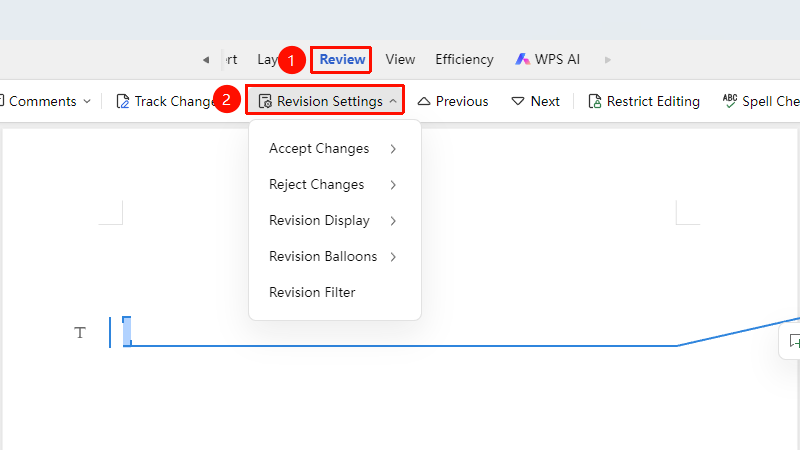
"Review" tab → "Revision Settings"
- Revision settings can be accessed only after inserted revision content exists
- Click the "Review" tab → "Revision Settings"
- Accept Revisions: You can select "Accept All Revisions", "Accept All Formatting Revisions"
- Reject Revisions: You can select "Reject All Revisions", "Reject All Formatting Revisions"
- Revision Status: You can select Sync to Collaborators (after enabling, the reading view can be synced to current collaborators), Change Revision Status to "Final Status", "Original Status", etc.
- Revision Balloons: You can select "Sync to Collaborators", "Show Revisions in Balloons", or "Show All Revisions Inline"
- Revision Filtering: You can open the revision filtering panel to filter by "Revision Time", "Reviewer", and "Revision Type
Notes
- Revision records will display the modifier's name and time
- In collaboration mode, all collaborators can see the revision marks
- It is recommended to process all revisions uniformly before finalizing the document