Feature Summary
The column feature is used to divide page content into multiple vertical columns, commonly used in layouts such as newspapers and magazines to enhance document readability.
Feature Description
| Feature Dimension | Description |
|---|---|
| Membership Restriction | No membership restriction |
| Version Restriction | No version restriction |
Operation Steps
Setting Preset Columns
Feature Entry
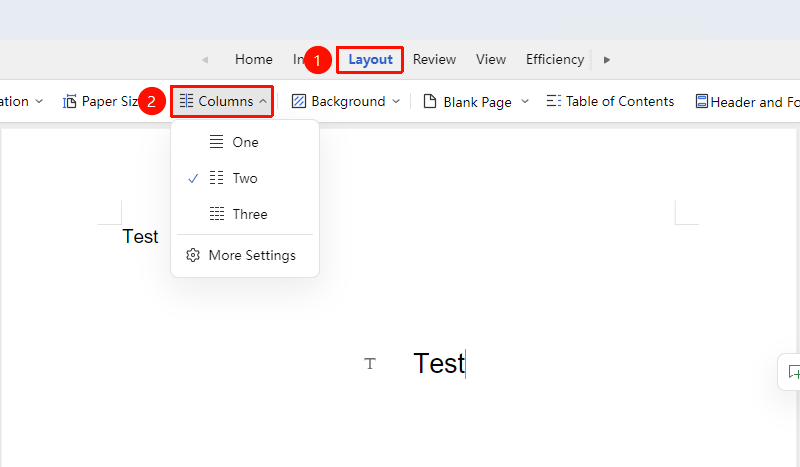
"Page" Tab → "Columns"
- Click the "Page Layout" tab
- Click the "Columns" button
- Choose from preset options (One, Two, Three)
- The columns will be applied to the selected content or the entire document
Custom Columns
Feature Entry
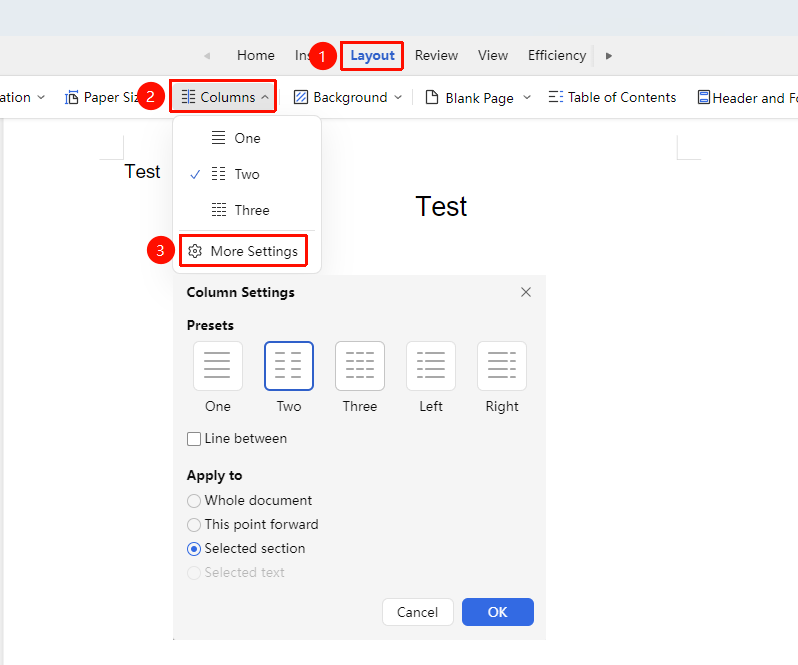
"Page" Tab → "Columns" → "More Columns"
- Click the "Page" tab
- Click the "Columns" button
- Select "More Settings"
- In the dialog box, you can find more preset column modes
- Choose whether to add a "Separator Line"
- Select the application range: "Whole Document", "From Insertion Point Forward", "Selected Section", "Selected Text"
- Click "OK" to apply
Setting Columns for Partial Text
Feature Entry
"Page" Tab → "Columns"
- Select the text content to be formatted into columns
- Click the "Page" tab
- Click the "Columns" button
- Choose the column method
- The columns will be applied only to the selected content
Frequently Asked Questions
Question 1: How to start a new column at a specific position
- Solution: Insert a column break ("Insert" → "Page Break" → "Column Break").
Notes
- Columns are suitable for continuous text, with limited support for tables and images
- In collaboration mode, column settings will be synced to all collaborators
- After applying columns, you may need to adjust page margins for the best effect