Feature Summary
Copy and paste are the most basic functions in document editing, and they are also applicable in collaboration mode. Multiple paste methods are supported, allowing you to retain or clear source formatting as needed, improving document editing efficiency.
Feature Description
| Feature Dimension | Description |
|---|---|
| Membership Restriction | No membership restriction |
| Version Restriction | No version restriction |
Operation Steps
Right-Click Menu Copy
Feature Entry
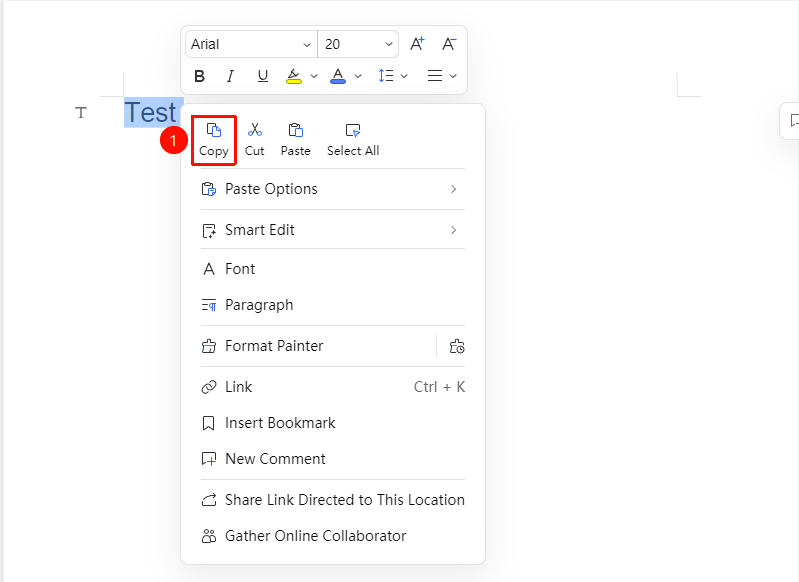
Select the text to copy, then "right-click" menu → "Copy" button
- Select the text to copy
- Right-click the selected text to open the right-click menu
- Click the "Copy" button to copy
Right-Click Menu Cut
Feature Entry
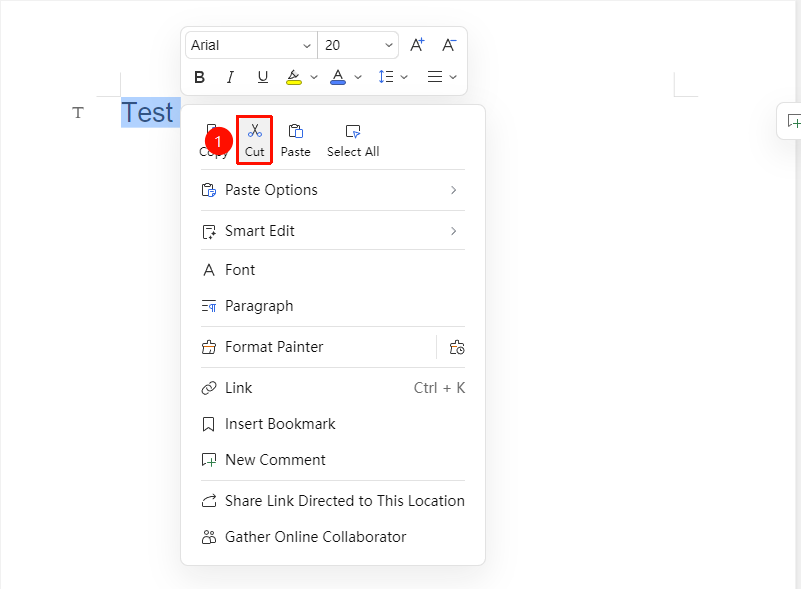
Select the text to cut, then "right-click" menu → "Cut" button
- Select the text to cut
- Right-click the selected text to open the right-click menu
- Click the "Cut" button to cut
Right-Click Menu Paste
Feature Entry
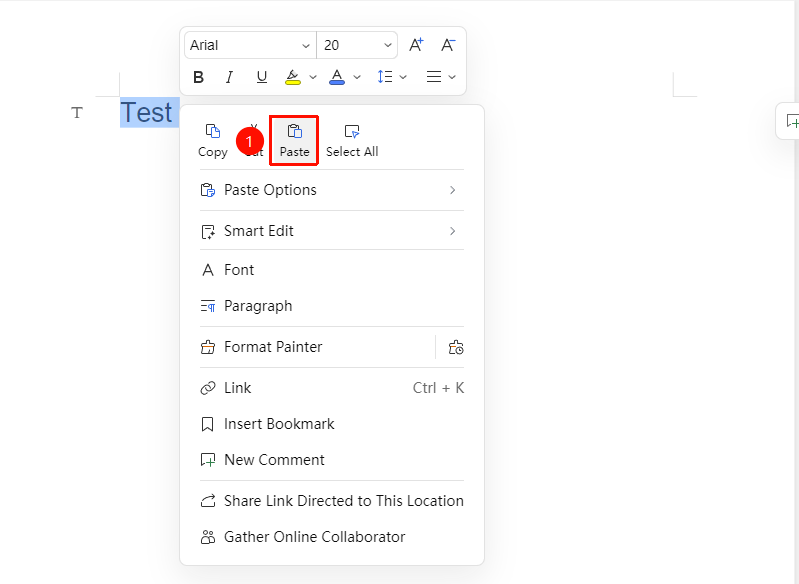
"Right-click" menu → "Paste" button
- Place the cursor at the target position
- Right-click in the blank area to open the right-click menu
- Click the "Paste" button to paste
Right-Click Menu Paste Special
Feature Entry
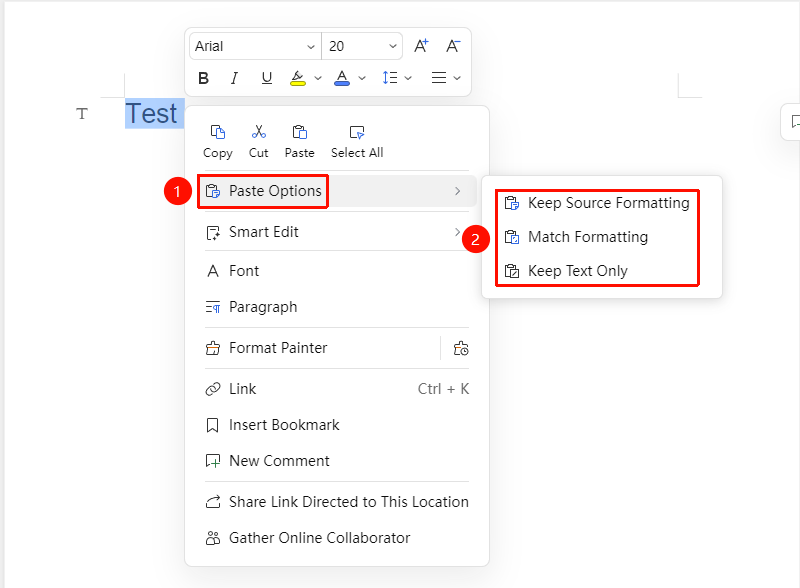
"Right-click" menu → "Paste Special" button
- Place the cursor at the target position
- Right-click in the blank area to open the right-click menu list
- Click the "Paste Special" dropdown menu to choose:
- Keep Source Formatting
- Match Destination Formatting
- Paste Text Only
Floating Toolbar Copy
Feature Entry
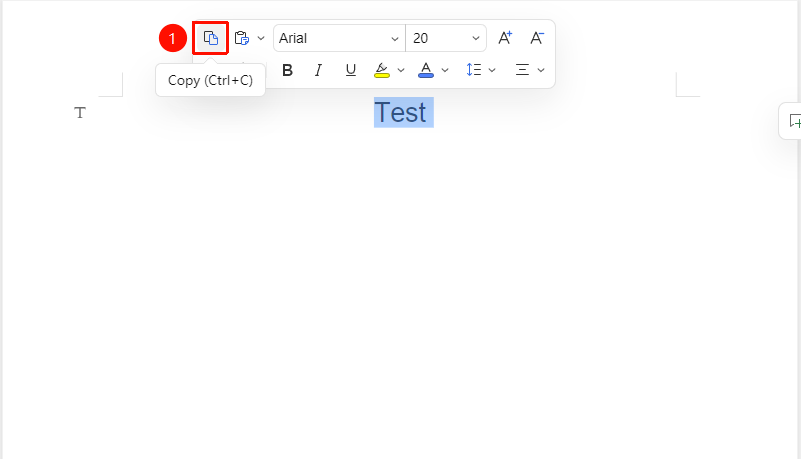
Select text content, then "Floating Toolbar" menu → "Copy" button
- Select the text to copy
- In the pop-up Floating Toolbar, click the "Copy" button to copy
Floating Toolbar Cut
Feature Entry
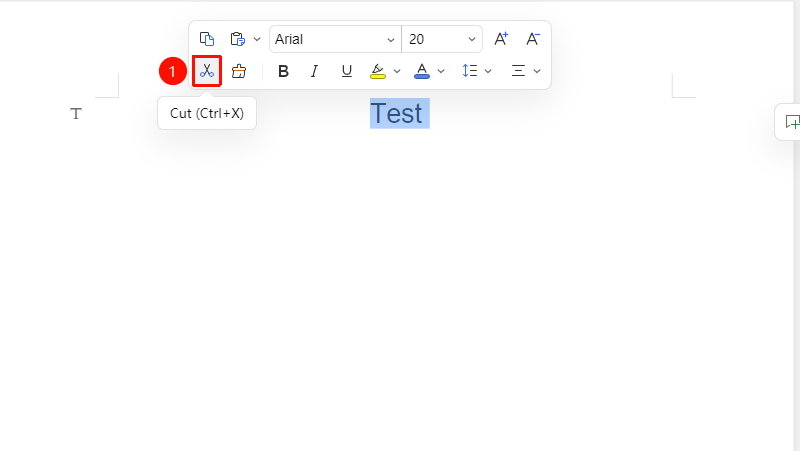
Select text content, then "Floating Toolbar" menu → "Cut" button
- Select the text to cut
- In the pop-up Floating Toolbar, click the "Cut" button to cut
Floating Toolbar Paste
Feature Entry
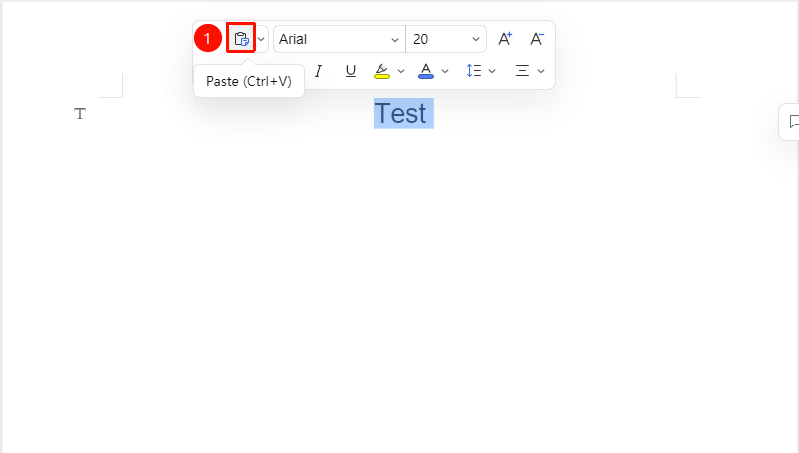
Select text content, then "Floating Toolbar" menu → "Paste" button
- Place the cursor at the target position
- In the pop-up Floating Toolbar, click the "Paste" button to paste
Floating Toolbar Paste Special
Feature Entry
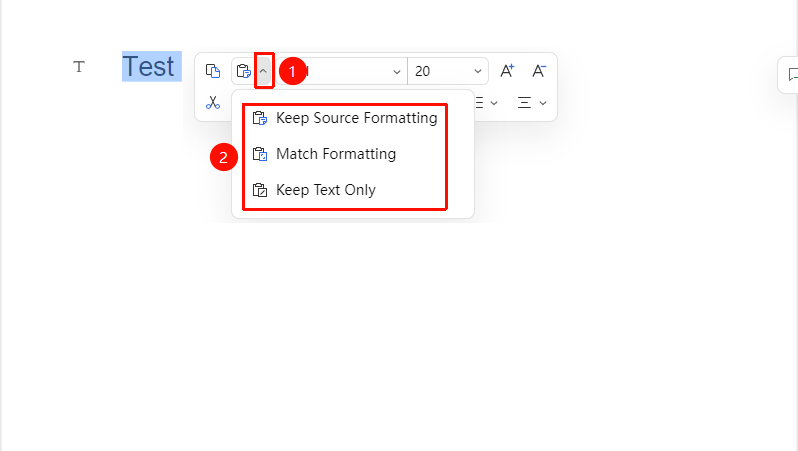
Select text content, then the dropdown arrow next to the "Paste" button in the "Floating Toolbar" menu
- Place the cursor at the target position
- In the pop-up Floating Toolbar, click the dropdown arrow on the right side of the "Paste" button to choose:
- Keep Source Formatting
- Match Destination Formatting
- Paste Text Only
Frequently Asked Questions
Question 1: What are the keyboard shortcuts for copy and paste?
- Solution: Copy:
Ctrl+C; Paste:Ctrl+V; Cut:Ctrl+X