Feature Summary
The Multiple Pages View feature allows multiple pages to be shown on the screen simultaneously, making it convenient to view the overall layout of the document and the relationships between pages.
Feature Description
| Feature Dimension | Description |
|---|---|
| Membership Restriction | No membership restriction |
| Version Restriction | No version restriction |
Operation Steps
Switching to Multiple Pages View
Feature Entry
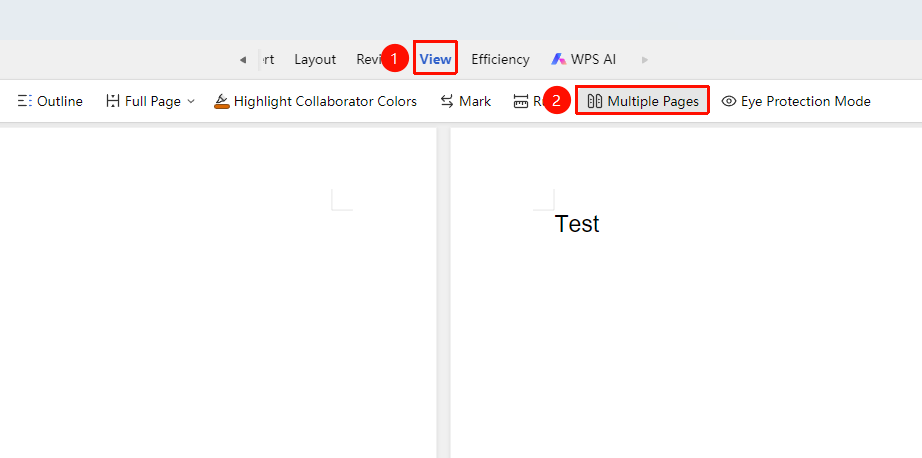
"View" Tab → "Multiple Pages View"
- Click the "View" tab
- Click the "Multiple Pages View" button
- The screen will display multiple pages simultaneously
- The number of pages depends on the display scale and window size
Adjusting the Display Scale
Feature Entry
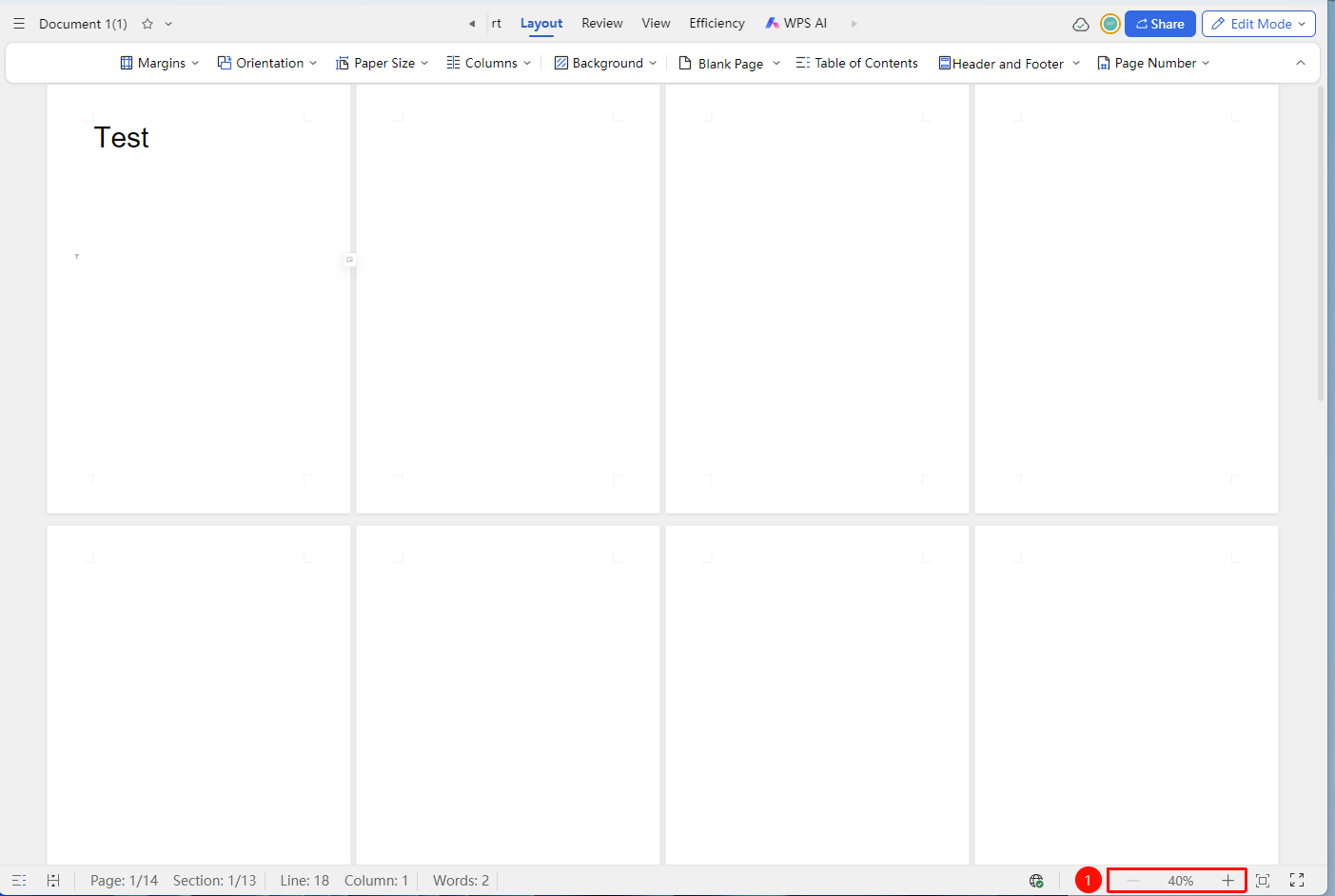
Status Bar → Zoom Page
- Use the zoom function on the status bar to adjust the display scale
- Zooming out shows more pages
- Zooming in shows fewer but larger pages
Switching to Single-Page Display
Feature Entry
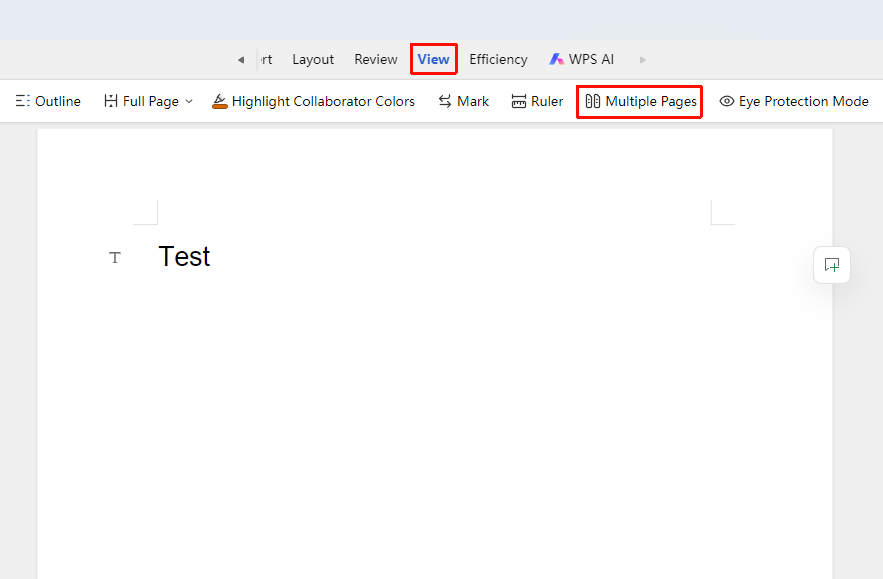
"View" Tab → "Multiple Pages View"
- When already switched to "Multiple Pages View" mode
- Click the "View" tab
- Click the "Multiple Pages View" button
- This will switch back to single-page display, and the screen will show only one page
Frequently Asked Questions
Question 1: Pages appear too small for comfortable reading in Multiple Pages View
- Solution: Appropriately increase the display scale, or use single-page display for editing.
Question 2: Minimum shrink limit for Multiple Pages View
- Limit: The minimum shrink limit for Multiple Pages View is 40%.
Related Issues
Question 1: How to quickly switch display modes
- Solution: Use the view switch button on the status bar to switch
Notes
- Multiple Pages View is suitable for viewing the overall layout of the document
- In collaboration mode, display settings only affect the current user
- Multiple Pages View does not change the actual content or format of the document