Feature Summary
The Outline View feature is used to display document content in a hierarchical structure, making it easy to view and adjust the document structure and quickly navigate to various chapters.
Feature Description
| Feature Dimension | Description |
|---|---|
| Membership Restriction | No membership restriction |
| Version Restriction | No version restriction |
Operation Steps
Switch to Outline View
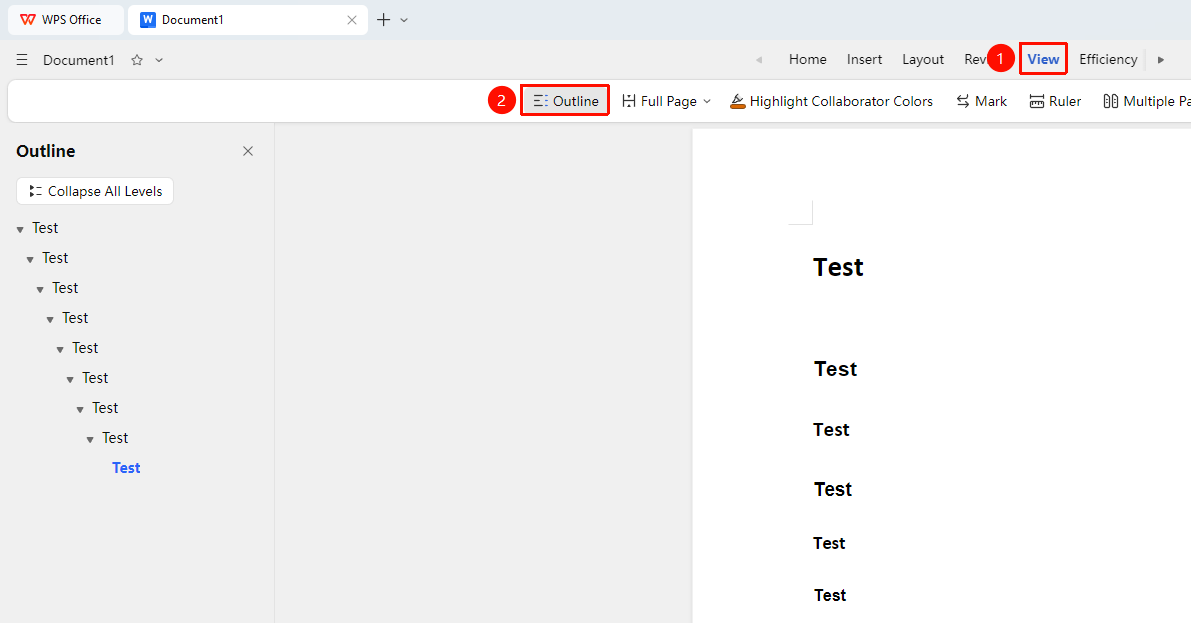
Feature Entry ①
"View" Tab → "Outline"
- Click the "View" tab
- Click the "Outline" button
- The document will switch to Outline View mode
- The left sidebar displays the hierarchical structure of the document
- Click different levels to quickly jump to the corresponding position in the main text
Feature Entry ②
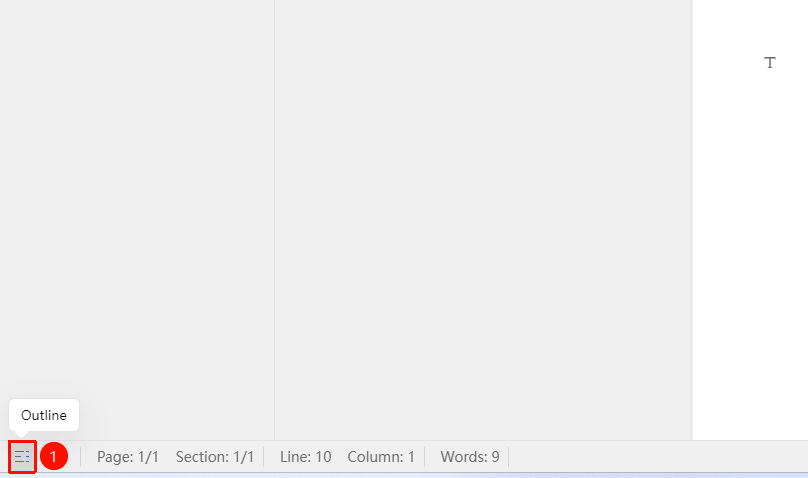
"Outline" icon in the lower-left corner of the status bar
- Find and click the "Outline" button in the lower-left corner of the screen
- The document will switch to Outline View mode
- Click again to close the Outline View
Expand/Collapse Outline
Feature Entry
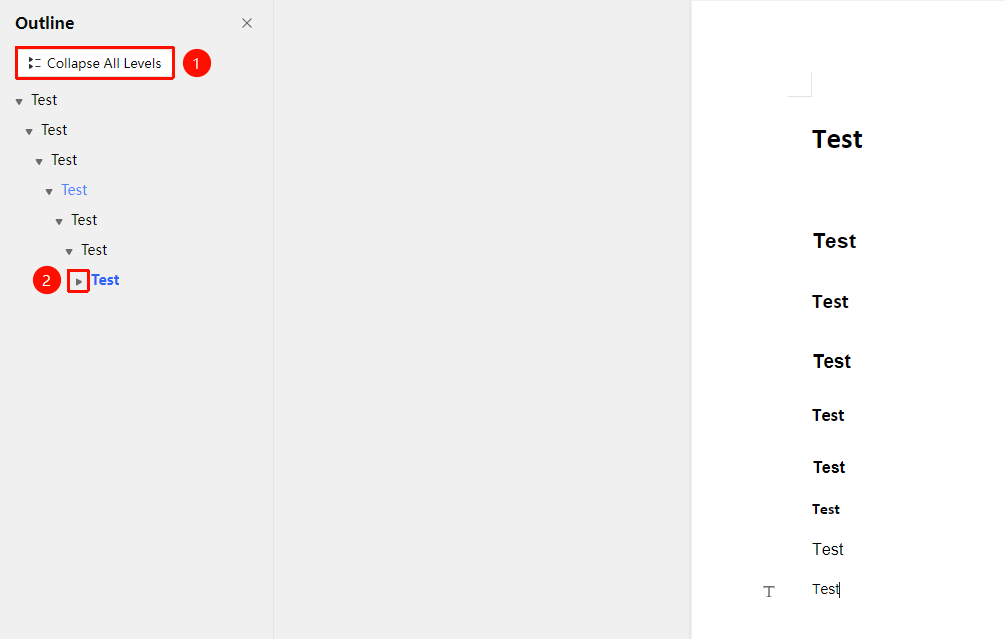
Outline Toolbar → "Expand/Collapse All Levels"
- In Outline View mode, click "Expand All Levels" in the left sidebar to expand all level headings within the document
- Click "Collapse All Levels" or select the collapse/expand button for different levels to quickly collapse
Frequently Asked Questions
Question 1: Outline displays incorrectly
- Solution: Check whether the correct heading style (Heading 1, Heading 2, etc.) has been applied to the headings.
Question 2: How to quickly navigate to a chapter
- Solution: In Outline View, click the corresponding heading to jump to that location.
Notes
- Outline View is suitable for editing the structure of long documents
- In collaboration mode, the outline structure is visible to all collaborators
- It is recommended to use heading styles to define outline levels