Feature Summary
The Font and Font Size feature allows users to set the font type and size of text, supporting system fonts and cloud fonts, providing a rich selection of font sizes to help users achieve personalized text styles and layout effects.
Feature Description
| Feature Dimension | Description |
|---|---|
| Membership Restriction | No membership restriction, available to all users |
| Version Restriction | No version restriction, ensure sufficient cloud space capacity |
Operation Steps
Setting Font
Feature Entry
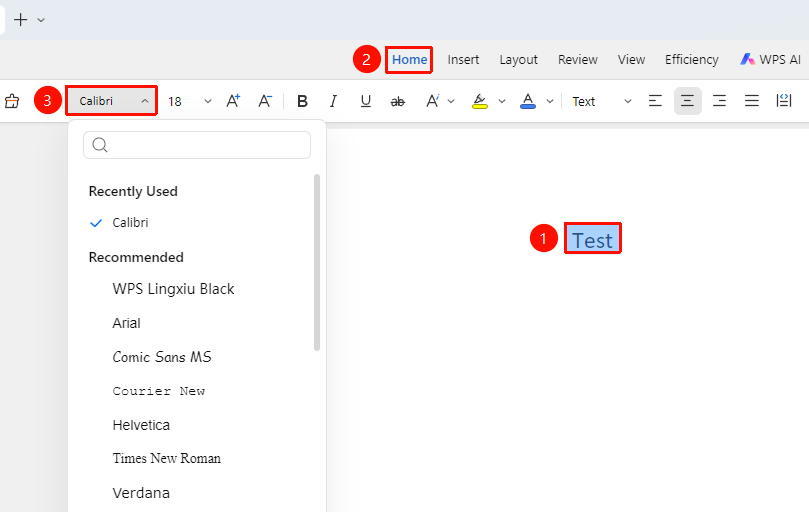
"Home" Tab → "Font" Dropdown Menu
- Select the text for which you want to set the font
- Click the "Font" dropdown menu in the Home tab
- Choose the desired font from the font list
- The system will preview the font effect in real time
Setting Font via Text Properties
Feature Entry
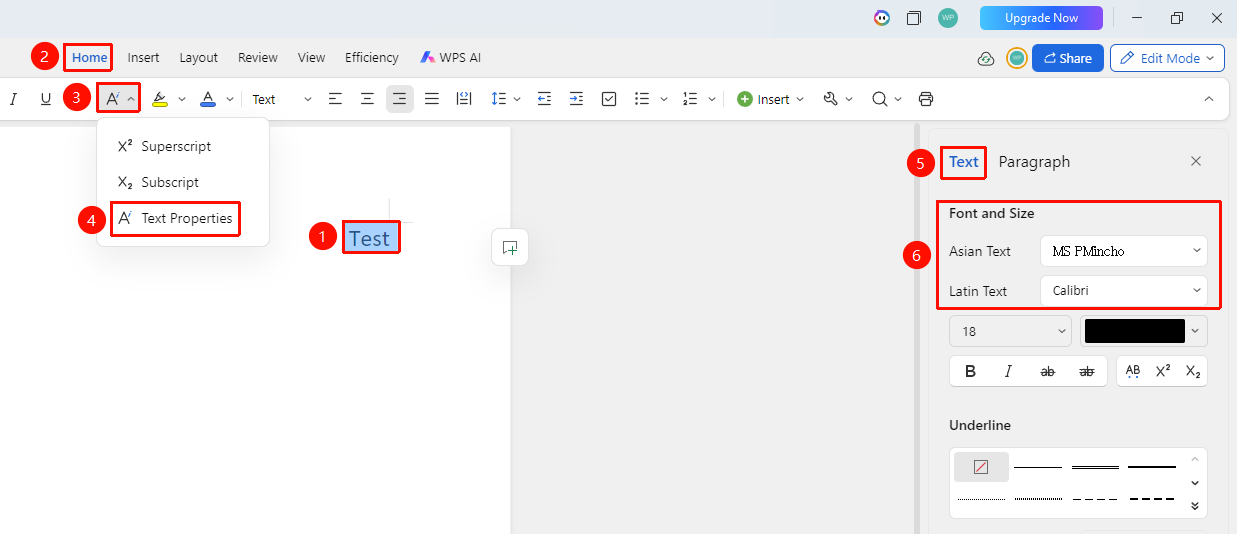
"Home" Tab → "Text Properties" Dropdown Menu → "Text Properties" Option → "Text" Tab → "Font & Font Size" Area
- Select the text for which you want to set the font
- Click the Home tab
- Click the Text Properties dropdown menu and select the Text Properties option
- In the task pane on the right, select the Text tab, then click the "Chinese Font" or "Western Font" dropdown menu
- Choose the desired font from the font list
- The system will preview the font effect in real time
Setting Font Size
Feature Entry
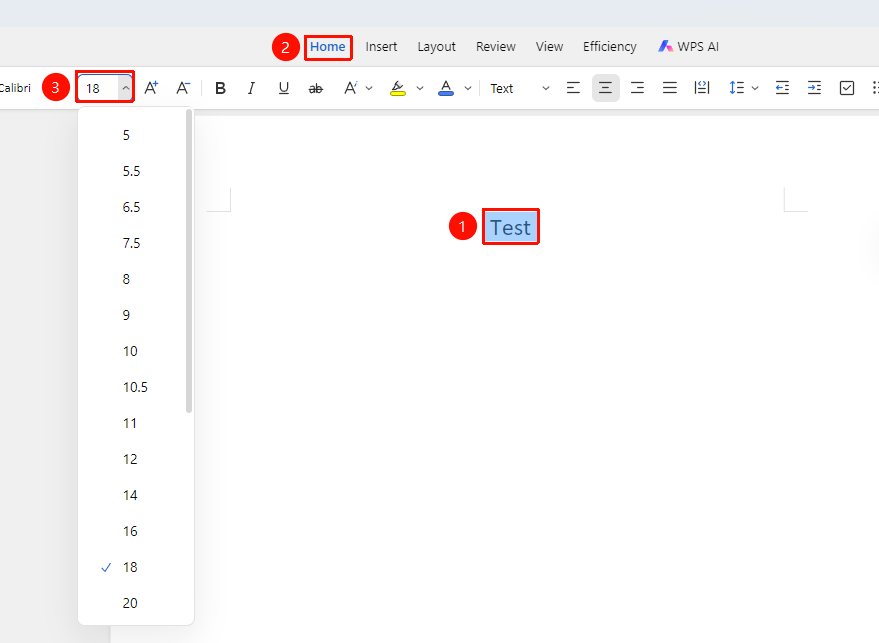
"Home" Tab → "Font" Dropdown Menu
- Select the text for which you want to set the font size
- Click the "Font Size" dropdown menu in the Home tab
- Choose the desired font size from the font size list
- You can also directly enter a custom font size value
Setting Font Size via Text Properties
Feature Entry
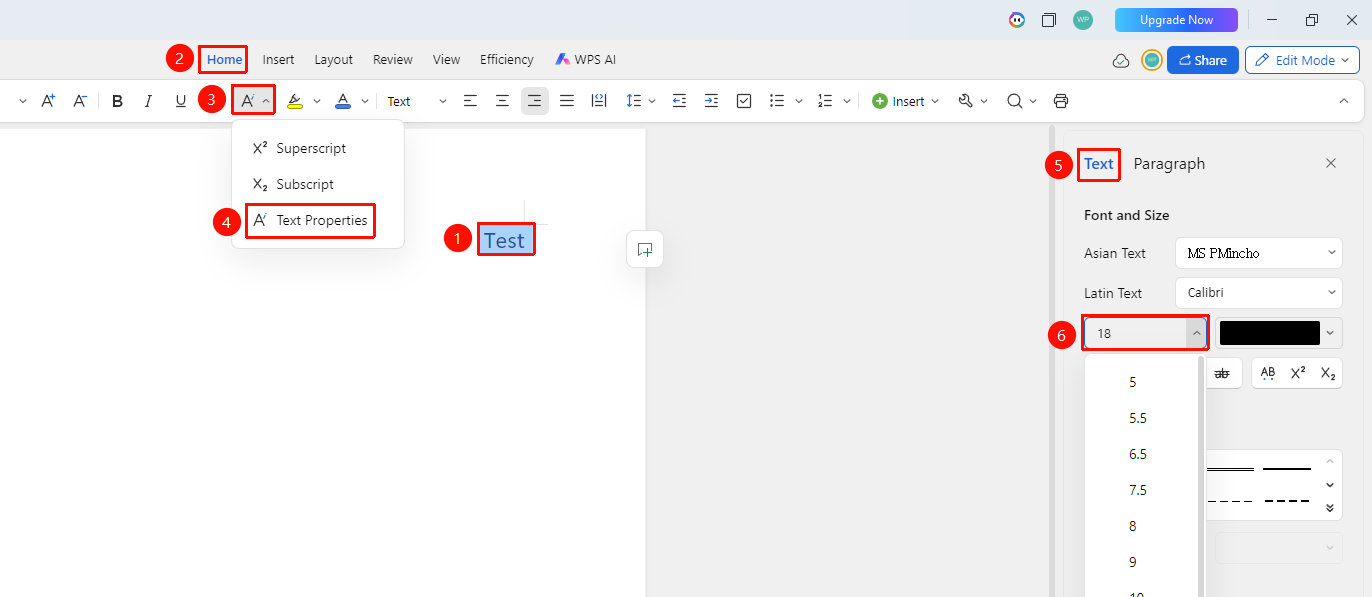
"Home" Tab → "Text Properties" Dropdown Menu → "Text Properties" Option → "Text" Tab → "Font Size" Dropdown Menu
- Select the text for which you want to set the font
- Click the Home tab
- Click the Text Properties dropdown menu and select the Text Properties option
- In the task pane on the right, select the Text tab, then click the "Font Size" dropdown menu
- Choose the desired font size from the font size list
- You can also directly enter a custom font size value
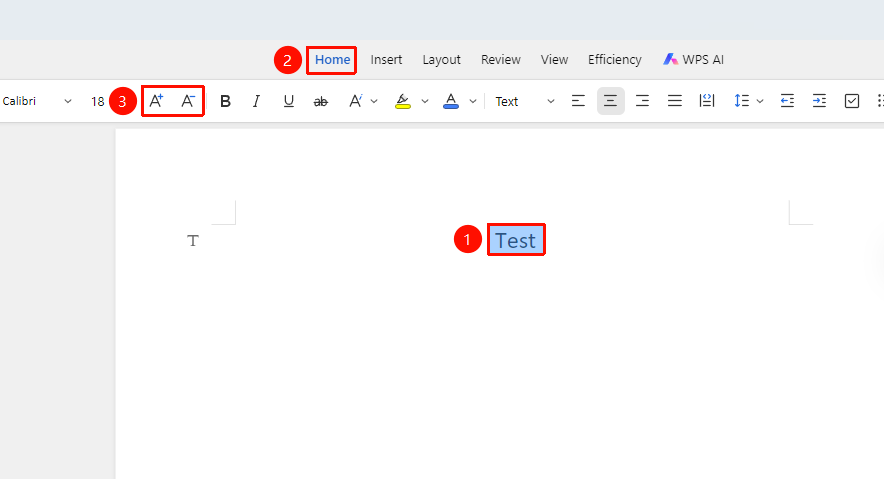
Adjusting Font Size Scaling
Feature Entry
"Home" Tab → "Increase Font Size" or "Decrease Font Size"
- Select the text to be adjusted
- Click the "Increase Font Size" or "Decrease Font Size" button next to the font size
- Each click adjusts the font size proportionally
Increase Font Size Shortcut:
Ctrl+]
Decrease Font Size Shortcut:
Ctrl+[
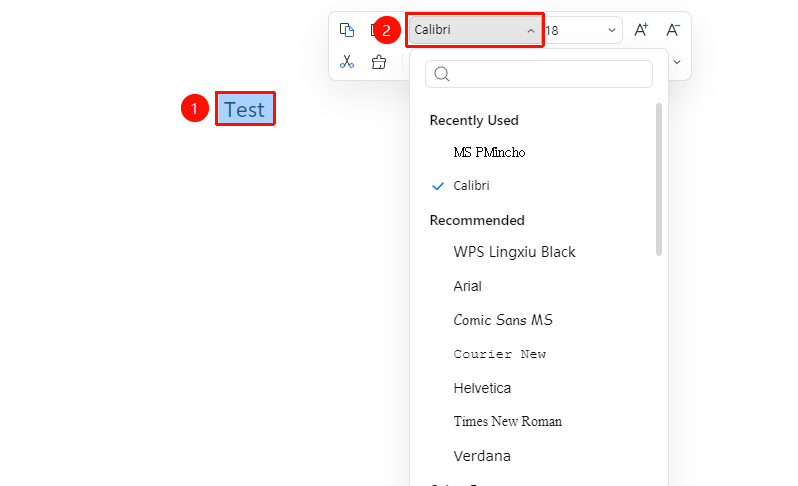
Setting Font via Floating Toolbar
Feature Entry
Select the text content to be bolded → "Floating Toolbar" Menu → "Font" Dropdown Menu
- Select the text content for which you want to set the font
- Click the "Font" dropdown menu in the Floating Toolbar
- Choose a font
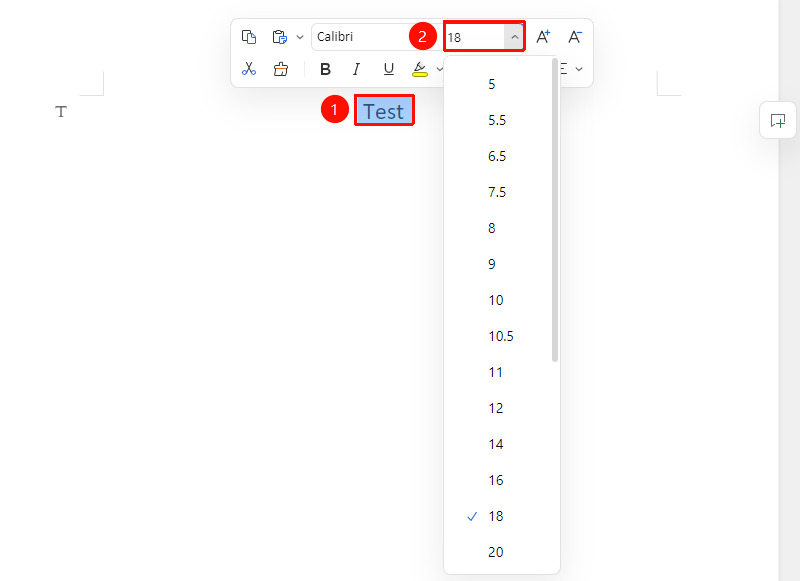
Setting Font Size via Floating Toolbar
Feature Entry
Select the text content to be bolded → "Floating Toolbar" Menu → "Font Size" Dropdown Menu
- Select the text content for which you want to set the font size
- Click the "Font Size" dropdown menu in the Floating Toolbar
- Choose a font size
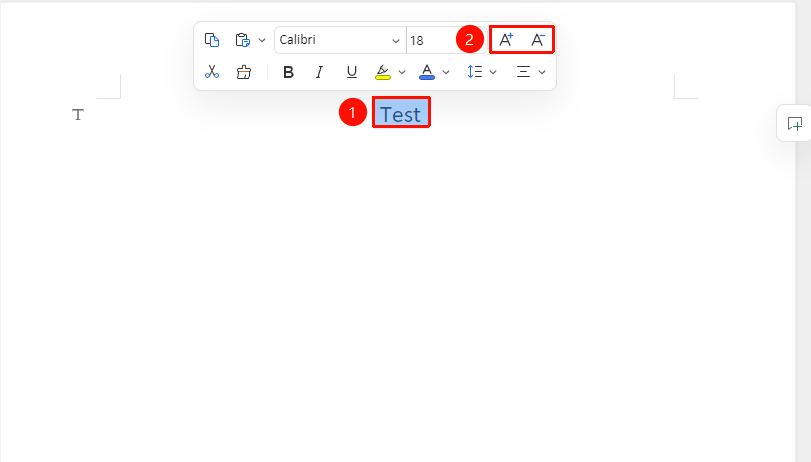
Adjusting Font Size Scaling via Floating Toolbar
Feature Entry
Select the text content to be bolded → "Floating Toolbar" Menu → "Increase Font Size" or "Decrease Font Size"
- Select the text to be adjusted
- Click the "Increase Font Size" or "Decrease Font Size" button in the Floating Toolbar
Frequently Asked Questions### Question 1: How to quickly apply the same font formatting?
- Solution: Use the Format Painter. Select the text with the desired formatting, click the "Format Painter" button, then brush over the text to apply the formatting.
Question 2: Can the font size be customized?
- Solution: Yes. Enter a number directly in the font size input box, such as "18.5", to set a custom font size.