Feature Summary
The font color feature is used to change the display color of text, making important content more prominent. It is also applicable in collaboration mode and can be used to distinguish different content or beautify documents.
Feature Description
| Feature Dimension | Description |
|---|---|
| Membership Restriction | No membership restriction |
| Version Restriction | No version restriction |
Operation Steps
Set Font Color Using the Ribbon Button
Feature Entry
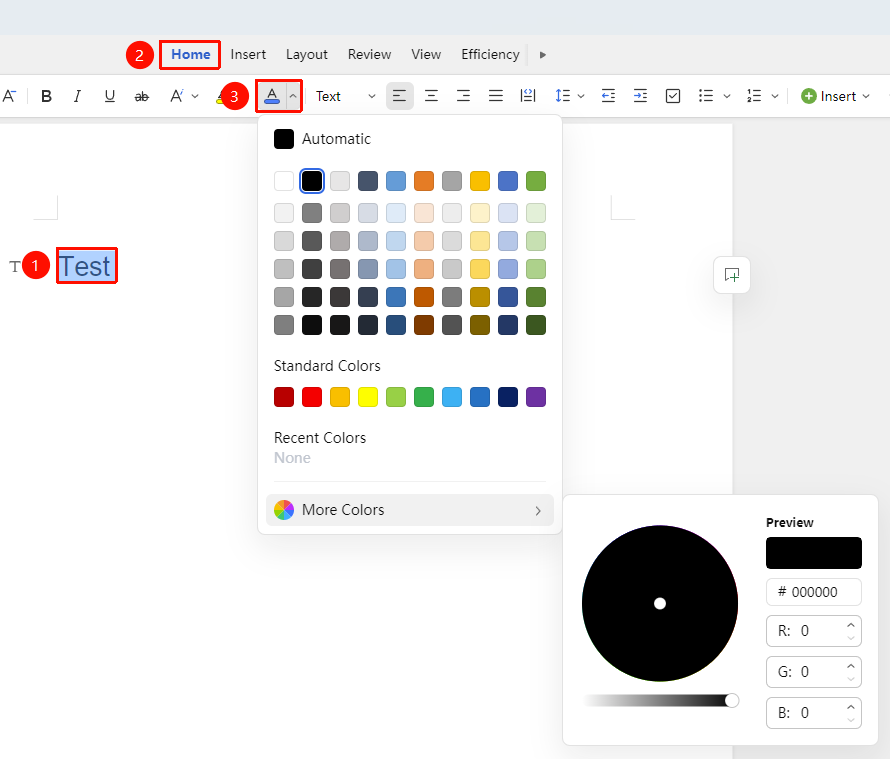
"Home" tab → "Font Color" button
- Select the text whose color needs to be changed
- Click the Font Color button (A icon with a color bar) in the Home tab
- Click the button to directly apply the current color
- Or click the drop-down arrow to select another color
Set Font Color Using the Floating Toolbar
Feature Entry
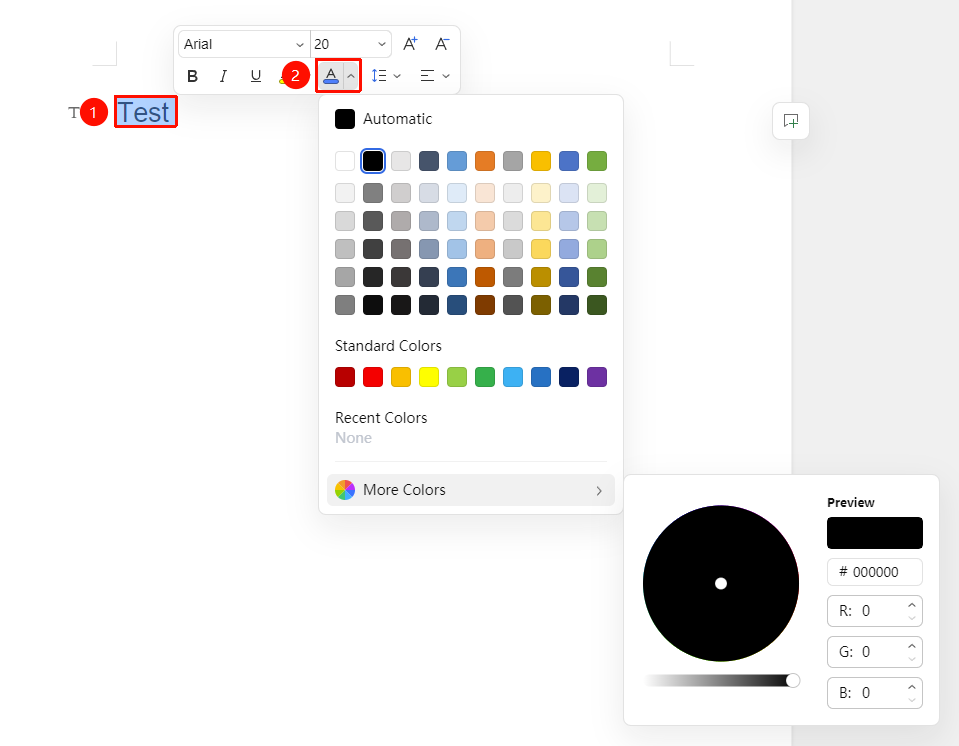
Select the text whose color needs to be changed → "Floating Toolbar" menu → "Font Color" drop-down menu
- Right-click the selected text
- In the pop-up Floating Toolbar menu, click the Font Color drop-down menu
- Choose the desired color
Set Font Color via Text Properties
Feature Entry
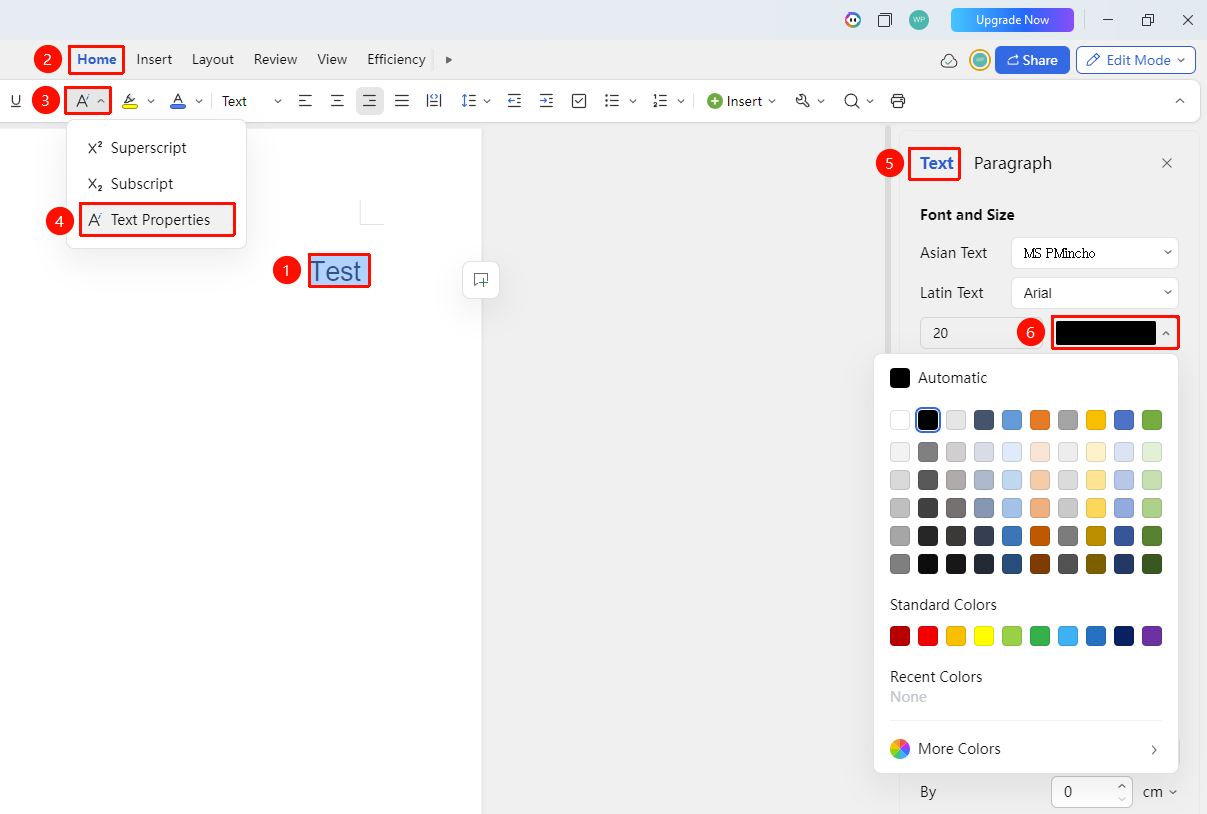
"Home" tab → "Text Properties" drop-down menu → "Text Properties" option → "Text" tab
- Select the text whose color needs to be adjusted
- Click the Text Properties drop-down menu in the Home tab
- Select the Text Properties option, then choose the Text tab in the task pane on the right
- Select Font Color