Feature Summary
The character spacing feature is used to adjust the distance between characters. It can widen or tighten character spacing and is also applicable in collaboration mode, making document layout more aesthetically pleasing.
Feature Description
| Feature Dimension | Description |
|---|---|
| Membership Restriction | No membership restriction |
| Version Restriction | No version restriction |
Operation Steps
Adjusting Character Spacing via the Font Dialog Box
Feature Entry
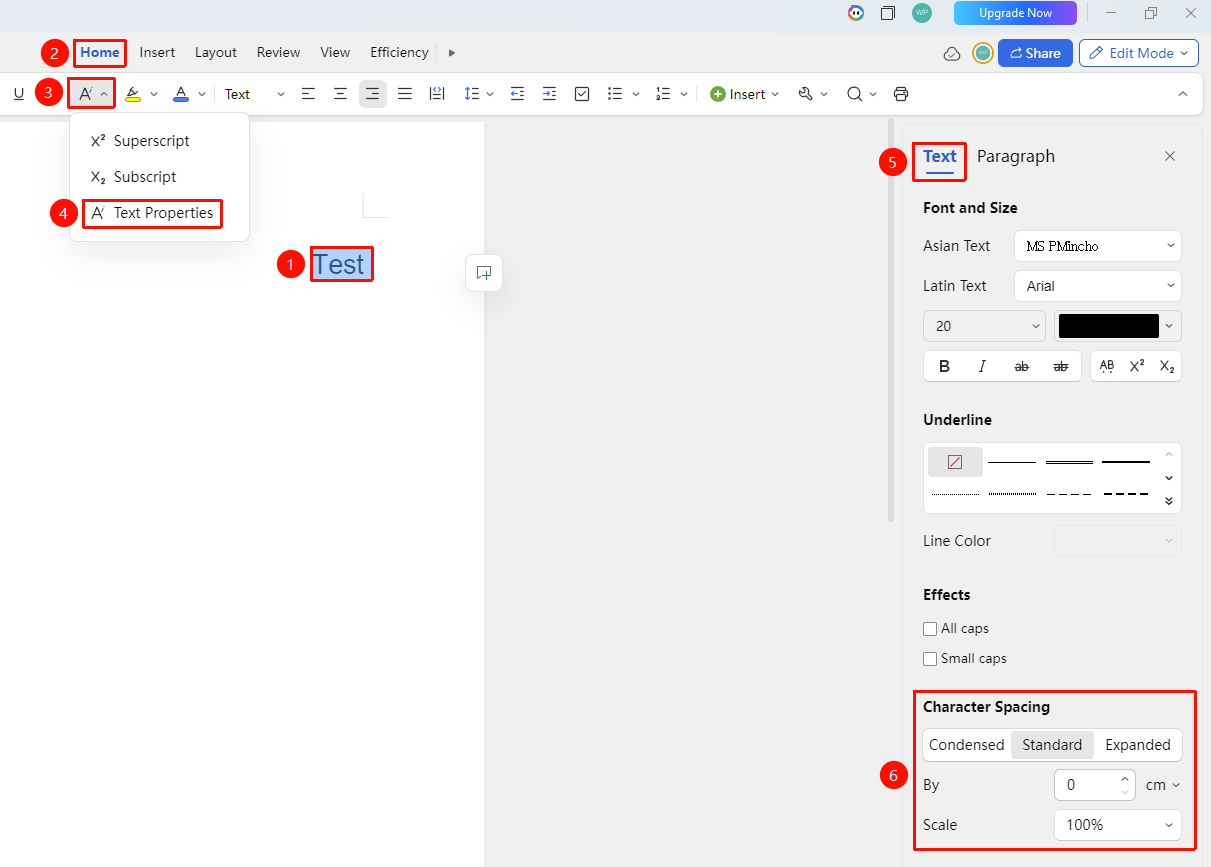
"Home" tab → "Text Properties" dropdown menu → "Text Properties" option → "Text" tab → "Character Spacing"
- Select the text for which you need to adjust character spacing
- Click the Text Properties dropdown menu in the Home tab
- Select the Text Properties option, then click the "Text" tab in the task pane on the right
- Adjust character spacing
- Tightened
- Standard
- Widened
- Character spacing value
- Spacing scaling
Frequently Asked Questions
Question 1: What is the difference between widening and tightening character spacing?
- Solution: Widening increases the distance between characters, making the text more spread out; tightening decreases the distance between characters, making the text more compact.
Question 2: What is the difference between character scaling and character spacing?
- Solution: Character scaling adjusts the width ratio of the characters themselves; character spacing adjusts the distance between characters. The two can be used together.
Notes
- Adjusting character spacing will affect the overall layout effect
- Excessive tightening may cause text overlap and make it difficult to read