Feature Summary
The "Export As" feature allows you to convert WPS Cloud documents into formats such as images or PDFs. This is useful for scenarios like document previewing, sharing on social media, or giving presentations, facilitating quick distribution and viewing.
Feature Description
| Feature Dimension | Description |
|---|---|
| Membership Restriction | No membership restriction, available to all users |
| Version Restriction | No version restriction |
Operation Steps
Export as Image from the Efficiency Tab
Feature Entry
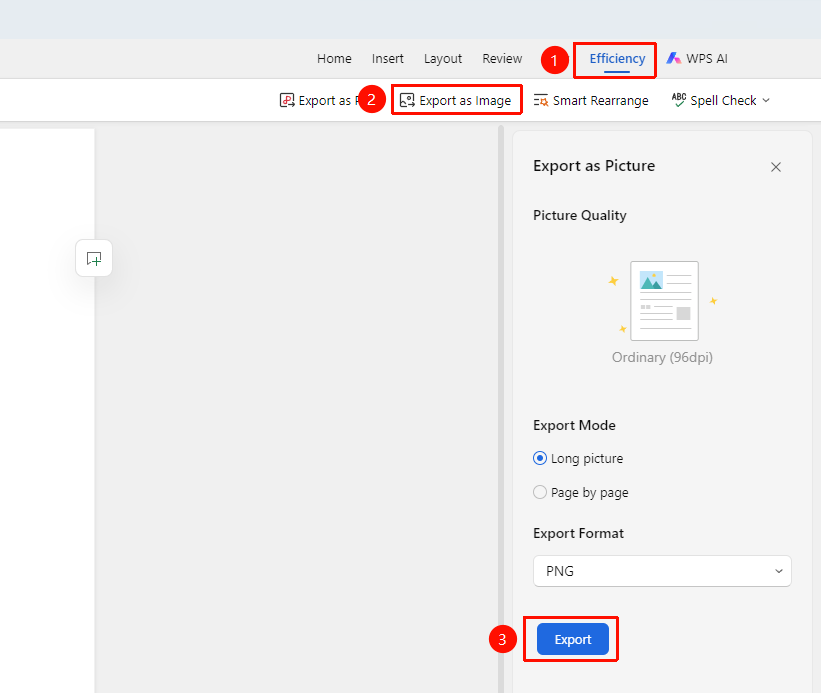
"Efficiency" Tab → "Export as Image" Option
- Click the Efficiency tab
- Select the "Export as Image" option
- In the task pane that appears on the right, set the export method and export format
- Click the Export button to complete the export
Export as PDF from the Efficiency Tab
Feature Entry
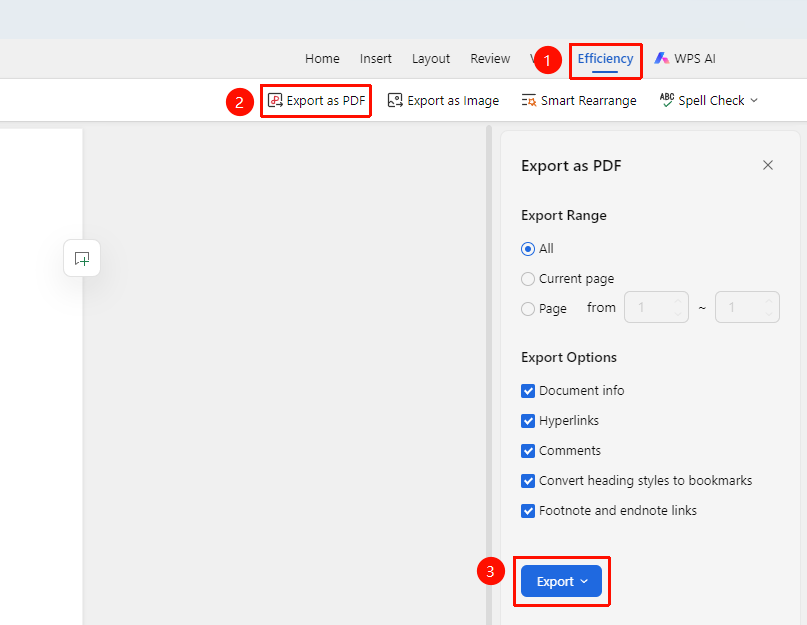
"Efficiency" Tab → "Export as PDF" Option
- Click the Efficiency tab
- Select the "Export as PDF" option
- In the task pane that appears on the right, set the export range and export content
- Click the Export button, then select Export as Online PDF or Export to Local to complete the export
Export as Smart Document from the File Operations Menu
Feature Entry
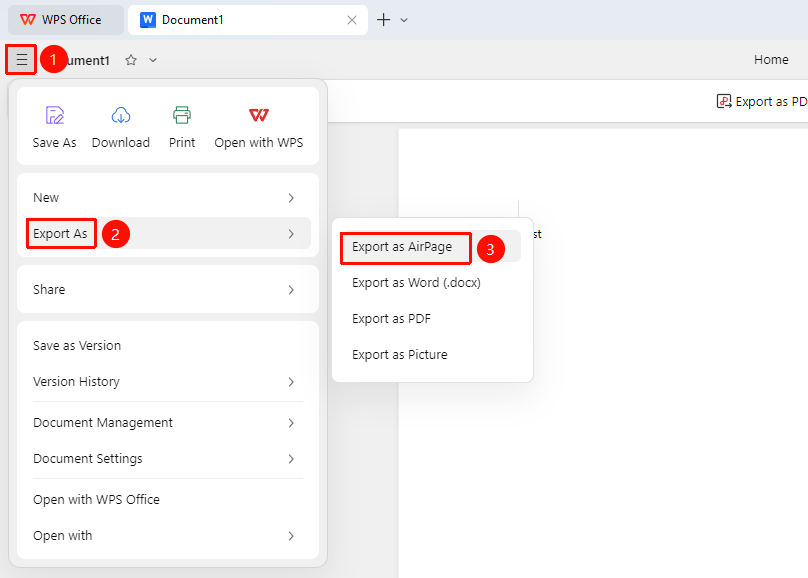
"File Operations" Button → "Export as" Dropdown Menu → "Export as Smart Document" Option
- Open the cloud document and click File Operations (three-line icon) in the upper left corner
- Select the Export as dropdown menu
- Click the "Export as Smart Document" option in the dropdown menu to complete the export
Export as Word from the File Operations Menu
Feature Entry
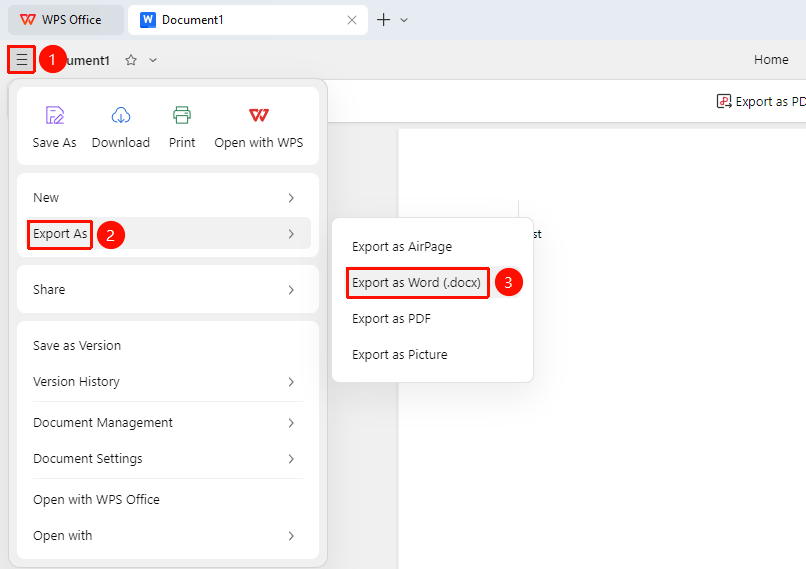
"File Operations" Button → "Export as" Dropdown Menu → "Export as Word (.docx)" Option
- Open the cloud document and click File Operations (three-line icon) in the upper left corner
- Select the Export as dropdown menu
- Click the "Export as Word (.docx)" option in the dropdown menu
- Choose a save path and click Save to complete the export
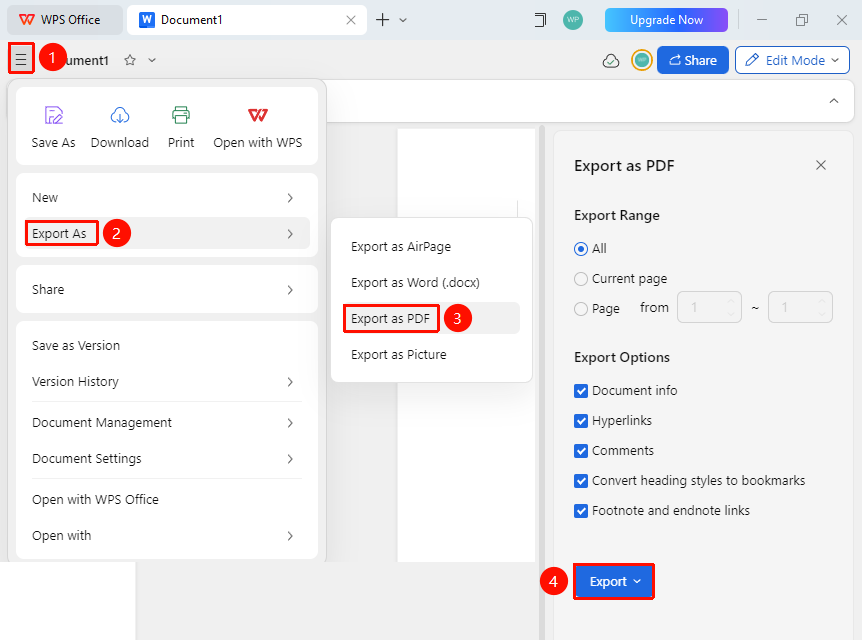
Export as PDF from the File Operations Menu
Feature Entry
"File Operations" Button → "Export as" Dropdown Menu → "Export as PDF" Option
- Open the cloud document and click File Operations (three-line icon) in the upper left corner
- Select the Export as dropdown menu
- Click the "Export as PDF" option in the dropdown menu
- In the task pane that appears on the right, set the export range and export content
- Click the Export button, then select Export as Online PDF or Export to Local to complete the export
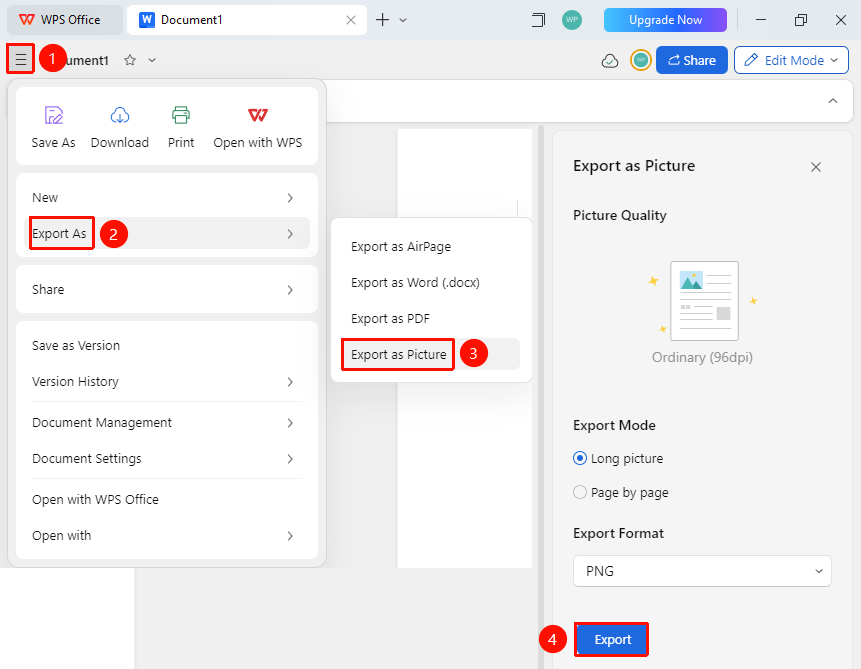
Export as Image from the File Operations Menu
Feature Entry
"File Operations" Button → "Export as" Dropdown Menu → "Export as Image" Option
- Open the cloud document and click File Operations (three-line icon) in the upper left corner
- Select the Export as dropdown menu
- Click the "Export as Image" option in the dropdown menu
- In the task pane that appears on the right, set the export method and export format
- Click the Export button to complete the export
Notes
- After exporting as an image, the exported image content cannot be edited
- The composite long image export feature is suitable for social media sharing, making it easy for users to view the complete content
- It is recommended to choose PNG as the image format to ensure clear text display