Feature Summary
The printing function supports sending cloud documents to a printer for output. Parameters such as number of copies, page range, and paper orientation can be set. It also supports setting print prohibition permissions to protect document security.
Feature Description
| Feature Dimension | Description |
|---|---|
| Membership Restriction | No membership restriction, available to all users |
| Version Restriction | No version restriction |
Operation Steps
Print Document
Feature Entry
"File Operations" button → "Print" option
- Open the cloud document, click File Operations (three horizontal lines icon) in the upper left corner
- Select "Print"
- Confirm the document content on the print preview interface
- Click the "Print" button
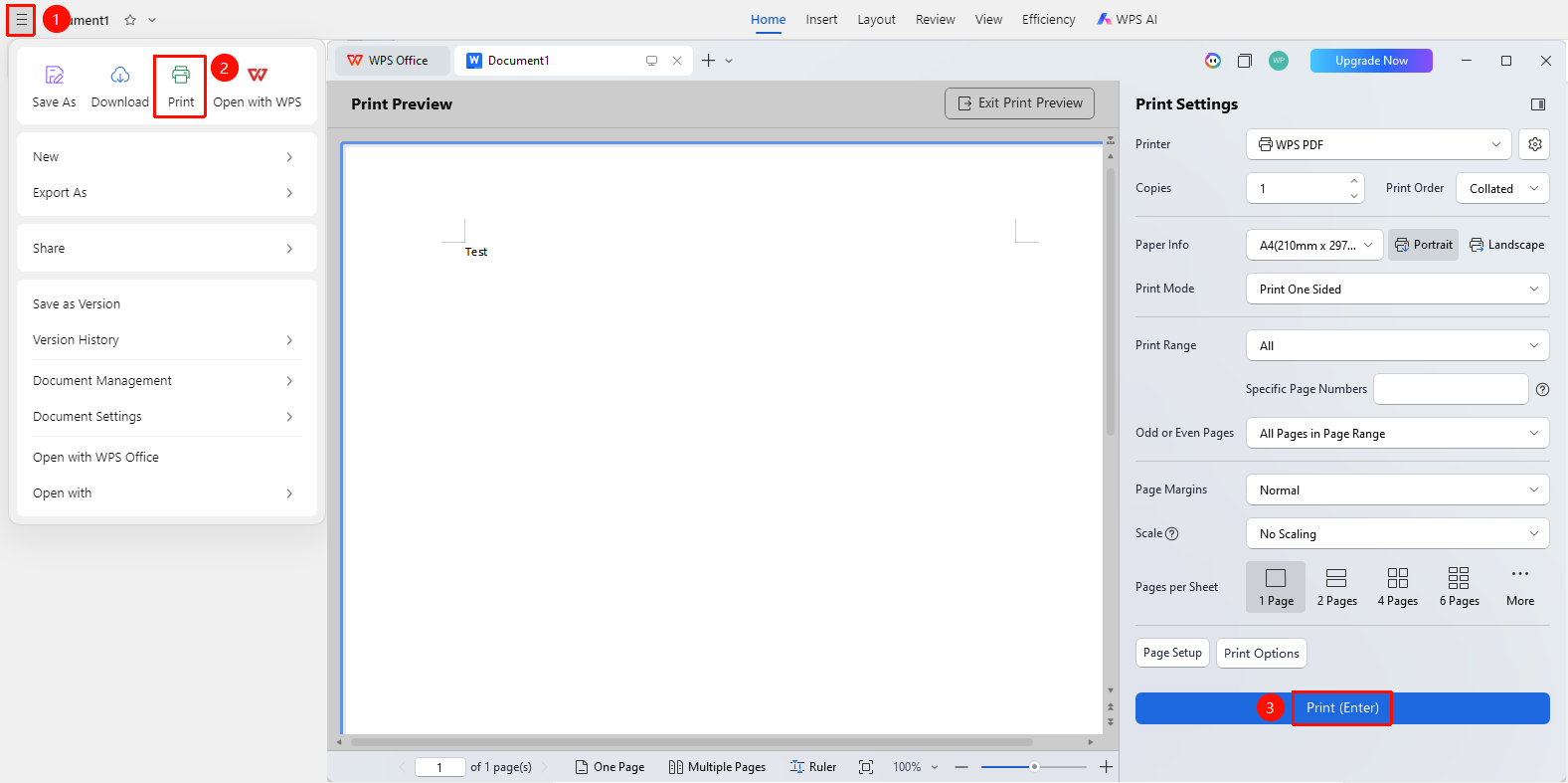
Print Document from the Start Option
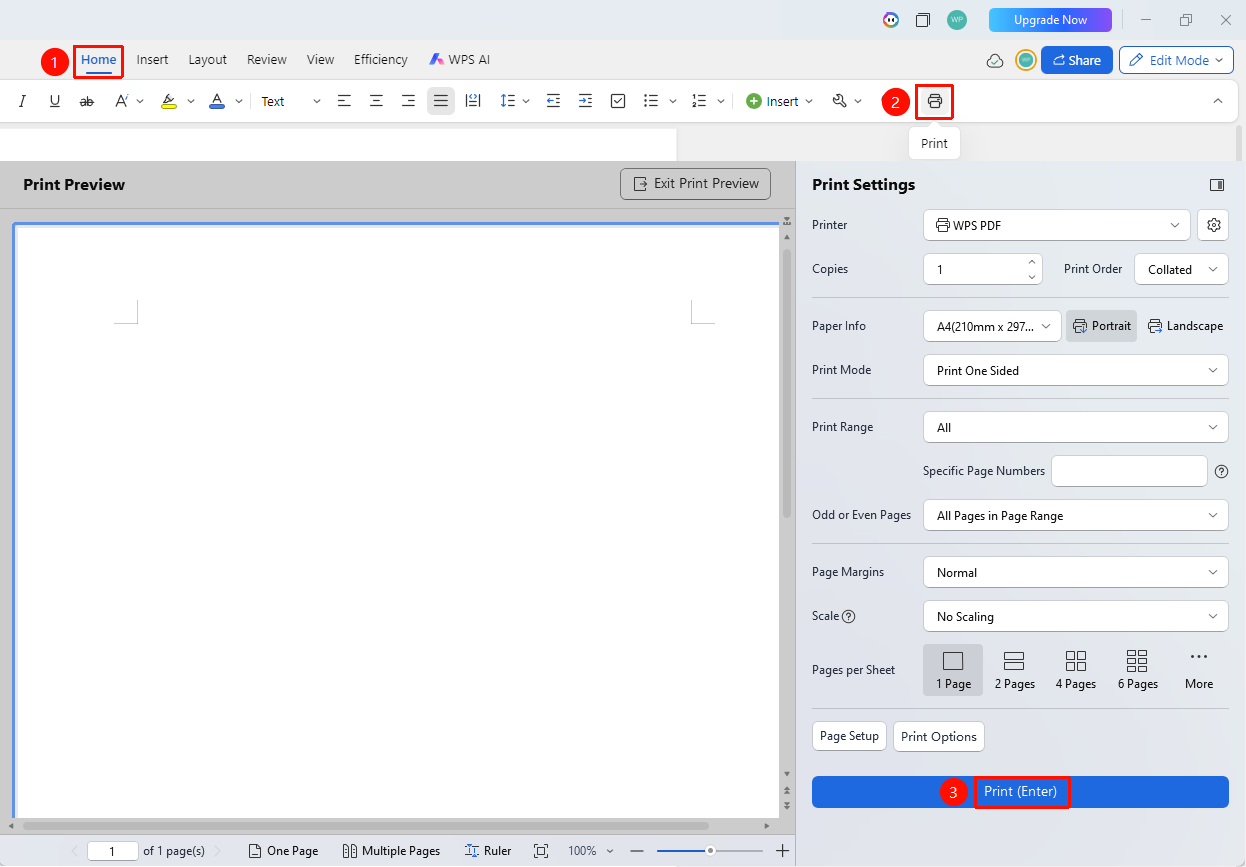
Feature Entry
"Start" tab → "Print" button
- Open the cloud document, click the Start tab
- Select the "Print" button (printer icon)
- Confirm the document content on the print preview interface
- Click the "Print" button
Frequently Asked Questions
Question 1: What should I do if the prompt "No printer found" appears when printing?
- Solution:
- Ensure the connection between the computer and the printer is normal
- Check if the printer driver is functioning properly
- Try restarting the printer and computer
Question 2: How to set up duplex printing?
- Solution: Select "Duplex Printing" in the print interface, and you can set the binding method to "Long-edge binding" or "Short-edge binding".
Question 3: How to remove restrictions on a document that is prohibited from printing?
- Solution: The document owner can check the option "Allow viewers to download, print, save, and copy" in "Share" → "Advanced Settings". The setting takes effect immediately.