Feature Summary
Eye Protection Mode adjusts the document background to a soft green color, reducing eye strain during prolonged reading and protecting eyesight.
Feature Description
| Feature Dimension | Description |
|---|---|
| Membership Restriction | No membership restriction |
| Version Restriction | No version restriction |
Operation Steps
Enabling Eye Protection Mode
Feature Entry
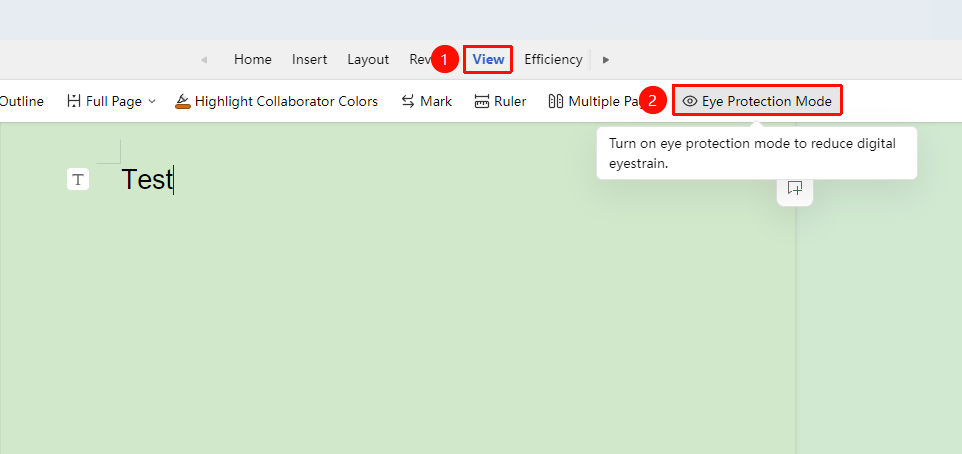
"View" Tab → "Eye Protection Mode"
- Click the "View" tab
- Click the "Eye Protection Mode" button
- The document background will change to a soft light green
- Click again to disable Eye Protection Mode
Enabling via the Status Bar
Feature Entry
Status Bar → Eye Protection Mode Icon
- Locate the Eye Protection Mode icon (eye icon) in the status bar
- Click the icon to enable Eye Protection Mode
- Click again to disable Eye Protection Mode

Frequently Asked Questions
Question 1: Does Eye Protection Mode affect printing?
- Solution: Eye Protection Mode only affects the screen display and does not affect printing.
Question 2: Can the brightness of Eye Protection Mode be adjusted?
- Solution: Adjustment is currently not available. You can increase/decrease your computer screen brightness appropriately for the best experience.
Notes
- Eye Protection Mode only changes the screen display effect and does not affect document content or printing
- In collaboration mode, the Eye Protection Mode setting only affects the current user
- It is recommended to enable Eye Protection Mode when editing documents for extended periods