Feature Summary
Mark specific locations in a document for quick navigation and jumping, commonly used for long document navigation and cross-referencing.
Feature Description
| Feature Dimension | Description |
|---|---|
| Membership Restriction | No membership required |
| Version Restriction | No version restriction |
Operation Steps
Inserting a Bookmark
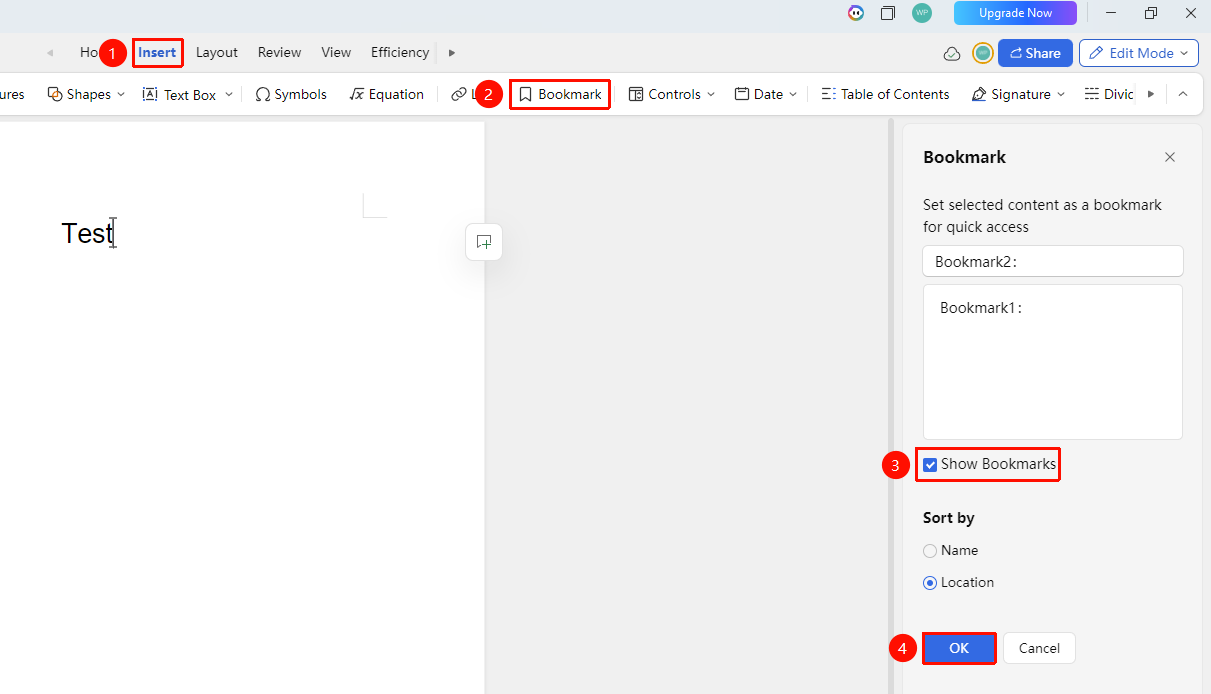
Entry Point ①
"Insert" Tab → "Bookmark"
- Place the cursor at the location you want to mark
- Click the "Insert" tab and select "Bookmark"
- Enter a bookmark name (cannot start with a number, cannot contain spaces)
- Choose "whether to display the bookmark marker"
- Click "OK" to complete bookmark creation
Entry Point ②
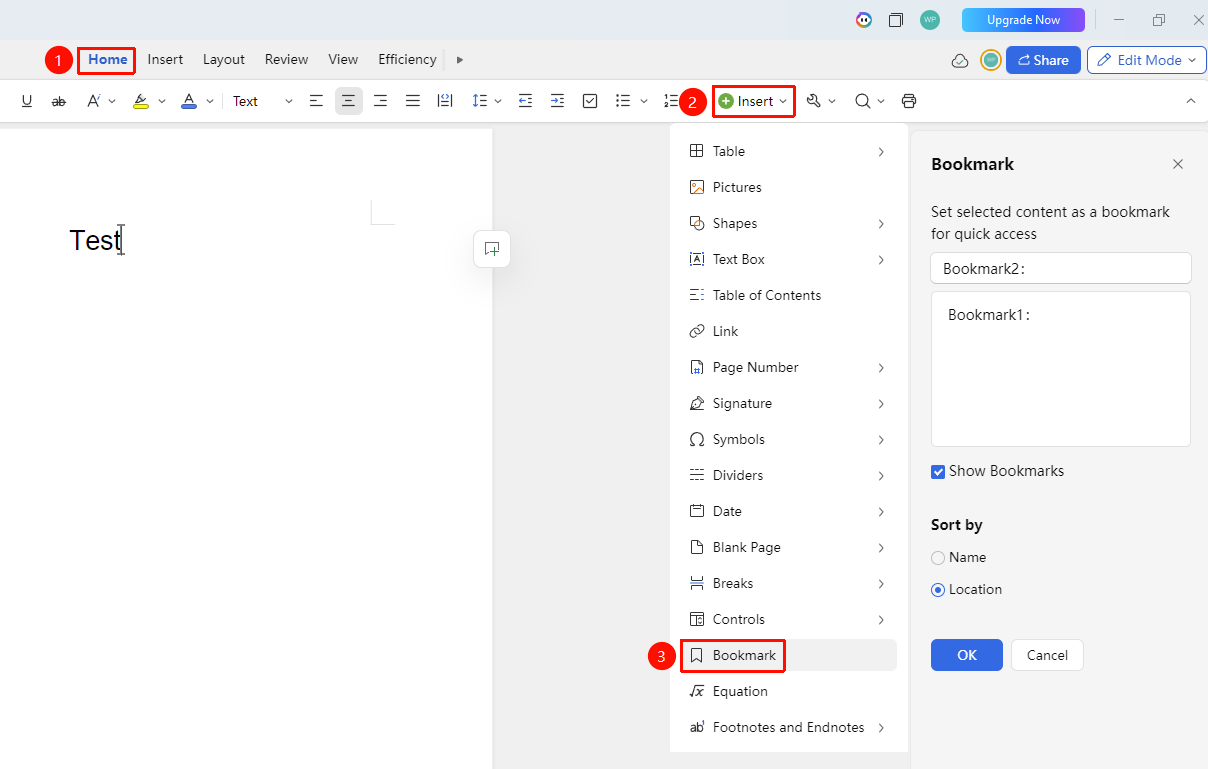
"Home" Tab → "Insert" → "Bookmark"
- Place the cursor at the location you want to mark
- On the "Home" tab, click "Insert" → "Bookmark"
- Enter a bookmark name (cannot start with a number, cannot contain spaces)
- Choose "whether to display the bookmark marker"
- Click "OK" to complete bookmark creation
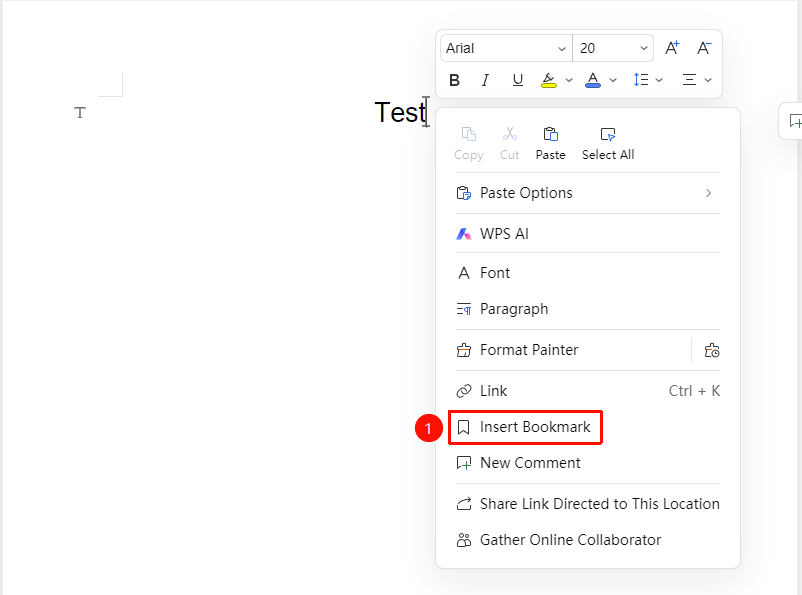
Entry Point ③
- Right-click within the editing area where you want to insert a link
- Select "Insert Bookmark" from the context menu
Navigating to a Bookmark
Entry Point
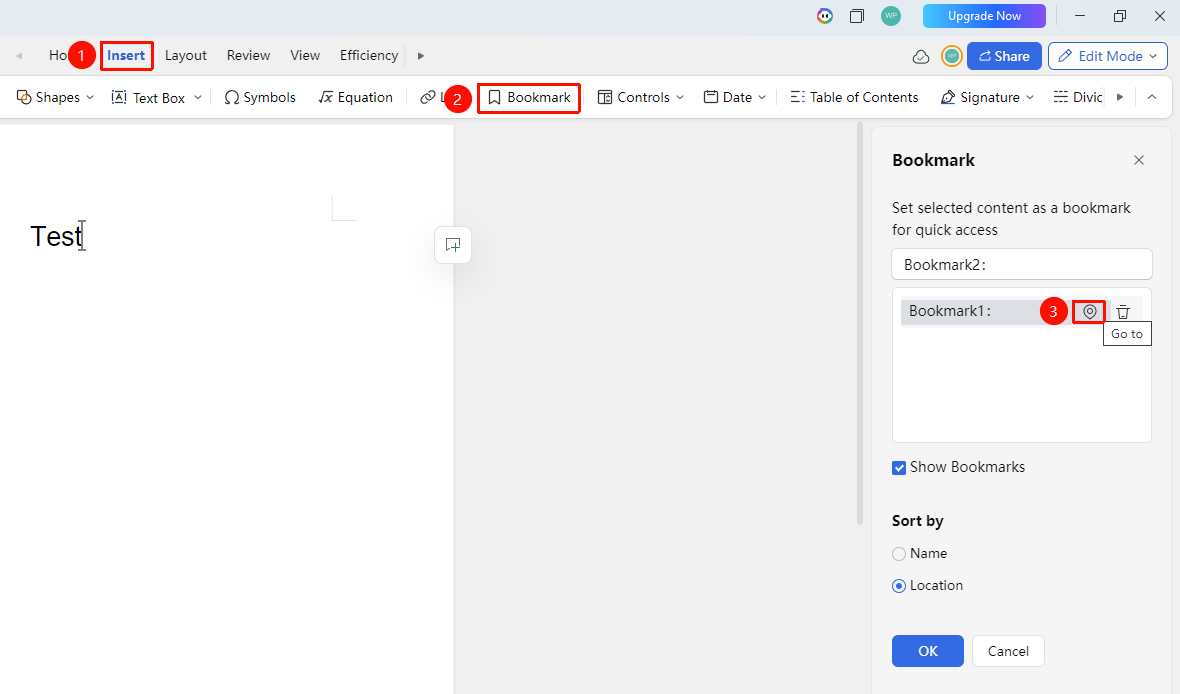
"Insert" Tab → "Bookmark" → Select Bookmark → "Go To"
- Click "Insert" → "Bookmark" to open the Bookmark dialog box
- Select the target bookmark from the bookmark list
- Click the "Go To" button
- The cursor will jump to the bookmark's location
Deleting a Bookmark
Entry Point
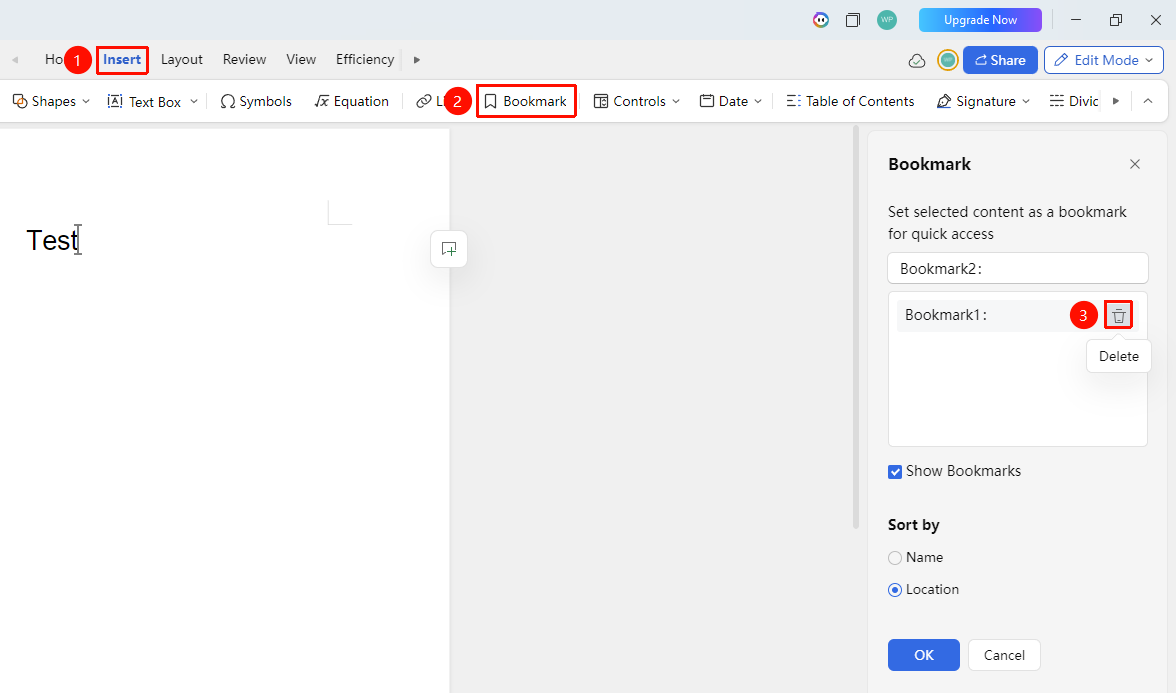
"Insert" Tab → "Bookmark" → Select Bookmark → "Delete"
- Open the Bookmark dialog box
- Select the bookmark to delete
- Click the "Delete" button
- The bookmark is removed without affecting the document content
Showing/Hiding Bookmark Markers
Entry Point
"Insert" Tab → "Bookmark"
- Click on "whether to display the bookmark marker"
Frequently Asked Questions
Question 1: What is the difference between a bookmark and a table of contents?
- Solution: Bookmarks are manually marked arbitrary locations, while a table of contents is a structural navigation automatically generated based on heading styles.
Notes
- Bookmark names are case-sensitive
- Deleting a bookmark does not delete the content at the bookmark location
- Bookmarks can be used for link jumps