Feature Summary
Insert professional formulas such as mathematical formulas and chemical equations into documents, supporting LaTeX syntax input and visual formula editing.
Feature Description
| Feature Dimension | Description |
|---|---|
| Membership Restriction | No membership restriction |
| Version Restriction | No version restriction |
Operation Steps
Insert a New Formula
Entry Point ①
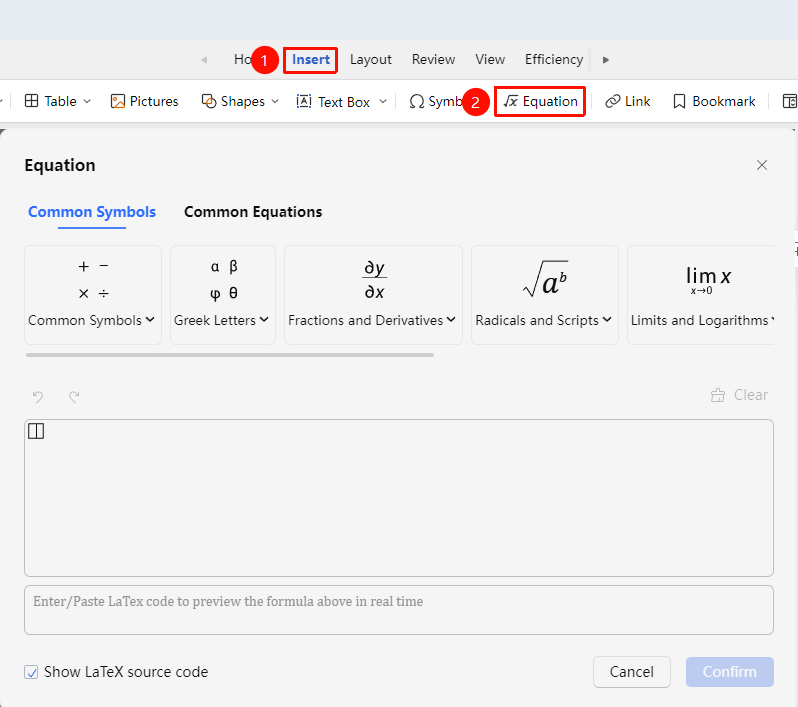
"Insert" Tab → "Formula"
- Place the cursor at the position where you want to insert the formula
- Click the "Insert" tab and select "Formula"
- A formula editing area appears in the document
- Use the formula toolbar to input formula content or nest "Common Formulas"
Entry Point ②
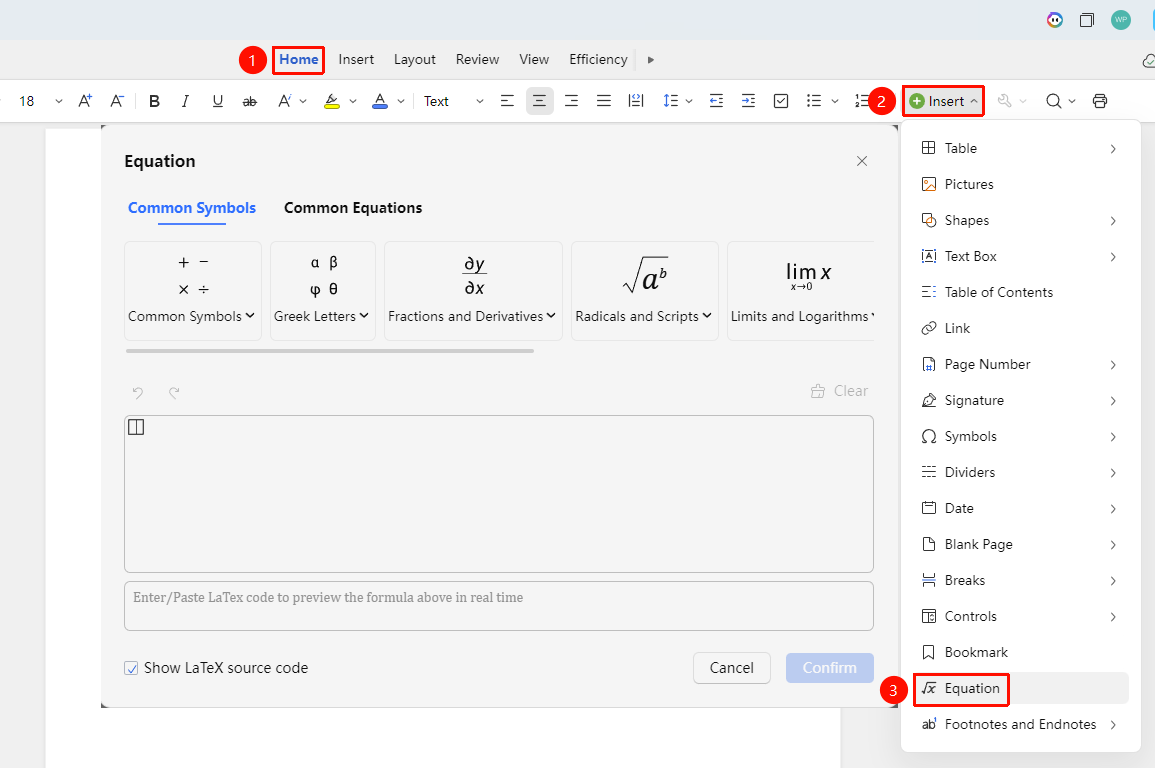
"Home" Tab → "Insert" → "Formula"
- Place the cursor at the position where you want to insert the formula
- In the "Home" tab, click "Insert" → "Formula"
Input Formulas Using LaTeX Syntax
Entry Point
Direct input within the formula editor
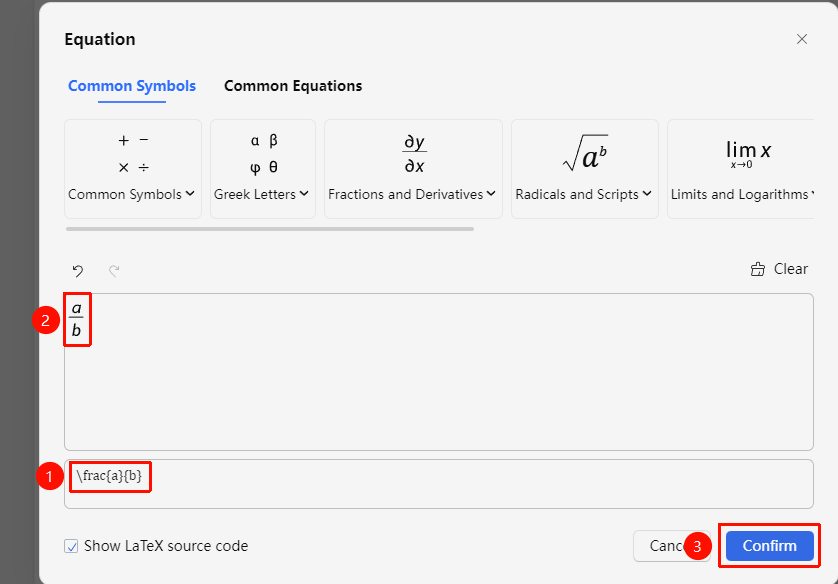
- After entering the formula editor, click to display the LaTeX source code
- Input or paste LaTeX syntax (e.g., \frac{a}{b} represents a fraction)
- Click "OK" to convert
Edit an Existing Formula
Entry Point
- Double-click an inserted formula in the document
- Enter the formula editing mode
- Modify the formula content or structure
- Click outside the formula area to exit editing
Frequently Asked Questions
Question 1: What if the formula displays incompletely or is misaligned?
- Solution: Adjust the formula size; or check if the line spacing is set to a fixed value.
Question 2: How to input complex matrices or piecewise functions?
- Solution: Use the "Matrix" and "Piecewise Function" templates in the formula toolbar.
Notes
- Common mathematical formula editing is supported in collaboration mode
- For complex formulas, it is recommended to use a professional formula editor and then paste
- Formulas are set to inline by default; the wrapping style can be adjusted