Feature Summary
Insert a horizontal separator line in a document to separate different sections or paragraphs, enhancing the visual hierarchy and readability of the document.
Feature Description
| Feature Dimension | Description |
|---|---|
| Membership Restriction | No membership restriction |
| Version Restriction | No version restriction |
Operation Steps
Insert a Separator Line
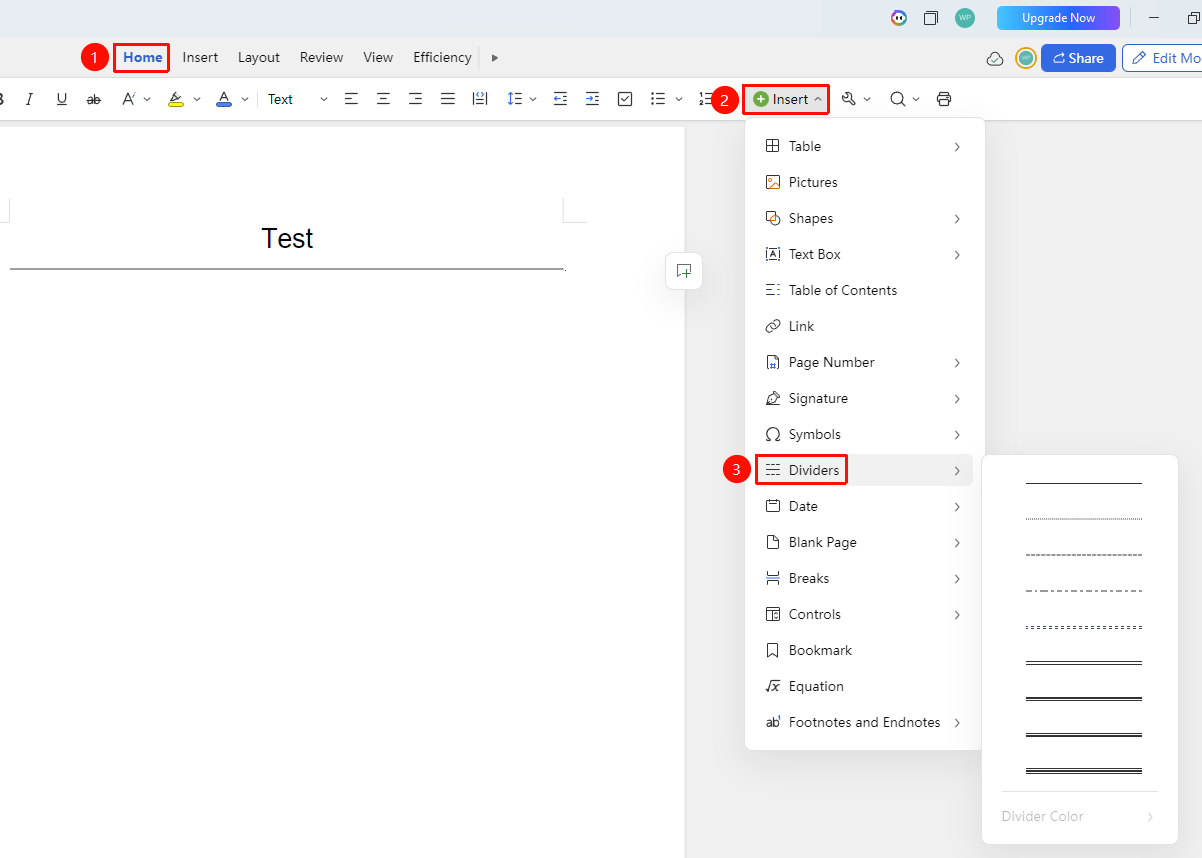
Entry Point ①
"Home" Tab → "Insert" → "Separator Line"
- Place the cursor at the position where you want to insert the separator line
- Click the "Home" tab, then select the "Insert" dropdown menu
- Select the "Separator Line" option and choose a separator line style
- Click to automatically insert a horizontal separator line in the document
Entry Point ①
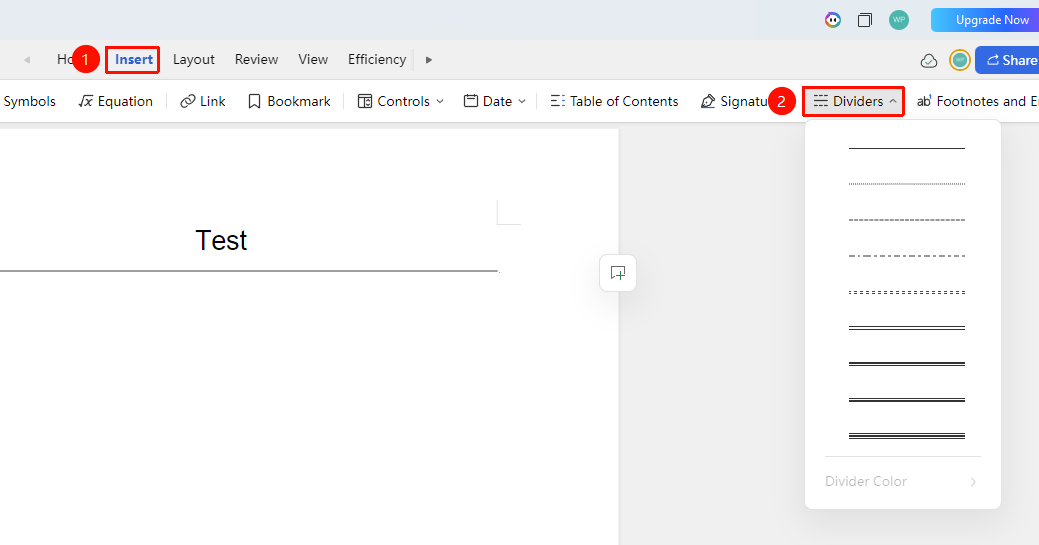
"Insert" Tab → "Separator Line"
- Place the cursor at the position where you want to insert the separator line
- Click the "Insert" tab → "Separator Line" option, and choose a separator line style
- Click to automatically insert a horizontal separator line in the document
Change the Separator Line Color
Entry Point
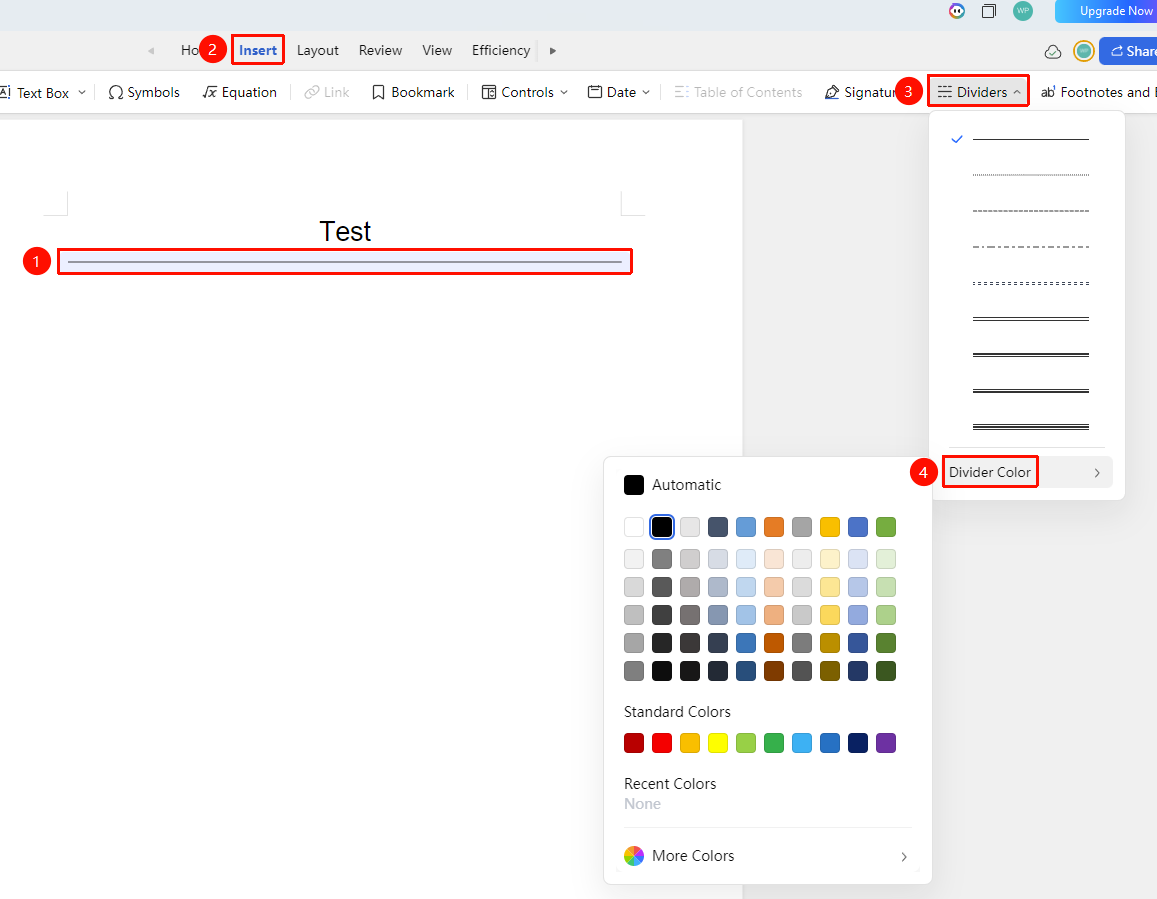
"Insert" Tab → "Separator Line" → "Separator Line Color"
- Select the inserted separator line
- Click the "Insert" tab → "Separator Line" option, then select "Separator Line Color"
- The default color is black. You can choose a standard color or click "Other Colors" to set an RGB value
Delete a Separator Line
Entry Point
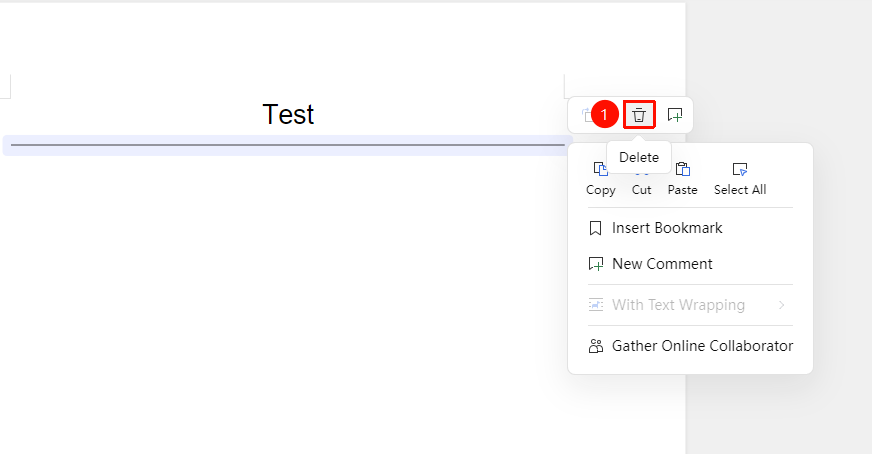
- Select the inserted separator line
- Right-click to bring up the floating menu, then select "Delete"
#
Notes
- The separator line occupies an entire line and cannot be on the same line as text
- You can use section breaks instead of line breaks for complex page layout settings