Feature Summary
Insert page breaks, section breaks, and other markers in a document to control pagination, columns, and page layout.
Feature Description
| Feature Dimension | Description |
|---|---|
| Membership Restriction | No membership restriction |
| Version Restriction | No version restriction |
| Shortcut Key | Insert page break: Ctrl + Enter |
Operation Steps
Inserting a Page Break
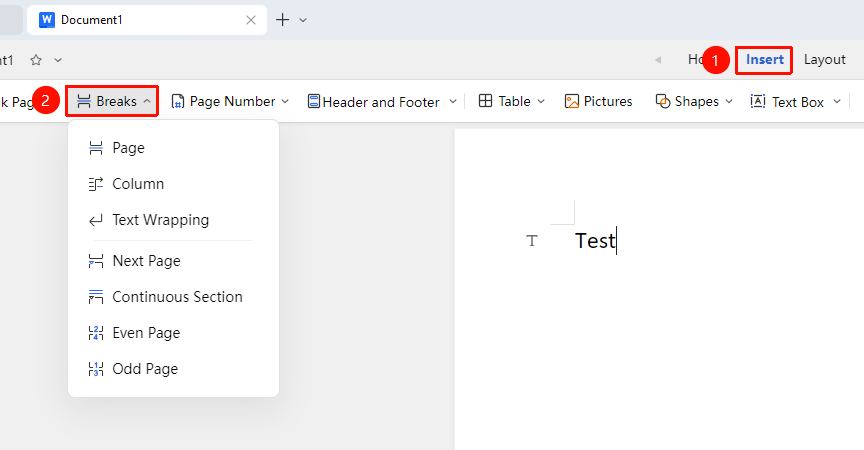
Feature Entry ①
"Insert" tab → "Page Break"
- Place the cursor at the desired insertion point
- Click the "Insert" tab and select "Page Break"
- Choose the desired page break/section break type from the dropdown menu
Feature Entry ②
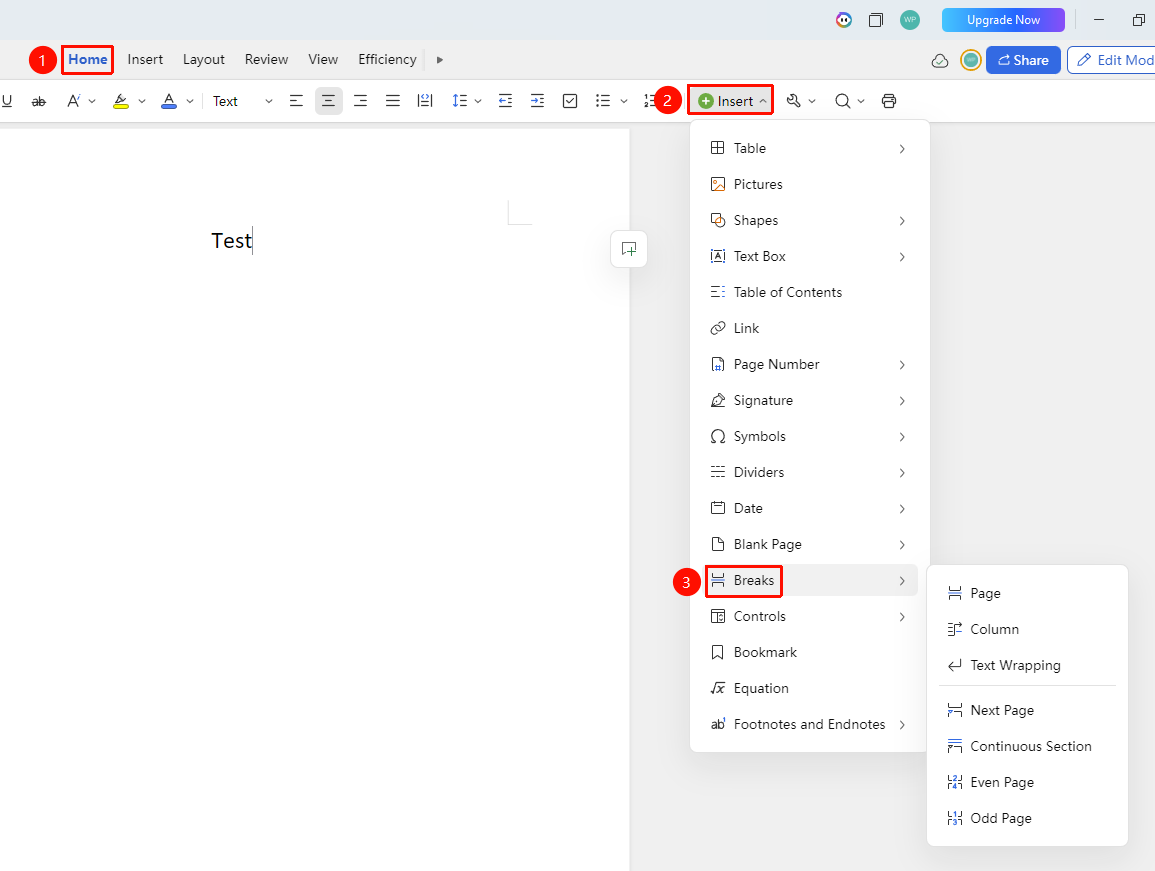
"Home" tab → "Insert" → "Page Break"
- Place the cursor at the desired insertion point
- On the "Home" tab, click "Insert" → "Page Break"
Page Break Types
- Page Break (Ctrl+Enter): Inserts a new page after the cursor position
- Column Break: Text after the cursor will start from the next column
- Line Break: Soft return, breaks the line without creating a new paragraph; separates text around objects on a web page, e.g., separating caption text from the main body
- Next Page Section Break: Inserts a new page after the cursor and starts a new section
- Continuous Section Break: Inserts a section break after the cursor position and starts a new section on the same page
- Even Page Section Break: Inserts a section break after the cursor position and starts a new section on the next even-numbered page
- Odd Page Section Break: Inserts a section break after the cursor position and starts a new section on the next odd-numbered page
Deleting a Page/Section Break
- Place the cursor before the page break or section break
- Press the Delete key to remove it
Frequently Asked Questions
Question 1: Large blank area appears on the page after inserting a page break
- Solution: This occurs because the page break forces content to the next page. Adjust the content on the previous page or delete the page break and reformat the layout.
Question 2: What is the purpose of a section break?
- Solution: Section breaks divide a document into multiple sections, each of which can have different page orientations, margins, headers and footers, column layouts, and other formatting.
Question 3: What is the difference between a column break and a page break?
- Solution: A page break moves content to the next page, while a column break moves content to the next column (a multi-column layout must be set first).
Question 4: What if I cannot find the paragraph markers for page breaks and section breaks?
- Solution: Click the "View" tab → "Markers" to show/hide all paragraph markers in the document.
Notes
- Page Break: Forces content to start on a new page
- Column Break: Forces content to start in the next column (column layout must be set first)
- Line Break: Soft return, breaks the line without creating a new paragraph
- Continuous Section Break: The new section starts on the current page, suitable for applying different formatting within the same page
- All markers are non-printing characters and will not appear when printed