Feature Summary
Insert local or online images into documents to enrich content, with support for image resizing and repositioning.
Feature Description
| Feature Dimension | Description |
|---|---|
| Membership Restriction | No membership required |
| Version Restriction | No version restriction |
Steps
Insert a Local Image
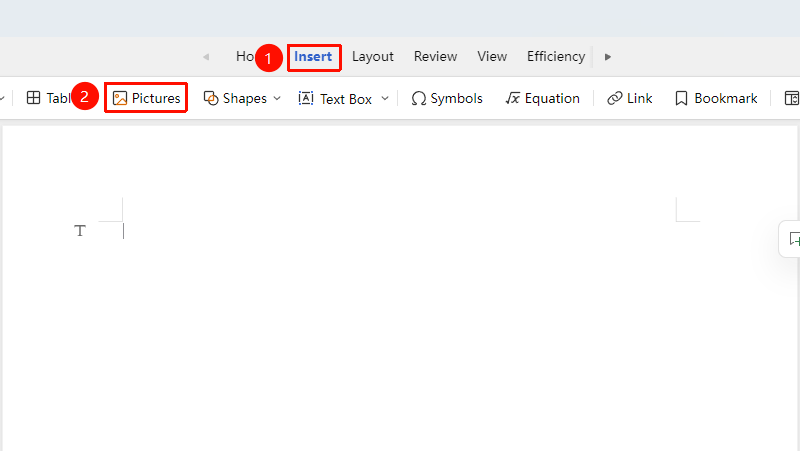
Entry Point ①
"Insert" Tab → "Picture"
- Place the cursor at the position where you want to insert the image
- Click the "Insert" tab and select "Picture"
- In the file selection dialog that appears, choose a local image
- Click "Open" to complete the insertion
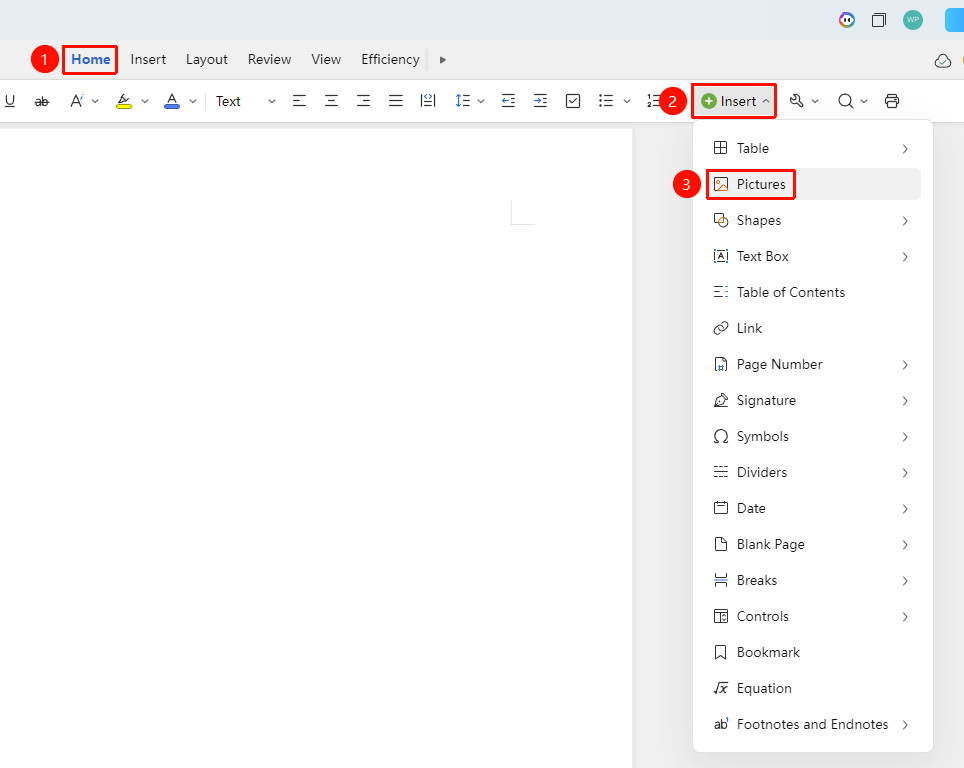
Entry Point ②
"Home" Tab → "Insert" → "Picture"
- Place the cursor at the position where you want to insert the image
- On the "Home" tab, click "Insert" → "Picture"
- In the file selection dialog that appears, choose a local image
- Click "Open" to complete the insertion
Resize an Image
Entry Point: Select the image and drag the border
- Click to select the image; control handles appear around it
- Drag a corner handle to scale proportionally
- Drag a middle handle on the border to adjust width or height individually
Set Text Wrapping for an Image
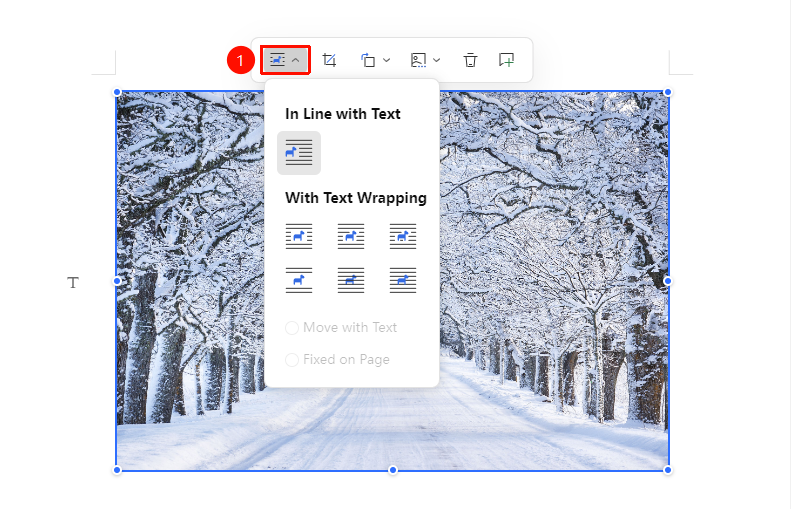
Entry Point: Select the image → Floating toolbar appears → "Text Wrapping"
- Select the image and click the "Picture Editing" floating toolbar
- Choose the "Text Wrapping" dropdown menu
- Options include: In Line with Text, Square, Tight, In Front of Text, etc.
- Select the appropriate wrapping style to complete the setting
Frequently Asked Questions
Question 1: The inserted image is missing?
- Solution:
- Collaboration mode requires a stable internet connection; check your computer's network settings again;
- Check the document's version history and collaboration records to see if a collaborator accidentally deleted it; restore a previous version if needed;
- Re-insert the image.
Question 2: How do I fix an image to a specific position on the page?
- Solution: Change the image's text wrapping to "In Front of Text," then drag it to the desired position.
Question 3: Pasting/copying an image fails or shows a blank
- Solution:
- Verify whether you are copying and pasting an image from a website, and check if that website or browser has permission to copy images;
- Download the desired image and import it via the "Insert" tab → "Picture"
Question 4: Where are inserted images stored?
- Solution: In collaboration mode, inserted images are uploaded and stored in the cloud in real time. When you download or export the document, the images are downloaded again to your local device.
Notes
- Supported image formats in online editing mode: JPG, PNG, GIF, BMP, etc.
- It is recommended to use images with moderate resolution to avoid slow document loading
- Copyright compliance: Pay attention to copyright issues when using online images; for commercial use, it is recommended to use licensed image libraries