Feature Summary
Insert various geometric shapes, arrows, flowchart symbols, and other graphic elements into documents for illustration, process display, and document beautification.
Feature Description
| Feature Dimension | Description |
|---|---|
| Membership Restriction | No membership restriction |
| Version Restriction | No version restriction |
Operation Steps
Insert Basic Shapes
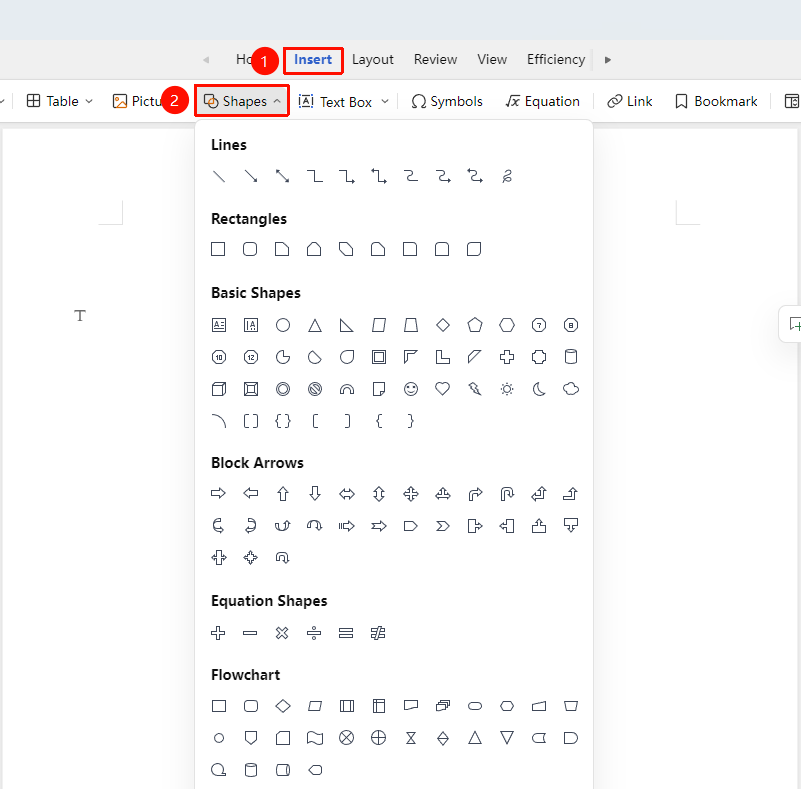
Feature Entry ①
"Insert" Tab → "Shapes"
- Click the "Insert" tab and select "Shapes"
- In the dropdown panel, select the desired shape type (rectangle, circle, arrow, etc.)
- Drag the mouse in the document to draw the shape
- Release the mouse to complete the drawing
Feature Entry ②
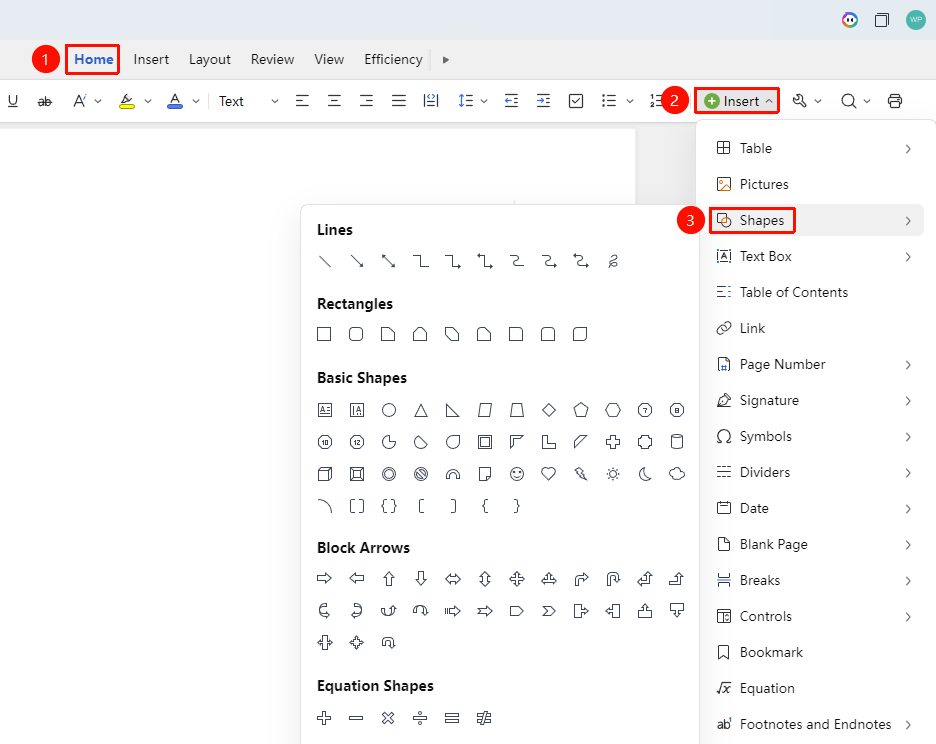
"Home" Tab → "Insert" → "Shapes"
- Click sequentially: "Home" tab → "Insert" → "Shapes"
- In the pop-up panel, select the desired shape type (rectangle, circle, arrow, etc.)
- Drag the mouse in the document to draw the shape
- Release the mouse to complete the drawing
Edit Shape Styles
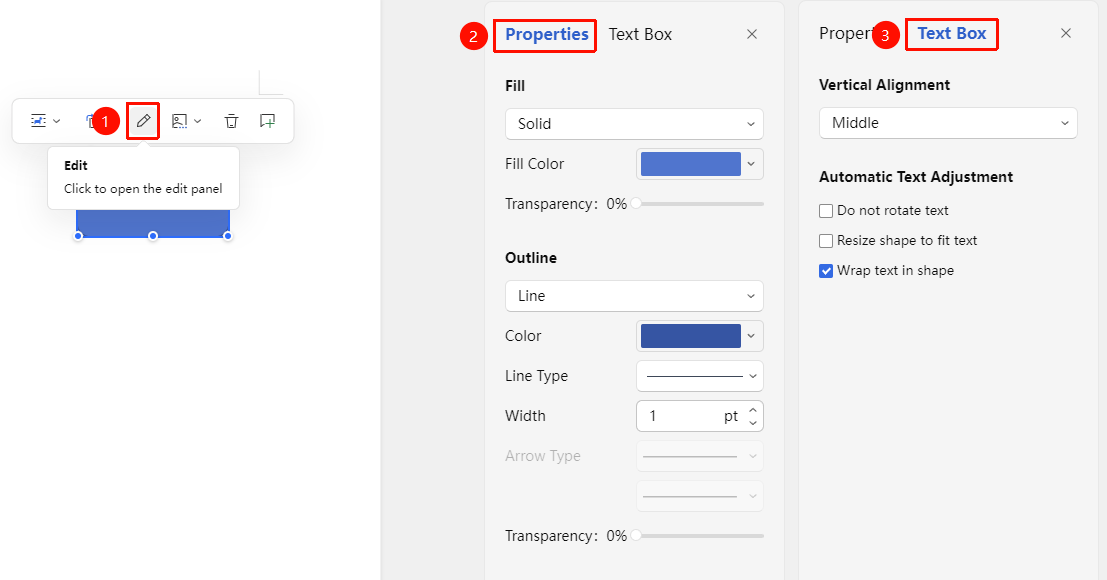
Feature Entry: After selecting a shape, the floating toolbar appears → "Object Editing"
- Select the inserted shape
- In the "Object Editing" tab, set the properties for "Fill" and "Border"
- Set the alignment and auto-fit for the "Text Box"
- Click the selected shape; control points appear around it
- Use the control points to change the text box shape, line direction, and curvature
Frequently Asked Questions
Question 1: How to edit shape shadows, 3D effects, etc.?
- Solution: Editing complex graphic effects is not supported in collaboration mode;
- For complex graphics, it is recommended to use the WPS client for editing.
Question 2: How to add text to a shape?
- Solution: Click the shape and directly enter text.
Question 4: Why does copying a shape and pasting it in online editing mode fail?
- Solution: Some drawing features may be limited in collaboration mode;
- For complex drawings, it is recommended to use the WPS client for editing and then sync to the cloud.
Notes
- Some advanced shape effects may be limited in online editing mode
- Shapes are placed above text by default; the wrapping style can be adjusted
- For complex graphics, it is recommended to use the WPS client for editing