Feature Summary
Insert independent text containers in a document that can be freely dragged and positioned, used to create special layout effects such as side notes, title decorations, and multi-column layouts.
Feature Description
| Feature Dimension | Description |
|---|---|
| Membership Restriction | No membership restriction |
| Version Restriction | No version restriction |
Operation Steps
Insert a Horizontal Text Box
Feature Entry
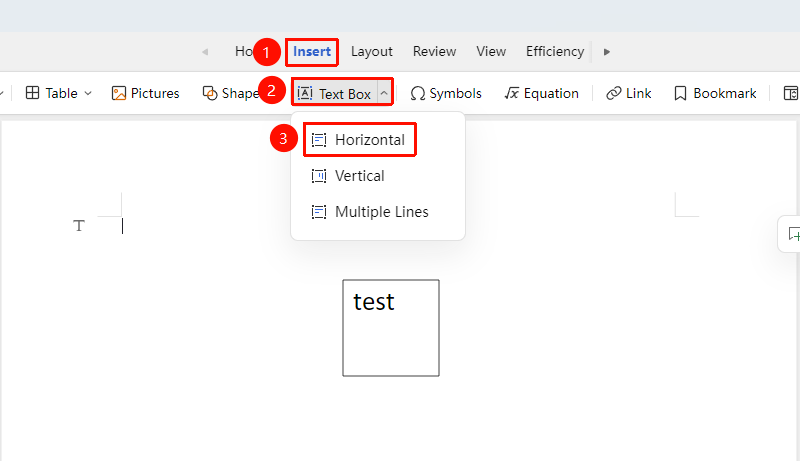
"Insert" Tab → "Text Box" → "Horizontal"
- Click the "Insert" tab and select "Text Box"
- Select the "Horizontal" text box
- Drag the mouse in the document to draw the text box size
- Entered text will be arranged from left to right
Insert a Vertical Text Box
Feature Entry
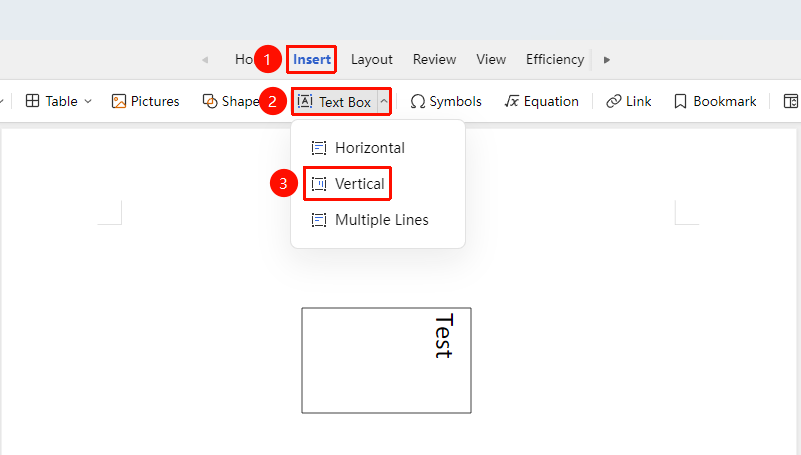
"Insert" Tab → "Text Box" → "Vertical"
- Click the "Insert" tab and select "Text Box"
- Select the "Vertical" text box
- Drag in the document to draw
- Entered text will be arranged from top to bottom
Insert a Multi-line Text Box
Feature Entry
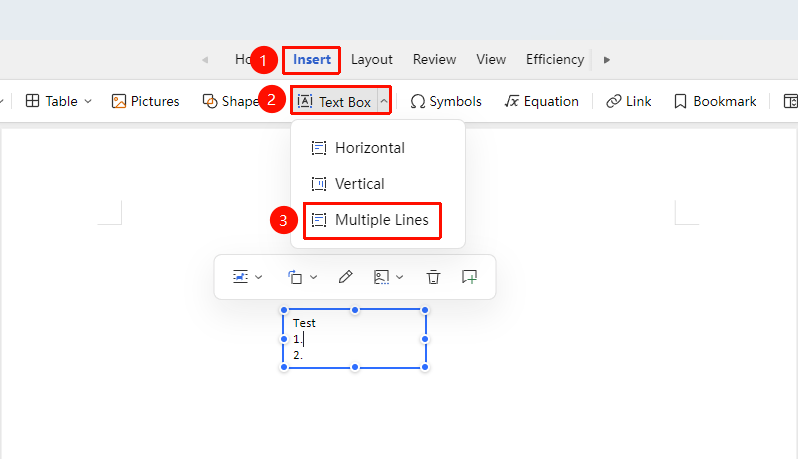
"Insert" Tab → "Text Box" → "Multi-line Text"
- Click the "Insert" tab and select "Text Box"
- Select the "Multi-line Text" text box
- Drag in the document to draw
- Entered text will be arranged from top to bottom
- Text automatically wraps and adapts to content length, always displaying completely
Insert from the "Home" Tab
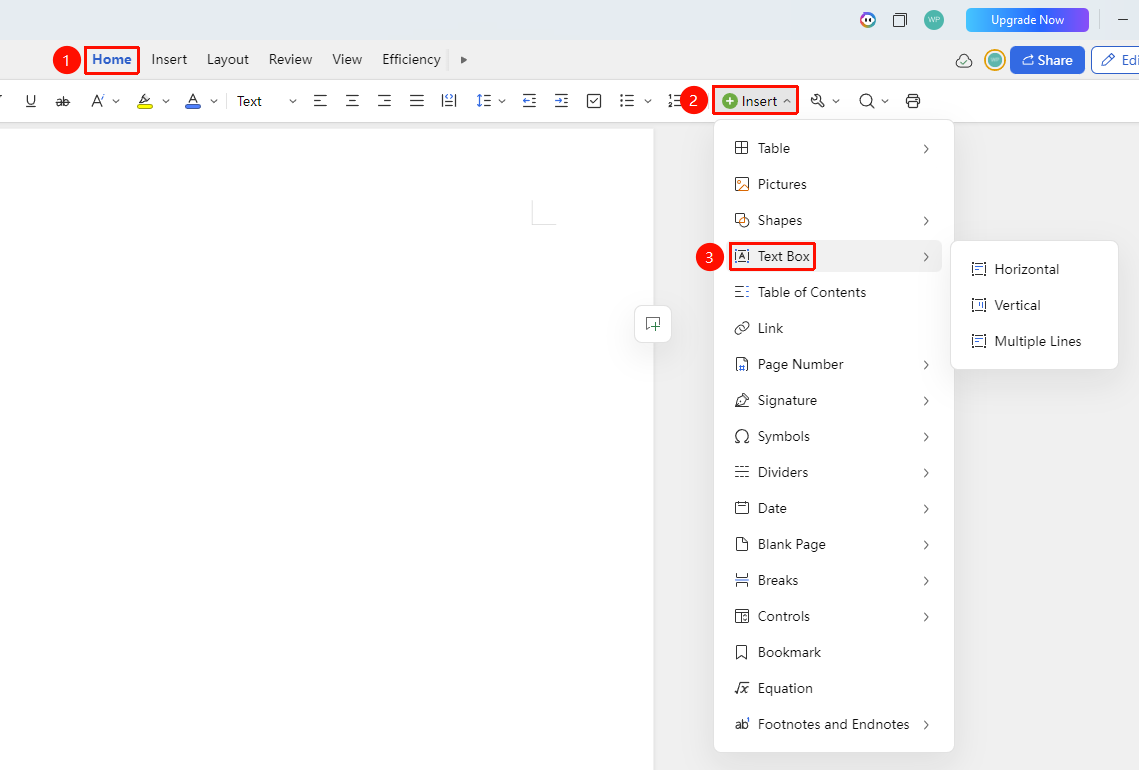
"Home" Tab → "Insert" → "Text Box"
- Click sequentially "Home" tab → "Insert" → "Text Box"
- Select "Horizontal", "Vertical", or "Multi-line Text"
- Drag in the document to complete the insertion
Set Text Box Style
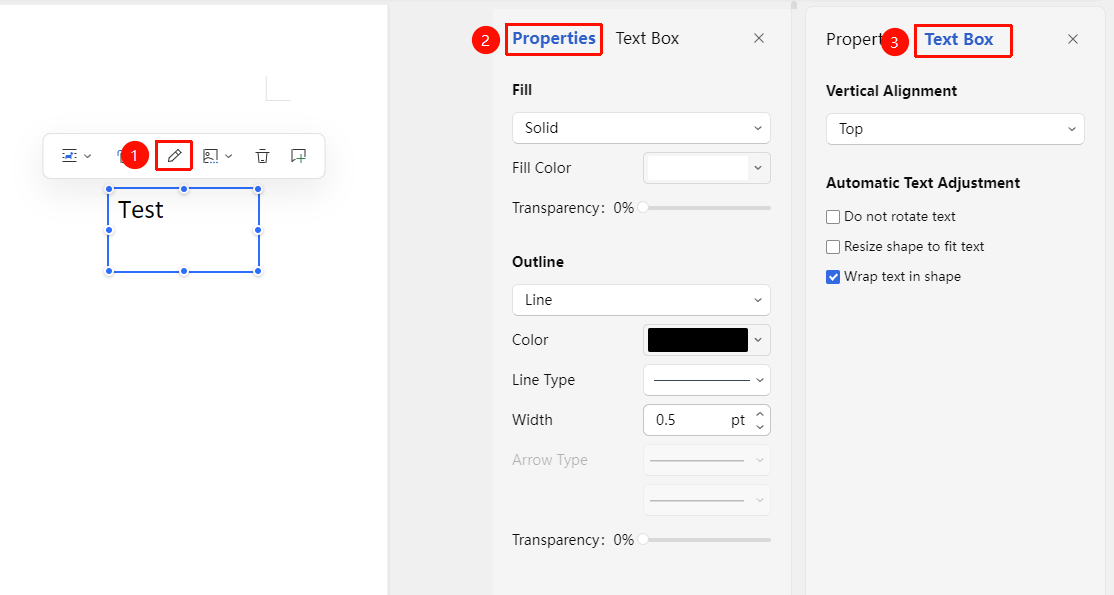
Feature Entry: Select the text box to display the floating toolbar → "Object Edit"
- Select the inserted text box
- In the "Object Edit" tab, set the properties for "Fill" and "Border"
- Set the alignment and auto-fit for the "Text Box"
- Click to select the text box; control points appear around the shape
- Use the control points to change the text box shape
Adjust Text Box Position
Feature Entry: Drag after selecting the text box
- Move the mouse to the text box border until it becomes a cross arrow
- Drag the text box to the target position
- Use the arrow keys to fine-tune the position
Frequently Asked Questions
Question 1: How to set a text box to a transparent background?
- Solution: Select the text box, and in "Object Edit", set the fill to "No Fill".
Question 2: What if I need to edit the text box's shadow, 3D effects, etc.?
- Solution: In collaboration mode, setting such complex effects is currently not supported;
- It is recommended to edit using the WPS client and then upload to the cloud.
Question 3: Why can't some text boxes be selected for editing?
- Solution: It is possible that the text box is placed at the bottom layer and there are other objects above it;
- Manually move other objects away or right-click to lower the layer of the object above the text box / move it to the bottom.
Notes
Text boxes float above the text by default; the wrapping style can be adjusted
Other objects such as images and tables can be inserted inside a text box