Feature Summary
Insert the current date and time into a document for convenient time annotation.
Feature Description
| Feature Dimension | Description |
|---|---|
| Membership Restriction | No membership restriction |
| Version Restriction | No version restriction |
Operation Steps
Insert Date and Time
Feature Entry ①
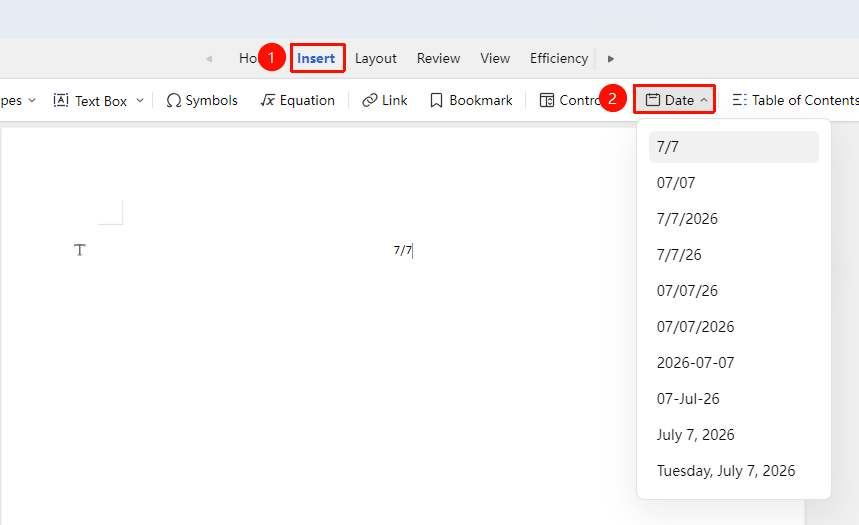
"Insert" Tab → "Date"
- Place the cursor at the position where you want to insert the date
- Click the "Insert" tab and select "Date"
- Select the date format from the dropdown menu that appears
- Click the desired date format to complete the insertion
Feature Entry ②
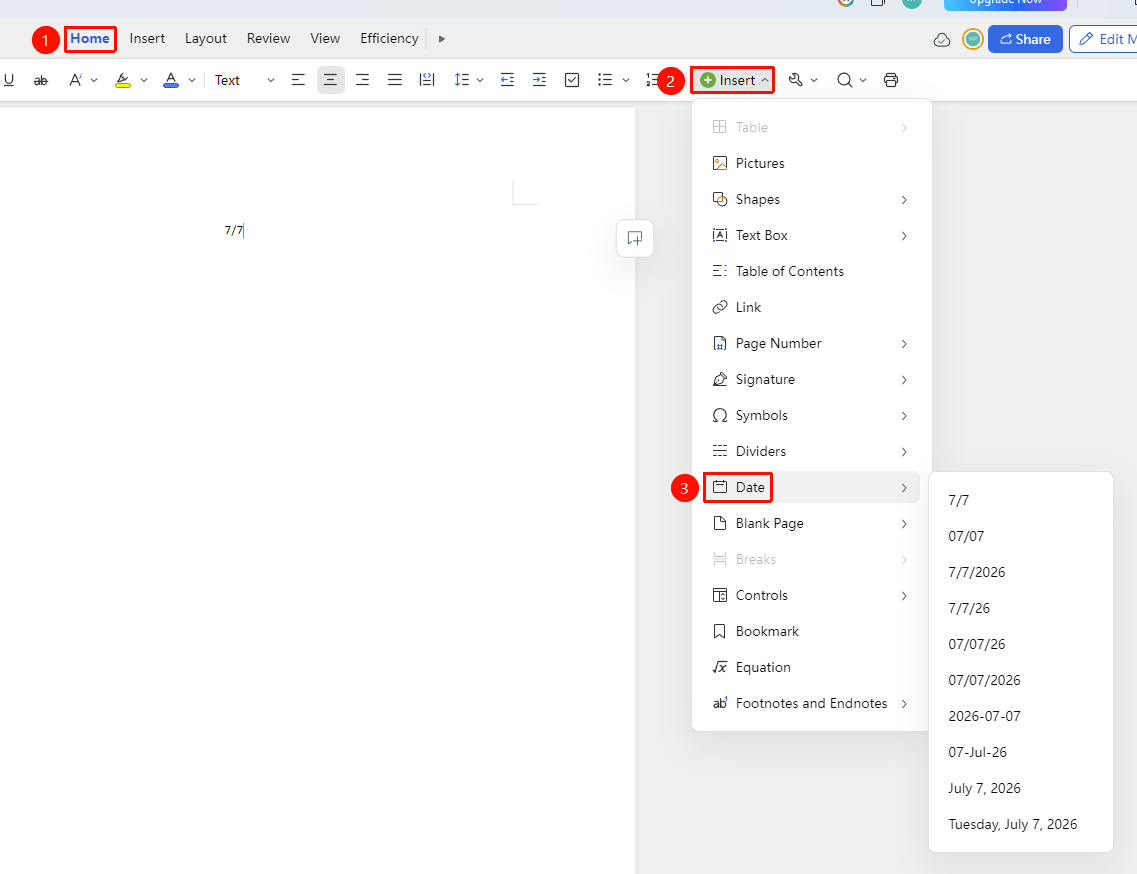
"Home" Tab → "Insert" → "Date"
- Place the cursor at the position where you want to insert the date
- On the "Home" tab, click "Insert" → "Date"
- Select the date format from the dropdown menu that appears
- Click the desired date format to complete the insertion
Set Date Format
Feature Entry
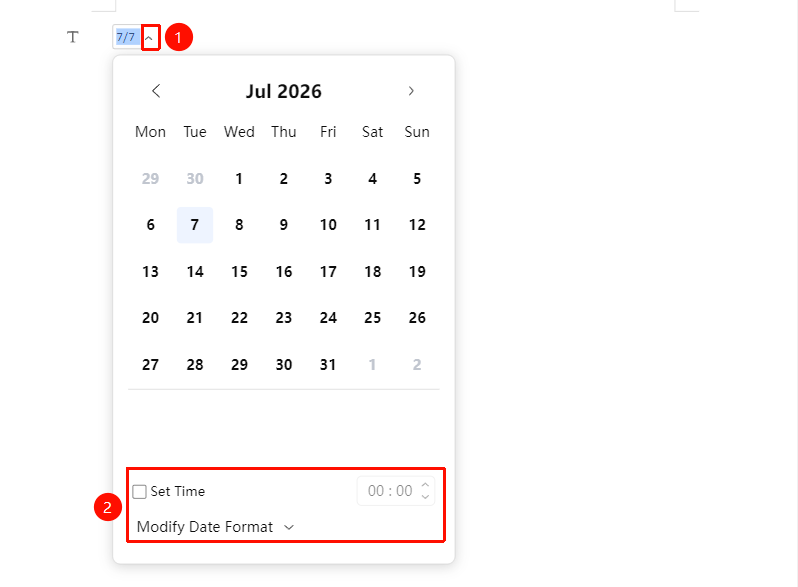
Dropdown menu on the right side of the date control
- Click the inserted date control, then click the dropdown arrow on the right to expand the dropdown menu
- Select the desired date to insert
- Check "Set Time" to display the set time within the calendar control
- Click "Modify Calendar Format" to select a preset calendar format for insertion
- After completing the settings, click elsewhere in the editing area; the content of the calendar control will update accordingly
Frequently Asked Questions
Question 1: What if the inserted date does not update automatically?
- Solution: Currently, the date control in collaboration mode only supports inserting dates and cannot achieve automatic updates.
Question 2: Why do date controls in local files disappear when opened online?
- Solution: Some ActiveX controls require local editing support in the WPS client. You can revert to local editing mode or reinsert the "Date" control.
Question 3: Why is the time of the inserted date control not the current time?
- Solution: The "Date" control identifies and displays the default insertion time based on the computer's local time. Please calibrate the computer's local time first.
Notes
- Automatic date update is currently not supported
- Dates need to be manually changed after insertion