Feature Summary
Automatically generate a table of contents based on heading styles in the document, supporting quick navigation and page number jumping, suitable for structured management of long documents.
Feature Description
| Feature Dimension | Description |
|---|---|
| Membership Restriction | No membership restriction |
| Version Restriction | No version restriction |
Operation Steps
Insert Automatic Table of Contents
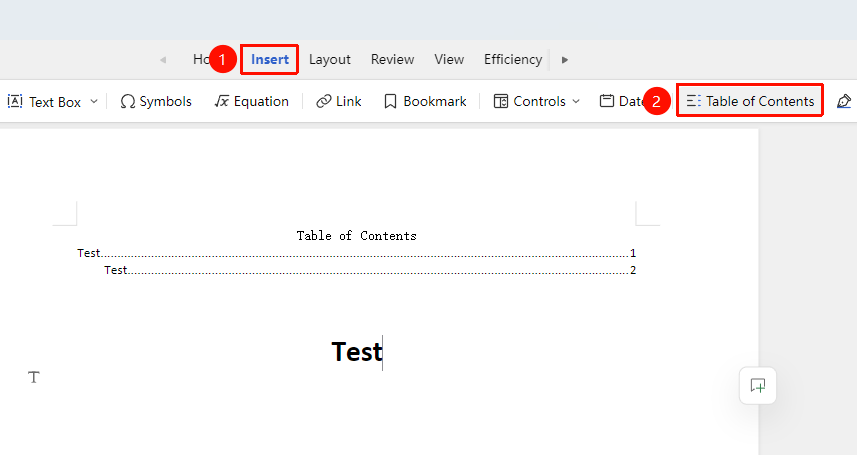
Function Entry ①
"Insert" Tab → "Table of Contents"
- Place the cursor where you want to insert the table of contents (usually at the beginning of the document)
- Click the "Insert" tab and select "Table of Contents"
- The system automatically generates the table of contents based on heading styles
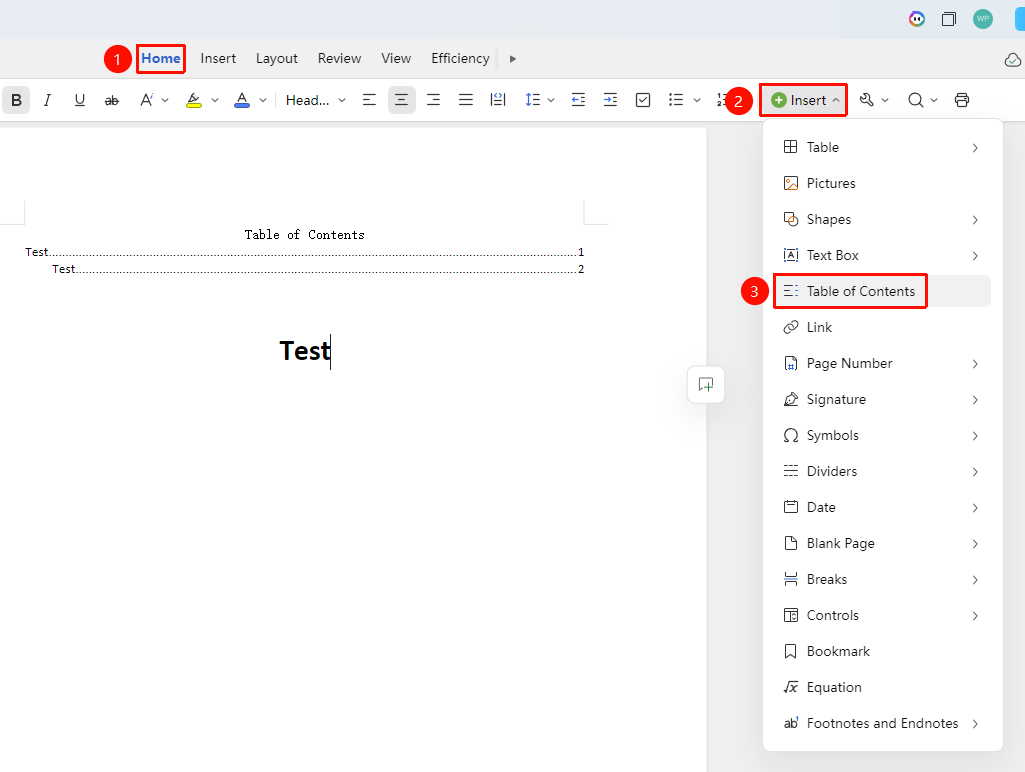
Function Entry ②
"Home" Tab → "Insert" → "Table of Contents"
- Place the cursor where you want to insert the table of contents
- Click the "Home" tab, then select "Insert" → "Table of Contents"
- The system automatically generates the table of contents based on heading styles
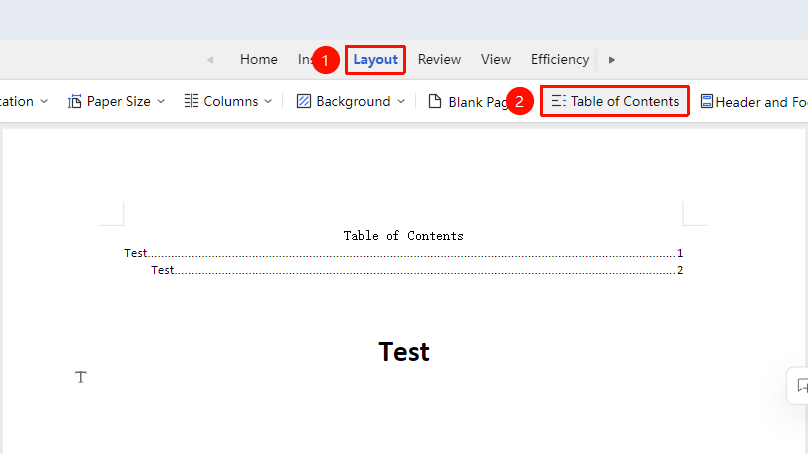
Function Entry ③
"Page Layout" Tab → "Table of Contents"
- Place the cursor where you want to insert the table of contents (usually at the beginning of the document)
- Click the "Page Layout" tab and select "Table of Contents"
- The system automatically generates the table of contents based on heading styles
Update Table of Contents
Function Entry
Click the table of contents in the document → "Update Page Numbers" / "Update Entire Table of Contents"
- Move the mouse over the generated table of contents and click the dropdown menu
- In the dropdown menu, find "Update Page Numbers" and "Update Entire Table of Contents"
- Click to update the page numbers or the entire table of contents
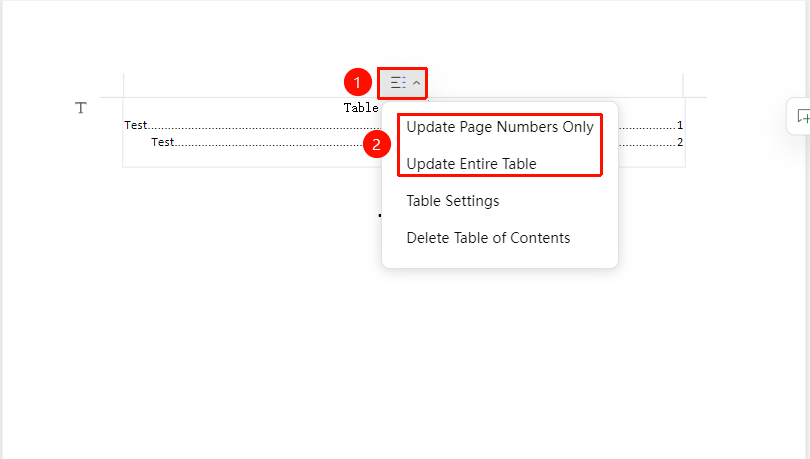
Table of Contents Settings
Function Entry
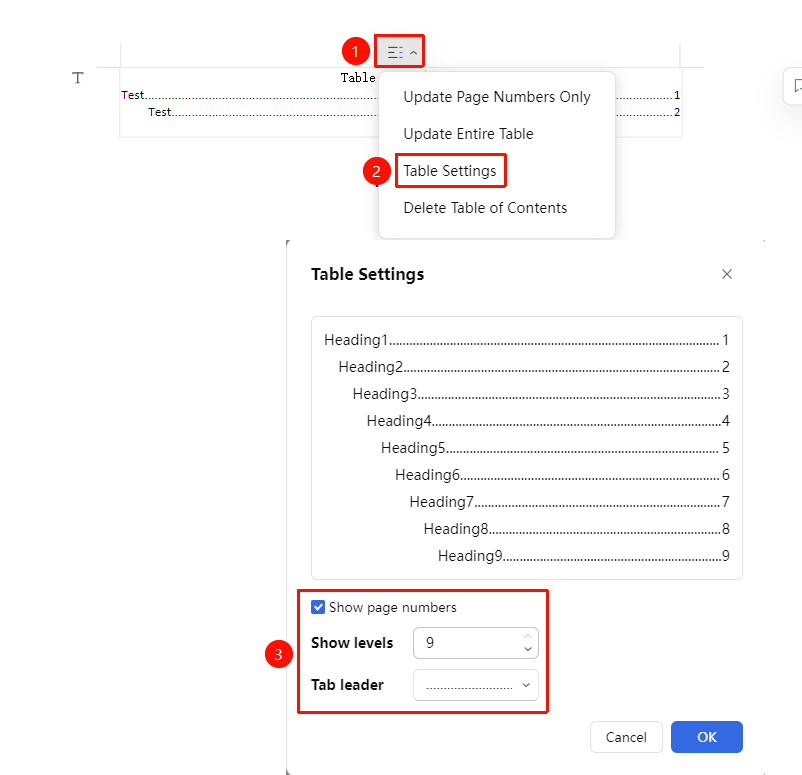
Click the table of contents in the document → "Table of Contents Settings"
- Move the mouse over the generated table of contents and click the dropdown menu
- In the dropdown menu, find "Table of Contents Settings" and click to open it
- Choose whether to "Show Page Numbers" in the table of contents
- Select the range for "Show Levels" and set the "Tab Leader"
- Click "OK" to complete the table of contents settings
Delete Table of Contents
Function Entry
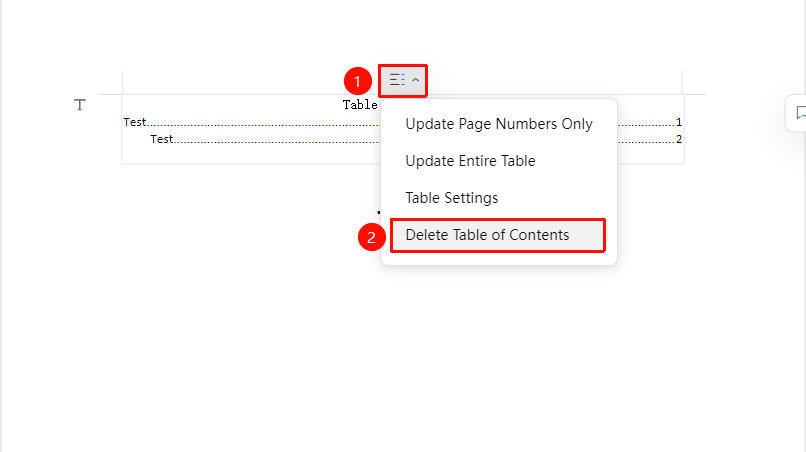
Click the table of contents in the document → "Delete"
- Move the mouse over the generated table of contents and click the dropdown menu
- In the dropdown menu, find "Delete Table of Contents" and click it
- The table of contents will be deleted
Notes
- The table of contents is generated based on heading styles; headings must be set first
- It is recommended to manually update the table of contents after modifying the document
- Clicking an entry in the table of contents jumps to the corresponding section